
15 KiB
| comments | description | keywords |
|---|---|---|
| true | Learn how to manage, analyze, and export trained models in Ultralytics Platform with support for 17+ deployment formats. | Ultralytics Platform, models, model management, export, ONNX, TensorRT, CoreML, YOLO |
Models
Ultralytics Platform provides comprehensive model management for training, analyzing, and deploying YOLO models. Upload pretrained models or train new ones directly on the platform.
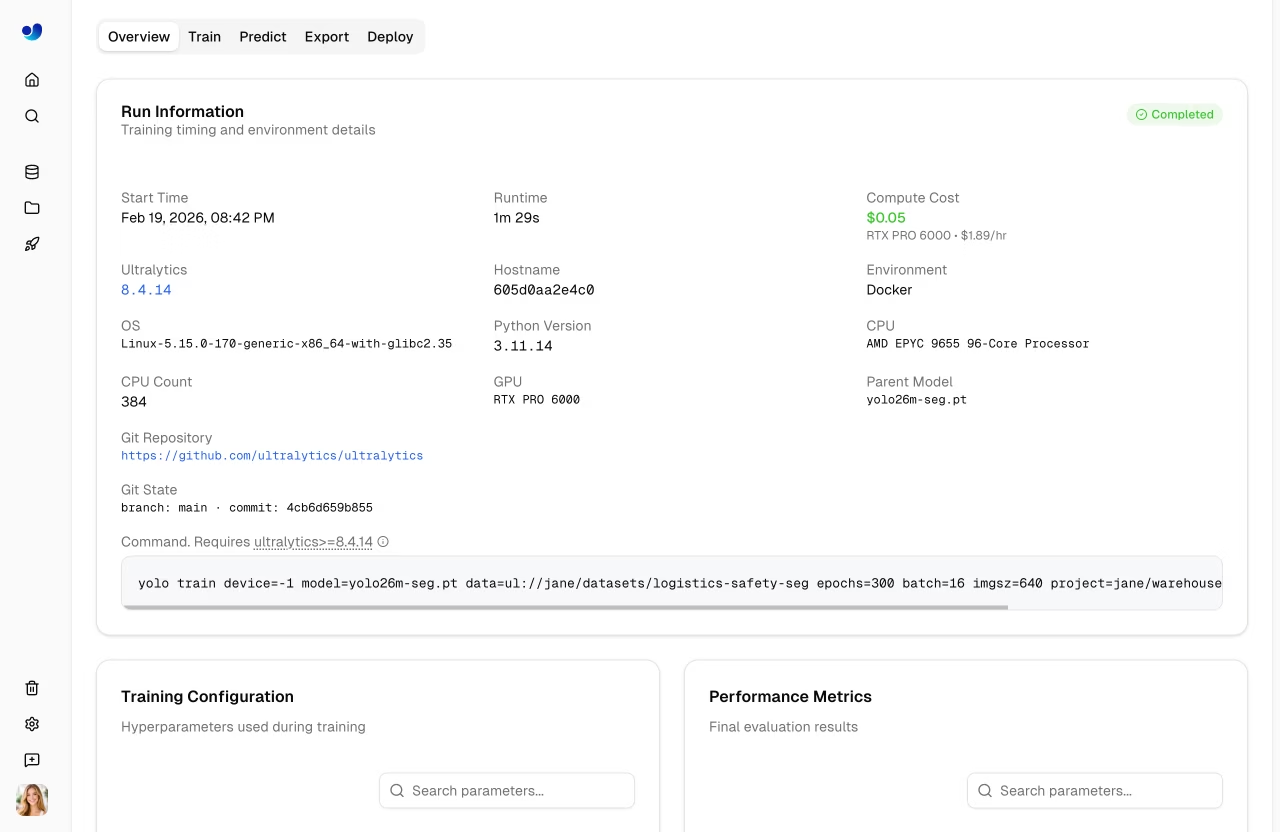
Upload Model
Upload existing model weights to the platform:
- Navigate to your project
- Drag and drop
.ptfiles onto the project page or models sidebar - Model metadata is parsed automatically from the file
Multiple files can be uploaded simultaneously (up to 3 concurrent).
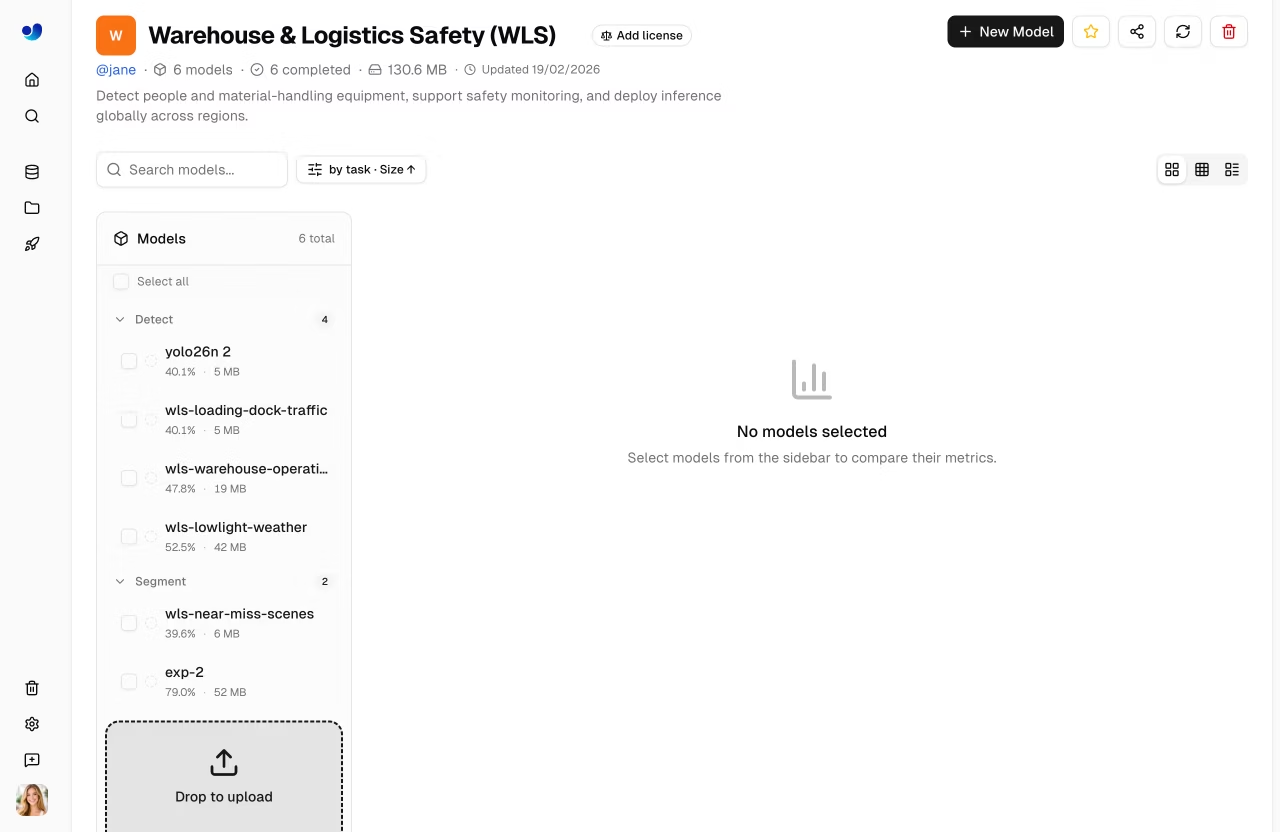
Supported model formats:
| Format | Extension | Description |
|---|---|---|
| PyTorch | .pt |
Native Ultralytics format |
After upload, the platform parses model metadata:
- Task type (detect, segment, pose, OBB, classify)
- Architecture (YOLO26n, YOLO26s, etc.)
- Class names and count
- Input size and parameters
- Training results and metrics (if present in checkpoint)
Train Model
Train a new model directly on the platform:
- Navigate to your project
- Click New Model
- Select base model and dataset
- Configure training parameters
- Choose cloud or local training
- Start training
See Cloud Training for detailed instructions.
Model Lifecycle
graph LR
    A[Upload .pt] --> B[Overview]
    C[Train] --> B
    B --> D[Predict]
    B --> E[Export]
    B --> F[Deploy]
    E --> G[17+ Formats]
    F --> H[Endpoint]

    style A fill:#4CAF50,color:#fff
    style C fill:#FF9800,color:#fff
    style E fill:#2196F3,color:#fff
    style F fill:#9C27B0,color:#fff
Model Page Tabs
Each model page has the following tabs:
| Tab | Content |
|---|---|
| Overview | Model metadata, key metrics, dataset link |
| Train | Training charts, console output, system stats |
| Predict | Interactive browser inference |
| Export | Format conversion with GPU selection |
| Deploy | Endpoint creation and management |
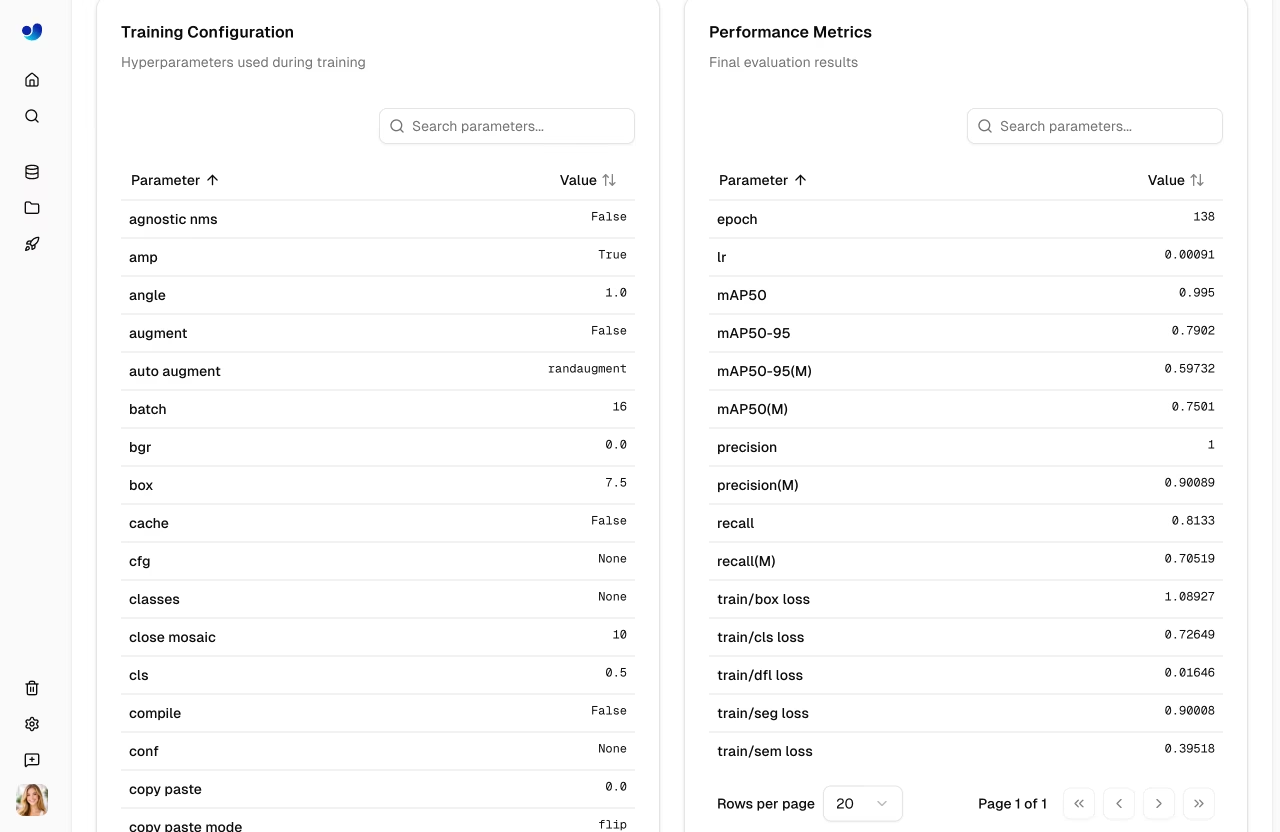
Overview Tab
Displays model metadata and key metrics:
- Model name (editable), status badge, task type
- Final metrics (mAP50, mAP50-95, precision, recall)
- Metric sparkline charts showing training progression
- Training arguments (epochs, batch size, image size, etc.)
- Dataset link (when trained with a Platform dataset)
- Download button for model weights
Train Tab
The Train tab has three subtabs:
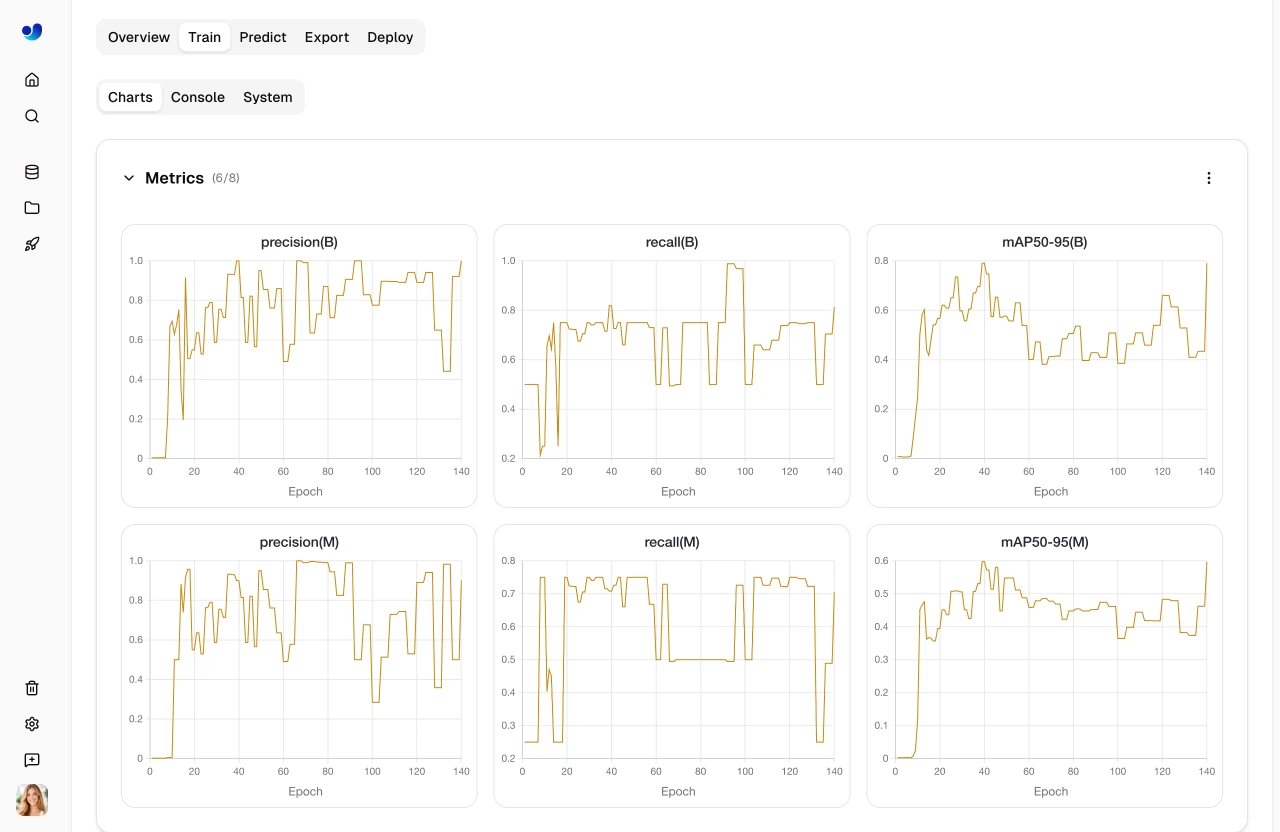
Charts Subtab
Interactive training metric charts showing loss curves and performance metrics over epochs:
| Chart Group | Metrics |
|---|---|
| Metrics | mAP50, mAP50-95, precision, recall |
| Train Loss | train/box_loss, train/cls_loss, train/dfl_loss |
| Val Loss | val/box_loss, val/cls_loss, val/dfl_loss |
| Learning Rate | lr/pg0, lr/pg1, lr/pg2 |
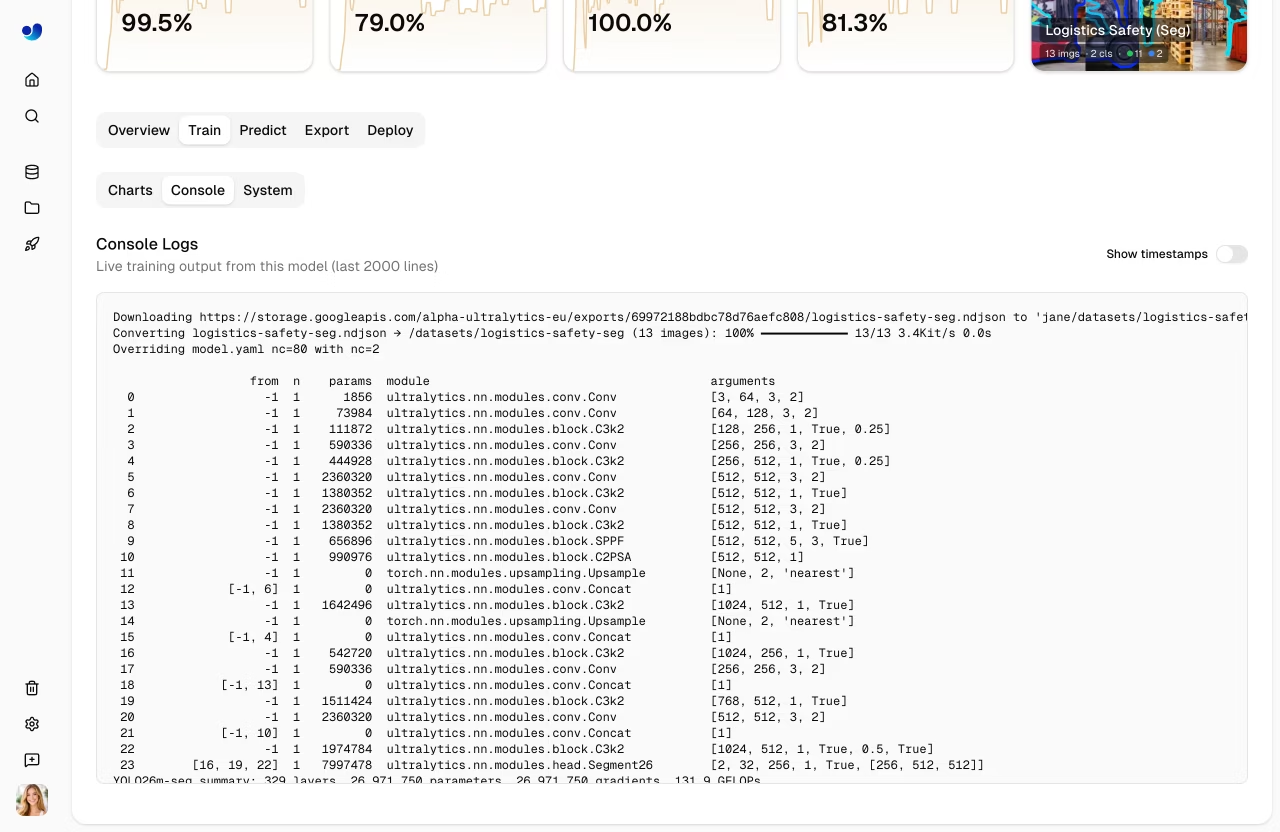
Console Subtab
Live console output from the training process:
- Real-time log streaming during training
- Epoch progress bars and validation results
- Error detection with highlighted error banners
- ANSI color support for formatted output
System Subtab
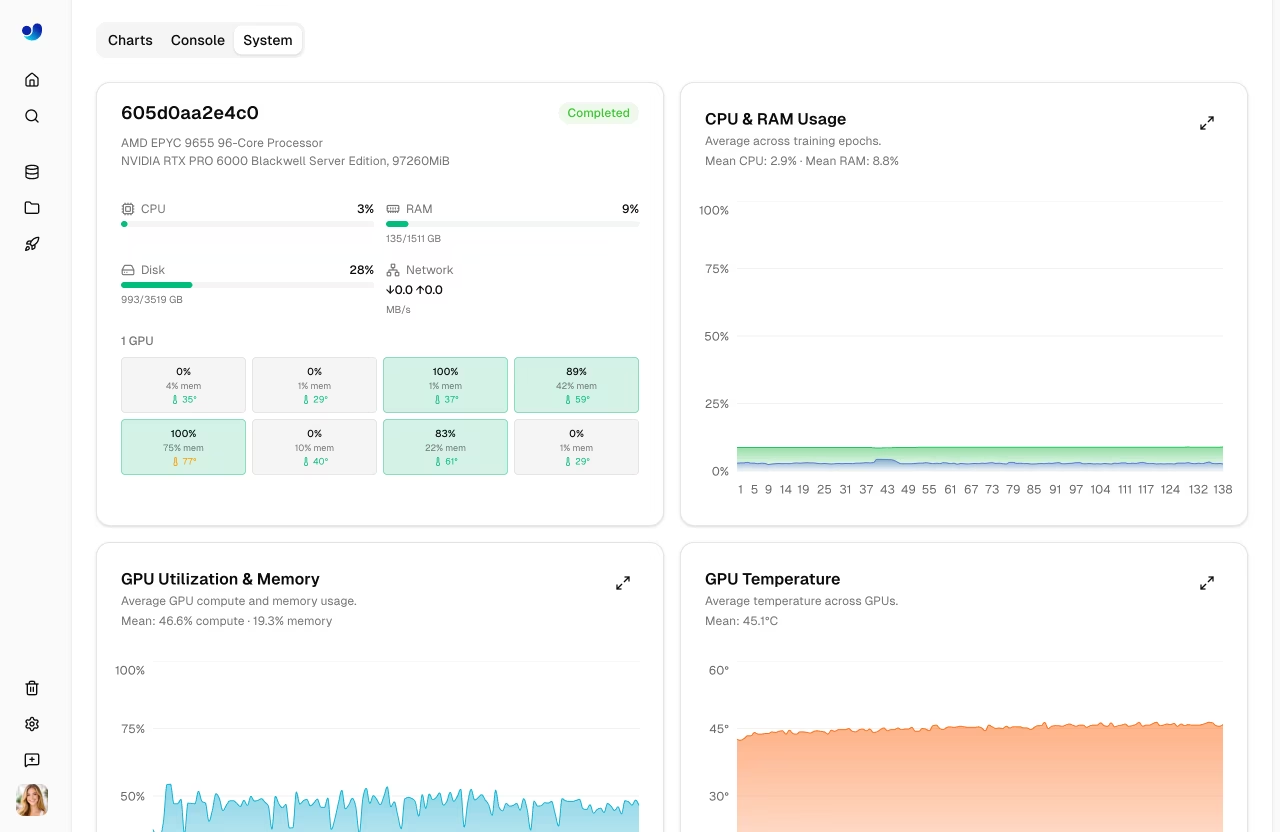
GPU and system metrics during training:
| Metric | Description |
|---|---|
| GPU Util | GPU utilization percentage |
| GPU Memory | GPU memory usage |
| GPU Temp | GPU temperature |
| CPU Usage | CPU utilization |
| RAM | System memory usage |
| Disk | Disk usage |
Predict Tab
Run interactive inference directly in the browser:
- Upload an image, use example images, or use webcam
- Results display with bounding boxes, masks, or keypoints
- Auto-inference when an image is provided
- Supports all task types (detect, segment, pose, OBB, classify)
!!! tip "Quick Testing"
The Predict tab runs inference on Ultralytics Cloud, so you don't need a local GPU. Results are displayed with interactive overlays matching the model's task type.
Export Tab
Export your model to 17+ deployment formats. See Export Model below and the core Export mode guide for full details.
Deploy Tab
Create and manage dedicated inference endpoints. See Deployments for details.
Validation Plots
After training completes, view detailed validation analysis:
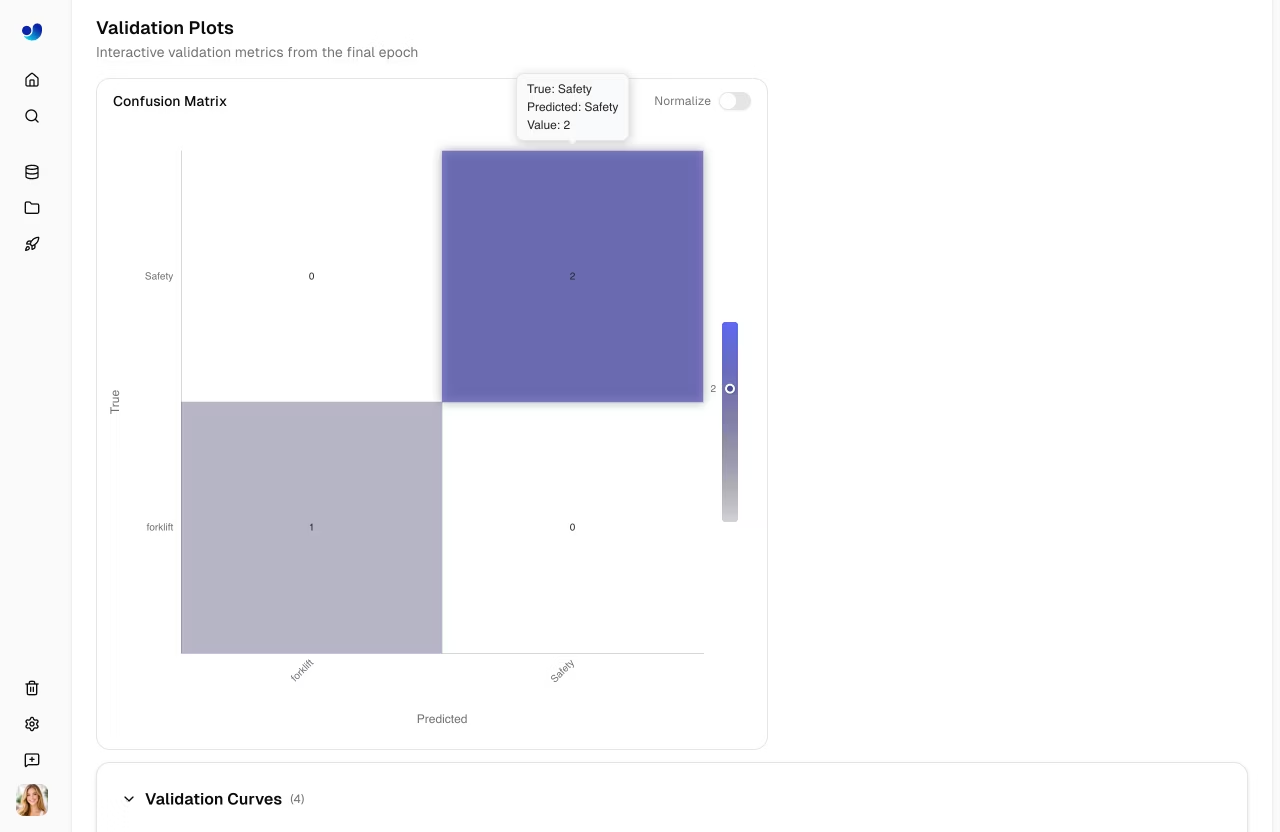
Confusion Matrix
Interactive heatmap showing prediction accuracy per class:
PR/F1 Curves
Performance curves at different confidence thresholds:
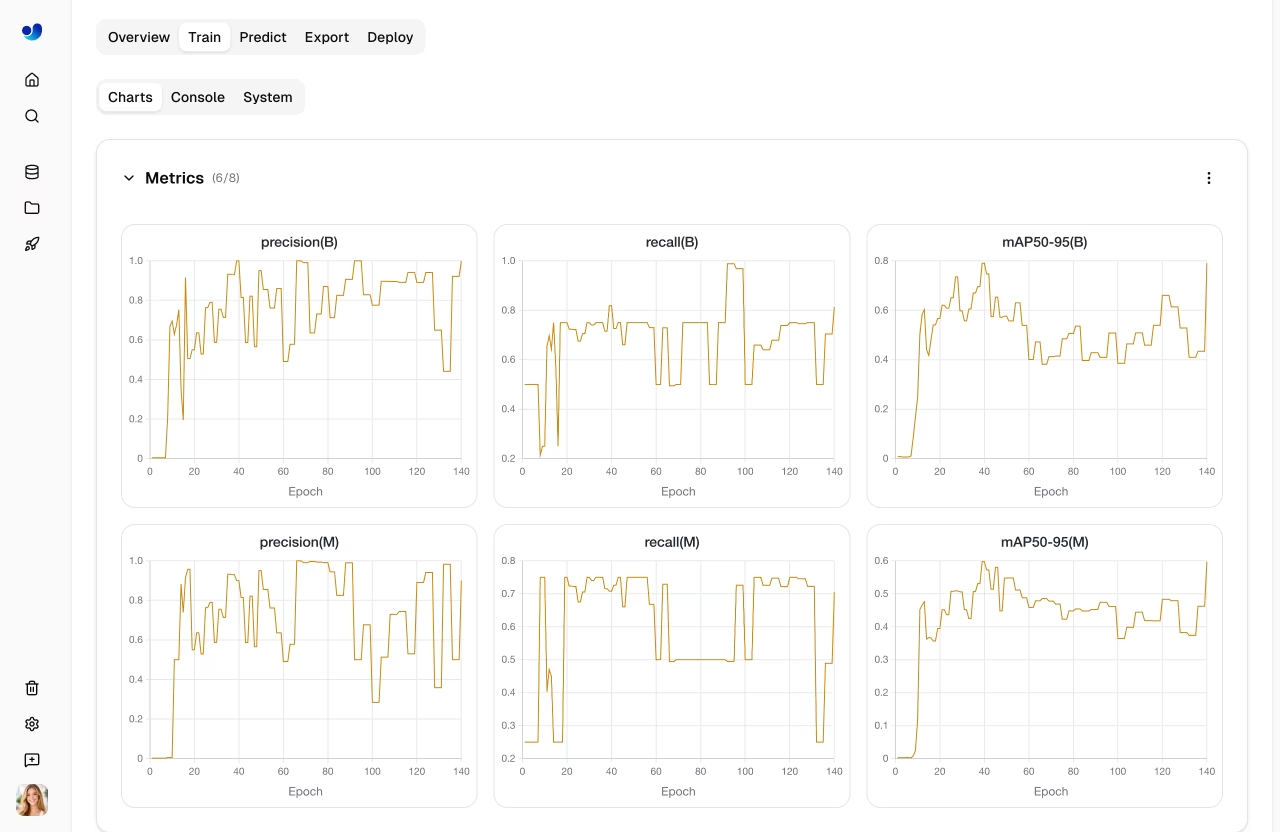
| Curve | Description |
|---|---|
| Precision-Recall | Trade-off between precision and recall |
| F1-Confidence | F1 score at different confidence levels |
| Precision-Confidence | Precision at different confidence levels |
| Recall-Confidence | Recall at different confidence levels |
Export Model
graph LR
    A[Select Format] --> B[Configure Args]
    B --> C[Export]
    C --> D{GPU Required?}
    D -->|Yes| E[Cloud GPU Export]
    D -->|No| F[CPU Export]
    E --> G[Download]
    F --> G

    style A fill:#2196F3,color:#fff
    style C fill:#FF9800,color:#fff
    style G fill:#4CAF50,color:#fff
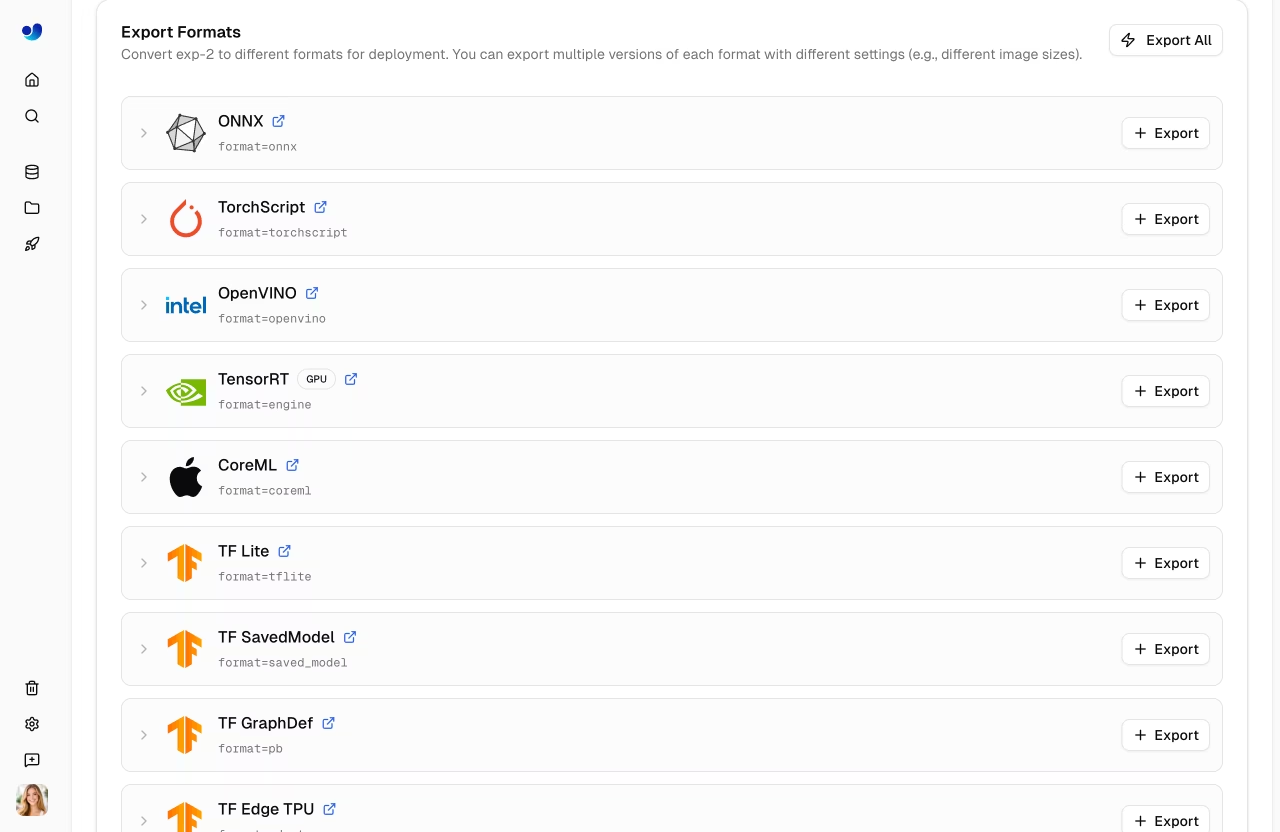
Export your model to 17+ deployment formats:
- Navigate to the Export tab
- Select target format
- Configure export arguments (image size, half precision, dynamic, etc.)
- For GPU-required formats (TensorRT), select a GPU type
- Click Export
- Download when complete
Supported Formats
The Platform supports export to 17+ deployment formats: ONNX, TorchScript, OpenVINO, TensorRT, CoreML, TF SavedModel, TF GraphDef, TF Lite, TF Edge TPU, TF.js, PaddlePaddle, NCNN, MNN, RKNN, IMX500, Axelera, and ExecuTorch.
Format Selection Guide
| Target | Recommended Format | Notes |
|---|---|---|
| NVIDIA GPUs | TensorRT | Maximum inference speed |
| Intel Hardware | OpenVINO | CPUs, GPUs, and VPUs |
| Apple Devices | CoreML | iOS, macOS, Apple Silicon |
| Android | TF Lite or NCNN | Best mobile performance |
| Web Browsers | TF.js or ONNX | ONNX via ONNX Runtime Web |
| Edge Devices | TF Edge TPU or RKNN | Coral and Rockchip (see supported chips) |
| General | ONNX | Works with most runtimes |
RKNN Chip Support
When exporting to RKNN format, select your target Rockchip device:
| Chip | Description |
|---|---|
| RK3588 | High-end edge SoC |
| RK3576 | Mid-range edge SoC |
| RK3568 | Mid-range edge SoC |
| RK3566 | Mid-range edge SoC |
| RK3562 | Entry-level edge SoC |
| RV1103 | Vision processor |
| RV1106 | Vision processor |
| RV1103B | Vision processor |
| RV1106B | Vision processor |
| RK2118 | AI processor |
| RV1126B | Vision processor |
Export Job Lifecycle
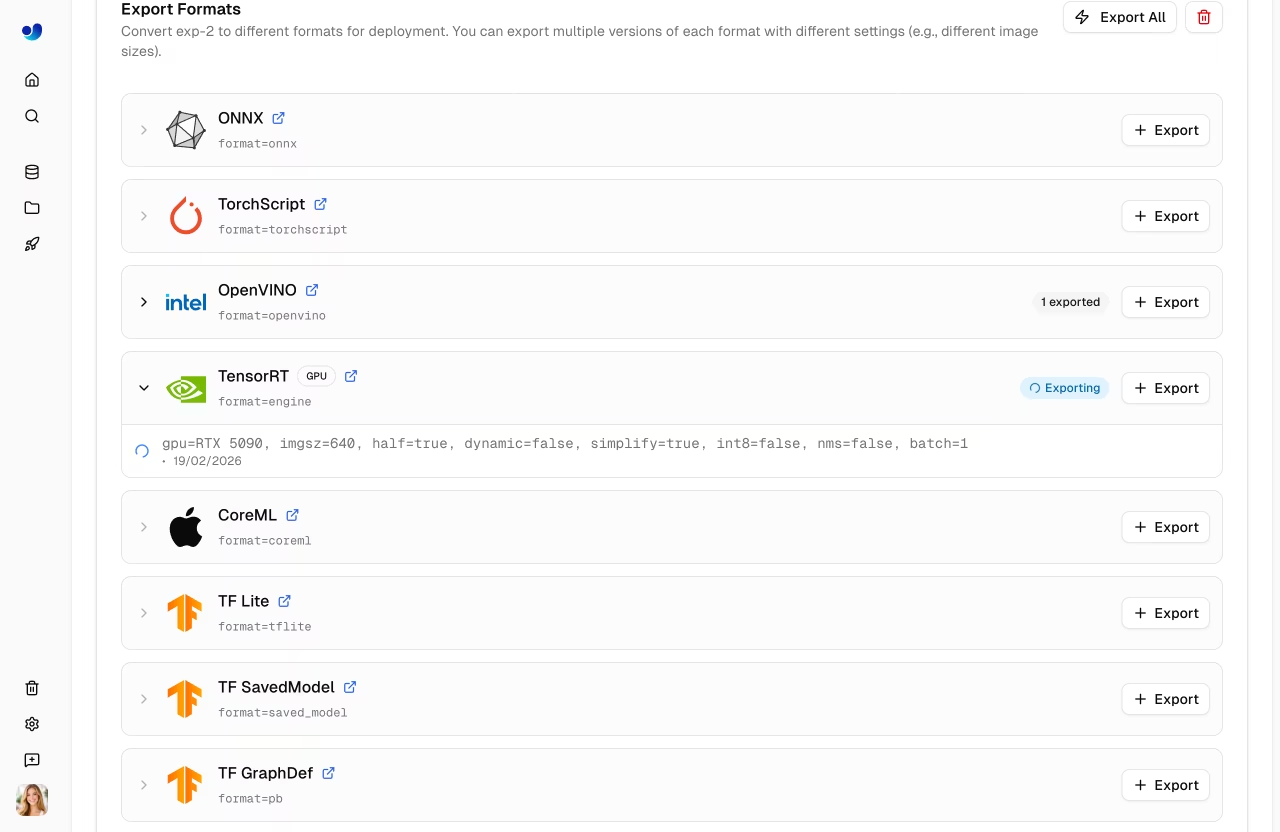
Export jobs progress through the following statuses:
| Status | Description |
|---|---|
| Queued | Export job is waiting to start |
| Starting | Export job is initializing |
| Running | Export is in progress |
| Completed | Export finished — download available |
| Failed | Export failed (see error message) |
| Cancelled | Export was cancelled by the user |
!!! tip "Export Time"
Export time varies by format. TensorRT exports may take several minutes due to engine optimization. GPU-required formats (TensorRT) run on Ultralytics Cloud GPUs — the default export GPU is RTX 5090.
Bulk Export Actions
- Export All: Click
Export Allto start export jobs for all CPU-based formats with default settings. - Delete All Exports: Click
Delete Allto remove all exports for the model.
Format Restrictions
Some export formats have architecture or task restrictions:
| Format | Restriction |
|---|---|
| IMX500 | Available only for YOLOv8n and YOLO11n |
| Axelera | Detect models only |
| PaddlePaddle | Not available for YOLO26 detect/segment/pose/OBB models |
!!! note "Additional Export Rules"
- Classification exports do not include NMS.
- CoreML exports with batch sizes greater than `1` use `dynamic=true`.
- Unsupported format/model combinations are disabled in the export dialog before you launch.
Clone Model
Clone a model to a different project:
- Open the model page
- Click the Clone button
- Select the destination project
- Click Clone
The model and its weights are copied to the target project.
Download Model
Download your model weights:
- Navigate to the model's Overview tab
- Click the Download button
- The original
.ptfile downloads automatically
Exported formats can be downloaded from the Export tab after export completes.
Dataset Linking
Models can be linked to their source dataset:
- View which dataset was used for training
- Click the dataset card on the Overview tab to navigate to it
- Track data lineage
When training with Platform datasets using the ul:// URI format, linking is automatic.
!!! example "Dataset URI Format"
```bash
# Train with a Platform dataset — linking is automatic
yolo train model=yolo26n.pt data=ul://username/datasets/my-dataset epochs=100
```

The `ul://` scheme resolves to your Platform dataset. The trained model's Overview tab will show a link back to this dataset (see [Using Platform Datasets](../api/index.md#using-platform-datasets)).
Visibility Settings
Control who can see your model:
| Setting | Description |
|---|---|
| Private | Only you can access |
| Public | Anyone can view on Explore page |
To change visibility, click the visibility badge (e.g., private or public) on the model page. Switching to private takes effect immediately. Switching to public shows a confirmation dialog before applying.
Delete Model
Remove a model you no longer need:
- Open model actions menu
- Click Delete
- Confirm deletion
!!! note "Trash and Restore"
Deleted models go to Trash for 30 days. Restore from [Settings > Trash](../account/trash.md).
See Also
- Inference: Test models in the browser with the Predict tab
- Endpoints: Deploy models to production with dedicated endpoints
- Cloud Training: Configure and run training jobs on cloud GPUs
- Export Formats: Full guide to all 17+ export formats
FAQ
What model architectures are supported?
Ultralytics Platform fully supports all YOLO architectures with dedicated projects:
- YOLO26: n, s, m, l, x variants (latest, recommended) — platform.ultralytics.com/ultralytics/yolo26
- YOLO11: n, s, m, l, x variants — platform.ultralytics.com/ultralytics/yolo11
- YOLOv8: n, s, m, l, x variants — platform.ultralytics.com/ultralytics/yolov8
- YOLOv5: n, s, m, l, x variants — platform.ultralytics.com/ultralytics/yolov5
All architectures support 5 task types: detect, segment, pose, OBB, and classify.
Can I download my trained model?
Yes, download your model weights from the model page:
- Click the download icon on the Overview tab
- The original
.ptfile downloads automatically - Exported formats can be downloaded from the Export tab
How do I compare models across projects?
Currently, model comparison is within projects. To compare across projects:
- Clone models to a single project, or
- Export metrics and compare externally
What's the maximum model size?
There's no strict limit, but very large models (>2GB) may have longer upload and processing times.
Can I fine-tune pretrained models?
Yes! You can use any of the official YOLO26 models as a base, or select one of your own completed models from the model selector in the training dialog. The Platform supports fine-tuning from any uploaded checkpoint.