
25 KiB
| comments | description | keywords |
|---|---|---|
| true | Learn how to train YOLO models on cloud GPUs with Ultralytics Platform, including remote training and real-time metrics streaming. | Ultralytics Platform, cloud training, GPU training, remote training, YOLO, model training, machine learning |
Cloud Training
Ultralytics Platform Cloud Training offers single-click training on cloud GPUs, making model training accessible without complex setup. Train YOLO models with real-time metrics streaming and automatic checkpoint saving.
graph LR
    A[Configure] --> B[Start Training]
    B --> C[Provision GPU]
    C --> D[Download Dataset]
    D --> E[Train]
    E --> F[Stream Metrics]
    F --> G[Save Checkpoints]
    G --> H[Complete]

    style A fill:#2196F3,color:#fff
    style B fill:#FF9800,color:#fff
    style E fill:#9C27B0,color:#fff
    style H fill:#4CAF50,color:#fff
Training Dialog
Start training from the platform UI by clicking New Model on any project page (or Train from a dataset page). The training dialog has two tabs: Cloud Training and Local Training.
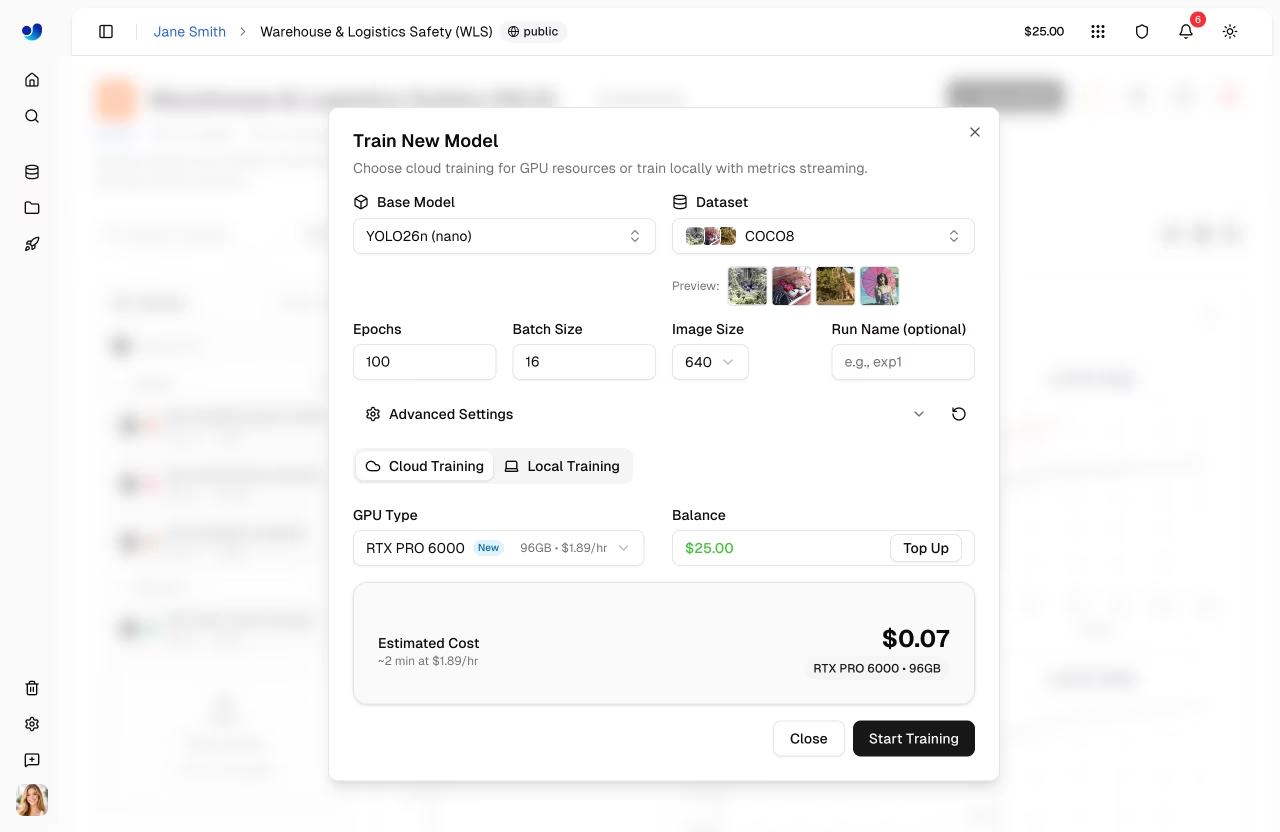
Step 1: Select Base Model
Choose from official YOLO26 models or your own trained models:
| Category | Description |
|---|---|
| Official | All 25 YOLO26 models (5 sizes x 5 tasks) |
| Your Models | Your completed models for fine-tuning |
Official models are organized by task type (Detect, Segment, Pose, OBB, Classify) with sizes from nano to xlarge.
Step 2: Select Dataset
Choose a dataset to train on (see Datasets):
| Option | Description |
|---|---|
| Official | Curated datasets from Ultralytics |
| Your Datasets | Datasets you've uploaded |
!!! note "Dataset Requirements"
Datasets must be in `ready` status with at least 1 image in the train split, 1 image in the validation or test split, and at least 1 labeled image.
!!! warning "Task Mismatch"
A task mismatch warning appears if the model task (e.g., detect) doesn't match the dataset task (e.g., segment). Training will fail if you proceed with mismatched tasks. Ensure both model and dataset use the same task type, as described in the [task guides](../../tasks/index.md).
Step 3: Configure Parameters
Set core training parameters:
| Parameter | Description | Default |
|---|---|---|
| Epochs | Number of training iterations | 100 |
| Batch Size | Samples per iteration | -1 (auto) |
| Image Size | Input resolution (320/416/512/640/1280 dropdown, or 32-4096 in YAML editor) | 640 |
| Run Name | Optional name for the training run | auto |
Step 4: Advanced Settings (Optional)
Expand Advanced Settings to access the full YAML-based parameter editor with 40+ training parameters organized by group (see configuration reference):
| Group | Parameters |
|---|---|
| Learning Rate | lr0, lrf, momentum, weight_decay, warmup_epochs, warmup_momentum, warmup_bias_lr |
| Optimizer | SGD, MuSGD, Adam, AdamW, NAdam, RAdam, RMSProp, Adamax |
| Loss Weights | box, cls, dfl, pose, kobj, label_smoothing |
| Color Augmentation | hsv_h, hsv_s, hsv_v |
| Geometric Augment. | degrees, translate, scale, shear, perspective |
| Flip & Mix Augment. | flipud, fliplr, mosaic, mixup, copy_paste |
| Training Control | patience, seed, deterministic, amp, cos_lr, close_mosaic, save_period |
| Dataset | fraction, freeze, single_cls, rect, multi_scale, resume |
Parameters are task-aware (e.g., copy_paste only shows for segment tasks, pose/kobj only for pose tasks). A Modified badge appears when values differ from defaults, and you can reset all to defaults with the reset button.
??? example "Example: Tuning Augmentation for Small Datasets"
For small datasets (<1000 images), increase augmentation to reduce overfitting:

```yaml
mosaic: 1.0       # Keep mosaic on
mixup: 0.3        # Add mixup blending
copy_paste: 0.3   # Add copy-paste (segment only)
fliplr: 0.5       # Horizontal flip
degrees: 10.0     # Slight rotation
scale: 0.9        # Aggressive scaling
```
Step 5: Select GPU (Cloud Tab)
Choose your GPU from Ultralytics Cloud:
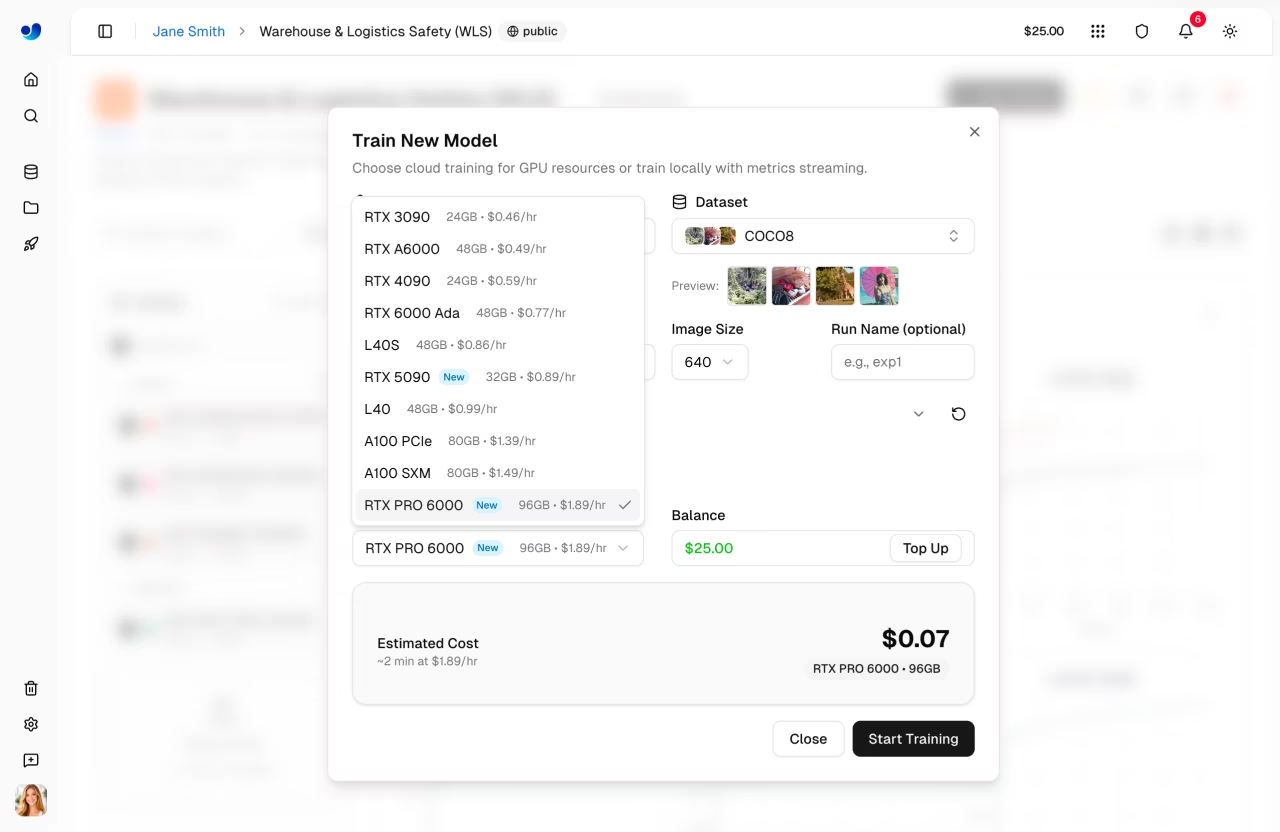
{% include "macros/platform-gpu-table.md" %}
!!! tip "GPU Selection"
- **RTX PRO 6000**: 96 GB Blackwell generation, recommended default for most jobs
- **A100 SXM**: Required for large batch sizes or big models
- **H100/H200**: Maximum performance for time-sensitive training (H200 requires [Pro or Enterprise](../account/billing.md#plans))
- **B200**: NVIDIA Blackwell architecture for cutting-edge workloads (requires [Pro or Enterprise](../account/billing.md#plans))
The dialog shows your current balance and a Top Up button. An estimated cost and duration are calculated based on your configuration (model size, dataset images, epochs, GPU speed).
Step 6: Start Training
Click Start Training to launch your job. The Platform:
- Provisions a GPU instance
- Downloads your dataset
- Begins training
- Streams metrics in real-time
Training Job Lifecycle
Training jobs progress through the following statuses:
| Status | Description |
|---|---|
| Pending | Job submitted, waiting for GPU allocation |
| Starting | GPU provisioned, downloading dataset and model |
| Running | Training in progress, metrics streaming in real-time |
| Completed | Training finished successfully |
| Failed | Training failed (see console logs for details) |
| Cancelled | Training was cancelled by the user |
!!! success "Free Credits"
New accounts receive signup credits — $5 for personal emails and $25 for company emails. [Check your balance](../account/billing.md) in Settings > Billing.
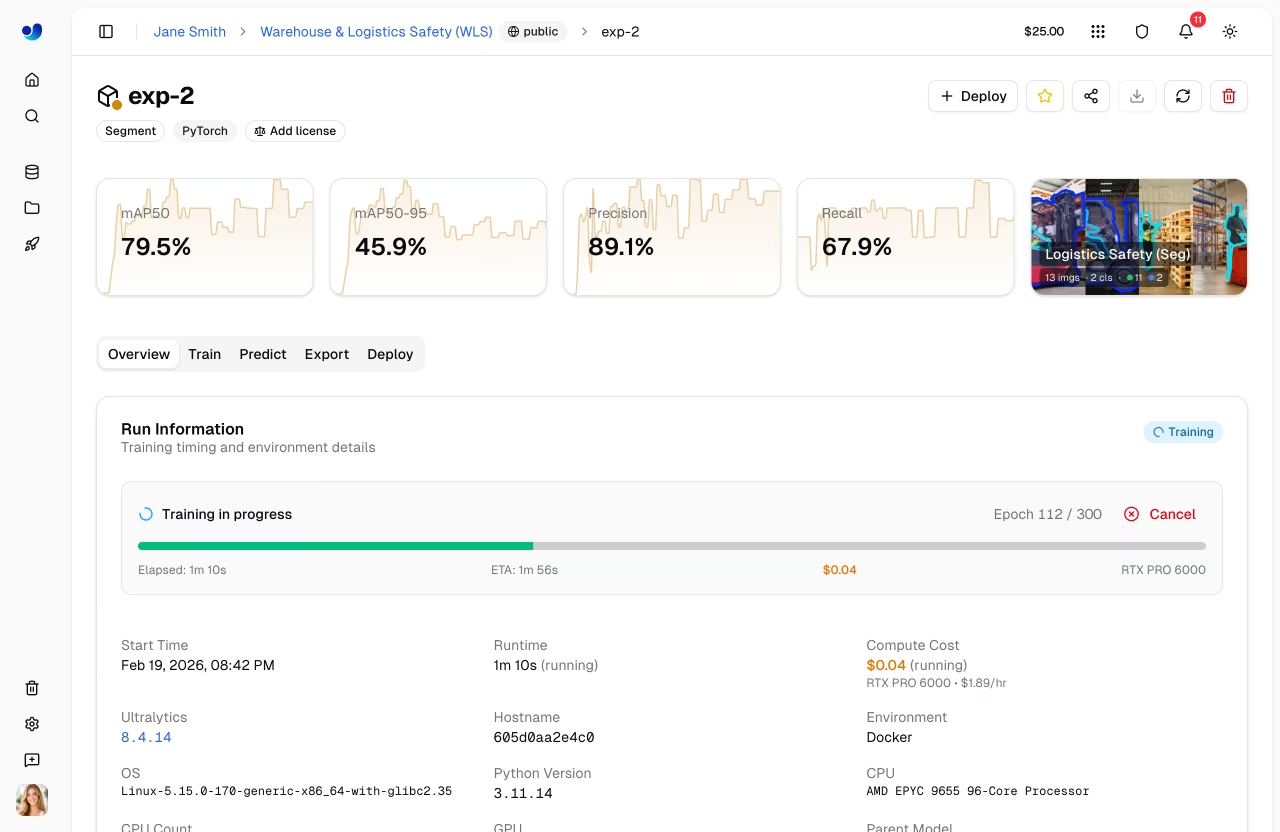
Monitor Training
View real-time training progress on the model page's Train tab:
Charts Subtab
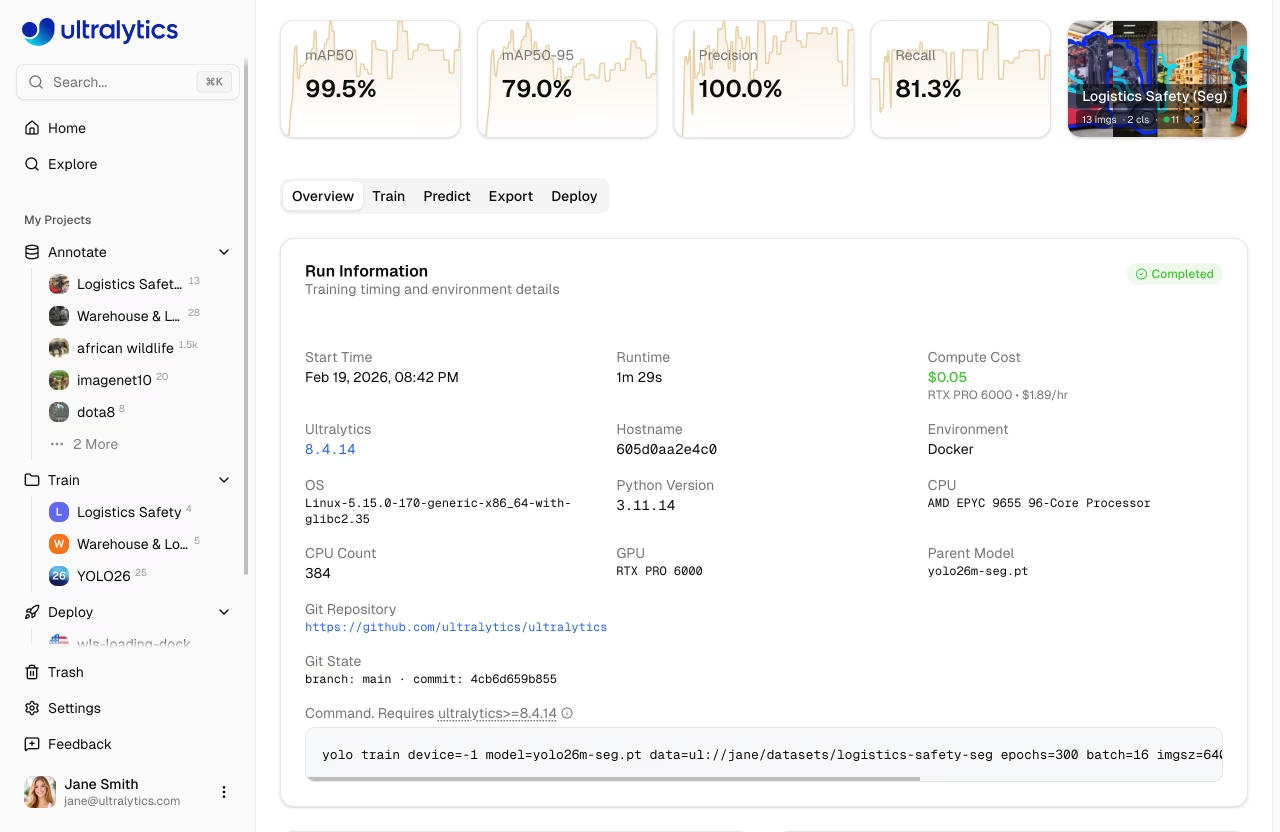
| Metric | Description |
|---|---|
| Loss | Training and validation loss |
| mAP | Mean Average Precision |
| Precision | Correct positive predictions |
| Recall | Detected ground truths |
Console Subtab
Live console output with ANSI color support, progress bars, and error detection.
System Subtab
Real-time GPU utilization, memory, temperature, CPU, and disk usage.
Checkpoints
After training completes, the best model (best.pt, the highest-mAP checkpoint) is uploaded to the platform and made available for download, export, and deployment.
Cancel Training
Click Cancel Training on the model page to stop a running job:
- The compute instance is terminated
- Credits stop being charged
- The best checkpoint remains available if it was reached before cancellation
Remote Training
graph LR
    A[Local GPU] --> B[Train]
    B --> C[ultralytics Package]
    C --> D[Stream Metrics]
    D --> E[Platform Dashboard]

    style A fill:#FF9800,color:#fff
    style C fill:#2196F3,color:#fff
    style E fill:#4CAF50,color:#fff
Train on your own hardware while streaming metrics to the platform.
!!! warning "Package Version Requirement"
Platform integration requires **ultralytics>=8.4.35**. Lower versions will NOT work with Platform.

```bash
pip install -U ultralytics
```
Setup API Key
- Go to
Settings > API Keys - Create a new key (or the platform auto-creates one when you open the Local Training tab)
- Set the environment variable:
export ULTRALYTICS_API_KEY="YOUR_API_KEY"
Train with Streaming
Use the project and name parameters to stream metrics:
=== "CLI"
```bash
yolo train model=yolo26n.pt data=coco.yaml epochs=100 \
  project=username/my-project name=experiment-1
```
=== "Python"
```python
from ultralytics import YOLO

model = YOLO("yolo26n.pt")
model.train(
    data="coco.yaml",
    epochs=100,
    project="username/my-project",
    name="experiment-1",
)
```
The Local Training tab in the training dialog shows a pre-configured command with your API key, selected parameters, and advanced arguments included.
Using Platform Datasets
Train with datasets stored on the platform using the ul:// URI format:
=== "CLI"
```bash
yolo train model=yolo26n.pt data=ul://username/datasets/my-dataset epochs=100 \
  project=username/my-project name=exp1
```
=== "Python"
```python
from ultralytics import YOLO

model = YOLO("yolo26n.pt")
model.train(
    data="ul://username/datasets/my-dataset",
    epochs=100,
    project="username/my-project",
    name="exp1",
)
```
The ul:// URI format automatically downloads and configures your dataset. The model is automatically linked to the dataset on the platform (see Using Platform Datasets).
Billing
Training costs are based on GPU usage:
Cost Estimation
Before training starts, the platform estimates total cost by:
- Estimating seconds per epoch from dataset size, model complexity, image size, batch size, and GPU speed
- Calculating total training time by multiplying seconds per epoch by the number of epochs, then adding startup overhead
- Computing the estimated cost from total training hours multiplied by the GPU's hourly rate
Factors affecting cost:
| Factor | Impact |
|---|---|
| Dataset Size | More images = longer training time (baseline: ~2.8s compute per 1000 images on RTX 4090) |
| Model Size | Larger models (m, l, x) train slower than (n, s) |
| Number of Epochs | Direct multiplier on training time |
| Image Size | Larger imgsz increases computation: 320px=0.25x, 640px=1.0x (baseline), 1280px=4.0x |
| Batch Size | Larger batches are more efficient (batch 32 = ~0.85x time, batch 8 = ~1.2x time vs batch 16 baseline) |
| GPU Speed | Faster GPUs reduce training time (e.g., H100 SXM = ~3.4x faster than RTX 4090) |
| Startup Overhead | Up to 5 minutes for instance initialization, data download, and warmup (scales with dataset size) |
Cost Examples
!!! note "Estimates"
Cost estimates are approximate and depend on many factors. The training dialog shows a real-time estimate before you start training.
| Scenario | GPU | Estimated Cost |
|---|---|---|
| 500 images, YOLO26n, 50 epochs | RTX 4090 | ~$0.50 |
| 1000 images, YOLO26n, 100 epochs | RTX PRO 6000 | ~$5 |
| 5000 images, YOLO26s, 100 epochs | H100 SXM | ~$23 |
Billing Flow
graph LR
    A[Estimate Cost] --> B[Balance Check]
    B --> C[Train]
    C --> D[Charge Actual Runtime]

    style A fill:#2196F3,color:#fff
    style B fill:#FF9800,color:#fff
    style C fill:#9C27B0,color:#fff
    style D fill:#4CAF50,color:#fff
Cloud training billing flow:
- Estimate: Cost calculated before training starts
- Balance Check: Available credits are checked before launch
- Train: Job runs on selected compute
- Charge: Final cost is based on actual runtime
!!! success "Consumer Protection"
Billing tracks actual compute usage, including partial runs that are cancelled. **You are never charged for failed training runs.**
Billing by Job Status
| Status | Charged? |
|---|---|
| Completed | Yes — actual GPU time used |
| Cancelled | Yes — GPU time from start to cancellation |
| Failed | No — failed runs are not charged |
| Stuck | Partial — only actual training time charged |
!!! tip "No Charge for Errors"
If a training run fails due to a configuration error, out-of-memory issue, or any other failure, you are **not charged**. Only successful compute time is billed. Stuck jobs (no activity for 4+ hours) are automatically terminated and charged only for the time the GPU was actively training, not the idle time.
Payment Methods
| Method | Description |
|---|---|
| Account Balance | Pre-loaded credits |
| Pay Per Job | Charge at job completion |
!!! note "Minimum Balance"
Training start requires a positive available balance and enough credits for the estimated job cost.
View Training Costs
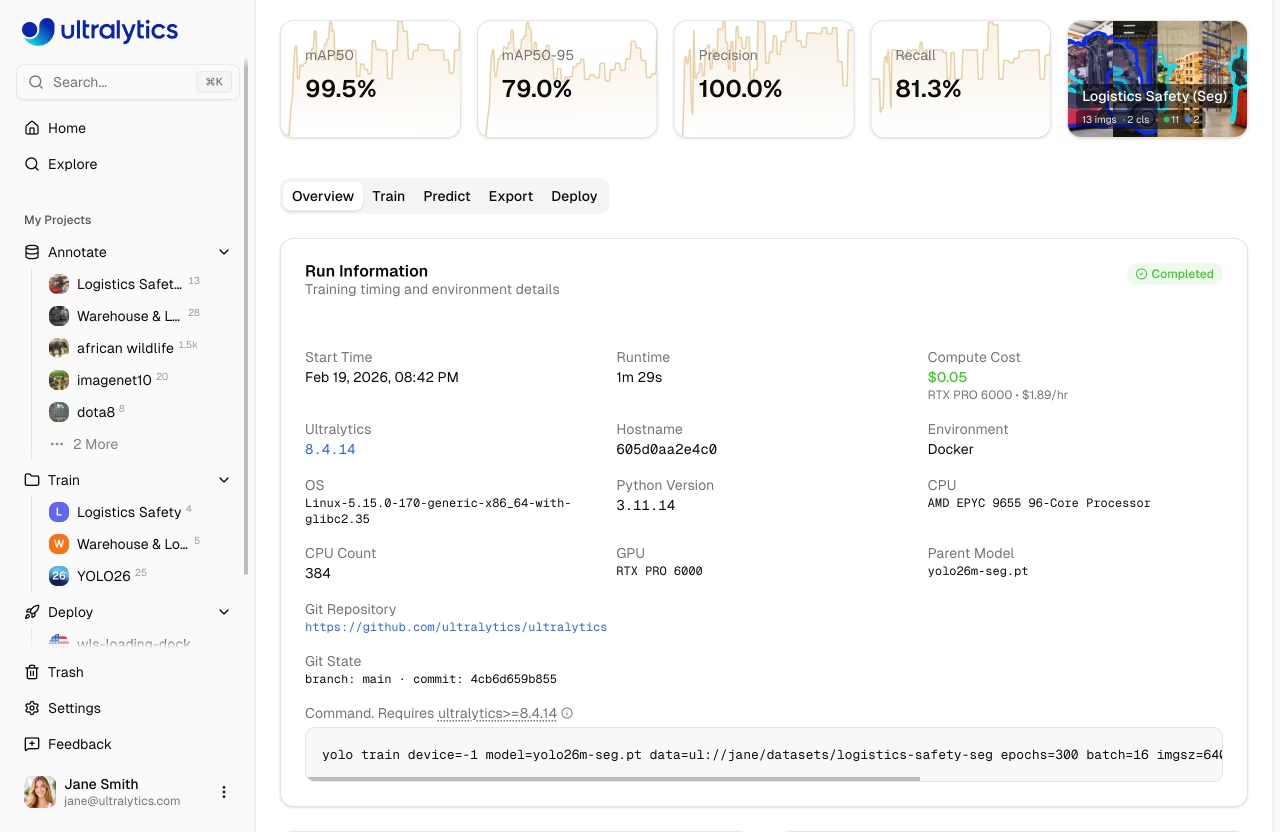
After training, view detailed costs in the Billing tab:
- Per-epoch cost breakdown
- Total GPU time
- Download cost report
Training Tips
Choose the Right Model Size
| Model | Parameters | Best For |
|---|---|---|
| YOLO26n | 2.4M | Real-time, edge devices |
| YOLO26s | 9.5M | Balanced speed/accuracy |
| YOLO26m | 20.4M | Higher accuracy |
| YOLO26l | 24.8M | Production accuracy |
| YOLO26x | 55.7M | Maximum accuracy |
Optimize Training Time
!!! tip "Cost-Saving Strategies"
1. **Start small**: Test with 10-20 epochs on a budget GPU to verify your dataset and config work
2. **Use appropriate GPU**: RTX PRO 6000 handles most workloads well
3. **Validate dataset**: Fix labeling issues before spending on training
4. **Monitor early**: Cancel training if loss plateaus — you only pay for compute time used
Troubleshooting
| Issue | Solution |
|---|---|
| Training stuck at 0% | Check dataset format, retry |
| Out of memory | Reduce batch size or use larger GPU |
| Poor accuracy | Increase epochs, check data quality |
| Training slow | Consider faster GPU |
| Task mismatch error | Ensure model and dataset tasks match |
FAQ
How long does training take?
Training time depends on:
- Dataset size
- Model size
- Number of epochs
- GPU selected
Typical times (1000 images, 100 epochs):
| Model | RTX PRO 6000 | A100 SXM |
|---|---|---|
| YOLO26n | ~20 min | ~15 min |
| YOLO26m | ~40 min | ~30 min |
| YOLO26x | ~80 min | ~60 min |
!!! note "Approximate Times"
Training times are approximate and vary with dataset complexity, augmentation settings, and batch size. Use the training dialog's cost estimate for more accurate predictions.
Can I train overnight?
Yes, training continues until completion. You'll receive a notification when training finishes. Make sure your account has sufficient balance for epoch-based training.
What happens if I run out of credits?
If your credit balance reaches zero during a training run, training continues to completion and your balance goes negative. This ensures your training job is never interrupted mid-run.
After training completes, you'll need to add credits to bring your balance back to positive before starting new training jobs. Your completed model, checkpoints, and all training artifacts are fully preserved regardless of balance.
!!! note "Negative Balance"
A negative balance only prevents starting **new** training jobs. Existing deployments and other platform features continue to work normally. Add credits via [Settings > Billing](../account/billing.md) or enable [auto top-up](../account/billing.md#auto-top-up) to avoid interruptions.
What happens if my training costs more than the estimate?
Cost estimates are approximate — actual training time may vary due to factors like data loading speed, GPU warmup, and model convergence behavior. If the actual cost exceeds the estimate, your balance may go negative (see above). The platform does not stop training based on the estimate.
To manage costs:
- Monitor training progress in real-time and cancel early if needed
- Enable auto top-up to automatically replenish credits
- Start with shorter runs (fewer epochs) to calibrate expectations
Can I use custom training arguments?
Yes, expand the Advanced Settings section in the training dialog to access a YAML editor with 40+ configurable parameters. Non-default values are included in both cloud and local training commands.
The YAML editor also supports importing configurations from previous training runs:
- Copy from existing model: On any completed model's page, the Training Configuration card has a Copy as JSON button. Copy the JSON and paste it directly into the YAML editor — it auto-detects JSON format and imports all parameters.
- Paste YAML or JSON: Paste any valid YAML or JSON training configuration into the editor. Parameters are validated automatically, with out-of-range values clamped and warnings displayed.
- Drag and drop files: Drag a
.yamlor.jsonfile directly into the editor to import its parameters.
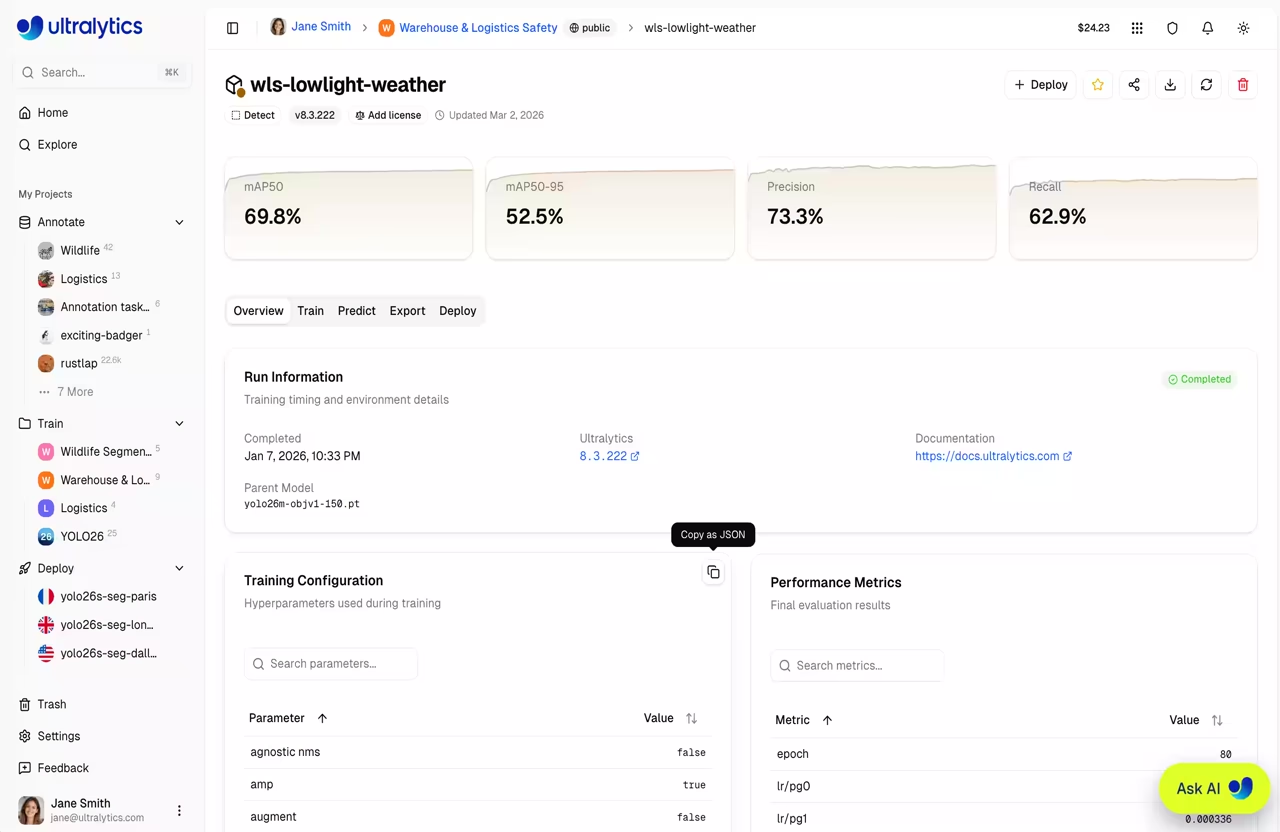
This makes it easy to reproduce or iterate on previous training configurations without manually re-entering each parameter.
Can I train from a dataset page?
Yes, the Train button on dataset pages opens the training dialog with the dataset preselected and locked. You then select a project and model to begin training.
Training Parameters Reference
=== "Core"
| Parameter      | Type | Default | Range    | Description                          |
| -------------- | ---- | ------- | -------- | ------------------------------------ |
| `epochs`       | int  | 100     | 1-10000  | Number of training epochs            |
| `batch`        | int  | 16      | 1-512    | Batch size                     |
| `imgsz`        | int  | 640     | 32-4096  | Input image size                     |
| `patience`     | int  | 100     | 1-1000   | Early stopping patience              |
| `seed`         | int  | 0       | 0-2147483647 | Random seed for reproducibility  |
| `deterministic`| bool | True    | -        | Deterministic training mode          |
| `amp`          | bool | True    | -        | Automatic mixed precision            |
| `close_mosaic` | int  | 10      | 0-50     | Disable mosaic in final N epochs     |
| `save_period`  | int  | -1      | -1-100   | Save checkpoint every N epochs       |
| `workers`      | int  | 8       | 0-64     | Dataloader workers                   |
| `cache`        | select | false | ram/disk/false | Cache images                   |
=== "Learning Rate"
| Parameter       | Type  | Default | Range     | Description           |
| --------------- | ----- | ------- | --------- | --------------------- |
| `lr0`           | float | 0.01    | 0.0001-0.1 | Initial learning rate |
| `lrf`           | float | 0.01    | 0.01-1.0  | Final LR factor       |
| `momentum`      | float | 0.937   | 0.6-0.98  | SGD momentum          |
| `weight_decay`  | float | 0.0005  | 0.0-0.001 | L2 regularization     |
| `warmup_epochs` | float | 3.0     | 0-5       | Warmup epochs         |
| `warmup_momentum` | float | 0.8   | 0.5-0.95  | Warmup momentum       |
| `warmup_bias_lr` | float | 0.1    | 0.0-0.2   | Warmup bias LR        |
| `cos_lr`        | bool  | False   | -         | Cosine LR scheduler   |
=== "Augmentation"
| Parameter    | Type  | Default | Range   | Description          |
| ------------ | ----- | ------- | ------- | -------------------- |
| `hsv_h`      | float | 0.015   | 0.0-0.1 | HSV hue augmentation |
| `hsv_s`      | float | 0.7     | 0.0-1.0 | HSV saturation       |
| `hsv_v`      | float | 0.4     | 0.0-1.0 | HSV value            |
| `degrees`    | float | 0.0     | -45-45    | Rotation degrees     |
| `translate`  | float | 0.1     | 0.0-1.0   | Translation fraction |
| `scale`      | float | 0.5     | 0.0-1.0   | Scale factor         |
| `shear`      | float | 0.0     | -10-10    | Shear degrees        |
| `perspective`| float | 0.0     | 0.0-0.001 | Perspective transform|
| `fliplr`     | float | 0.5     | 0.0-1.0   | Horizontal flip prob |
| `flipud`     | float | 0.0     | 0.0-1.0 | Vertical flip prob   |
| `mosaic`     | float | 1.0     | 0.0-1.0 | Mosaic augmentation  |
| `mixup`      | float | 0.0     | 0.0-1.0 | Mixup augmentation   |
| `copy_paste` | float | 0.0     | 0.0-1.0 | Copy-paste (segment) |
=== "Dataset"
| Parameter     | Type  | Default | Range   | Description                          |
| ------------- | ----- | ------- | ------- | ------------------------------------ |
| `fraction`    | float | 1.0     | 0.1-1.0 | Fraction of dataset to use           |
| `freeze`      | int   | null    | 0-100   | Number of layers to freeze           |
| `single_cls`  | bool  | False   | -       | Treat all classes as one class       |
| `rect`        | bool  | False   | -       | Rectangular training                 |
| `multi_scale` | float | 0.0     | 0.0-1.0 | Multi-scale training range           |
| `val`         | bool  | True    | -       | Run validation during training       |
| `resume`      | bool  | False   | -       | Resume training from checkpoint      |
=== "Optimizer"
| Value     | Description                   |
| --------- | ----------------------------- |
| `auto`    | Automatic selection (default) |
| `SGD`     | Stochastic Gradient Descent   |
| `MuSGD`   | Muon SGD optimizer            |
| `Adam`    | Adam optimizer                |
| `AdamW`   | Adam with weight decay        |
| `NAdam`   | NAdam optimizer               |
| `RAdam`   | RAdam optimizer               |
| `RMSProp` | RMSProp optimizer             |
| `Adamax`  | Adamax optimizer              |
=== "Loss Weights"
| Parameter        | Type  | Default | Range     | Description                 |
| ---------------- | ----- | ------- | --------- | --------------------------- |
| `box`            | float | 7.5     | 1-50      | Box loss weight             |
| `cls`            | float | 0.5     | 0.2-4     | Classification loss weight  |
| `dfl`            | float | 1.5     | 0.4-6     | Distribution focal loss     |
| `pose`           | float | 12.0    | 1-50      | Pose loss weight (pose only)|
| `kobj`           | float | 1.0     | 0.5-10    | Keypoint objectness (pose)  |
| `label_smoothing`| float | 0.0     | 0.0-0.1   | Label smoothing factor      |
!!! tip "Task-Specific Parameters"
Some parameters only apply to specific tasks:

- **Detection tasks only** (detect, segment, pose, OBB — not classify): `box`, `dfl`, `degrees`, `translate`, `shear`, `perspective`, `mosaic`, `mixup`, `close_mosaic`
- **Segment only**: `copy_paste`
- **Pose only**: `pose` (loss weight), `kobj` (keypoint objectness)