
15 KiB
| comments | description | keywords |
|---|---|---|
| true | Deploy YOLO models to dedicated endpoints in 43 global regions with scale-to-zero behavior and monitoring on Ultralytics Platform. | Ultralytics Platform, deployment, endpoints, YOLO, production, scaling, global regions |
Dedicated Endpoints
Ultralytics Platform enables deployment of YOLO models to dedicated endpoints in 43 global regions. Each endpoint is a single-tenant service with scale-to-zero behavior, a unique endpoint URL, and independent monitoring.
Create Endpoint
From the Deploy Tab
Deploy a model from its Deploy tab:
- Navigate to your model
- Click the Deploy tab
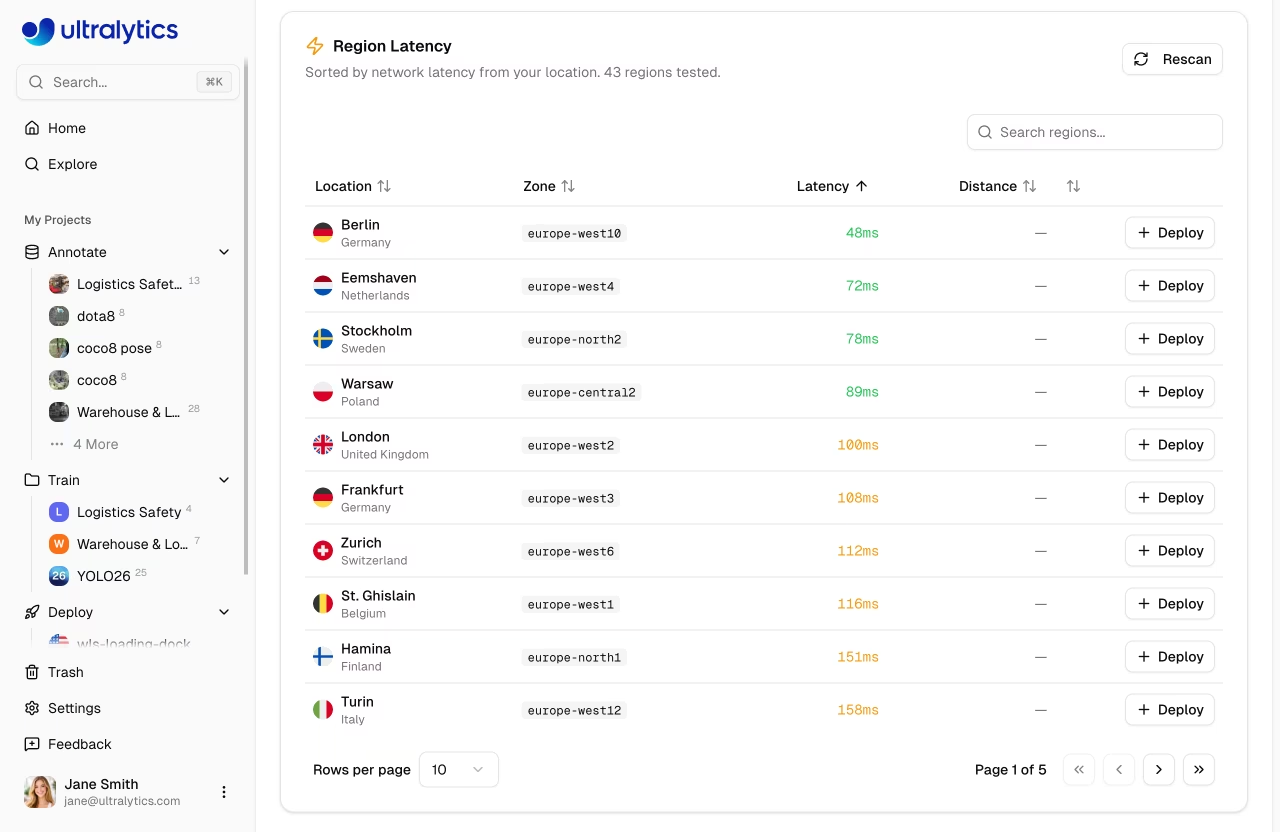
- Select a region from the interactive world map — regions are color-coded by latency from your location (green < 100ms, yellow < 200ms, red > 200ms)
- Click Deploy on the region row
The deployment name is auto-generated from the model name and region city (e.g., yolo26n-iowa).
From the Deployments Page
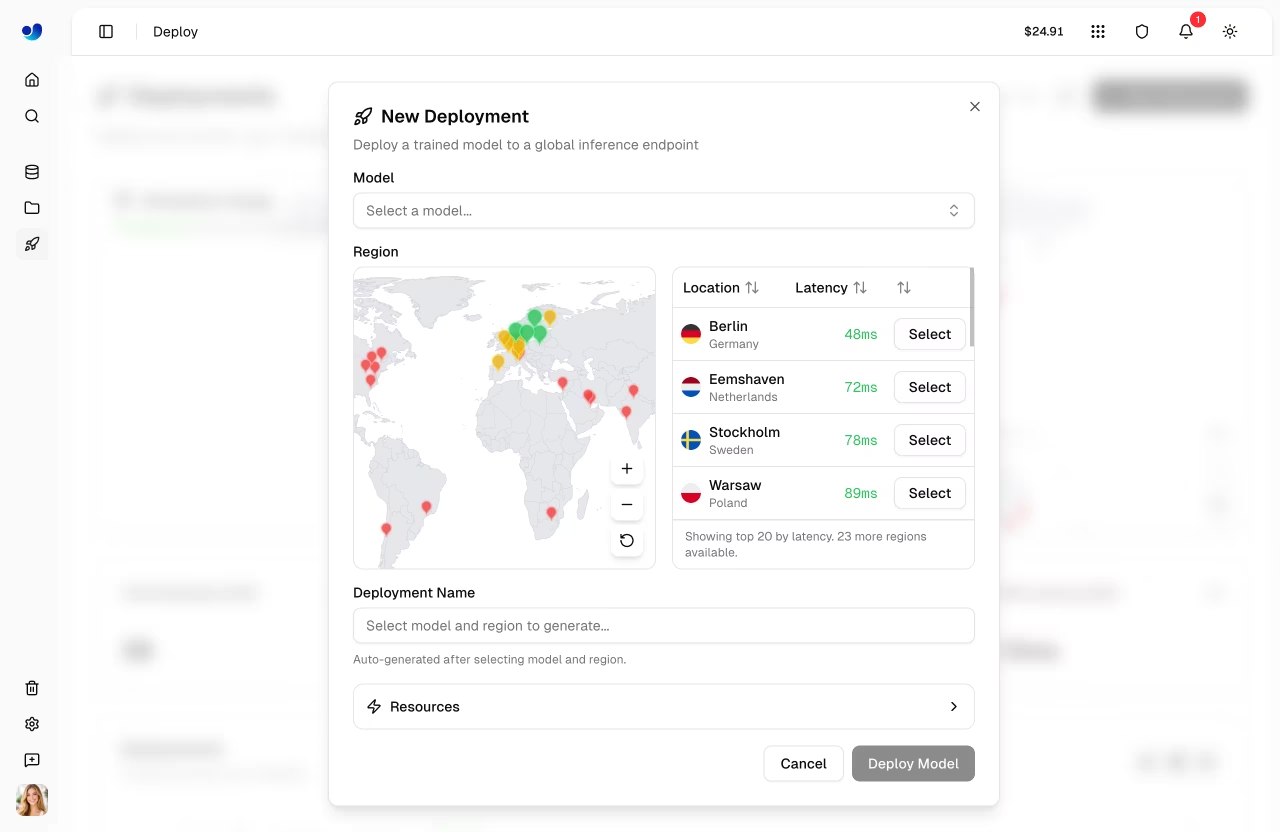
Create a deployment from the global Deploy page in the sidebar:
- Click New Deployment
- Select a model from the model selector
- Select a region from the map or table
- Review the auto-generated deployment name (editable) and the default resources
- Click Deploy Model
Deployment Lifecycle
stateDiagram-v2
    [*] --> Creating: Deploy
    Creating --> Deploying: Container starting
    Deploying --> Ready: Health check passed
    Ready --> Stopping: Stop
    Stopping --> Stopped: Stopped
    Stopped --> Ready: Start
    Ready --> [*]: Delete
    Stopped --> [*]: Delete
    Creating --> Failed: Error
    Deploying --> Failed: Error
    Failed --> [*]: Delete
Region Selection
Choose from 43 regions worldwide. The interactive region map and table show:
- Region pins: Color-coded by latency (green < 100ms, yellow < 200ms, red > 200ms)
- Deployed regions: Highlighted with a "Deployed" badge
- Deploying regions: Animated pulse indicator
- Bidirectional highlighting: Hover on the map highlights the table row, and vice versa
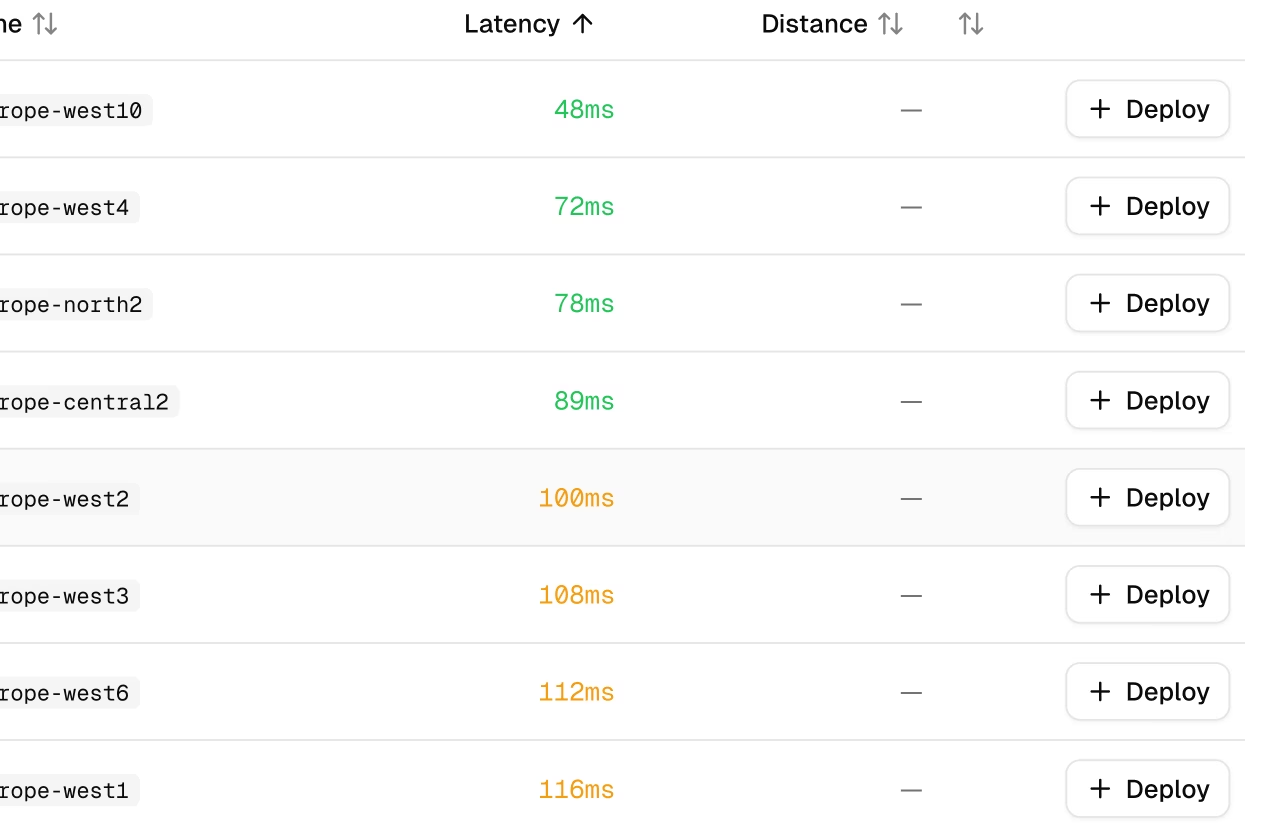
The region table on the model Deploy tab includes:
| Column | Description |
|---|---|
| Location | City and country with flag icon |
| Zone | Region identifier |
| Latency | Measured ping time (median of 3 pings) |
| Distance | Distance from your location in km |
| Actions | Deploy button or "Deployed" status badge |
!!! note "New Deployment Dialog"
The `New Deployment` dialog (from the global `Deploy` page) shows a simpler region table with only Location, Latency, and Select columns.
!!! tip "Choose Wisely"
Select the region closest to your users for lowest latency. Use the **Rescan** button to re-measure latency from your current location.
Available Regions
=== "Americas (14)"
| Zone                    | Location               |
| ----------------------- | ---------------------- |
| us-central1             | Iowa, USA              |
| us-east1                | South Carolina, USA    |
| us-east4                | Northern Virginia, USA |
| us-east5                | Columbus, USA          |
| us-south1               | Dallas, USA            |
| us-west1                | Oregon, USA            |
| us-west2                | Los Angeles, USA       |
| us-west3                | Salt Lake City, USA    |
| us-west4                | Las Vegas, USA         |
| northamerica-northeast1 | Montreal, Canada       |
| northamerica-northeast2 | Toronto, Canada        |
| northamerica-south1     | Queretaro, Mexico      |
| southamerica-east1      | Sao Paulo, Brazil      |
| southamerica-west1      | Santiago, Chile        |
=== "Europe (13)"
| Zone              | Location               |
| ----------------- | ---------------------- |
| europe-west1      | St. Ghislain, Belgium  |
| europe-west2      | London, UK             |
| europe-west3      | Frankfurt, Germany     |
| europe-west4      | Eemshaven, Netherlands |
| europe-west6      | Zurich, Switzerland    |
| europe-west8      | Milan, Italy           |
| europe-west9      | Paris, France          |
| europe-west10     | Berlin, Germany        |
| europe-west12     | Turin, Italy           |
| europe-north1     | Hamina, Finland        |
| europe-north2     | Stockholm, Sweden      |
| europe-central2   | Warsaw, Poland         |
| europe-southwest1 | Madrid, Spain          |
=== "Asia-Pacific (12)"
| Zone                 | Location               |
| -------------------- | ---------------------- |
| asia-east1           | Changhua, Taiwan       |
| asia-east2           | Kowloon, Hong Kong     |
| asia-northeast1      | Tokyo, Japan           |
| asia-northeast2      | Osaka, Japan           |
| asia-northeast3      | Seoul, South Korea     |
| asia-south1          | Mumbai, India          |
| asia-south2          | Delhi, India           |
| asia-southeast1      | Jurong West, Singapore |
| asia-southeast2      | Jakarta, Indonesia     |
| asia-southeast3      | Bangkok, Thailand      |
| australia-southeast1 | Sydney, Australia      |
| australia-southeast2 | Melbourne, Australia   |
=== "Middle East & Africa (4)"
| Zone          | Location                   |
| ------------- | -------------------------- |
| africa-south1 | Johannesburg, South Africa |
| me-central1   | Doha, Qatar                |
| me-central2   | Dammam, Saudi Arabia       |
| me-west1      | Tel Aviv, Israel           |
Endpoint Configuration
New Deployment Dialog
The New Deployment dialog provides:
| Setting | Description | Default |
|---|---|---|
| Model | Select from completed models | - |
| Region | Deployment region | - |
| Deployment Name | Auto-generated, editable | - |
| CPU Cores | Fixed default | 1 |
| Memory (GB) | Fixed default | 2 |
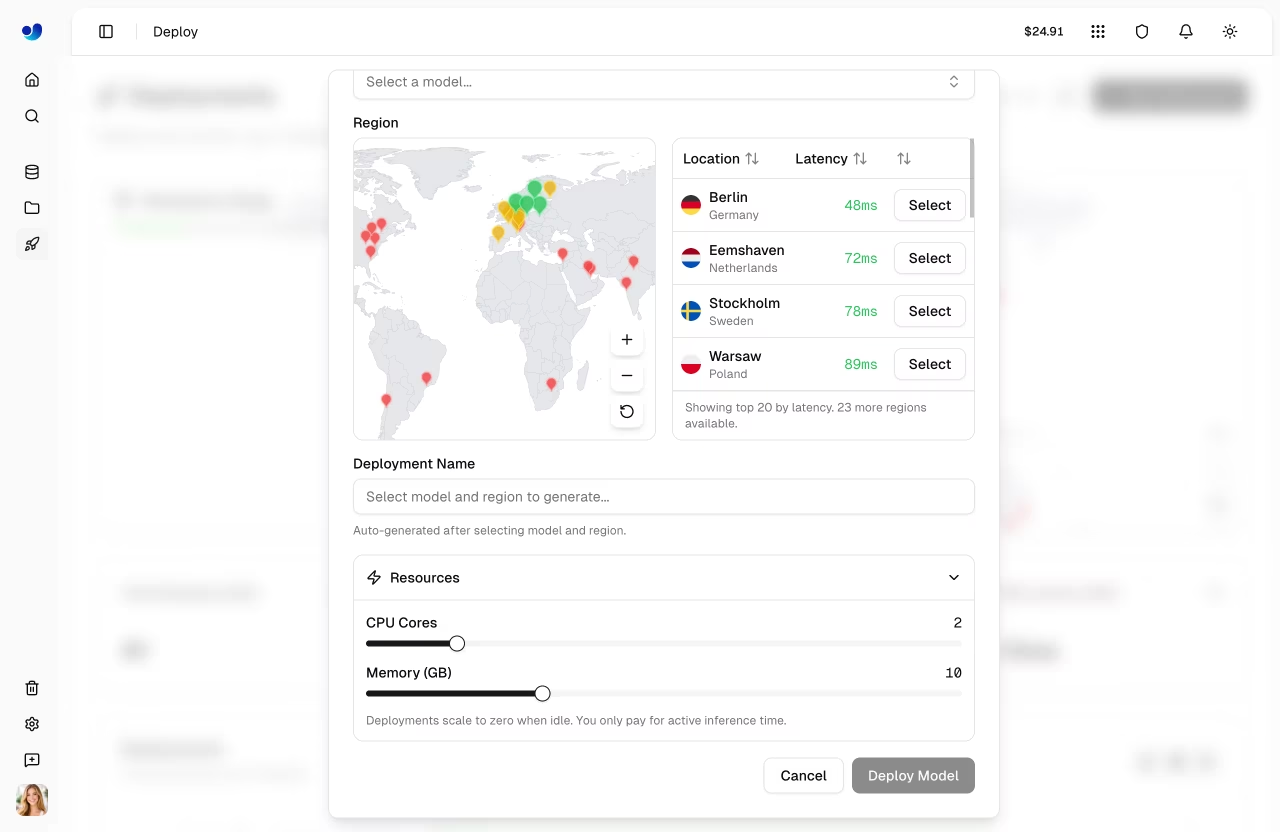
Deployments use fixed defaults of 1 CPU, 2 GiB memory, minInstances = 0, and maxInstances = 1. They scale to zero when idle, so you only pay for active inference time.
!!! note "Auto-Generated Names"
The deployment name is automatically generated from the model name and region city (e.g., `yolo26n-iowa`). If you deploy the same model to the same region again, a numeric suffix is added (e.g., `yolo26n-iowa-2`).
Deploy Tab (Quick Deploy)
When deploying from the model's Deploy tab, endpoints are created with default resources (1 CPU, 2 GB memory) with scale-to-zero enabled. The deployment name is auto-generated.
Manage Endpoints
View Modes
The deployments list supports three view modes:
| Mode | Description |
|---|---|
| Cards | Full detail cards with logs, code examples, predict panel |
| Compact | Grid of smaller cards with key metrics |
| Table | DataTable with sortable columns and search |
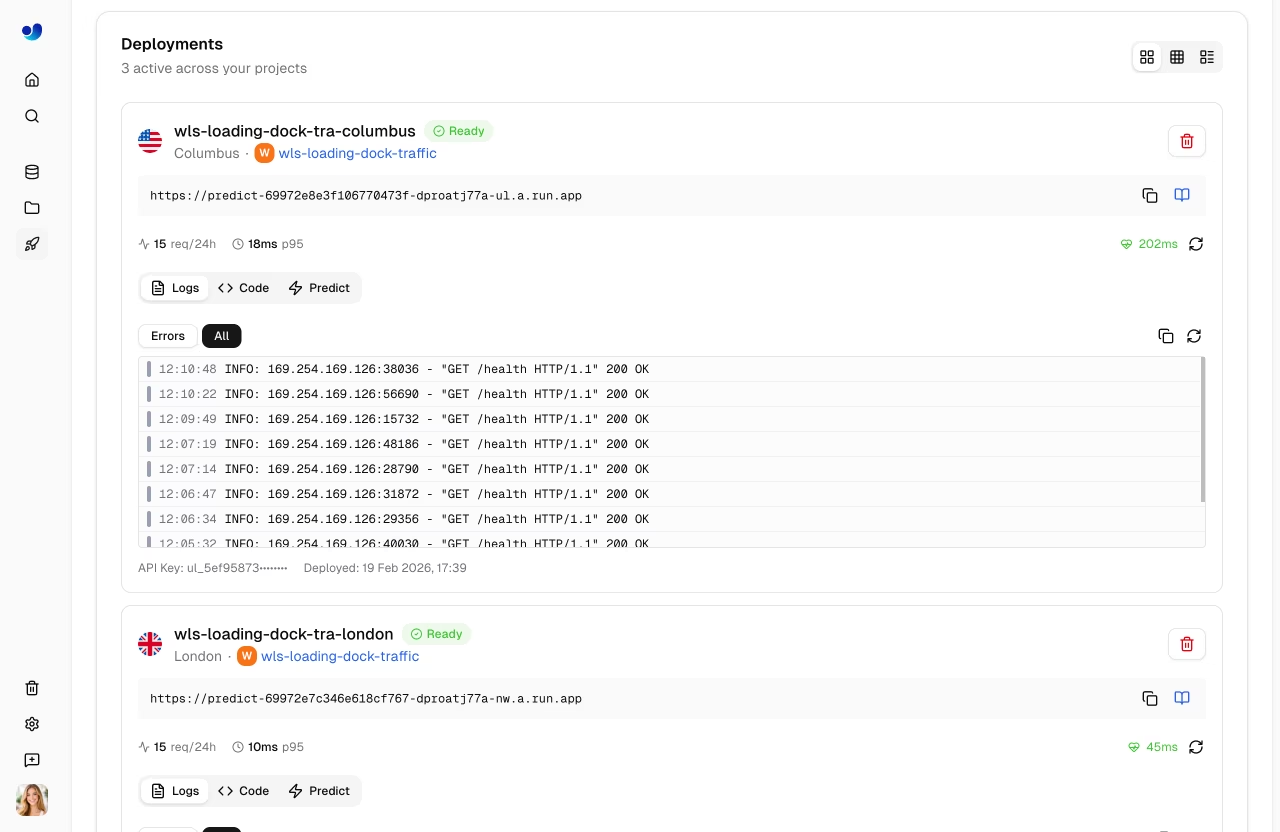
Deployment Card (Cards View)
Each deployment card in the cards view shows:
- Header: Name, region flag, status badge, start/stop/delete buttons
- Endpoint URL: Copyable URL with link to API docs
- Metrics: Request count (24h), P95 latency, error rate
- Health check: Live health indicator with latency and manual refresh
- Tabs:
Logs,Code, andPredict
The Logs tab shows recent log entries with severity filtering (All / Errors). The Code tab shows ready-to-use code examples in Python, JavaScript, and cURL with your actual endpoint URL and API key. The Predict tab provides an inline predict panel for testing directly on the deployment.
Deployment Statuses
| Status | Description |
|---|---|
| Creating | Deployment is being set up |
| Deploying | Container is starting |
| Ready | Endpoint is live and accepting requests |
| Stopping | Endpoint is shutting down |
| Stopped | Endpoint is paused (no billing) |
| Failed | Deployment failed (see error message) |
Endpoint URL
Each endpoint has a unique URL, for example:
https://predict-abc123.run.app
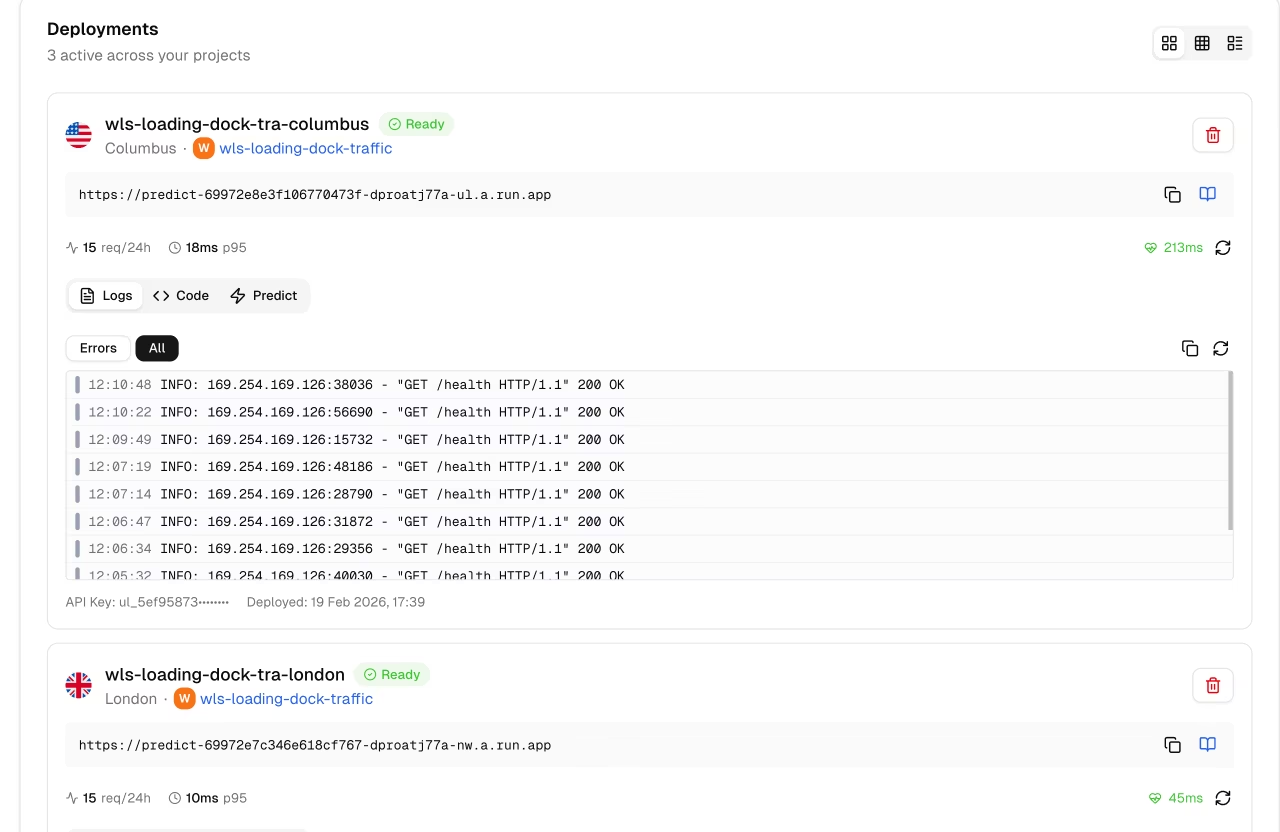
Click the copy button to copy the URL. Click the docs icon to view the auto-generated API documentation for the endpoint.
Lifecycle Management
Control your endpoint state:
graph LR
    R[Ready] -->|Stop| S[Stopped]
    S -->|Start| R
    R -->|Delete| D[Deleted]
    S -->|Delete| D

    style R fill:#4CAF50,color:#fff
    style S fill:#9E9E9E,color:#fff
    style D fill:#F44336,color:#fff
| Action | Description |
|---|---|
| Start | Resume a stopped endpoint |
| Stop | Pause the endpoint (no billing) |
| Delete | Permanently remove endpoint |
Stop Endpoint
Stop an endpoint to pause billing:
- Click the pause icon on the deployment card
- Endpoint status changes to "Stopping" then "Stopped"
Stopped endpoints:
- Don't accept requests
- Don't incur charges
- Can be restarted anytime
Delete Endpoint
Permanently remove an endpoint:
- Click the delete (trash) icon on the deployment card
- Confirm deletion in the dialog
!!! warning "Permanent Action"
Deletion is immediate and permanent. You can always create a new endpoint.
Using Endpoints
Authentication
Each deployment is created with an API key from your account. Include it in requests:
Authorization: Bearer YOUR_API_KEY
The API key prefix is displayed on the deployment card footer for identification. Generate keys from API Keys.
No Rate Limits
Dedicated endpoints are not subject to the Platform API rate limits. Requests go directly to your dedicated service, so throughput is limited only by your endpoint's CPU, memory, and scaling configuration. This is a key advantage over shared inference, which is rate-limited to 20 requests/min per API key.
Request Example
=== "Python"
```python
import requests

# Deployment endpoint
url = "https://predict-abc123.run.app/predict"

# Headers with your deployment API key
headers = {"Authorization": "Bearer YOUR_API_KEY"}

# Inference parameters
data = {"conf": 0.25, "iou": 0.7, "imgsz": 640}

# Send image for inference
with open("image.jpg", "rb") as f:
    response = requests.post(url, headers=headers, data=data, files={"file": f})

print(response.json())
```
=== "JavaScript"
```javascript
// Build form data with image and parameters
const formData = new FormData();
formData.append("file", fileInput.files[0]);
formData.append("conf", "0.25");
formData.append("iou", "0.7");
formData.append("imgsz", "640");

// Send image for inference
const response = await fetch(
  "https://predict-abc123.run.app/predict",
  {
    method: "POST",
    headers: { Authorization: "Bearer YOUR_API_KEY" },
    body: formData,
  }
);

const result = await response.json();
console.log(result);
```
=== "cURL"
```bash
curl -X POST \
  "https://predict-abc123.run.app/predict" \
  -H "Authorization: Bearer YOUR_API_KEY" \
  -F "file=@image.jpg" \
  -F "conf=0.25" \
  -F "iou=0.7" \
  -F "imgsz=640"
```
Request Parameters
| Parameter | Type | Default | Description |
|---|---|---|---|
file |
file | - | Image or video file (required) |
conf |
float | 0.25 | Minimum confidence threshold |
iou |
float | 0.7 | NMS IoU threshold |
imgsz |
int | 640 | Input image size |
normalize |
string | - | Return normalized coordinates |
!!! tip "Video Inference"
Dedicated endpoints accept video files in addition to images. Supported video formats (up to 100MB): ASF, AVI, GIF, M4V, MKV, MOV, MP4, MPEG, MPG, TS, WEBM, WMV. Each frame is processed individually and results are returned per frame. Supported image formats (up to 50MB): AVIF, BMP, DNG, HEIC, JP2, JPEG, JPG, MPO, PNG, TIF, TIFF, WEBP.
Response Format
Same as shared inference with task-specific fields.
Pricing
Basic dedicated endpoints are free on all plans. Higher-resource configurations (more vCPUs, more memory, warm start) will offer usage-based pricing in the future.
!!! tip "Cost Optimization"
- Use scale-to-zero (default) so endpoints only run when receiving requests
- Set appropriate max instances for your traffic
- Monitor usage in the [Monitoring](monitoring.md) dashboard
FAQ
How many endpoints can I create?
Endpoint limits depend on plan:
- Free: Up to 3 deployments
- Pro: Up to 10 deployments
- Enterprise: Unlimited deployments
Each model can still be deployed to multiple regions within your plan quota.
Can I change the region after deployment?
No, regions are fixed. To change regions:
- Delete the existing endpoint
- Create a new endpoint in the desired region
How do I handle multi-region deployment?
For global coverage:
- Deploy to multiple regions
- Use a load balancer or DNS routing
- Route users to the nearest endpoint
What's the cold start time?
Cold start time depends on model size and whether the container is already cached in the region. Typical ranges:
| Scenario | Cold Start |
|---|---|
| Cached container | ~5-15 seconds |
| First deploy/region | ~15-45 seconds |
The health check uses a 55-second timeout to accommodate worst-case cold starts.
Can I use custom domains?
Custom domains are coming soon. Currently, endpoints use platform-generated URLs.