
30 KiB
| comments | description | keywords |
|---|---|---|
| true | Learn how to upload, manage, and organize datasets in Ultralytics Platform for YOLO model training with automatic processing and statistics. | Ultralytics Platform, datasets, dataset management, dataset versioning, YOLO, data upload, training data, computer vision, machine learning |
Datasets
Ultralytics Platform datasets provide a streamlined solution for managing your training data. After upload, the platform processes images, labels, and statistics automatically. A dataset is ready to train once processing has completed and it has at least one image in the train split, at least one image in either the val or test split, at least one labeled image, and a total of at least two images.
Upload Dataset
Ultralytics Platform accepts multiple upload formats for flexibility.
Supported Formats
=== "Images"
| Format | Extensions      | Notes                    | Max Size |
| ------ | --------------- | ------------------------ | -------- |
| JPEG   | `.jpg`, `.jpeg` | Most common, recommended | 50 MB    |
| PNG    | `.png`          | Supports transparency    | 50 MB    |
| WebP   | `.webp`         | Modern, good compression | 50 MB    |
| BMP    | `.bmp`          | Uncompressed             | 50 MB    |
| TIFF   | `.tiff`, `.tif` | High quality             | 50 MB    |
| HEIC   | `.heic`         | iPhone photos            | 50 MB    |
| AVIF   | `.avif`         | Next-gen format          | 50 MB    |
| JP2    | `.jp2`          | JPEG 2000                | 50 MB    |
| DNG    | `.dng`          | Raw camera               | 50 MB    |
| MPO    | `.mpo`          | Multi-picture object     | 50 MB    |
=== "Videos"
Videos are automatically extracted to frames on the client side at 1 FPS (max 100 frames per video).

| Format | Extensions | Extraction            | Max Size |
| ------ | ---------- | --------------------- | -------- |
| MP4    | `.mp4`     | 1 FPS, max 100 frames | 1 GB     |
| WebM   | `.webm`    | 1 FPS, max 100 frames | 1 GB     |
| MOV    | `.mov`     | 1 FPS, max 100 frames | 1 GB     |
| AVI    | `.avi`     | 1 FPS, max 100 frames | 1 GB     |
| MKV    | `.mkv`     | 1 FPS, max 100 frames | 1 GB     |
| M4V    | `.m4v`     | 1 FPS, max 100 frames | 1 GB     |

!!! info "Video Frame Extraction"

    Video frames are extracted at 1 frame per second in the browser before upload. A 60-second video produces 60 frames. The maximum is 100 frames per video — for videos longer than ~100 seconds, 100 frames are evenly sampled across the full duration.
=== "Archives"
Archives are extracted and processed automatically.

| Format | Extensions              | Notes             | Free   | Pro    | Enterprise |
| ------ | ----------------------- | ----------------- | ------ | ------ | ---------- |
| ZIP    | `.zip`                  | Most common       | 10 GB  | 20 GB  | 50 GB      |
| TAR    | `.tar` `.tar.gz` `.tgz` | Compressed or raw | 10 GB  | 20 GB  | 50 GB      |
| NDJSON | `.ndjson`               | Dataset export    | 10 GB  | 20 GB  | 50 GB      |
Preparing Your Dataset
The Platform supports Ultralytics YOLO, COCO, Ultralytics NDJSON, and raw (unannotated) uploads:
=== "YOLO Format"
Use the standard YOLO directory structure with a `data.yaml` file:

```
my-dataset/
├── images/
│   ├── train/
│   │   ├── img001.jpg
│   │   └── img002.jpg
│   └── val/
│       ├── img003.jpg
│       └── img004.jpg
├── labels/
│   ├── train/
│   │   ├── img001.txt
│   │   └── img002.txt
│   └── val/
│       ├── img003.txt
│       └── img004.txt
└── data.yaml
```

The YAML file defines your dataset configuration:

```yaml
# data.yaml
path: .
train: images/train
val: images/val

names:
    0: person
    1: car
    2: dog
```
=== "COCO Format"
Use JSON annotation files with the standard [COCO structure](https://cocodataset.org/#format-data):

```
my-coco-dataset/
├── train/
│   ├── _annotations.coco.json
│   ├── img001.jpg
│   └── img002.jpg
└── val/
    ├── _annotations.coco.json
    ├── img003.jpg
    └── img004.jpg
```

The JSON file contains `images`, `annotations`, and `categories` arrays:

```json
{
    "images": [{ "id": 1, "file_name": "img001.jpg", "width": 640, "height": 480 }],
    "annotations": [{ "id": 1, "image_id": 1, "category_id": 0, "bbox": [100, 50, 200, 300] }],
    "categories": [{ "id": 0, "name": "person" }]
}
```

COCO annotations are automatically converted during upload. Detection (`bbox`), segmentation (`segmentation` polygons), and pose (`keypoints`) tasks are supported. Category IDs are remapped to a dense 0-indexed sequence across all annotation files. For converting between formats, see [format conversion tools](../../datasets/detect/index.md#port-or-convert-label-formats).
=== "Classification Layouts"
Classification uploads are auto-detected from common folder layouts:

```
split/class/image.jpg
class/split/image.jpg
class/image.jpg
```

Example:

```
my-classify-dataset/
├── train/
│   ├── cats/
│   └── dogs/
└── val/
    ├── cats/
    └── dogs/
```
=== "NDJSON"
Ultralytics NDJSON exports can be uploaded directly back into Platform. This is useful for moving datasets between workspaces while preserving metadata, classes, splits, and annotations.
!!! tip "Raw Uploads"
**Raw**: Upload unannotated images (no labels). Useful when you plan to annotate directly on the platform using the [annotation editor](annotation.md).
!!! tip "Flat Directory Structure"
You can also upload images without explicit split folders. Platform respects the active split target during upload, and for non-classify datasets it may automatically create a validation split from part of the training set when no split information is provided. You can always reassign images later with bulk move-to-split or split redistribution.
!!! tip "Format Auto-Detection"
The format is detected automatically: datasets with a `data.yaml` containing `names`, `train`, or `val` keys are treated as YOLO. Datasets with COCO JSON files (containing `images`, `annotations`, and `categories` arrays) are treated as COCO. `.ndjson` exports are imported as Ultralytics NDJSON. Datasets with only images and no annotations are treated as raw.
For task-specific format details, see supported tasks and the Datasets Overview.
Upload Process
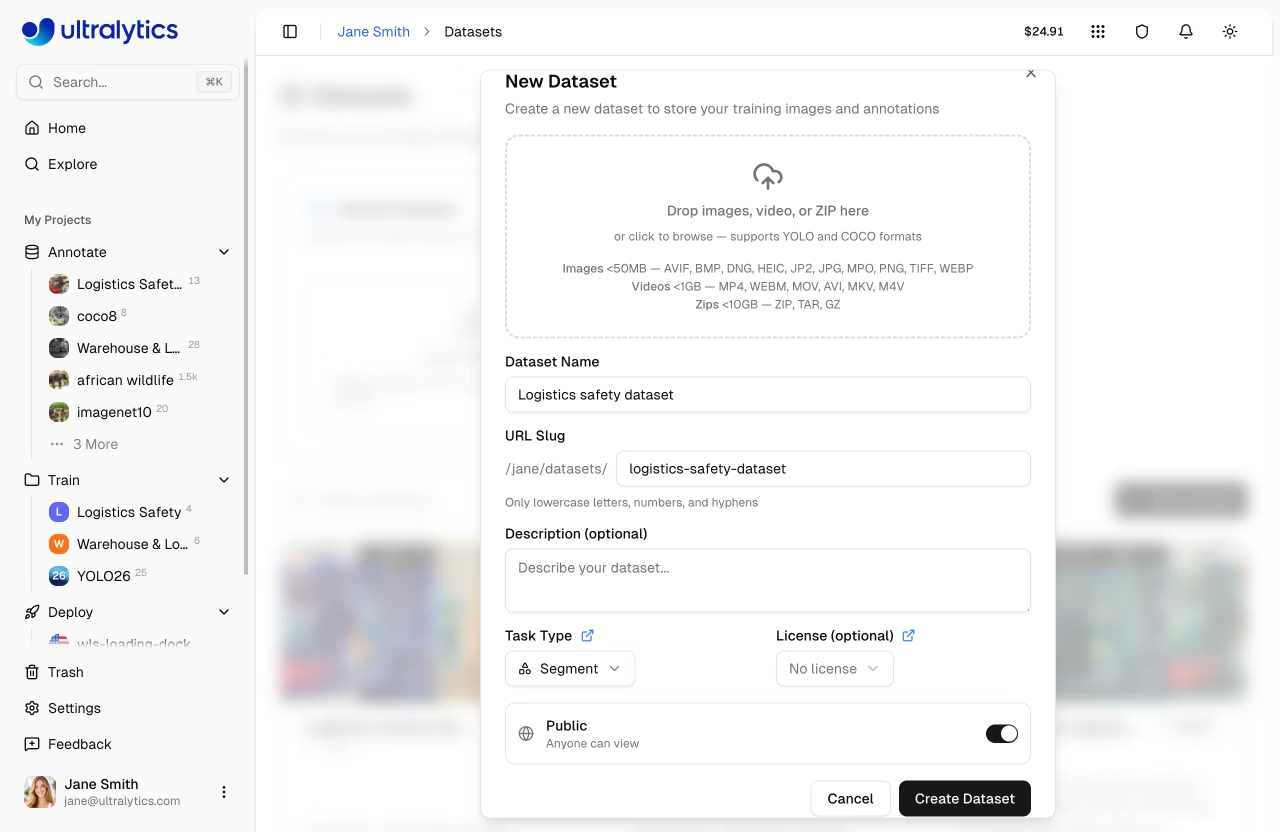
- Navigate to
Datasetsin the sidebar - Click
New Datasetor drag files into the upload zone - Select the task type (see supported tasks)
- Add a name and optional description
- Set visibility (public or private) and optional license (see available licenses)
- Click
Create
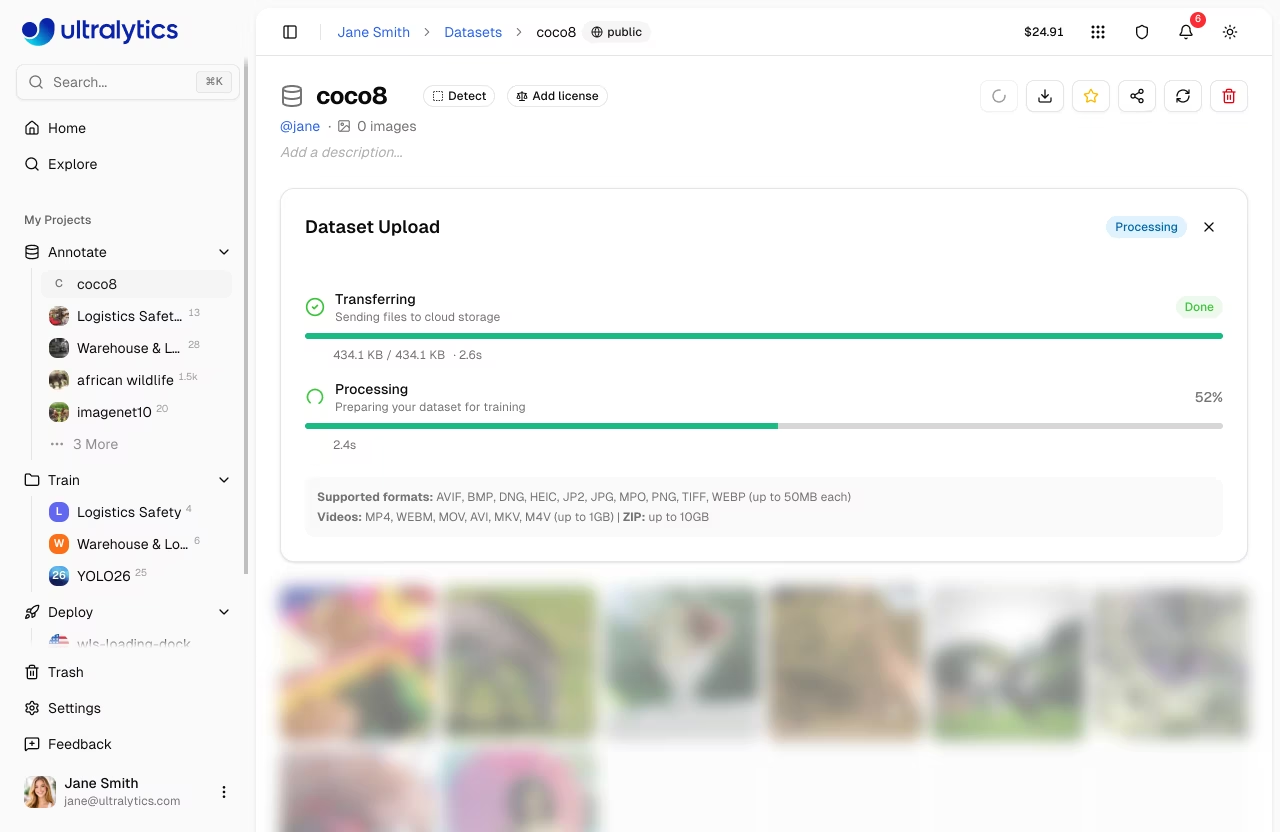
After upload, the platform processes your data through a multi-stage pipeline:
graph LR
    A[Upload] --> B[Validate]
    B --> C[Normalize]
    C --> D[Thumbnail]
    D --> E[Parse Labels]
    E --> F[Statistics]

    style A fill:#4CAF50,color:#fff
    style B fill:#2196F3,color:#fff
    style C fill:#2196F3,color:#fff
    style D fill:#2196F3,color:#fff
    style E fill:#2196F3,color:#fff
    style F fill:#9C27B0,color:#fff
- Validation: Format and size checks
- Normalization: Large images resized (max 4096px, min dimension 28px)
- Thumbnails: 256px WebP previews generated
- Label Parsing: YOLO and COCO format labels extracted
- Statistics: Class distributions and image dimensions computed
??? tip "Validate Before Upload"
You can validate your dataset locally before uploading:

```python
from ultralytics.data.utils import check_det_dataset

check_det_dataset("path/to/data.yaml")
```
!!! warning "Image Size Requirements"
Images must be at least 28px on their shortest side. Images smaller than this are rejected during processing. Images larger than 4096px on their longest side are automatically resized with aspect ratio preserved.
Browse Images
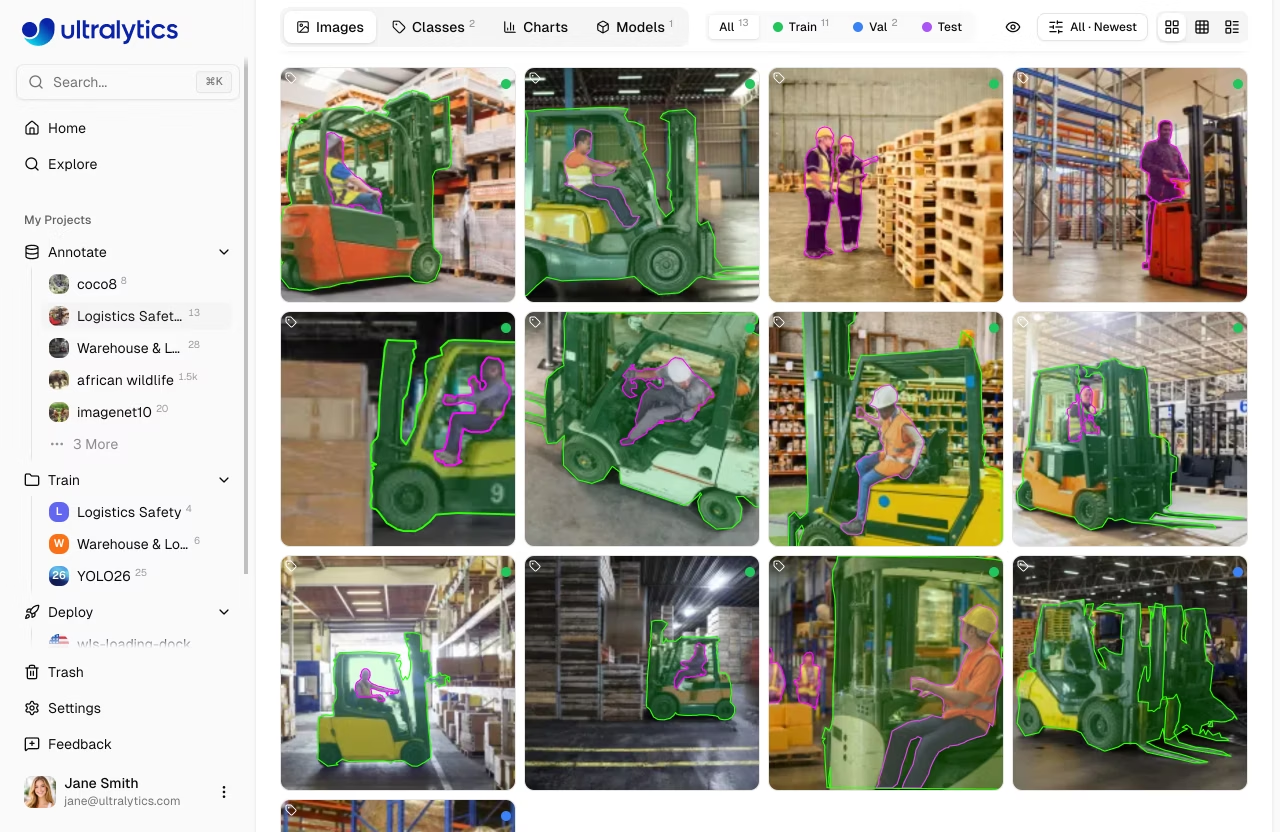
View your dataset images in multiple layouts:
| View | Description |
|---|---|
| Grid | Thumbnail grid with annotation overlays (default) |
| Compact | Smaller thumbnails for quick scanning |
| Table | List with thumbnail, filename, dimensions, size, split, classes, and label counts |
Sorting and Filtering
Images can be sorted and filtered for efficient browsing:
=== "Sort Options"
| Sort                 | Description                  |
| -------------------- | ---------------------------- |
| Newest / Oldest      | Upload / creation order      |
| Name A-Z / Z-A       | Filename alphabetical        |
| Height ↑/↓           | Image height in pixels       |
| Width ↑/↓            | Image width in pixels        |
| Size ↑/↓             | File size on disk            |
| Annotations ↑/↓      | Annotation count per image   |

!!! note "Large Datasets"

    For datasets over 100,000 images, name / size / width / height sorts are disabled to keep the gallery responsive. Newest, oldest, and annotation-count sorts remain available.
=== "Filters"
| Filter           | Options                             |
| ---------------- | ----------------------------------- |
| **Split filter** | Train, Val, Test, or All            |
| **Label filter** | All, Labeled, or Unlabeled          |
| **Class filter** | Filter by class name                |
| **Search**       | Filter images by filename           |
!!! tip "Finding Unlabeled Images"
Use the label filter set to `Unlabeled` to quickly find images that still need annotation. This is especially useful for large datasets where you want to track labeling progress.
Fullscreen Viewer
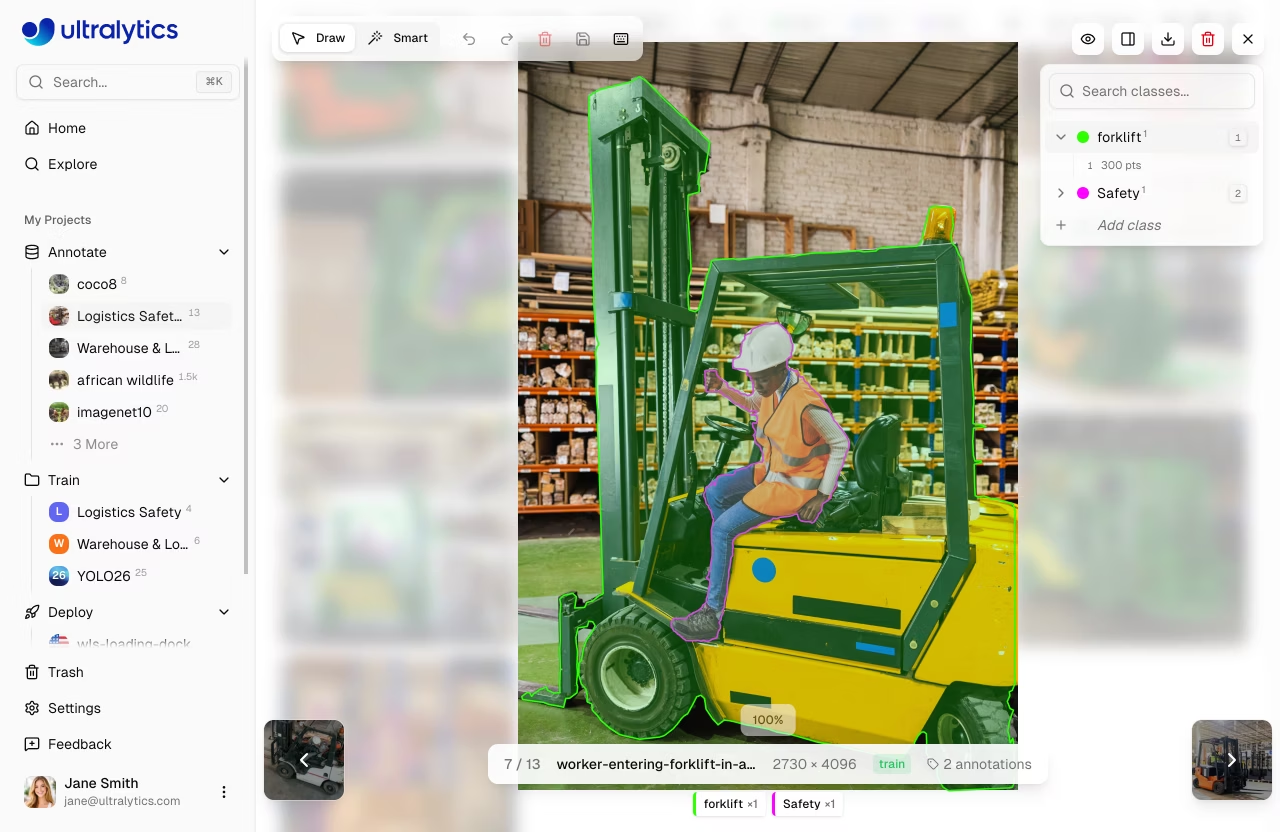
Click any image to open the fullscreen viewer with:
- Navigation: Arrow keys or thumbnail previews to browse
- Metadata: Filename, dimensions, split badge, annotation count
- Annotations: Toggle annotation overlay visibility
- Class Breakdown: Per-class label counts with color indicators
- Edit: Enter annotation mode to add or modify labels
- Download: Download the original image file
- Delete: Delete the image from the dataset
- Zoom:
Cmd/Ctrl+Scroll,Cmd/Ctrl++, orCmd/Ctrl+=to zoom in, andCmd/Ctrl+-to zoom out - Reset view:
Cmd/Ctrl + 0or the reset button to fit the image to the viewer - Pan: Hold
Spaceand drag to pan the canvas when zoomed - Pixel view: Toggle pixelated rendering for close inspection
Filter by Split
Filter images by their dataset split:
| Split | Purpose |
|---|---|
| Train | Used for model training |
| Val | Used for validation during training |
| Test | Used for final evaluation |
Dataset Tabs
Each dataset page can show up to six tabs, depending on the dataset state and your permissions:
Images Tab
The default view showing the image gallery with annotation overlays. Supports grid, compact, and table view modes. Drag and drop files here to add more images.
Classes Tab
This tab appears when the dataset has images.
Manage annotation classes for your dataset:
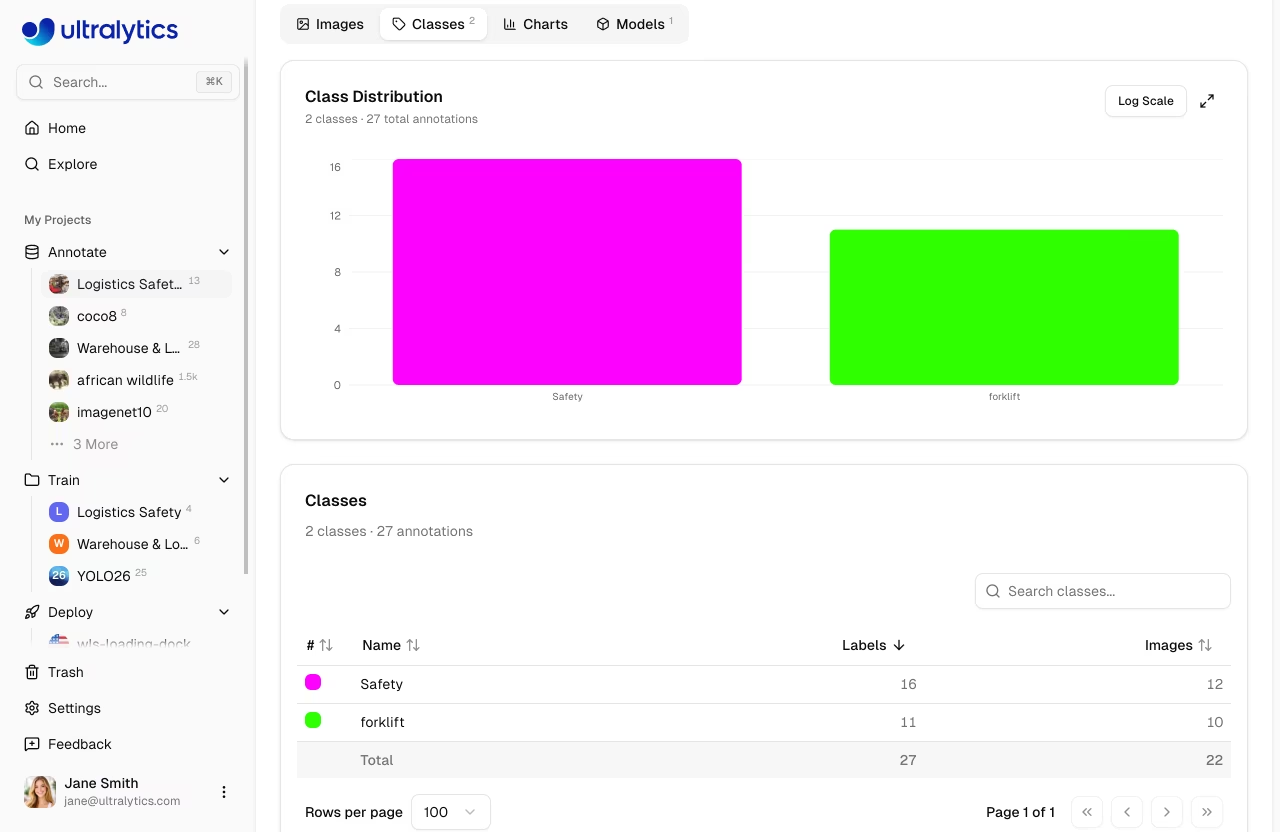
- Class histogram: Bar chart showing annotation count per class with linear/log scale toggle
- Class table: Sortable, searchable table with class name, label count, and image count
- Edit class names: Click any class name to rename it inline
- Edit class colors: Click a color swatch to change the class color
- Add new class: Use the input at the bottom to add classes
!!! note "Log Scale for Imbalanced Datasets"
If your dataset has class imbalance (e.g., 10,000 "person" annotations but only 50 "bicycle"), use the `Log Scale` toggle on the class histogram to visualize all classes clearly.
Charts Tab
This tab appears when the dataset has images.
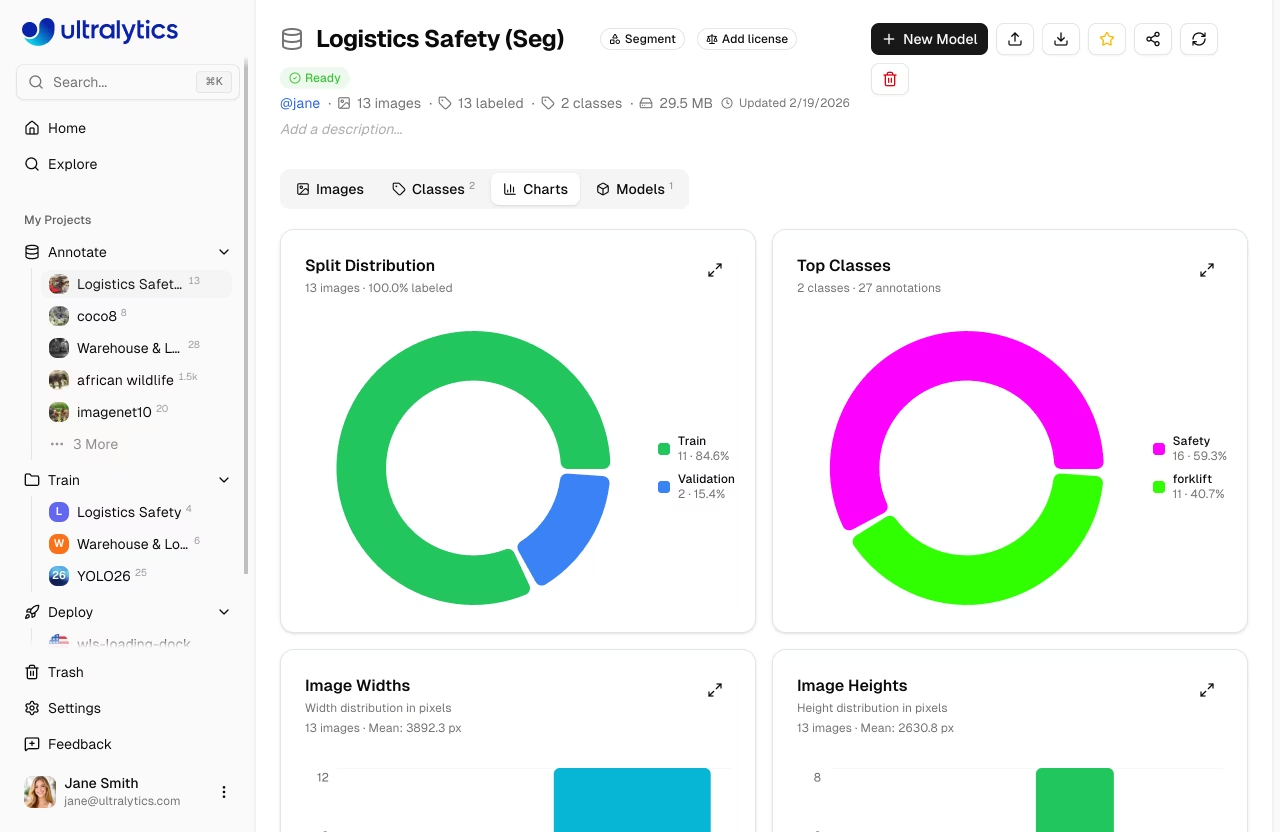
Automatic statistics computed from your dataset:
| Chart | Description |
|---|---|
| Split Distribution | Donut chart of train/val/test image counts and labeled percent |
| Top Classes | Donut chart of the 10 most frequent annotation classes |
| Image Widths | Histogram of image width distribution with mean |
| Image Heights | Histogram of image height distribution with mean |
| Points per Instance | Polygon vertex or keypoint count per annotation (segment/pose) |
| Annotation Locations | 2D heatmap of bounding box center positions |
| Image Dimensions | 2D width vs height heatmap with aspect ratio guide lines |
!!! tip "Statistics Caching"
Statistics are cached for 5 minutes. Changes to annotations will be reflected after the cache expires.
!!! info "Fullscreen Heatmaps"
Click the expand button on any heatmap to view it in fullscreen mode. This provides a larger, more detailed view — useful for understanding spatial patterns in large datasets.
Models Tab
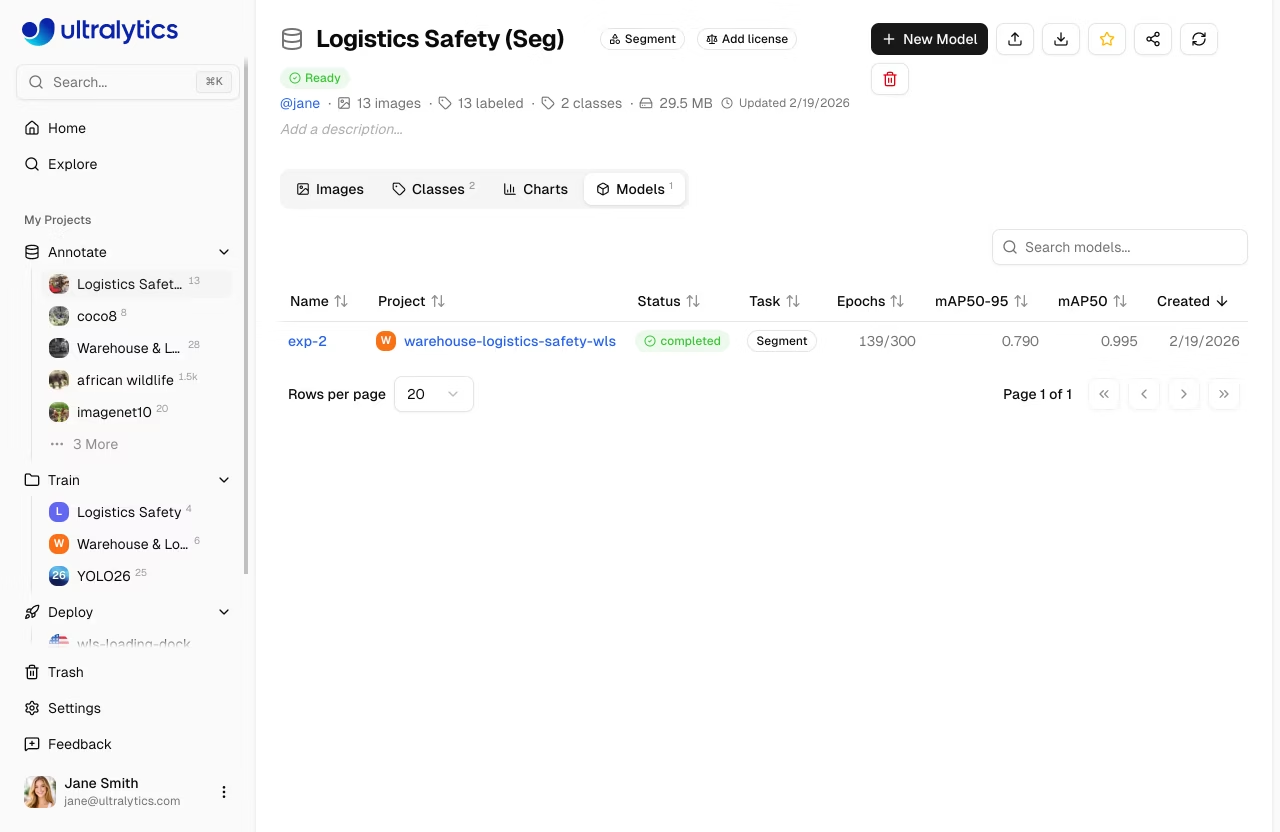
View all models trained on this dataset in a searchable table:
| Column | Description |
|---|---|
| Name | Model name with link |
| Project | Parent project with icon |
| Status | Training status badge |
| Task | YOLO task type |
| Epochs | Best epoch / total epochs |
| mAP50-95 | Mean average precision |
| mAP50 | mAP at IoU 0.50 |
| Created | Creation date |
Errors Tab
This tab appears only when one or more files fail processing.
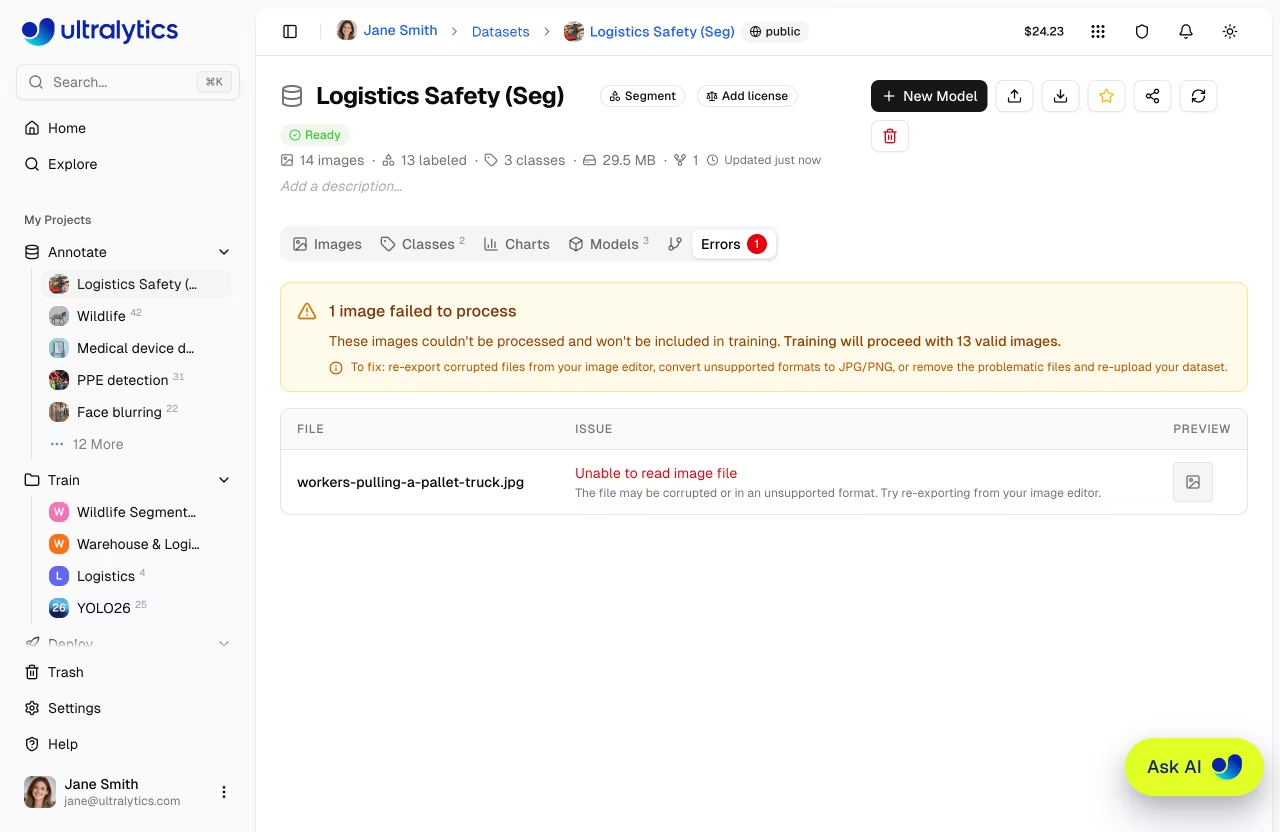
Images that failed processing are listed here with:
- Error banner: Total count of failed images and guidance
- Error table: Filename, user-friendly error description, fix hints, and preview thumbnail
- Common errors include corrupted files, unsupported formats, images too small (min 28px), and unsupported color modes
??? info "Common Processing Errors"
| Error                      | Cause                                   | Fix                                    |
| -------------------------- | --------------------------------------- | -------------------------------------- |
| Unable to read image file  | Corrupted or unsupported format         | Re-export from image editor            |
| Incomplete or corrupted    | File was truncated during transfer      | Re-download the original file          |
| Image too small            | Minimum dimension below 28px            | Use higher resolution source images    |
| Unsupported color mode     | CMYK or indexed color mode              | Convert to RGB mode                    |
Versions Tab
Create immutable NDJSON snapshots of your dataset for reproducible training. Each version captures image counts, class counts, annotation counts, and file size at the time of creation.
| Column | Description |
|---|---|
| Version | Version number (v1, v2, ...) |
| Description | User-provided description (editable) |
| Images | Image count at time of snapshot |
| Classes | Class count at time of snapshot |
| Annotations | Annotation count at time of snapshot |
| Size | NDJSON export file size |
| Created | When the version was created |
To create a version:
- Open the Versions tab
- Optionally enter a description (e.g., "Added 500 training images" or "Fixed mislabeled classes")
- Click + New Version
- The new version appears in the table
- Download the version separately from the table when needed
Each version is numbered sequentially (v1, v2, v3...) and stored permanently. You can download any previous version at any time from the versions table.
!!! note "Ready Datasets Only"
Version creation is available after the dataset reaches `ready` status.
!!! tip "When to Create Versions"
Create a version before and after major changes to your dataset — adding images, fixing annotations, or rebalancing splits. This lets you compare model performance across different dataset states.
!!! note "NDJSON File Size"
The size shown is the NDJSON export file size, which contains image URLs and annotations — not the images themselves. Actual image data is stored separately and accessed via signed URLs.
Export Dataset
Export your dataset for offline use with an NDJSON download from the dataset header or the Versions tab.
To export:
- Click the Export button in the dataset header
- Download the current NDJSON snapshot directly
- Use the Versions tab when you want an immutable numbered snapshot you can re-download later
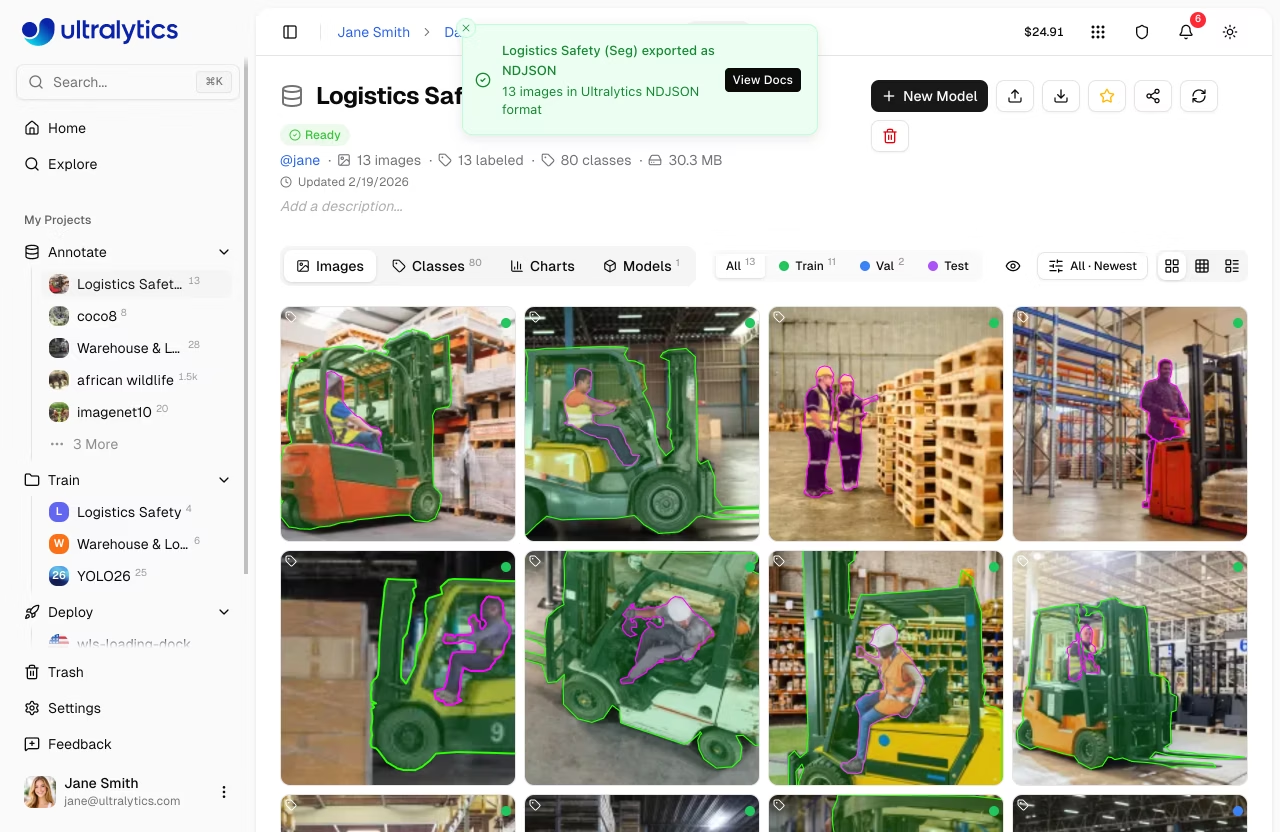
The NDJSON format stores one JSON object per line. The first line contains dataset metadata, followed by one line per image:
{"type": "dataset", "task": "detect", "name": "my-dataset", "description": "...", "url": "https://platform.ultralytics.com/...", "class_names": {"0": "person", "1": "car"}, "version": 1, "created_at": "2026-01-15T10:00:00Z", "updated_at": "2026-02-20T14:30:00Z"}
{"type": "image", "file": "img001.jpg", "url": "https://...", "width": 640, "height": 480, "split": "train", "annotations": {"boxes": [[0, 0.5, 0.5, 0.2, 0.3]]}}
{"type": "image", "file": "img002.jpg", "url": "https://...", "width": 1280, "height": 720, "split": "val"}
!!! note "Signed URLs"
Image URLs in the exported NDJSON are signed and valid for 7 days. If you need fresh URLs, re-export the dataset or create a new version.
See the Ultralytics NDJSON format documentation for full specification.
Image Operations
Quick Actions
Right-click any image in Grid or Compact view to access quick actions:
| Action | Description |
|---|---|
| Move to Split | Reassign the image to Train, Val, or Test split |
| Download | Download the original image file |
| Delete | Delete the image from the dataset |
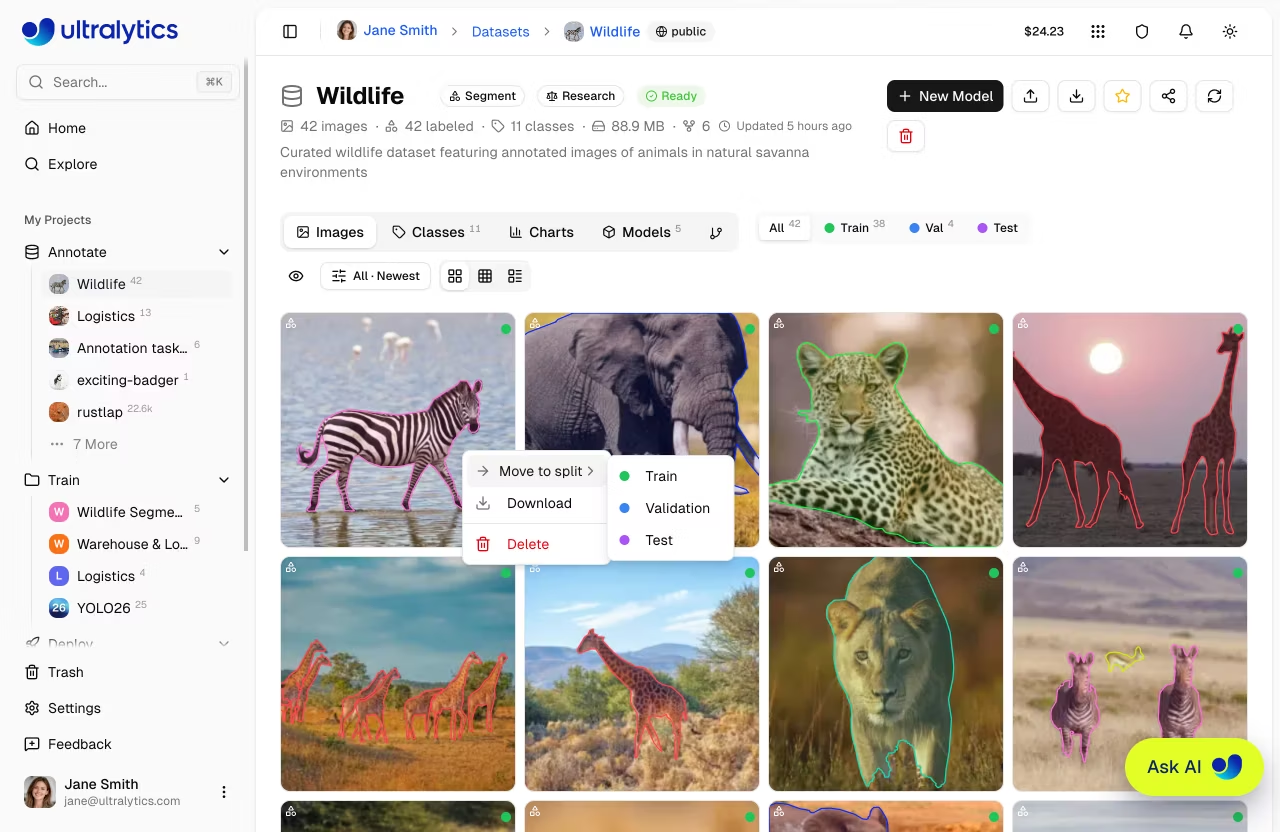
!!! tip "Single vs Bulk"
The image context menu operates on a **single image**. For bulk operations on multiple images, use **Table** view with checkbox selection.
Bulk Move to Split
Reassign selected images to a different split within the same dataset:
- Switch to Table view
- Select images using checkboxes
- Right-click to open the context menu
- Choose
Move to split> Train, Validation, or Test
You can also drag and drop images onto the split filter tabs in grid view.
!!! tip "Organizing Train/Val Splits"
Upload all images to one dataset, then use bulk move-to-split to organize subsets into train, validation, and test splits.
Split Redistribution
Redistribute all images across train, validation, and test splits using custom ratios:
- Click the split bar in the dataset toolbar to open the Redistribute Splits dialog
- Adjust split percentages using any of the methods below
- Review the live image count preview to confirm the distribution
- Click Apply to randomly reassign all images according to your percentages
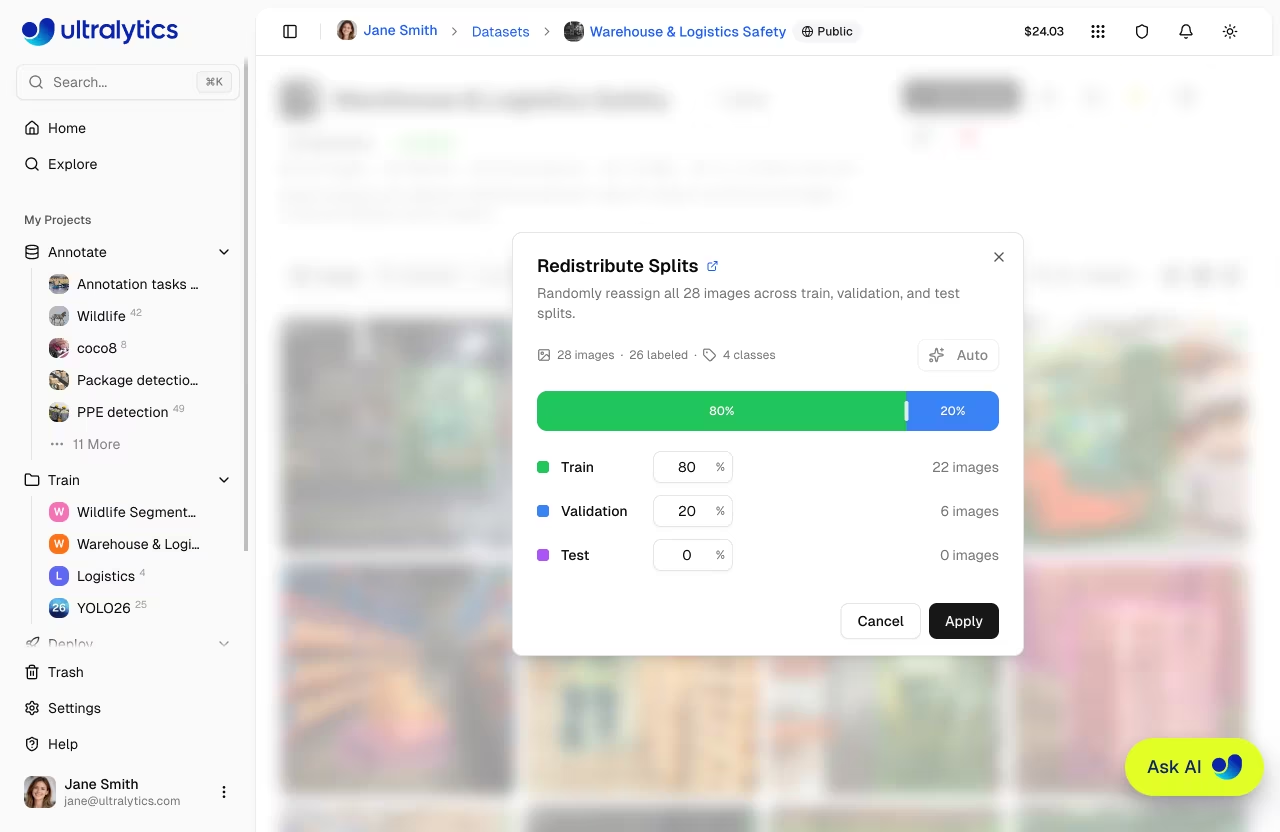
The dialog provides three ways to set your target split ratios:
| Method | Description |
|---|---|
| Drag | Drag the handles between the colored segments to visually adjust split boundaries |
| Type | Edit the percentage input for any split (the other two splits auto-rebalance proportionally) |
| Auto | One-click to instantly set an 80/20 train/validation split with the test split set to 0% |
A live preview shows exactly how many images will land in each split before you apply.
!!! tip "Quick 80/20 Split"
Click the **Auto** button to instantly set the recommended 80/20 train/validation split. This is the most common ratio for training.
Bulk Delete
Delete multiple images at once:
- Select images in the table view
- Right-click and choose
Delete - Confirm deletion
Dataset URI
Reference Platform datasets using the ul:// URI format (see Using Platform Datasets):
ul://username/datasets/dataset-slug
Use this URI to train models from anywhere:
=== "CLI"
```bash
export ULTRALYTICS_API_KEY="YOUR_API_KEY"
yolo train model=yolo26n.pt data=ul://username/datasets/my-dataset epochs=100
```
=== "Python"
```python
from ultralytics import YOLO

model = YOLO("yolo26n.pt")
model.train(data="ul://username/datasets/my-dataset", epochs=100)
```
!!! example "Train Anywhere with Platform Data"
The `ul://` URI works from any environment:

- **Local machine**: Train on your hardware, data downloaded automatically
- **Google Colab**: Access your Platform datasets in notebooks
- **Remote servers**: Train on cloud VMs with full dataset access
Available Licenses
The Platform supports the following licenses for datasets:
| License | Type |
|---|---|
| None | No license selected |
| CC0-1.0 | Public domain |
| CC-BY-2.5 | Permissive |
| CC-BY-4.0 | Permissive |
| CC-BY-SA-4.0 | Copyleft |
| CC-BY-NC-4.0 | Non-commercial |
| CC-BY-NC-SA-4.0 | Copyleft |
| CC-BY-ND-4.0 | No derivatives |
| CC-BY-NC-ND-4.0 | Non-commercial |
| Apache-2.0 | Permissive |
| MIT | Permissive |
| AGPL-3.0 | Copyleft |
| GPL-3.0 | Copyleft |
| Research-Only | Restricted |
| Other | Custom |
!!! note "Copyleft Licenses"
When cloning a dataset with a copyleft license (AGPL-3.0, GPL-3.0, CC-BY-SA-4.0, CC-BY-NC-SA-4.0), the clone inherits the license and the license selector is locked.
Visibility Settings
Control who can see your dataset:
| Setting | Description |
|---|---|
| Private | Only you can access |
| Public | Anyone can view on Explore page |
Visibility is set when creating a dataset in the New Dataset dialog using a toggle switch. Public datasets are visible on the Explore page.
Edit Dataset
Dataset metadata is edited inline directly on the dataset page — no dialog needed:
- Name: Click the dataset name to edit it. Changes auto-save on blur or
Enter. - Description: Click the description (or "Add a description..." placeholder) to edit. Changes auto-save.
- Task type: Click the task badge to select a different task type.
- License: Click the license selector to change the dataset license.
!!! info "Changing Task Type"
Each image stores annotations for all task types together. Changing the dataset task type controls which annotations are visible in the editor and included in exports and training. Annotations for other task types are preserved in the database and reappear when you switch back.
Clone Dataset
When viewing a public dataset you do not own, click Clone Dataset to create a copy in your workspace. The clone includes all images, annotations, and class definitions. If the original dataset has a copyleft license, the clone inherits it and the license selector is locked.
Star and Share
- Star: Click the star button to bookmark a dataset. The star count is visible to all users.
- Share: For public datasets, click the share button to copy a link or share to social platforms.
Delete Dataset
Delete a dataset you no longer need:
- Open dataset actions menu
- Click
Delete - Confirm in the dialog: "This will move [name] to trash. You can restore it within 30 days."
!!! note "Trash and Restore"
Deleted datasets are moved to Trash — not permanently deleted. You can restore them within 30 days from [`Settings > Trash`](../account/trash.md).
Train on Dataset
Start training directly from your dataset:
- Click
New Modelon the dataset page - Select a project or create new
- Configure training parameters
- Start training
graph LR
    A[Dataset] --> B[New Model]
    B --> C[Select Project]
    C --> D[Configure]
    D --> E[Start Training]

    style A fill:#2196F3,color:#fff
    style E fill:#4CAF50,color:#fff
See Cloud Training for details.
FAQ
What happens to my data after upload?
Your data is processed and stored in your selected region (US, EU, or AP). Images are:
- Validated for format and size
- Rejected if minimum dimension is below 28px
- Normalized if larger than 4096px (preserving aspect ratio; encoded for optimized storage)
- Stored using Content-Addressable Storage (CAS) with XXH3-128 hashing
- Thumbnails generated at 256px WebP for fast browsing
How does storage work?
Ultralytics Platform uses Content-Addressable Storage (CAS) for efficient storage:
- Deduplication: Identical images uploaded by different users are stored only once
- Integrity: XXH3-128 hashing ensures data integrity
- Efficiency: Reduces storage costs and speeds up processing
- Regional: Data stays in your selected region (US, EU, or AP)
Can I add images to an existing dataset?
Yes, drag and drop files onto the dataset page or use the upload button to add additional images. New statistics will be computed automatically.
How do I move images between splits?
Use the bulk move-to-split feature:
- Select images in the table view
- Right-click and choose
Move to split - Select the target split (Train, Validation, or Test)
What label formats are supported?
Ultralytics Platform supports YOLO labels, COCO JSON, Ultralytics NDJSON, and raw image uploads:
=== "YOLO Format"
One `.txt` file per image with normalized coordinates (0-1 range):

| Task     | Format                           | Example                             |
| -------- | -------------------------------- | ----------------------------------- |
| Detect   | `class cx cy w h`                | `0 0.5 0.5 0.2 0.3`                 |
| Segment  | `class x1 y1 x2 y2 ...`          | `0 0.1 0.1 0.9 0.1 0.9 0.9`         |
| Pose     | `class cx cy w h kx1 ky1 v1 ...` | `0 0.5 0.5 0.2 0.3 0.6 0.7 2`       |
| OBB      | `class x1 y1 x2 y2 x3 y3 x4 y4`  | `0 0.1 0.1 0.9 0.1 0.9 0.9 0.1 0.9` |
| Classify | Directory structure              | `train/cats/`, `train/dogs/`        |

Pose visibility flags: 0=not labeled, 1=labeled but occluded, 2=labeled and visible.
=== "COCO Format"
JSON files with `images`, `annotations`, and `categories` arrays. Supports detection (`bbox`), segmentation (polygon), and pose (`keypoints`) tasks. COCO uses absolute pixel coordinates which are automatically converted to normalized format during upload.
=== "NDJSON"
Ultralytics NDJSON exports can be re-imported into Platform. This is the most complete way to move dataset metadata, splits, and annotations between workspaces.
Can I annotate the same dataset for multiple task types?
Yes. Each image stores annotations for all 5 task types (detect, segment, pose, OBB, classify) together. You can switch the dataset's active task type at any time without losing existing annotations. Only annotations matching the active task type are shown in the editor and included in exports and training — annotations for other tasks are preserved and reappear when you switch back.