
12 KiB
| comments | description | keywords |
|---|---|---|
| true | Monitor deployed YOLO models on Ultralytics Platform with real-time metrics, request logs, and performance dashboards. | Ultralytics Platform, monitoring, metrics, logs, deployment, performance, YOLO, observability |
Monitoring
Ultralytics Platform provides monitoring for deployed endpoints. Track request metrics, view logs, and check health status with automatic polling.
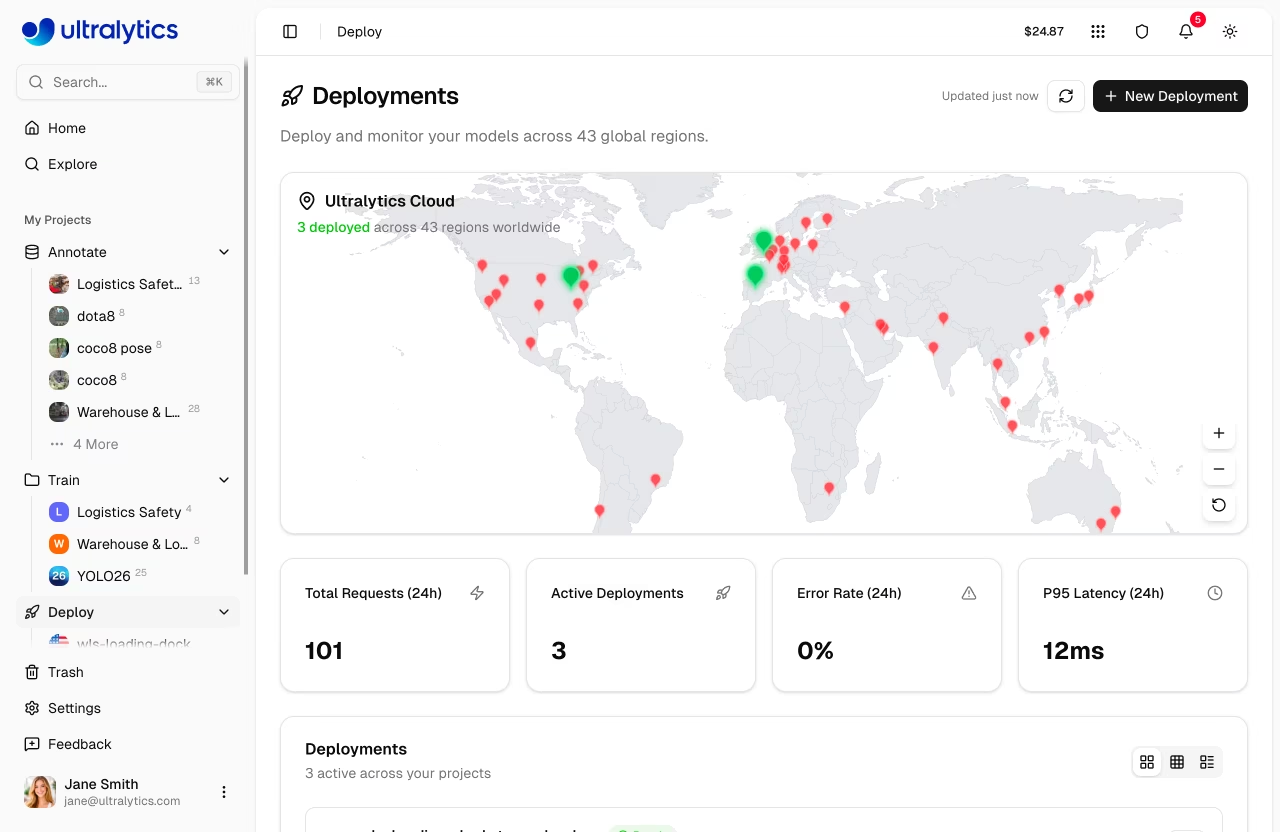
Deployments Dashboard
The Deploy page in the sidebar serves as the monitoring dashboard for all your deployments. It combines the world map, overview metrics, and deployment management in one view. See Dedicated Endpoints for creating and managing deployments.
graph TB
    subgraph Dashboard
        Map[World Map] --- Cards[Overview Cards]
        Cards --- List[Deployments List]
    end
    subgraph "Per Deployment"
        Metrics[Metrics Row]
        Health[Health Check]
        Logs[Logs Tab]
        Code[Code Tab]
        Predict[Predict Tab]
    end
    List --> Metrics
    List --> Health
    List --> Logs
    List --> Code
    List --> Predict

    style Dashboard fill:#f5f5f5,color:#333
    style Map fill:#2196F3,color:#fff
    style Cards fill:#FF9800,color:#fff
    style List fill:#4CAF50,color:#fff
Overview Cards
Four summary cards at the top of the page show:
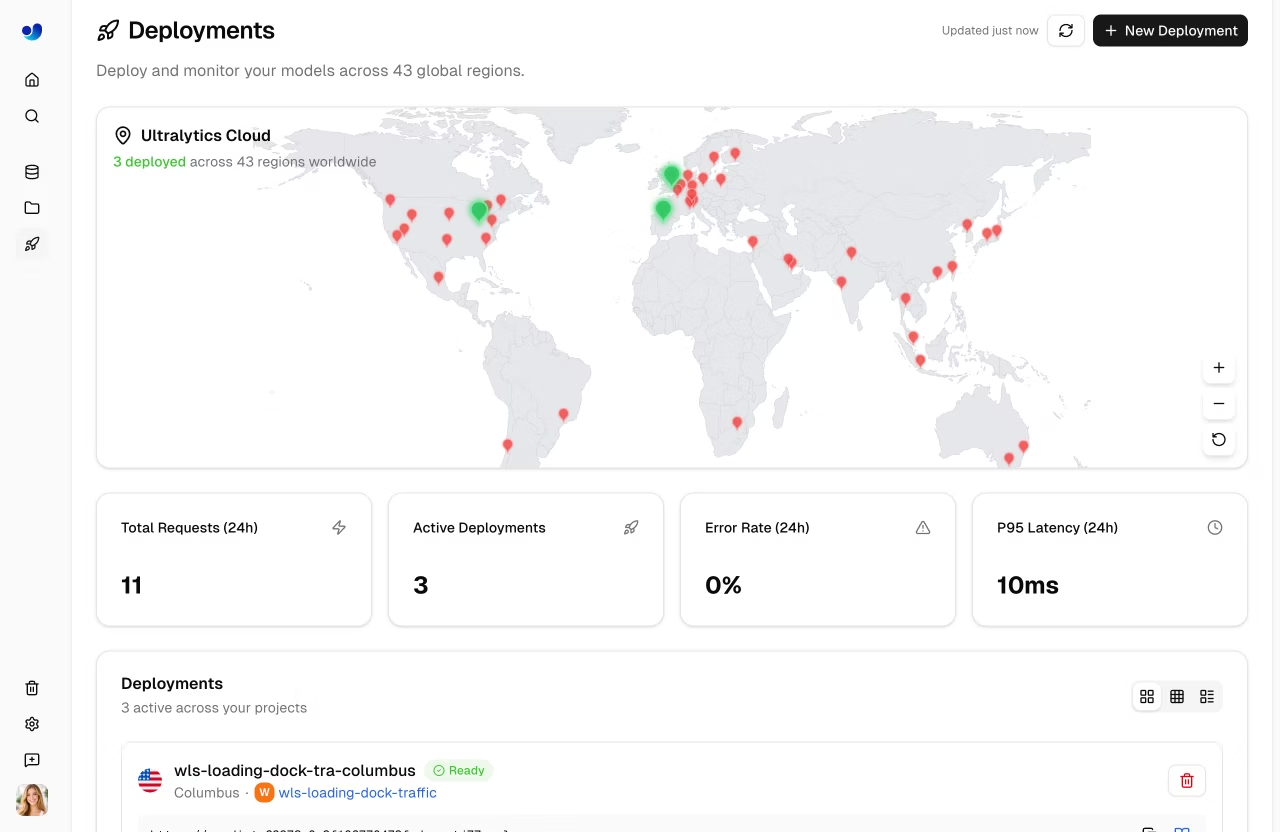
| Metric | Description |
|---|---|
| Total Requests (24h) | Requests across all endpoints |
| Active Deployments | Currently running endpoints |
| Error Rate (24h) | Percentage of failed requests |
| P95 Latency (24h) | 95th percentile response time |
!!! warning "Error Rate Alert"
The error rate card highlights in red when the rate exceeds 5%. Check the `Logs` tab on individual deployments to diagnose errors.
World Map
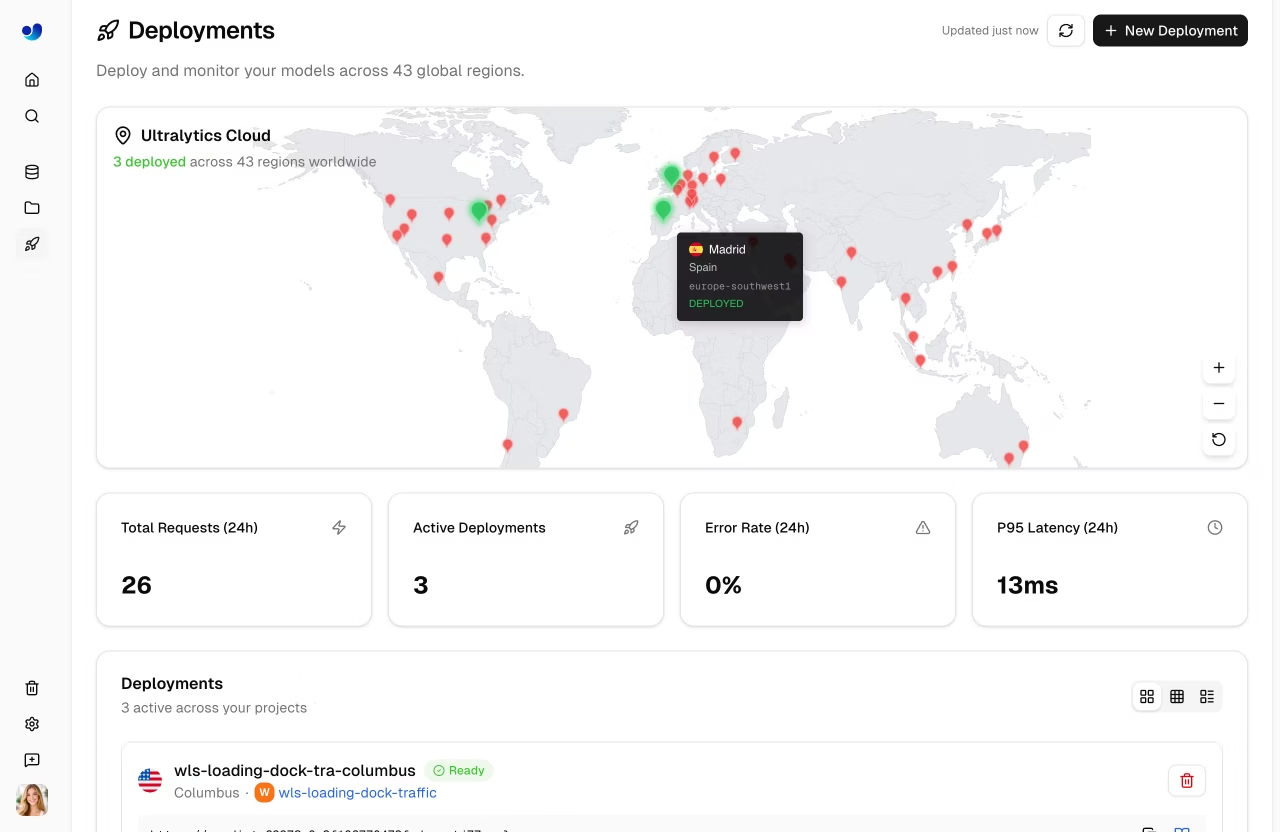
The interactive world map shows:
- Region pins for all 43 available regions
- Green pins for deployed regions
- Animated blue pins for regions with active deployments in progress
- Pin size varies based on deployment status and latency
Deployments List
Below the overview cards, the deployments list shows all endpoints across your projects. Use the view mode toggle to switch between:
| View | Description |
|---|---|
| Cards | Full detail cards with metrics, logs, code, and predict tabs |
| Compact | Grid of smaller cards (1-4 columns) with key metrics |
| Table | DataTable with sortable columns: Name, Region, Status, Requests, P95, Errors |
!!! tip "Real-Time Updates"
The dashboard polls every 15 seconds for deployment status updates. When deployments are in a transitional state (`creating`, `deploying`, or `stopping`), polling increases to every 3 seconds. Metric charts refresh every 60 seconds. Click the refresh button for immediate updates.
Per-Deployment Metrics
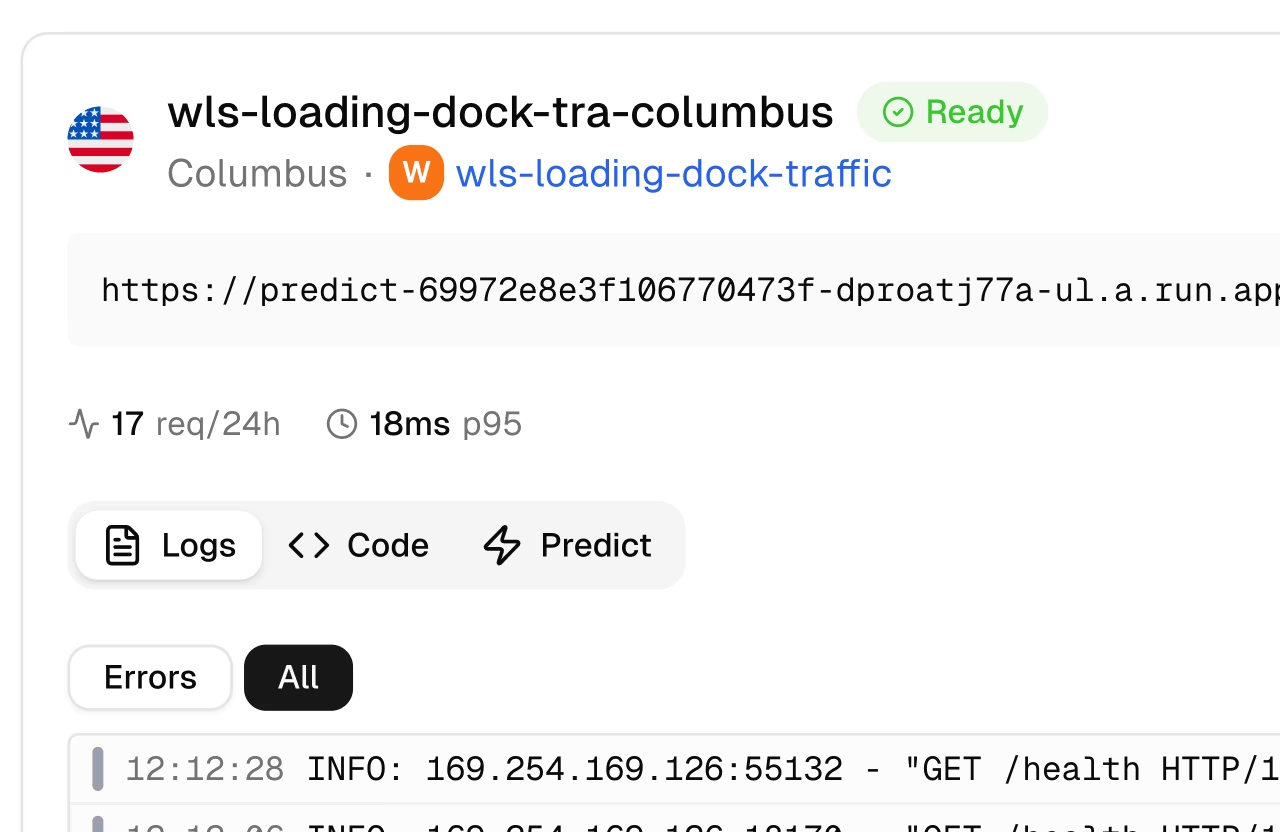
Each deployment card (in cards view) shows real-time metrics:
Metrics Row
| Metric | Description |
|---|---|
| Requests | Request count (24h) with icon |
| P95 Latency | 95th percentile response time |
| Error Rate | Percentage of failed requests |
Metrics are fetched from the sparkline API endpoint and refresh every 60 seconds.
Health Check
Running deployments show a health check indicator:
| Indicator | Meaning |
|---|---|
| Green heart | Healthy — shows response latency |
| Red heart | Unhealthy — shows error message |
| Spinning icon | Health check in progress |
Health checks auto-retry every 20 seconds when unhealthy. Click the refresh icon to manually trigger a health check. The health check uses a 55-second timeout to accommodate cold starts on scale-to-zero endpoints.
!!! info "Cold Start Tolerance"
The health check uses a 55-second timeout to account for cold starts on scale-to-zero endpoints (up to ~45 seconds in worst case). Once the endpoint warms up, health checks complete in milliseconds.
Logs
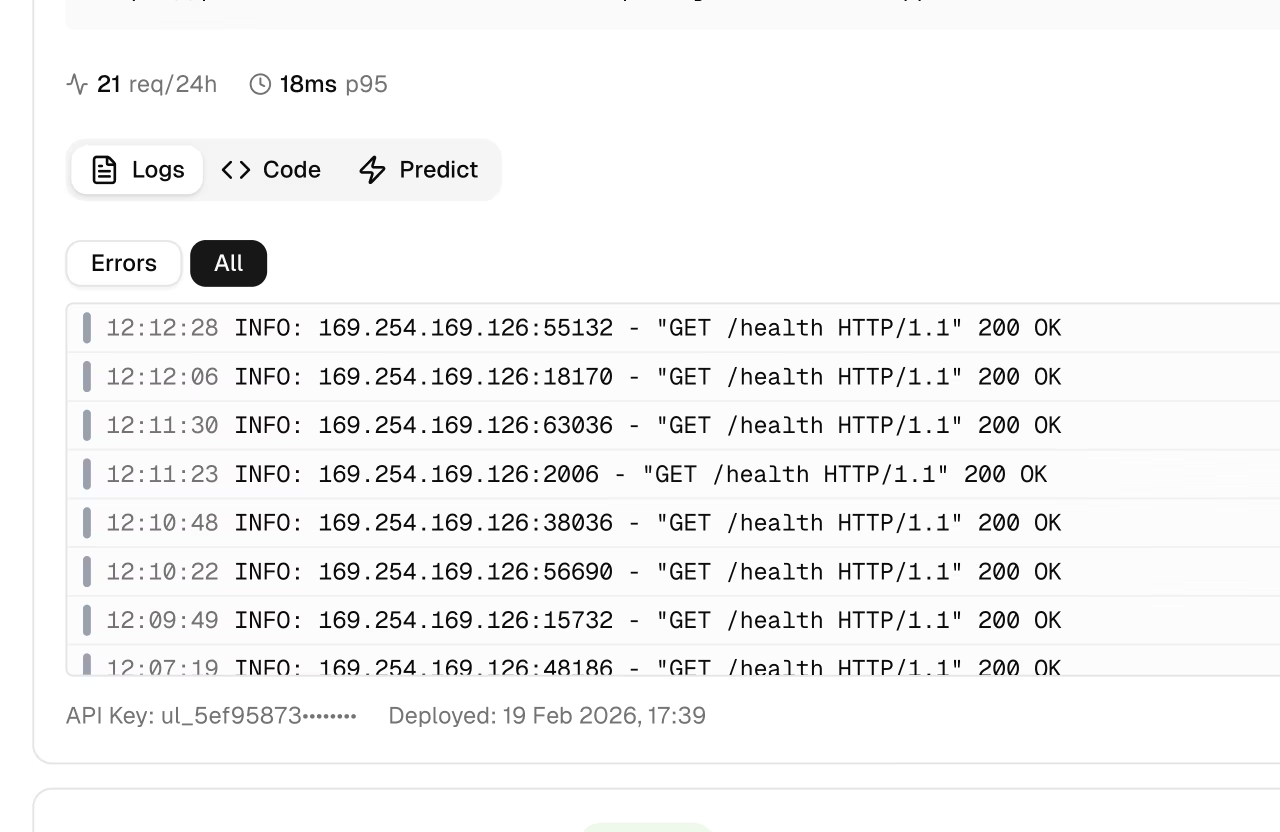
Each deployment card includes a Logs tab for viewing recent log entries:
Log Entries
Each log entry shows:
| Field | Description |
|---|---|
| Severity | Color-coded bar (see below) |
| Timestamp | Request time (local format) |
| Message | Log content |
| HTTP info | Status code and latency (if applicable) |
=== "Severity Levels"
Filter logs by severity using the filter buttons:

| Level        | Color    | Description         |
| ------------ | -------- | ------------------- |
| **DEBUG**    | Gray     | Debug messages      |
| **INFO**     | Blue     | Normal requests     |
| **WARNING**  | Yellow   | Non-critical issues |
| **ERROR**    | Red      | Failed requests     |
| **CRITICAL** | Dark Red | Critical failures   |
=== "Log Controls"
| Control     | Description                         |
| ----------- | ----------------------------------- |
| **Errors**  | Filter to ERROR and WARNING entries |
| **All**     | Show all log entries                |
| **Copy**    | Copy all visible logs to clipboard  |
| **Refresh** | Reload log entries                  |
The UI shows the 20 most recent entries. The API defaults to 50 entries per request (max 200).
!!! tip "Debugging Workflow"
When investigating errors: first click **Errors** to filter to ERROR and WARNING entries, then review timestamps and HTTP status codes. Copy logs to clipboard for sharing with your team.
Code Examples
Each deployment card includes a Code tab showing ready-to-use API code with your actual endpoint URL and API key:
=== "Python"
```python
import requests

# Deployment endpoint
url = "https://predict-abc123.run.app/predict"

# Headers with your deployment API key
headers = {"Authorization": "Bearer YOUR_API_KEY"}

# Inference parameters
data = {"conf": 0.25, "iou": 0.7, "imgsz": 640}

# Send image for inference
with open("image.jpg", "rb") as f:
    response = requests.post(url, headers=headers, data=data, files={"file": f})

print(response.json())
```
=== "JavaScript"
```javascript
// Build form data with image and parameters
const formData = new FormData();
formData.append("file", fileInput.files[0]);
formData.append("conf", "0.25");
formData.append("iou", "0.7");
formData.append("imgsz", "640");

// Send image for inference
const response = await fetch(
  "https://predict-abc123.run.app/predict",
  {
    method: "POST",
    headers: { Authorization: "Bearer YOUR_API_KEY" },
    body: formData,
  }
);

const result = await response.json();
console.log(result);
```
=== "cURL"
```bash
# Send image for inference
curl -X POST "https://predict-abc123.run.app/predict" \
  -H "Authorization: Bearer YOUR_API_KEY" \
  -F "file=@image.jpg" \
  -F "conf=0.25" \
  -F "iou=0.7" \
  -F "imgsz=640"
```
!!! note "Auto-Populated Credentials"
When viewing the `Code` tab in the platform, your actual endpoint URL and API key are automatically filled in. Copy the code and run it directly. See [API Keys](../account/api-keys.md) to generate a key.
Deployment Predict
The Predict tab on each deployment card provides an inline predict panel — the same interface as the model's Predict tab, but running inference through the deployment endpoint instead of the shared service. This is useful for testing a deployed endpoint directly from the browser. See Inference for parameter details and response formats.
API Endpoints
Monitoring Overview
GET /api/monitoring
Returns aggregated metrics for all deployments owned by the authenticated user. Workspace-aware via optional owner query parameter.
Deployment Metrics
GET /api/deployments/{deploymentId}/metrics?sparkline=true&range=24h
Returns sparkline data and summary metrics for a specific deployment. Refresh interval: 60 seconds.
| Parameter | Type | Description |
|---|---|---|
sparkline |
bool | Include sparkline data |
range |
string | Time range: 1h, 6h, 24h, 7d, or 30d |
Deployment Logs
GET /api/deployments/{deploymentId}/logs?limit=50&severity=ERROR,WARNING
Returns recent log entries with optional severity filter and pagination.
| Parameter | Type | Description |
|---|---|---|
limit |
int | Max entries to return (default: 50, max: 200) |
severity |
string | Comma-separated severity filter |
pageToken |
string | Pagination token from previous response |
Deployment Health
GET /api/deployments/{deploymentId}/health
Returns health check status with response latency.
{
    "healthy": true,
    "status": 200,
    "latencyMs": 142
}
Performance Optimization
Use monitoring data to optimize your deployments:
=== "High Latency"
If latency is too high:

1. Check instance count (may need more)
2. Verify model size is appropriate
3. Consider a closer region
4. Check image sizes being sent

!!! example "Reducing Latency"

    Switch from `imgsz=1280` to `imgsz=640` for a ~4x speedup with minimal accuracy loss for most use cases. Deploy to a region closer to your users for lower network latency.
=== "High Error Rate"
If errors are occurring:

1. Review error logs in the `Logs` tab
2. Check request format (multipart form required)
3. Verify API key is valid
4. Check rate limits
=== "Scaling Issues"
If hitting capacity:

1. Consider multiple regions
2. Optimize request batching
3. Increase CPU and memory resources
FAQ
How long is data retained?
| Data Type | Retention |
|---|---|
| Metrics | 30 days |
| Logs | 7 days |
Can I set up external monitoring?
Yes, endpoint URLs work with external monitoring tools:
- Uptime monitoring (Pingdom, UptimeRobot)
- APM tools (Datadog, New Relic)
- Custom health checks via the
/healthendpoint
How accurate are the latency numbers?
Latency metrics measure:
- P50: Median response time
- P95: 95th percentile
- P99: 99th percentile
These represent server-side processing time, not including network latency to your users.
Why are my metrics delayed?
Metrics have a ~2 minute delay due to:
- Metrics aggregation pipeline
- Aggregation windows
- Dashboard caching
For real-time debugging, check logs which are near-instant.
Can I monitor multiple endpoints together?
Yes, the deployments page shows all endpoints with aggregated overview cards. Use the table view to compare performance across deployments.