
15 KiB
| comments | description | keywords |
|---|---|---|
| true | Discover public datasets and projects on the Ultralytics Platform Explore page. Browse, search, and clone community content for computer vision and YOLO. | Ultralytics Platform, explore, public datasets, public projects, computer vision, YOLO, community |
Explore
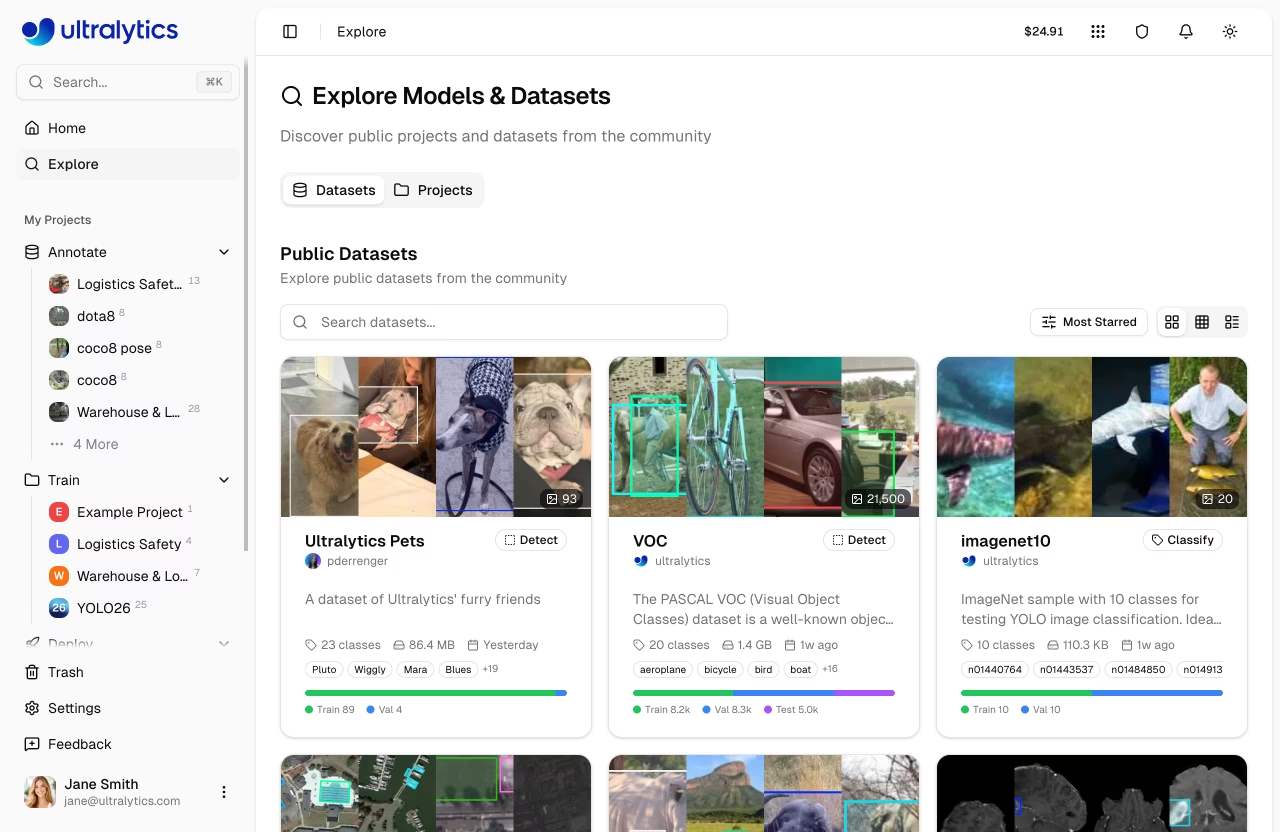
Ultralytics Platform Explore page showcases public content from the community. Discover datasets and projects for inspiration and learning. The Explore page is accessible to everyone — even without signing in.
graph LR
    A[🔍 Browse Explore] --> B[📥 Clone to Account]
    B --> C[✏️ Customize & Annotate]
    C --> D[🚀 Train Model]
    D --> E[🌐 Deploy Endpoint]

    style A fill:#4CAF50,color:#fff
    style B fill:#2196F3,color:#fff
    style C fill:#FF9800,color:#fff
    style D fill:#9C27B0,color:#fff
    style E fill:#E91E63,color:#fff
!!! info "Anonymous Access"
The Explore page works without signing in. Anonymous users see official Ultralytics content in the sidebar under "Ultralytics" instead of "My Projects". To clone content or create your own, you'll need to sign up.
Overview
The Explore page features two tabs:
- Public Datasets: Community training data with image previews
- Public Projects: Complete experiments containing trained models
Official Ultralytics content (e.g., @ultralytics projects and datasets) is pinned to the top of results.
Browse Content
Tabs
The Explore page uses a tabbed interface with Datasets and Projects tabs. Each tab has its own search, sort, and view mode controls.
| Tab | Description |
|---|---|
| Datasets | Labeled image collections for training (default) |
| Projects | Organized model collections with training results |
Search and Sort
Each tab provides a search bar and sort options:
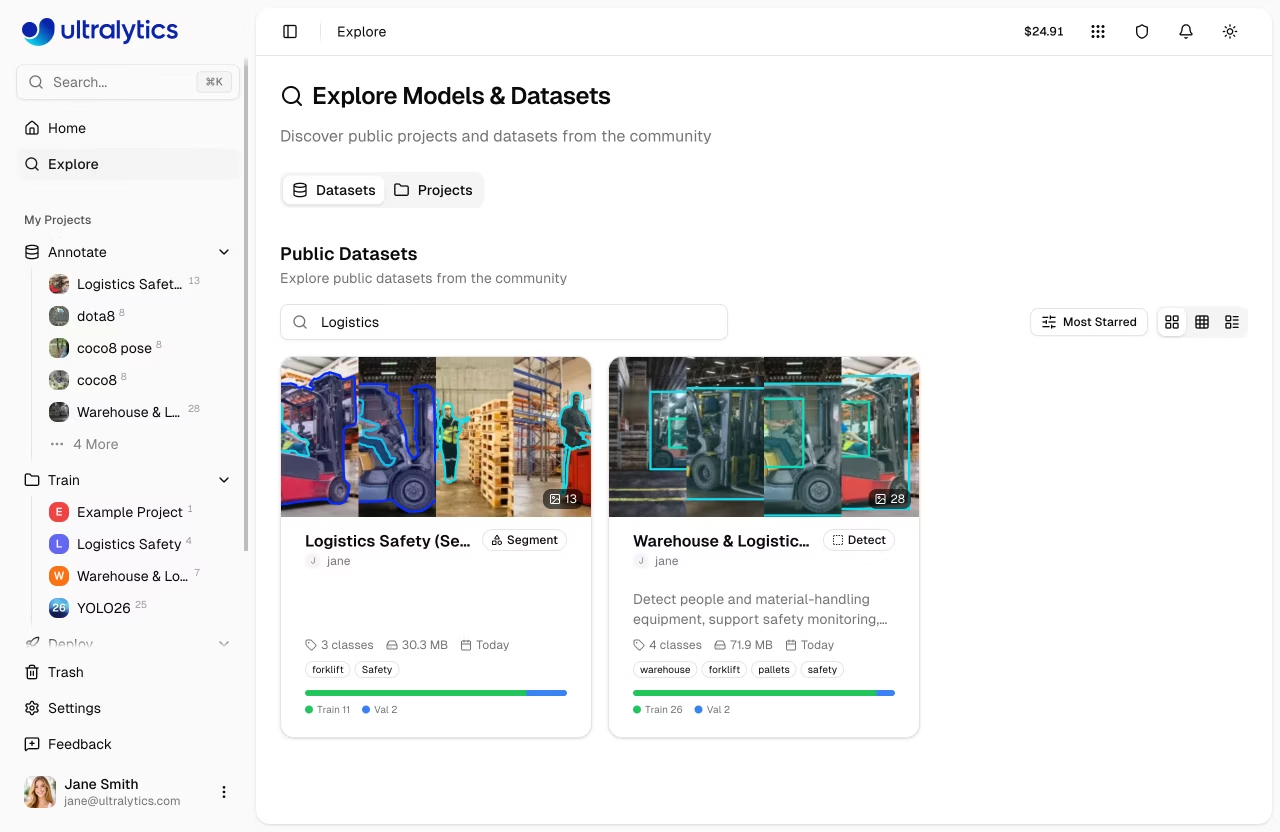
| Sort Option | Description |
|---|---|
| Most Starred | Content with most community stars (default) |
| Newest | Most recently created |
| Oldest | Oldest first |
| Name A-Z | Alphabetical ascending |
| Name Z-A | Alphabetical descending |
| Most images | Most images (datasets) or models (projects) |
| Fewest images | Fewest images (datasets) or models (projects) |
View Modes
Toggle between three view modes for browsing:
| Mode | Description |
|---|---|
| Cards | Grid of preview cards with thumbnails |
| Compact | Smaller cards in a responsive grid (2-3 columns) |
| Table | Sortable table with columns |
Cards and compact views support infinite scroll for loading more results.
Content Cards
Each item displays:
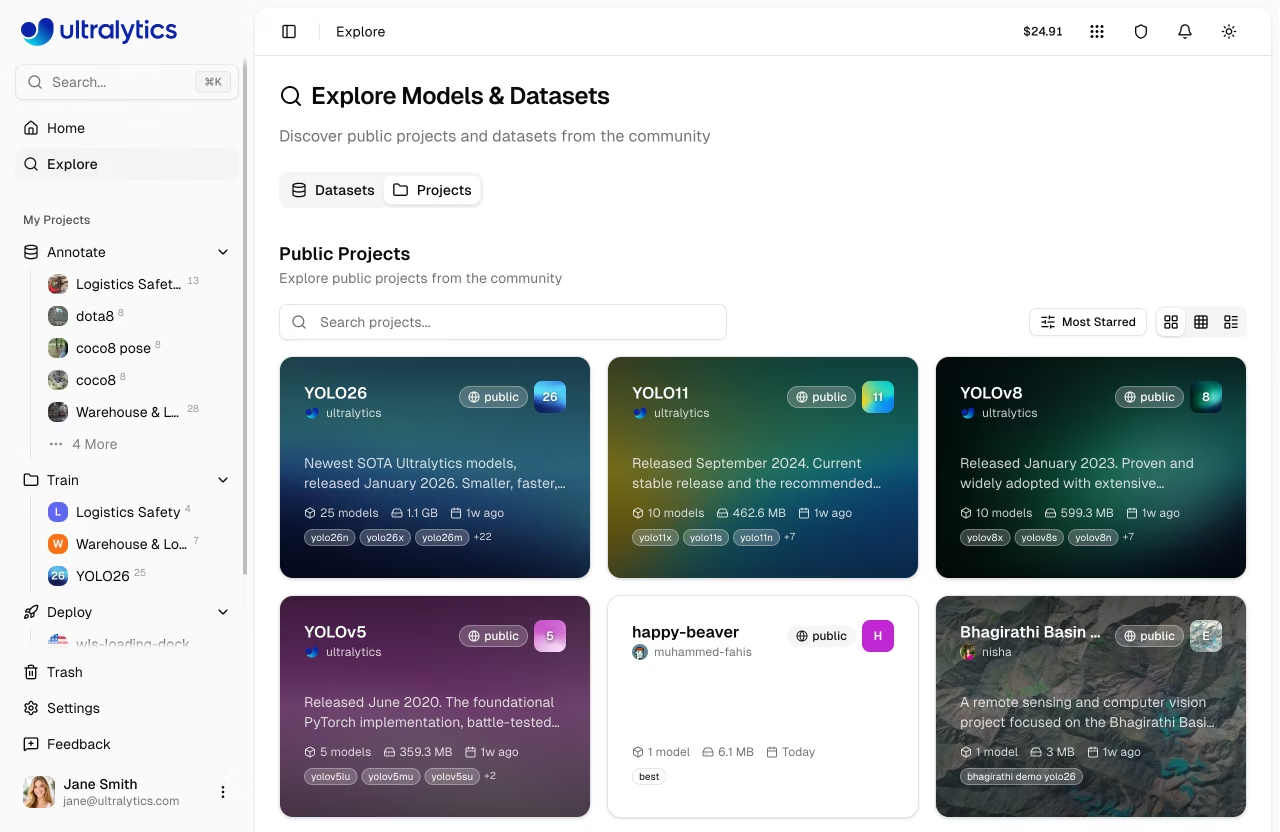
=== "Project Cards"
| Element              | Description                                                   |
| -------------------- | ------------------------------------------------------------- |
| **Icon**             | Project icon with custom colors                               |
| **Name**             | Project title                                                 |
| **Creator**          | Author avatar and username                                    |
| **Description**      | Short project description                                     |
| **Model Count**      | Number of models in the project                               |
| **Model Tags**       | Names of models in the project                                |
| **Visibility Badge** | Public or private indicator (shows lock icon for private)     |
| **Star Count**       | Number of community stars                                     |
=== "Dataset Cards"
| Element              | Description                                                   |
| -------------------- | ------------------------------------------------------------- |
| **Thumbnails**       | Preview images from the dataset                               |
| **Name**             | Dataset title                                                 |
| **Creator**          | Author avatar and username                                    |
| **Task Badge**       | YOLO task type (detect, segment, etc.)                        |
| **Image Count**      | Number of images in the dataset                               |
| **Visibility Badge** | Public or private indicator (shows lock icon for private)     |
| **Star Count**       | Number of community stars                                     |
Use Public Content
graph TD
    A[Find Content on Explore] --> B{Content Type}
    B --> C[Dataset]
    B --> D[Project]
    B --> E[Model]
    C --> F[Clone Dataset]
    D --> G[Clone Project]
    E --> H[Download Model]
    E --> I[Clone Model]
    F --> J[Private Copy in Your Account]
    G --> K[Private Copy with All Models]
    H --> L[.pt / ONNX / Other Formats]
    I --> M[Copy to Your Project]
    J --> N[Edit, Annotate, Train]
    K --> N
    M --> N
Clone Dataset
Use a public dataset for your training:
- Click on the dataset to open its detail page
- Click
Clone Dataset - Dataset copies to your account
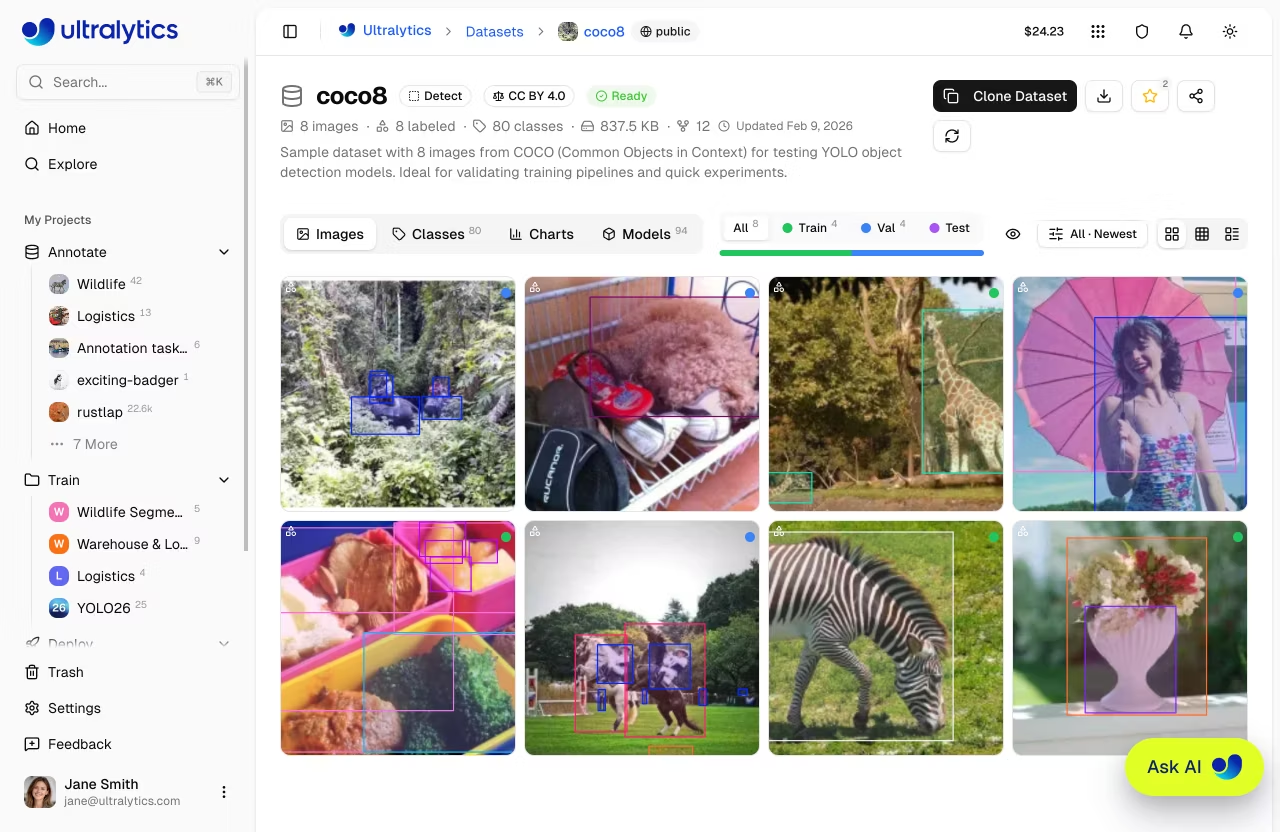
!!! note "Cloned Dataset Properties"
- Cloned datasets are **private by default**
- You can modify classes, annotations, and splits
- Changes don't affect the original dataset
- Images are deduplicated using content-addressable storage (CAS) — cloning is fast and **does not double your storage usage**
See Datasets for managing and annotating your cloned dataset.
Download Model
Download a public model:
- Click on the model within a project
- Click the download icon
- Select format (PT, ONNX, etc.)
You can also use the model for inference or as a starting point for fine-tuning:
# Use a downloaded model for inference
yolo predict model=path/to/downloaded-model.pt source=image.jpg

# Fine-tune on your own dataset
yolo train model=path/to/downloaded-model.pt data=my-dataset.yaml epochs=50
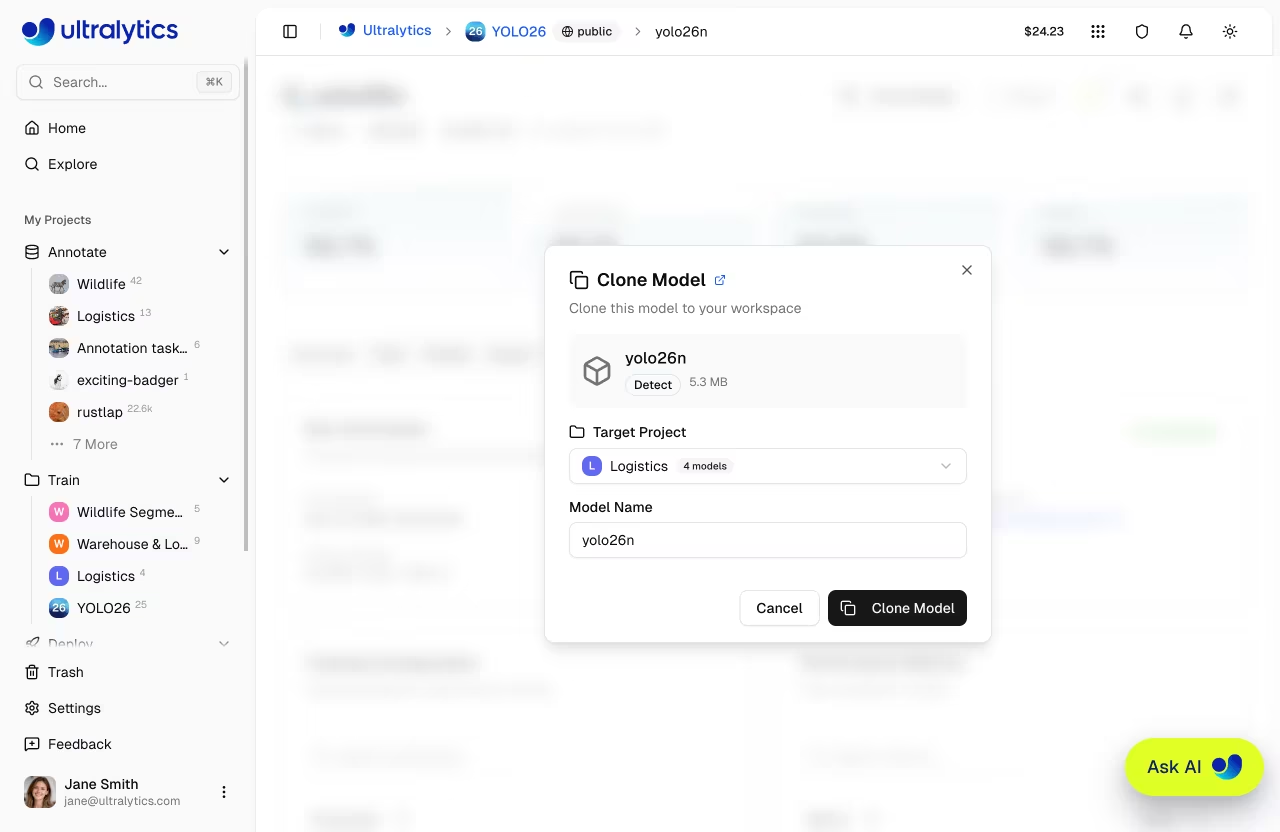
Clone Model
Clone a public model to one of your projects:
- Click on the model within a project
- Click
Clone Model - Select a target project or create a new one
- Optionally, rename the model
- Click
Clone Modelto confirm
!!! note "Clone vs Download"
**Clone** copies the model to a project on the Platform for further training or deployment. **Download** saves the model file to your local machine.
Clone Project
Copy a public project to your workspace:
- Click on the project to open its detail page
- Click
Clone Project - Project copies with all models to your account
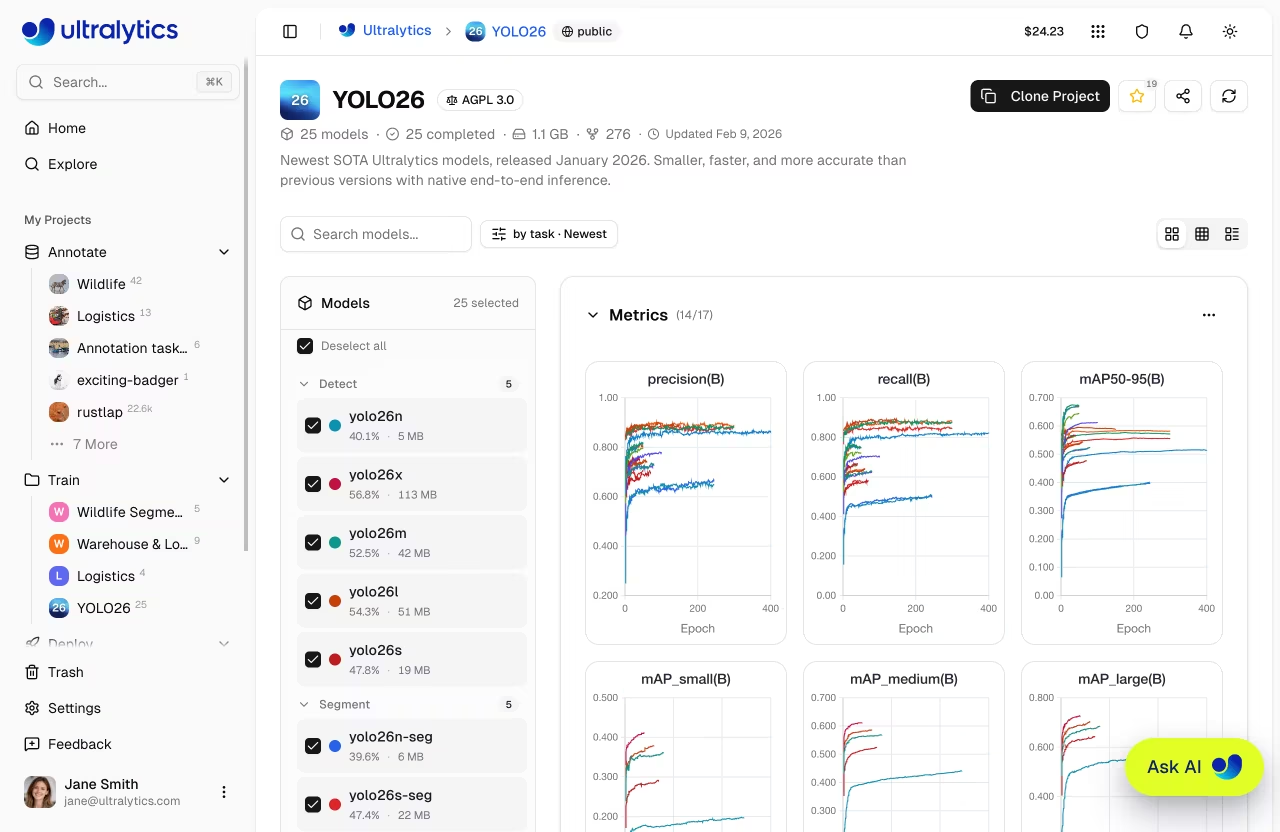
See Projects for organizing models in your project.
Official Ultralytics Content
Official @ultralytics content is pinned to the top of the Explore page. This includes:
| Project | Description | Models | Tasks |
|---|---|---|---|
| YOLO26 | Latest January 2026 release | 25 models (5 sizes × 5 tasks) | detect, segment, pose, OBB, classify |
| YOLO11 | Current stable release | 25 models (5 sizes × 5 tasks) | detect, segment, pose, OBB, classify |
| YOLOv8 | Previous generation | 20+ models (5 sizes × 4 tasks) | detect, segment, pose, classify |
| YOLOv5 | Legacy, widely adopted | 15+ models | detect, segment, classify |
Official datasets include benchmark datasets like coco8 (8-image COCO subset), VOC, african-wildlife, dota8, and other commonly used computer vision datasets.
!!! tip "Quick Start with Official Models"
The fastest way to get started is to clone an official Ultralytics project and use a pretrained model to train on your own dataset:

1. Go to `Explore` > `Projects` tab
2. Find the **YOLO26** project from `@ultralytics`
3. Clone it to your account
4. Upload your dataset in [supported formats](data/datasets.md#preparing-your-dataset) and start training with a pretrained checkpoint
User Profiles
Click on a creator's username to view their public profile at platform.ultralytics.com/{username}. Public profiles show:
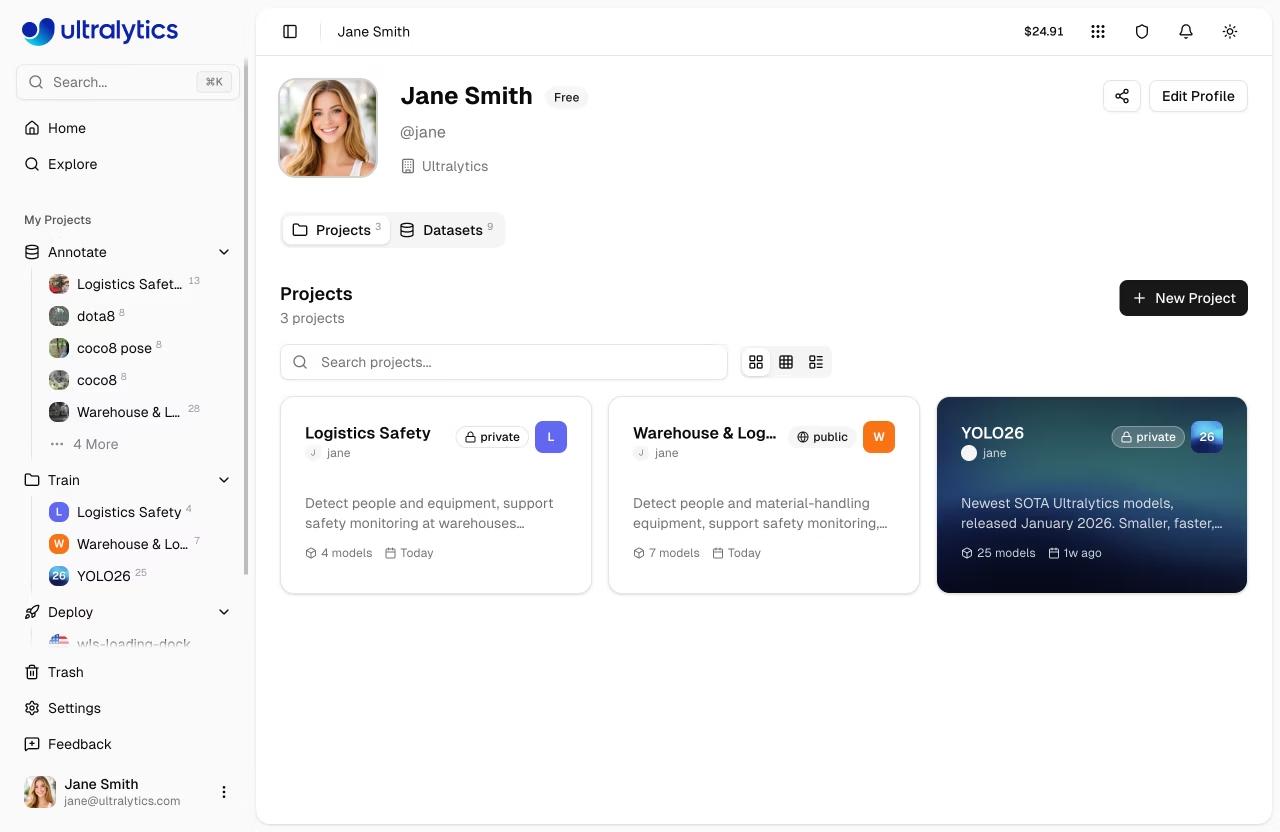
| Section | Content |
|---|---|
| Bio | User description and company |
| Links | Social profiles |
| Followers | Follower count |
| Projects | Public projects with models |
| Datasets | Public datasets |
Follow Users
Click the Follow button on any user's profile to follow them. Following helps you discover new content from creators you're interested in. Your follower count is displayed on your profile.
Make Your Content Public
Make your work available to the community. Public content appears on the Explore page and is visible to everyone, including users who aren't signed in.
graph LR
    A[Your Private Content] --> B[Edit Settings]
    B --> C[Set Visibility: Public]
    C --> D[Appears on Explore Page]
    D --> E[Community Can Clone/Download]
Make Dataset Public
- Go to your dataset
- Open the actions menu (three dots)
- Click
Edit - Set visibility to
Public - Click
Save
Make Project Public
- Go to your project
- Open the actions menu (three dots)
- Click
Edit - Set visibility to
Public - Click
Save
!!! tip "Quality Content"
Before making content public:

- Add a clear, descriptive name and description
- Define class names in the dataset settings
- Verify data quality and annotation accuracy
- Test model performance and include training metrics
!!! warning "Public Content Visibility"
Public content is visible to **everyone on the internet**, including anonymous users. Make sure your dataset doesn't contain sensitive, private, or copyrighted data before making it public. You can change visibility back to private at any time.
Guidelines
When contributing public content:
Do
- Provide useful, high-quality content
- Write clear descriptions
- Include relevant metadata
- Respond to questions
- Credit data sources
Don't
- Upload sensitive/private data
- Violate copyrights
- Upload inappropriate content
- Spam low-quality content
- Misrepresent performance
Share Content
Click the Share button on any public project, model, or dataset to share it. The share dialog provides pre-filled text for social platforms and a direct copy link.
Embed Widgets
Public content can be embedded in external websites using embed URLs:
| Content | Embed URL Pattern |
|---|---|
| Project | platform.ultralytics.com/embed/{username}/{project} |
| Model | platform.ultralytics.com/embed/{username}/{project}/{model} |
| Dataset | platform.ultralytics.com/embed/{username}/datasets/{slug} |
Use these URLs in an <iframe> to embed interactive project views, model prediction widgets, or dataset viewers on your website.
Public Content URLs
Public content on the platform uses clean, shareable URLs:
| Content | URL Pattern | Example |
|---|---|---|
| Profile | platform.ultralytics.com/{username} |
platform.ultralytics.com/ultralytics |
| Datasets | platform.ultralytics.com/{username}/datasets |
platform.ultralytics.com/ultralytics/datasets |
| Dataset | platform.ultralytics.com/{username}/datasets/{slug} |
platform.ultralytics.com/ultralytics/datasets/coco |
| Project | platform.ultralytics.com/{username}/{project} |
platform.ultralytics.com/ultralytics/yolo26 |
| Model | platform.ultralytics.com/{username}/{project}/{model} |
platform.ultralytics.com/ultralytics/yolo26/yolo26n |
!!! tip "Shareable Links"
You can share any public content URL directly. Recipients can view the content without signing in. To clone or download, they'll need an account.
FAQ
Can I use public content commercially?
Check individual content licenses. Most community content is for:
- Research and education
- Personal projects
- Non-commercial use
Contact creators for commercial licensing.
How do I report inappropriate content?
To report inappropriate content:
- Navigate to the public page containing the content (project or dataset), if accessible
- Open the Help page from the sidebar
- Select General as the feedback type
- Describe the content and the issue, including a link to the page
- Submit the report
If the content is no longer accessible, use the Help page from any page and include as much detail as possible (URL, username, or description).
Our team reviews reports within 24-48 hours.
Can I make public content private again?
Yes, you can change visibility anytime:
- Open content settings
- Change visibility to Private
- Save changes
Existing clones are not affected.
How do I get featured?
Featured content is selected based on:
- Quality and usefulness
- Community engagement
- Novelty and interest
- Clear documentation
There's no application process - just create great content!