
14 KiB
| comments | description | keywords |
|---|---|---|
| true | Learn how to test YOLO models with the Ultralytics Platform inference API including browser testing and programmatic access. | Ultralytics Platform, inference, API, YOLO, object detection, prediction, testing |
Inference
Ultralytics Platform provides an inference API for testing trained models. Use the browser-based Predict tab for quick validation or the REST API for programmatic access.
Predict Tab
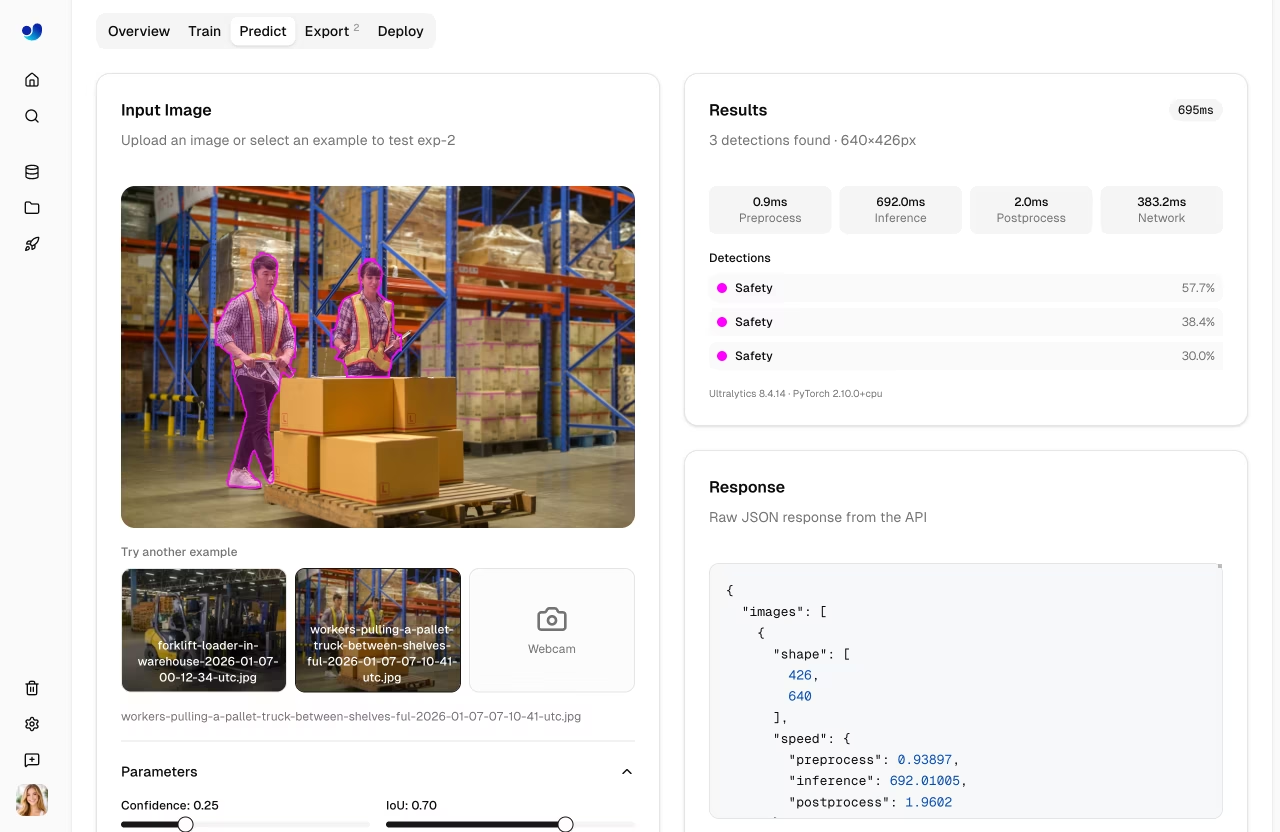
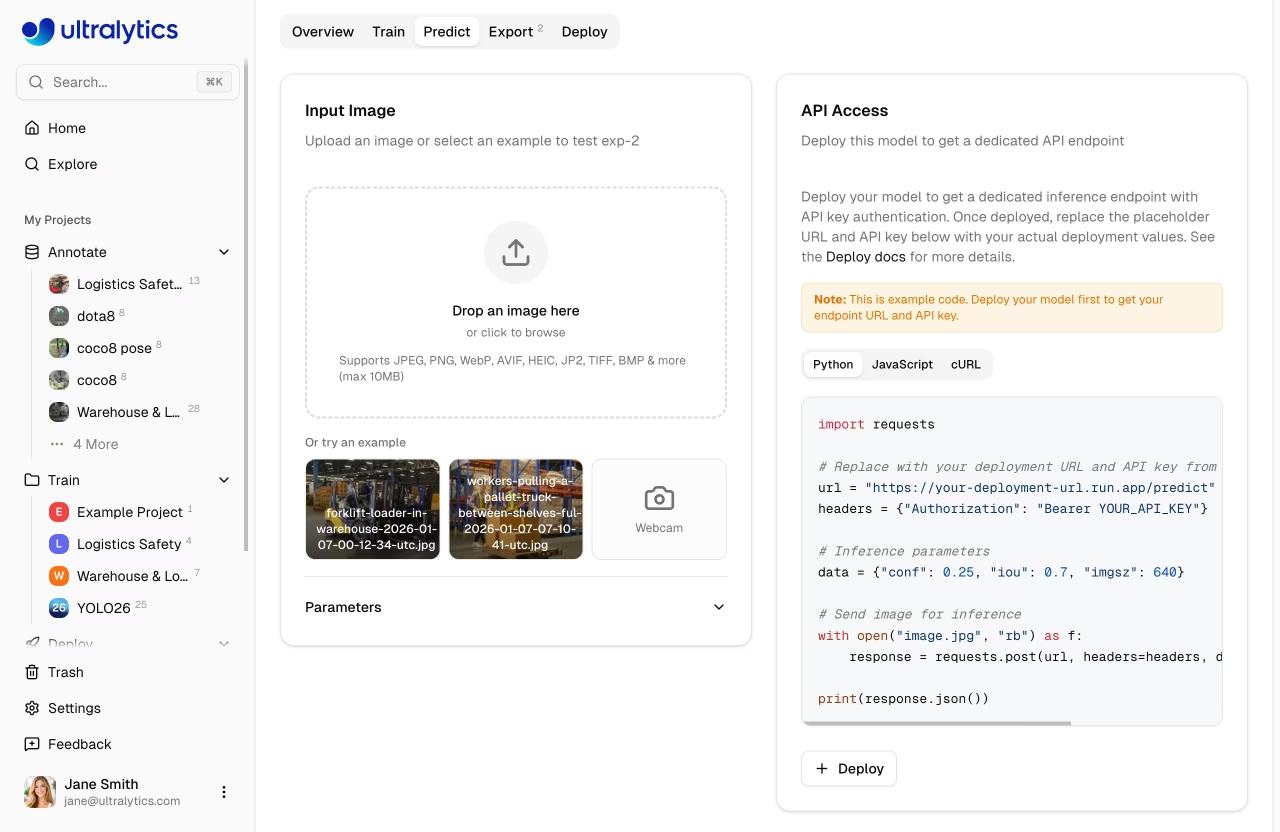
Every model includes a Predict tab for browser-based inference:
- Navigate to your model
- Click the Predict tab
- Upload an image, use an example, or open your webcam
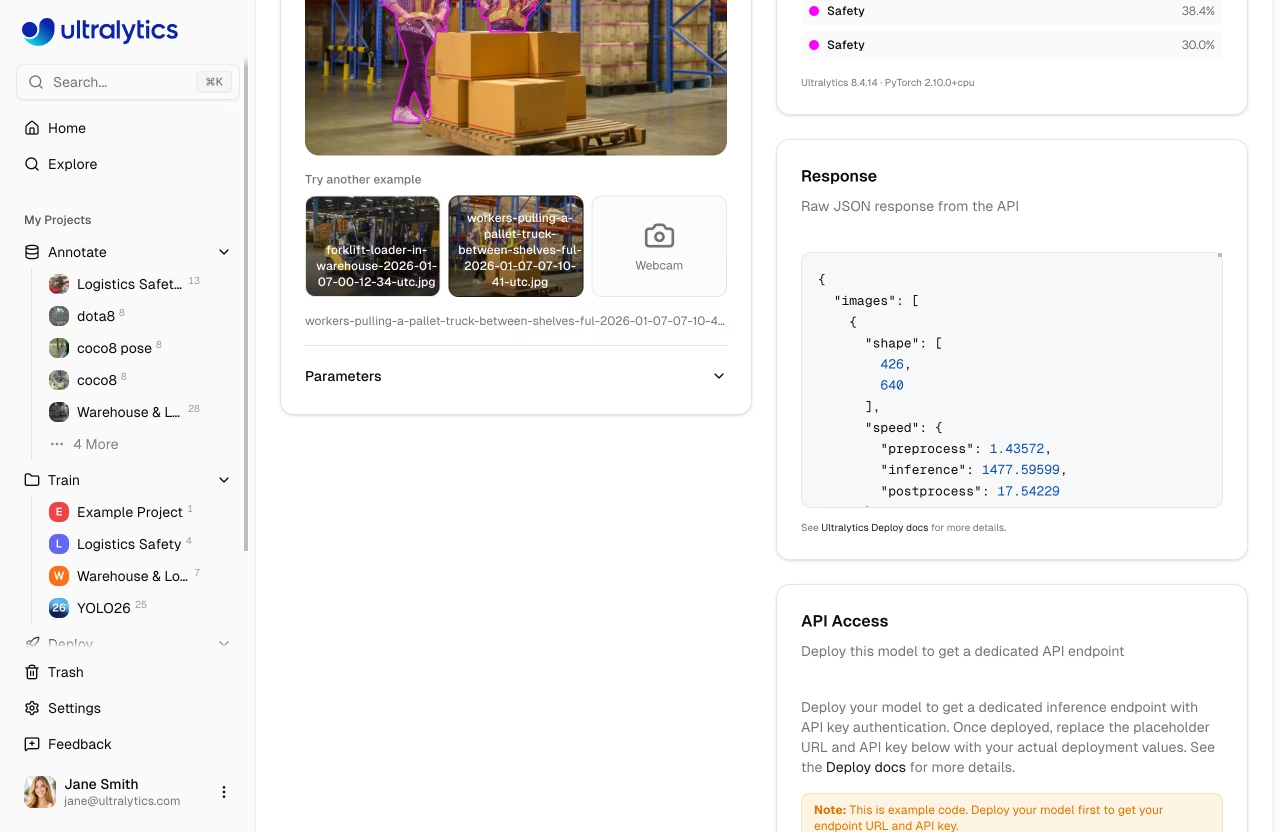
- View predictions instantly with bounding box overlays
Input Methods
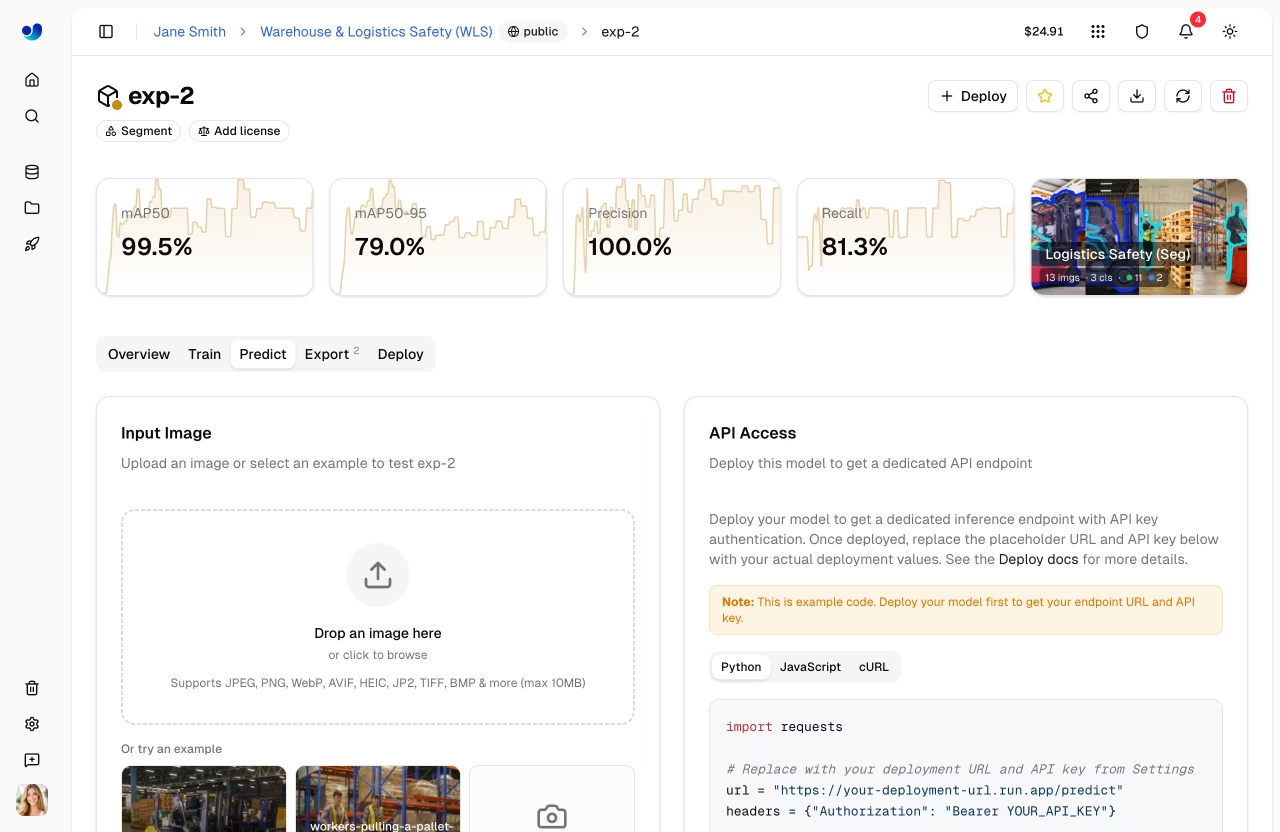
The predict panel supports multiple input methods:
| Method | Description |
|---|---|
| Image upload | Drag and drop or click to upload an image |
| Example images | Click built-in examples (dataset images or defaults) |
| Webcam capture | Live camera feed with single-frame capture |
graph LR
    A[Upload Image] --> D[Auto-Inference]
    B[Example Image] --> D
    C[Webcam Capture] --> D
    D --> E[Results + Overlays]

    style D fill:#2196F3,color:#fff
    style E fill:#4CAF50,color:#fff
Upload Image
Drag and drop or click to upload:
- Supported formats: JPEG, PNG, WebP, AVIF, HEIC, JP2, TIFF, BMP, DNG, MPO
- Max size: 10MB
- Auto-inference: Results appear automatically after upload
!!! info "Auto-Inference"
The predict panel runs inference automatically when you upload an image, select an example, or capture a webcam frame. No button click is needed.
Example Images
The predict panel shows example images from your model's linked dataset. If no dataset is linked, default examples are used:
| Image | Content |
|---|---|
bus.jpg |
Street scene with vehicles |
zidane.jpg |
Sports scene with people |
For OBB models, aerial images of boats and airports are shown instead.
!!! tip "Preloaded Images"
Example images are preloaded when the page loads, so clicking an example triggers near-instant inference with no download wait.
Webcam
Click the webcam card to start a live camera feed:
- Grant camera permission when prompted
- Click the video preview to capture a frame
- Inference runs automatically on the captured frame
- Click again to restart the webcam
View Results
Inference results display:
- Bounding boxes with class labels as SVG overlays
- Confidence scores for each detection
- Class colors from your dataset's color palette (or the Ultralytics default palette)
- Speed breakdown: Preprocess, inference, postprocess, and network time
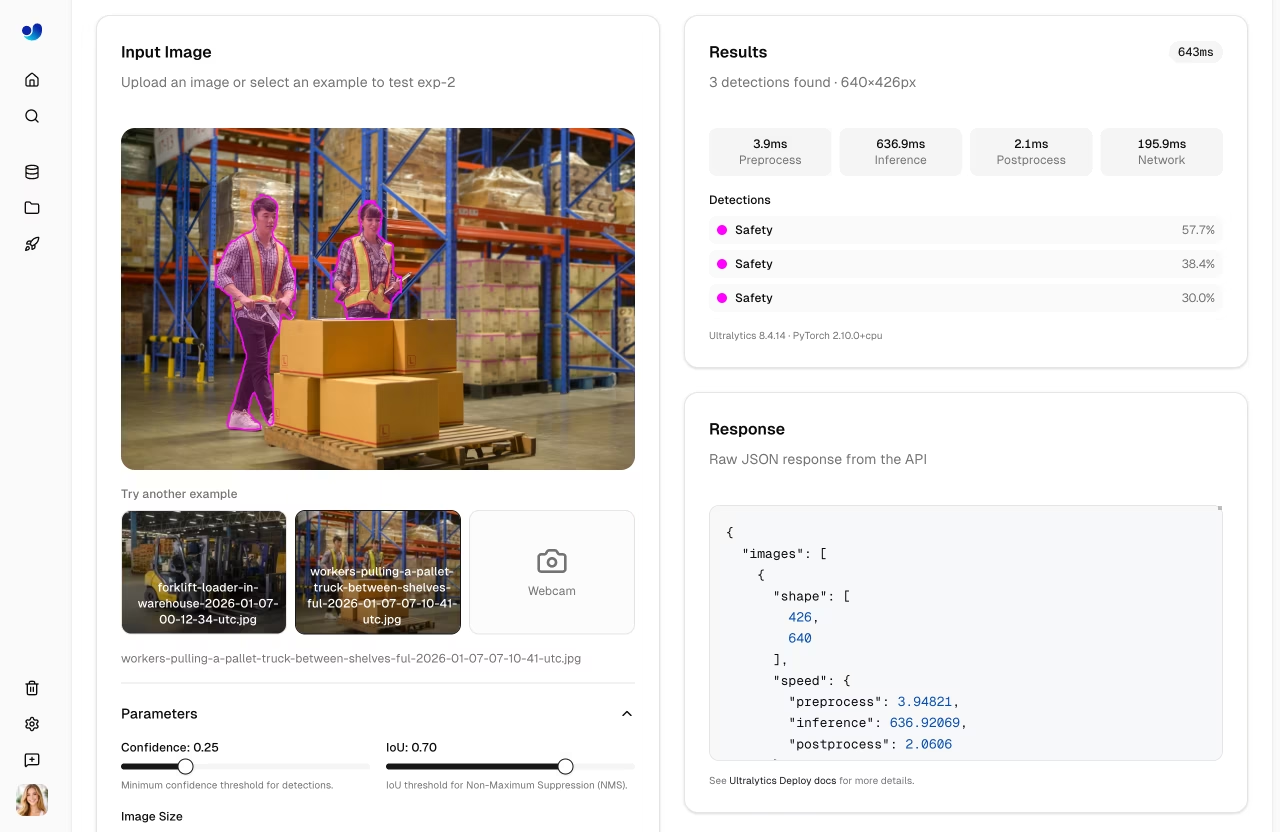
The results panel shows:
| Field | Description |
|---|---|
| Detections list | Each detection with class name and confidence |
| Speed stats | Preprocess, inference, postprocess, network (ms) |
| JSON response | Raw API response in a code block |
Inference Parameters
Adjust detection behavior with parameters in the collapsible Parameters section:
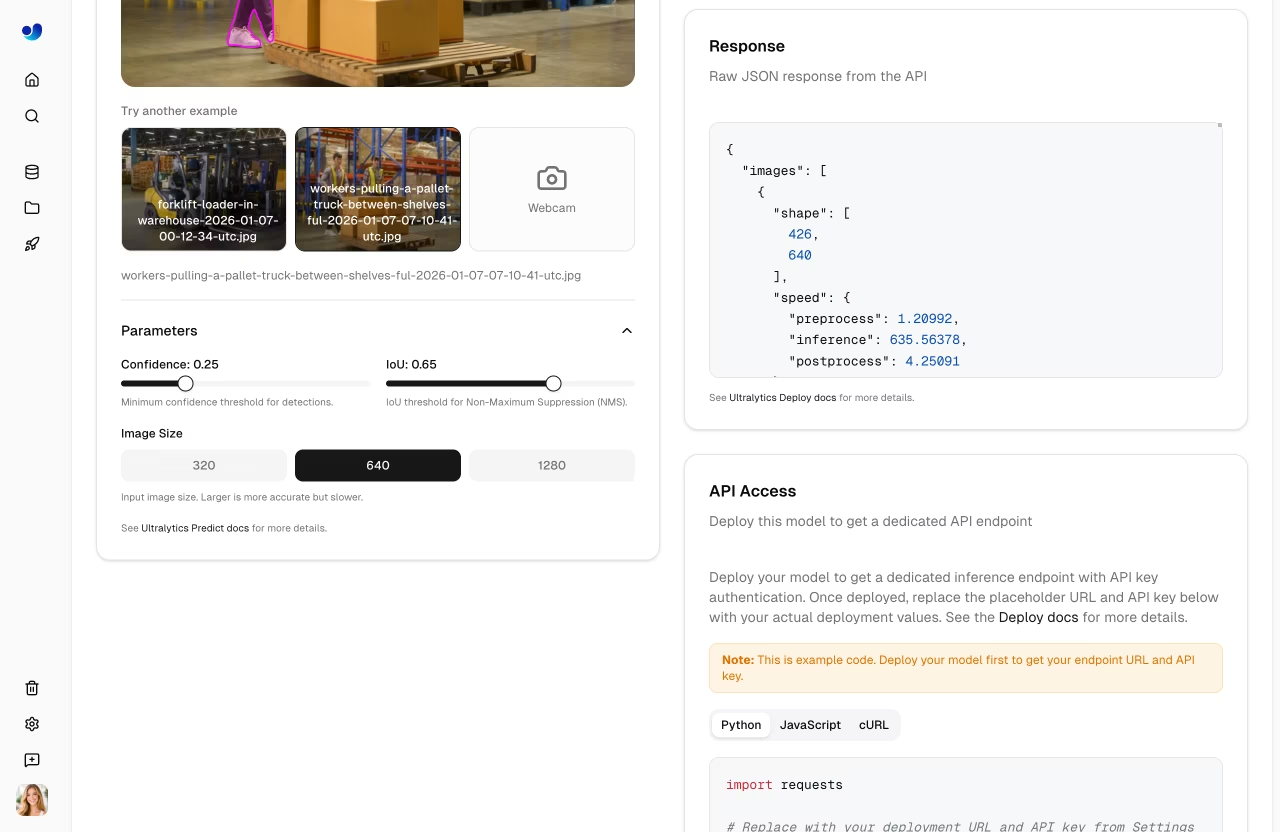
| Parameter | Range | Default | Description |
|---|---|---|---|
| Confidence | 0.01 – 1.0 | 0.25 | Minimum confidence threshold |
| IoU | 0.0 – 0.95 | 0.7 | NMS IoU threshold |
| Image Size | 320, 640, 1280 (UI toggle) | 640 | Input resize dimension (API accepts any value 32 – 1280) |
!!! note "Auto-Rerun"
Changing any parameter automatically re-runs inference on the current image with a 500ms debounce. No need to re-upload.
Confidence Threshold
Filter predictions by confidence:
- Higher (0.5+): Fewer, more certain predictions
- Lower (0.1-0.25): More predictions, some noise
- Default (0.25): Balanced for most use cases
IoU Threshold
Control Non-Maximum Suppression:
- Higher (0.7+): Allow more overlapping boxes
- Lower (0.3-0.5): Merge nearby detections more aggressively
- Default (0.7): Balanced NMS behavior for most use cases
Deployment Predict
Each running dedicated endpoint includes a Predict tab directly on its deployment card. This uses the deployment's own inference service rather than the shared predict service, letting you test your deployed endpoint from the browser.
REST API
Access inference programmatically:
Authentication
Include your API key in requests:
Authorization: Bearer YOUR_API_KEY
!!! warning "API Key Required"
To run inference from your own scripts, notebooks, or apps, include an API key. Generate one in [`Settings > API Keys`](../account/api-keys.md).
Endpoint
POST https://platform.ultralytics.com/api/models/{modelId}/predict
Request
=== "Python"
```python
import requests

url = "https://platform.ultralytics.com/api/models/MODEL_ID/predict"
headers = {"Authorization": "Bearer YOUR_API_KEY"}
files = {"file": open("image.jpg", "rb")}
data = {"conf": 0.25, "iou": 0.7, "imgsz": 640}

response = requests.post(url, headers=headers, files=files, data=data)
print(response.json())
```
=== "cURL"
```bash
curl -X POST \
  "https://platform.ultralytics.com/api/models/MODEL_ID/predict" \
  -H "Authorization: Bearer YOUR_API_KEY" \
  -F "file=@image.jpg" \
  -F "conf=0.25" \
  -F "iou=0.7" \
  -F "imgsz=640"
```
=== "JavaScript"
```javascript
const formData = new FormData();
formData.append("file", fileInput.files[0]);
formData.append("conf", "0.25");
formData.append("iou", "0.7");
formData.append("imgsz", "640");

const response = await fetch(
  "https://platform.ultralytics.com/api/models/MODEL_ID/predict",
  {
    method: "POST",
    headers: { Authorization: "Bearer YOUR_API_KEY" },
    body: formData,
  }
);

const result = await response.json();
console.log(result);
```
Response
{
    "images": [
        {
            "shape": [1080, 1920],
            "results": [
                {
                    "class": 0,
                    "name": "person",
                    "confidence": 0.92,
                    "box": { "x1": 100, "y1": 50, "x2": 300, "y2": 400 }
                },
                {
                    "class": 2,
                    "name": "car",
                    "confidence": 0.87,
                    "box": { "x1": 400, "y1": 200, "x2": 600, "y2": 350 }
                }
            ],
            "speed": {
                "preprocess": 1.2,
                "inference": 12.5,
                "postprocess": 2.3
            }
        }
    ],
    "metadata": {
        "imageCount": 1,
        "functionTimeCall": 0.018,
        "model": "model.pt",
        "version": {
            "ultralytics": "8.x.x",
            "torch": "2.6.0",
            "torchvision": "0.21.0",
            "python": "3.13.0"
        }
    }
}
Response Fields
| Field | Type | Description |
|---|---|---|
images |
array | List of processed images |
images[].shape |
array | Image dimensions [height, width] |
images[].results |
array | List of detections |
images[].results[].name |
string | Class name |
images[].results[].confidence |
float | Detection confidence (0-1) |
images[].results[].box |
object | Bounding box coordinates |
images[].speed |
object | Processing times in milliseconds |
metadata |
object | Request metadata and version info |
Task-Specific Responses
Response format varies by task:
=== "Detection"
```json
{
  "class": 0,
  "name": "person",
  "confidence": 0.92,
  "box": {"x1": 100, "y1": 50, "x2": 300, "y2": 400}
}
```
=== "Segmentation"
```json
{
  "class": 0,
  "name": "person",
  "confidence": 0.92,
  "box": {"x1": 100, "y1": 50, "x2": 300, "y2": 400},
  "segments": [[100, 50], [150, 60], ...]
}
```
=== "Pose"
```json
{
  "class": 0,
  "name": "person",
  "confidence": 0.92,
  "box": {"x1": 100, "y1": 50, "x2": 300, "y2": 400},
  "keypoints": [
    {"x": 200, "y": 75, "conf": 0.95},
    ...
  ]
}
```
=== "Classification"
```json
{
  "results": [
    {"class": 0, "name": "cat", "confidence": 0.95},
    {"class": 1, "name": "dog", "confidence": 0.03}
  ]
}
```
=== "OBB"
```json
{
  "class": 0,
  "name": "ship",
  "confidence": 0.89,
  "box": {"x1": 100, "y1": 50, "x2": 300, "y2": 400},
  "obb": {"x1": 105, "y1": 48, "x2": 295, "y2": 55, "x3": 290, "y3": 395, "x4": 110, "y4": 402}
}
```
Billing
Shared inference (the Predict tab and /api/models/{id}/predict endpoint) is included at no additional cost on all plans. There are no per-request charges for shared inference.
For production workloads requiring higher throughput, deploy a dedicated endpoint.
Rate Limits
Shared inference is rate-limited to 20 requests/min per API key. When throttled, the API returns 429 with a Retry-After header. See the full rate limit reference for all endpoint categories.
!!! tip "Need More Throughput?"
Deploy a [dedicated endpoint](endpoints.md) for **unlimited** inference with no rate limits, predictable throughput, and consistent low-latency responses. For local inference, see the [Predict mode guide](../../modes/predict.md).
Error Handling
Common error responses:
| Code | Message | Solution |
|---|---|---|
| 400 | Invalid image | Check file format |
| 401 | Unauthorized | Verify API key |
| 404 | Model not found | Check model ID |
| 429 | Rate limited | Wait and retry, or use a dedicated endpoint for unlimited throughput |
| 500 | Server error | Retry request |
FAQ
Can I run inference on video?
Both inference methods accept video files:
- Dedicated endpoints accept video files directly. Supported formats (up to 100 MB): ASF, AVI, GIF, M4V, MKV, MOV, MP4, MPEG, MPG, TS, WEBM, WMV. Each frame is processed individually and results are returned per frame. See dedicated endpoints for details.
- Shared inference (
/api/models/{id}/predict) uses the same predict service and accepts the same video formats. However, the browser Predict tab in the UI only uploads images — use the REST API directly or a dedicated endpoint for video workflows. The shared endpoint is also rate-limited to 20 req/min, so dedicated endpoints are the better choice for heavy video workloads.
How do I get the annotated image?
The API returns JSON predictions. To visualize:
- Use predictions to draw boxes locally
- Use Ultralytics
plot()method:
from ultralytics import YOLO

model = YOLO("yolo26n.pt")
results = model("image.jpg")
results[0].save("annotated.jpg")
See the Predict mode documentation for the full results API and visualization options.
What's the maximum image size?
- Upload limit: 10MB
- Recommended: <5MB for fast inference
- Auto-resize: Images are resized to the selected
Image Sizeparameter
Large images are automatically resized while preserving aspect ratio.
Can I run batch inference?
The current API processes one image per request. For batch:
- Send concurrent requests
- Use a dedicated endpoint for higher throughput
- Consider local inference for large batches
!!! example "Batch Inference with Python"
```python
import concurrent.futures

import requests

url = "https://predict-abc123.run.app/predict"
headers = {"Authorization": "Bearer YOUR_API_KEY"}
images = ["img1.jpg", "img2.jpg", "img3.jpg"]


def predict(image_path):
    with open(image_path, "rb") as f:
        return requests.post(url, headers=headers, files={"file": f}).json()


with concurrent.futures.ThreadPoolExecutor(max_workers=4) as executor:
    results = list(executor.map(predict, images))
```