mirror of
https://github.com/apache/zeppelin
synced 2026-05-24 09:38:26 +00:00
 1c23f21388
### What is this PR for?
fix: broken image URLs in 0.8.0-SNAPSHOT doc
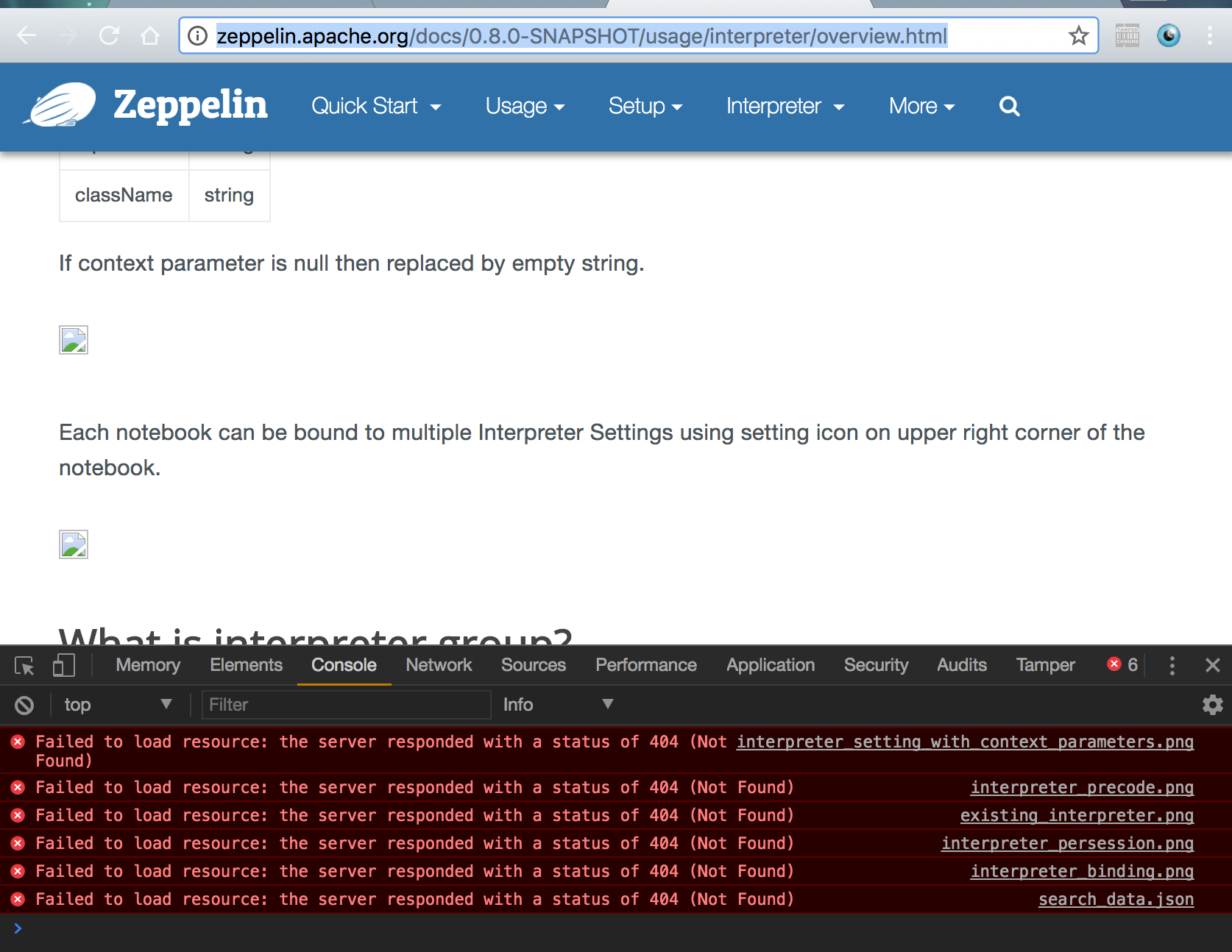
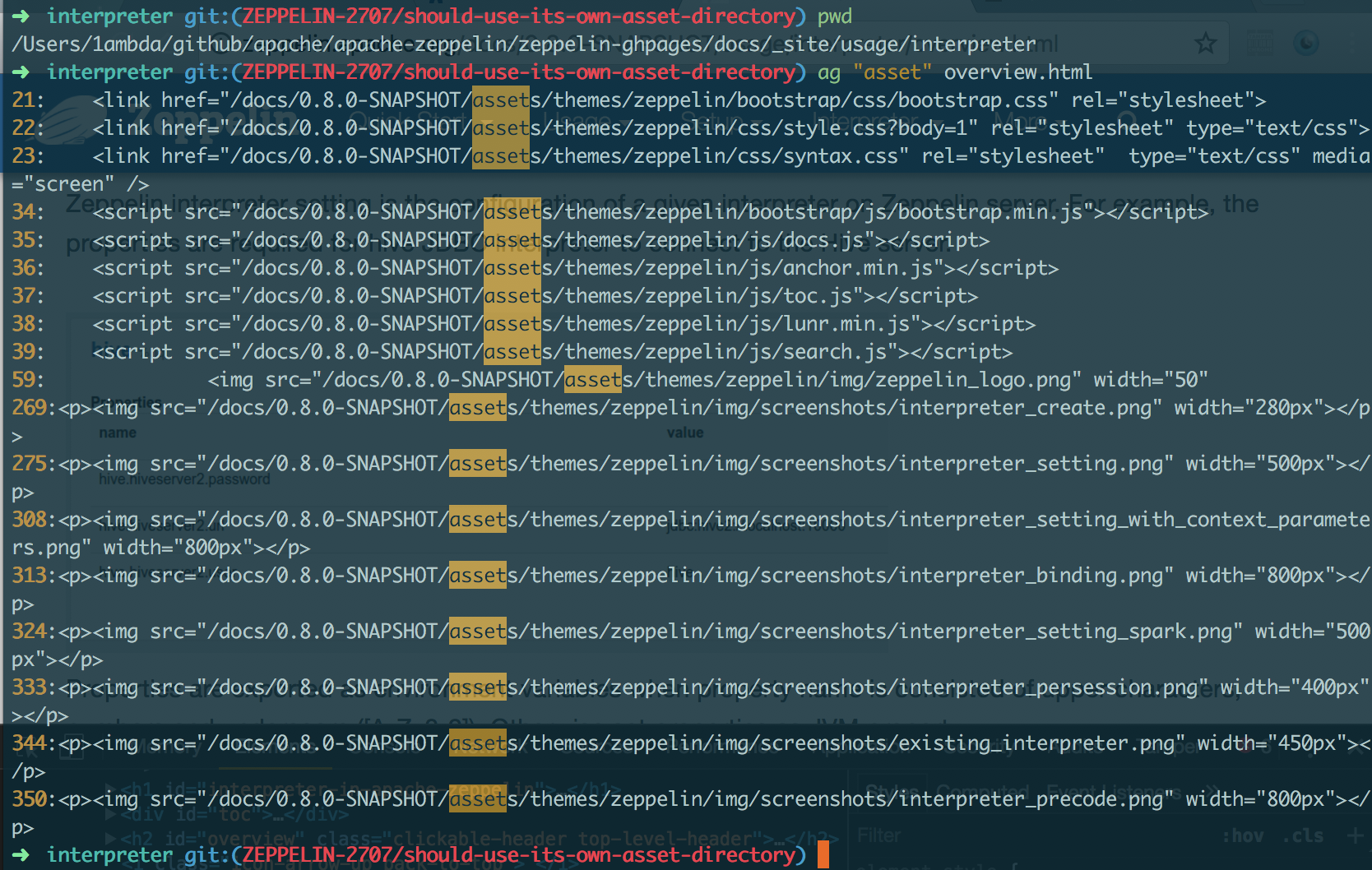
using the path `/asset` (the absolute path) for image URLs is actually invalid. That's because each version has its own image directory. So they should use the relative path. `{{BASE_PATH}}`
```
➜ asf-zeppelin tree site | grep asset
├── assets # root asset, we shouldn't use it in versioned doc.
│ │ ├── assets
│ │ ├── assets
│ │ ├── assets
│ │ ├── assets
│ │ ├── assets
│ │ ├── assets
│ │ ├── assets
│ │ ├── assets
│ │ ├── assets
│ ├── assets
```
### What type of PR is it?
[Bug Fix]
### Todos
DONE
### What is the Jira issue?
[ZEPPELIN-2707](https://issues.apache.org/jira/browse/ZEPPELIN-2707)
### How should this be tested?
1. cd `docs/`
2. build: `bundle exec jekyll build --safe`
3. check whether links in `_site` include `/docs/0.8.0-SNAPSHOT` as prefix or not
### Screenshots (if appropriate)
#### Current
http://zeppelin.apache.org/docs/0.8.0-SNAPSHOT/usage/interpreter/overview.html
#### After
### Questions:
* Does the licenses files need update? - NO
* Is there breaking changes for older versions? - NO
* Does this needs documentation? - NO
Author: 1ambda <1amb4a@gmail.com>
Closes #2450 from 1ambda/ZEPPELIN-2707/should-use-its-own-asset-directory and squashes the following commits:
fb70214a [1ambda] fix: Use its own asset dir


212 lines
7.1 KiB
Markdown
212 lines
7.1 KiB
Markdown
---
|
|
layout: page
|
|
title: "Writing a new Helium Visualization: basic"
|
|
description: "Apache Zeppelin Visualization is a pluggable package that can be loaded/unloaded on runtime through Helium framework in Zeppelin. A Visualization is a javascript npm package and user can use them just like any other built-in visualization in a note."
|
|
group: development/helium
|
|
---
|
|
<!--
|
|
Licensed under the Apache License, Version 2.0 (the "License");
|
|
you may not use this file except in compliance with the License.
|
|
You may obtain a copy of the License at
|
|
|
|
http://www.apache.org/licenses/LICENSE-2.0
|
|
|
|
Unless required by applicable law or agreed to in writing, software
|
|
distributed under the License is distributed on an "AS IS" BASIS,
|
|
WITHOUT WARRANTIES OR CONDITIONS OF ANY KIND, either express or implied.
|
|
See the License for the specific language governing permissions and
|
|
limitations under the License.
|
|
-->
|
|
{% include JB/setup %}
|
|
|
|
# Writing a new Visualization
|
|
|
|
<div id="toc"></div>
|
|
|
|
## What is Apache Zeppelin Visualization
|
|
|
|
Apache Zeppelin Visualization is a pluggable package that can be loaded/unloaded on runtime through Helium framework in Zeppelin. A Visualization is a javascript npm package and user can use them just like any other built-in visualization in notebook.
|
|
|
|
|
|
## How it works
|
|
|
|
|
|
#### 1. Load Helium package files from registry
|
|
|
|
Zeppelin needs to know what Visualization packages are available. Zeppelin will read information of packages from both online and local registry.
|
|
Registries are configurable through `ZEPPELIN_HELIUM_LOCALREGISTRY_DEFAULT` env variable or `zeppelin.helium.localregistry.default` property.
|
|
|
|
#### 2. Enable packages
|
|
Once Zeppelin loads _Helium package files_ from registries, available packages are displayed in Helium menu.
|
|
|
|
Click 'enable' button.
|
|
|
|
<img class="img-responsive" style="width:70%" src="{{BASE_PATH}}/assets/themes/zeppelin/img/docs-img/writing_visualization_helium_menu.png" />
|
|
|
|
|
|
#### 3. Create and load visualization bundle on the fly
|
|
|
|
Once a Visualization package is enabled, [HeliumBundleFactory](https://github.com/apache/zeppelin/blob/master/zeppelin-zengine/src/main/java/org/apache/zeppelin/helium/HeliumBundleFactory.java) creates a js bundle. The js bundle is served by `helium/bundle/load` rest api endpoint.
|
|
|
|
#### 4. Run visualization
|
|
|
|
Zeppelin shows additional button for loaded Visualizations.
|
|
User can use just like any other built-in visualizations.
|
|
|
|
<img class="img-responsive" style="width:70%" src="{{BASE_PATH}}/assets/themes/zeppelin/img/docs-img/writing_visualization_example.png" />
|
|
|
|
|
|
|
|
## Write new Visualization
|
|
|
|
#### 1. Create a npm package
|
|
|
|
Create a [package.json](https://docs.npmjs.com/files/package.json) in your new Visualization directory. You can add any dependencies in package.json, but you **must include two dependencies: [zeppelin-vis](https://github.com/apache/zeppelin/tree/master/zeppelin-web/src/app/visualization) and [zeppelin-tabledata](https://github.com/apache/zeppelin/tree/master/zeppelin-web/src/app/tabledata).**
|
|
|
|
Here's an example
|
|
|
|
```json
|
|
{
|
|
"name": "zeppelin_horizontalbar",
|
|
"description" : "Horizontal Bar chart",
|
|
"version": "1.0.0",
|
|
"main": "horizontalbar",
|
|
"author": "",
|
|
"license": "Apache-2.0",
|
|
"dependencies": {
|
|
"zeppelin-tabledata": "*",
|
|
"zeppelin-vis": "*"
|
|
}
|
|
}
|
|
```
|
|
|
|
#### 2. Create your own visualization
|
|
|
|
To create your own visualization, you need to create a js file and import [Visualization](https://github.com/apache/zeppelin/blob/master/zeppelin-web/src/app/visualization/visualization.js) class from [zeppelin-vis](https://github.com/apache/zeppelin/tree/master/zeppelin-web/src/app/visualization) package and extend the class. [zeppelin-tabledata](https://github.com/apache/zeppelin/tree/master/zeppelin-web/src/app/tabledata) package provides some useful transformations, like pivot, you can use in your visualization. (you can create your own transformation, too).
|
|
|
|
[Visualization](https://github.com/apache/zeppelin/blob/master/zeppelin-web/src/app/visualization/visualization.js) class, there're several methods that you need to override and implement. Here's simple visualization that just prints `Hello world`.
|
|
|
|
```js
|
|
import Visualization from 'zeppelin-vis'
|
|
import PassthroughTransformation from 'zeppelin-tabledata/passthrough'
|
|
|
|
export default class helloworld extends Visualization {
|
|
constructor(targetEl, config) {
|
|
super(targetEl, config)
|
|
this.passthrough = new PassthroughTransformation(config);
|
|
}
|
|
|
|
render(tableData) {
|
|
this.targetEl.html('Hello world!')
|
|
}
|
|
|
|
getTransformation() {
|
|
return this.passthrough
|
|
}
|
|
}
|
|
```
|
|
|
|
To learn more about `Visualization` class, check [visualization.js](https://github.com/apache/zeppelin/blob/master/zeppelin-web/src/app/visualization/visualization.js).
|
|
|
|
You can check complete visualization package example [here](https://github.com/apache/zeppelin/tree/master/zeppelin-examples/zeppelin-example-horizontalbar).
|
|
|
|
Zeppelin's built-in visualization uses the same API, so you can check [built-in visualizations](https://github.com/apache/zeppelin/tree/master/zeppelin-web/src/app/visualization/builtins) as additional examples.
|
|
|
|
|
|
#### 3. Create __Helium package file__ and locally deploy
|
|
|
|
__Helium Package file__ is a json file that provides information about the application.
|
|
Json file contains the following information
|
|
|
|
```json
|
|
{
|
|
"type" : "VISUALIZATION",
|
|
"name" : "zeppelin_horizontalbar",
|
|
"description" : "Horizontal Bar chart (example)",
|
|
"license" : "Apache-2.0",
|
|
"artifact" : "./zeppelin-examples/zeppelin-example-horizontalbar",
|
|
"icon" : "<i class='fa fa-bar-chart rotate90flipX'></i>"
|
|
}
|
|
```
|
|
|
|
Place this file in your local registry directory (default `./helium`).
|
|
|
|
|
|
##### type
|
|
|
|
When you're creating a visualization, 'type' should be 'VISUALIZATION'. Check these types as well.
|
|
|
|
- [Helium Application](./writing_application.html)
|
|
- [Helium Spell](./writing_spell.html)
|
|
|
|
##### name
|
|
|
|
Name of visualization. Should be unique. Allows `[A-Za-z90-9_]`.
|
|
|
|
|
|
##### description
|
|
|
|
A short description about visualization.
|
|
|
|
##### artifact
|
|
|
|
Location of the visualization npm package. Support npm package with version or local filesystem path.
|
|
|
|
e.g.
|
|
|
|
When artifact exists in npm repository
|
|
|
|
```json
|
|
"artifact": "my-visualiztion@1.0.0"
|
|
```
|
|
|
|
|
|
When artifact exists in local file system
|
|
|
|
```json
|
|
"artifact": "/path/to/my/visualization"
|
|
```
|
|
|
|
##### license
|
|
|
|
License information.
|
|
|
|
e.g.
|
|
|
|
```json
|
|
"license": "Apache-2.0"
|
|
```
|
|
|
|
##### icon
|
|
|
|
Icon to be used in visualization select button. String in this field will be rendered as a HTML tag.
|
|
|
|
e.g.
|
|
|
|
```json
|
|
"icon": "<i class='fa fa-coffee'></i>"
|
|
```
|
|
|
|
|
|
#### 4. Run in dev mode
|
|
|
|
Place your __Helium package file__ in local registry (ZEPPELIN_HOME/helium).
|
|
Run Zeppelin. And then run zeppelin-web in visualization dev mode.
|
|
|
|
```bash
|
|
cd zeppelin-web
|
|
yarn run dev:helium
|
|
```
|
|
|
|
You can browse localhost:9000. Everytime refresh your browser, Zeppelin will rebuild your visualization and reload changes.
|
|
|
|
|
|
#### 5. Publish your visualization
|
|
|
|
Once it's done, publish your visualization package using `npm publish`.
|
|
That's it. With in an hour, your visualization will be available in Zeppelin's helium menu.
|
|
|
|
### See More
|
|
|
|
Check [Helium Visualization: Transformation](./writing_visualization_transformation.html) for more complex examples.
|
|
|