 d93fb45e03
9.7 KiB
| comments | description | keywords |
|---|---|---|
| true | Learn how to organize and manage projects in Ultralytics Platform for efficient model development. | Ultralytics Platform, projects, model management, experiment tracking, YOLO |
Projects
Ultralytics Platform projects provide an effective solution for organizing and managing your models. Group related models together to facilitate easier management, comparison, and development.
graph TB
    P[Project] --> M1[Model 1]
    P --> M2[Model 2]
    P --> M3[Model 3]
    M1 --> C[Charts Dashboard]
    M2 --> C
    M3 --> C
    M1 --> T[Comparison Table]
    M2 --> T
    M3 --> T

    style P fill:#4CAF50,color:#fff
    style C fill:#2196F3,color:#fff
    style T fill:#FF9800,color:#fff
Create Project
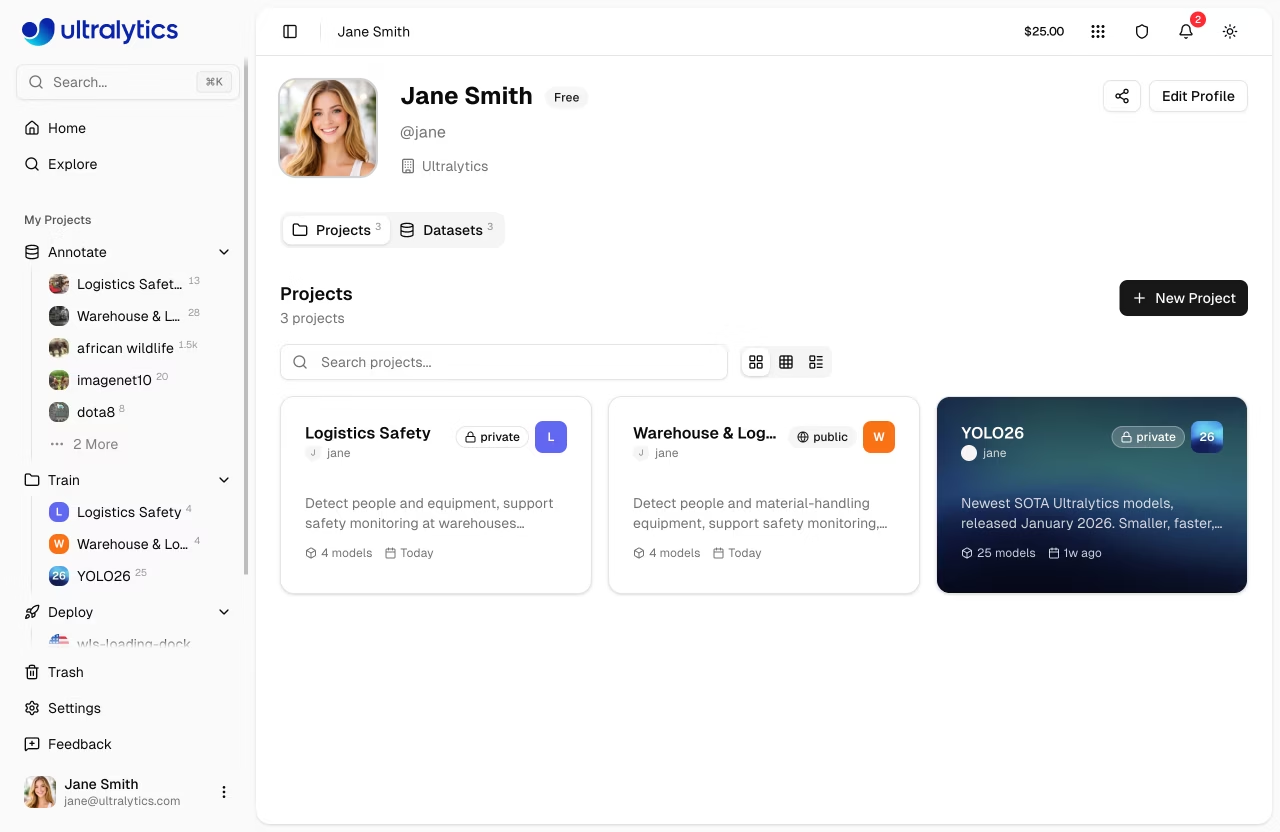
Navigate to Projects in the sidebar and click Create Project.
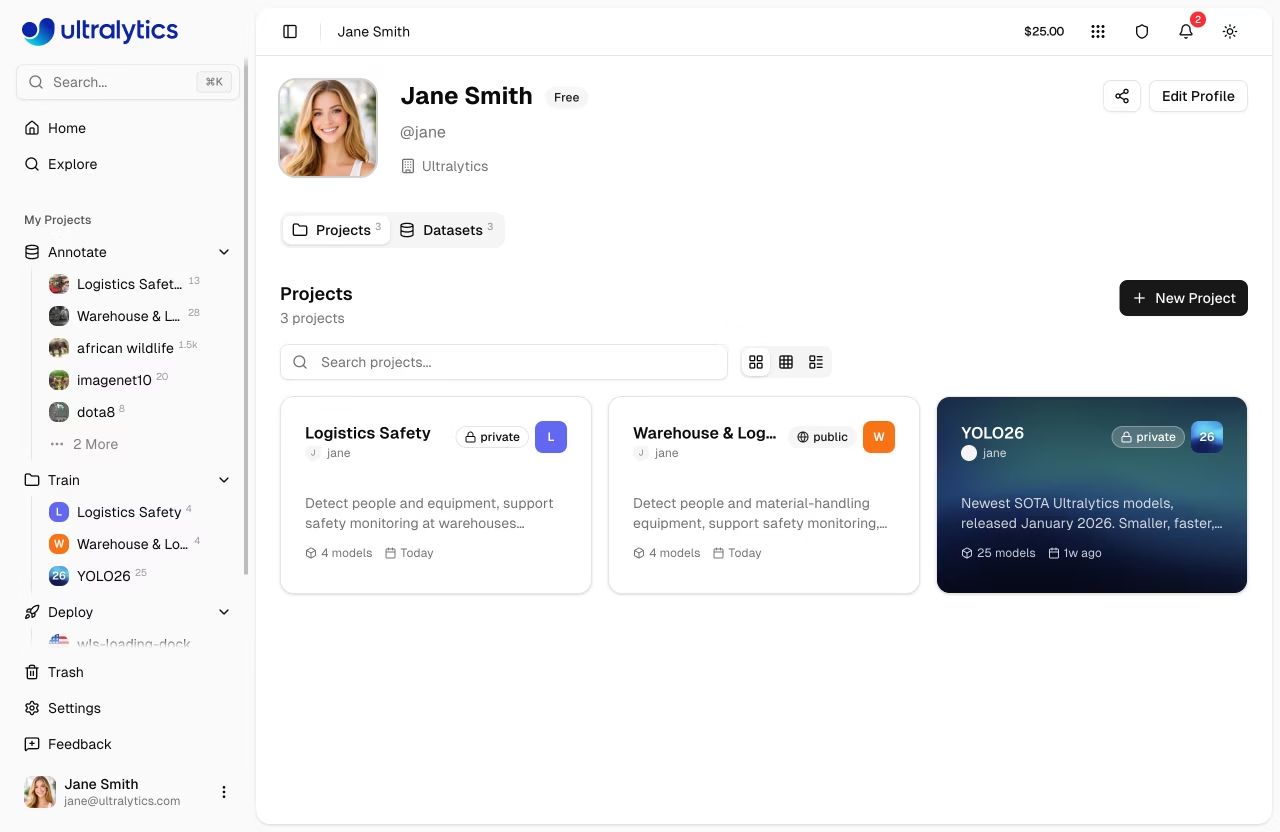
??? tip "Quick Create"
You can also create a project from the Home page quick actions.
Enter your project details:
- Name: A descriptive name for your project (a random name is auto-generated)
- Description: Optional notes about the project purpose
- Visibility: Public (anyone can view) or Private (only you can access)
- License: Optional license for your project (AGPL-3.0, Apache-2.0, MIT, GPL-3.0, BSD-3-Clause, LGPL-3.0, MPL-2.0, EUPL-1.1, Unlicense, Ultralytics-Enterprise, and more). The Ultralytics-Enterprise license is for commercial use without AGPL requirements and is available with an Enterprise plan — see Ultralytics Licensing.
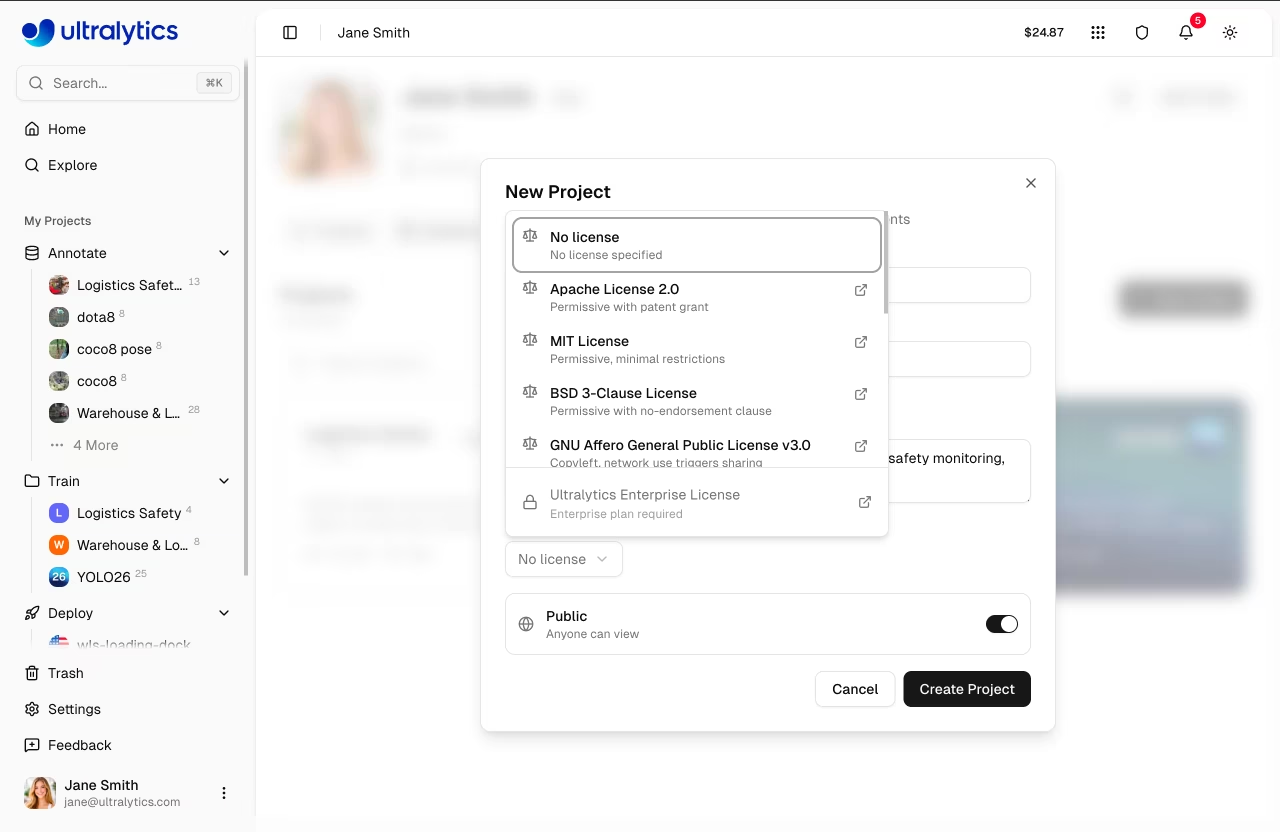
Click Create to finalize. Your new project appears in the Projects list and sidebar.
Project Page
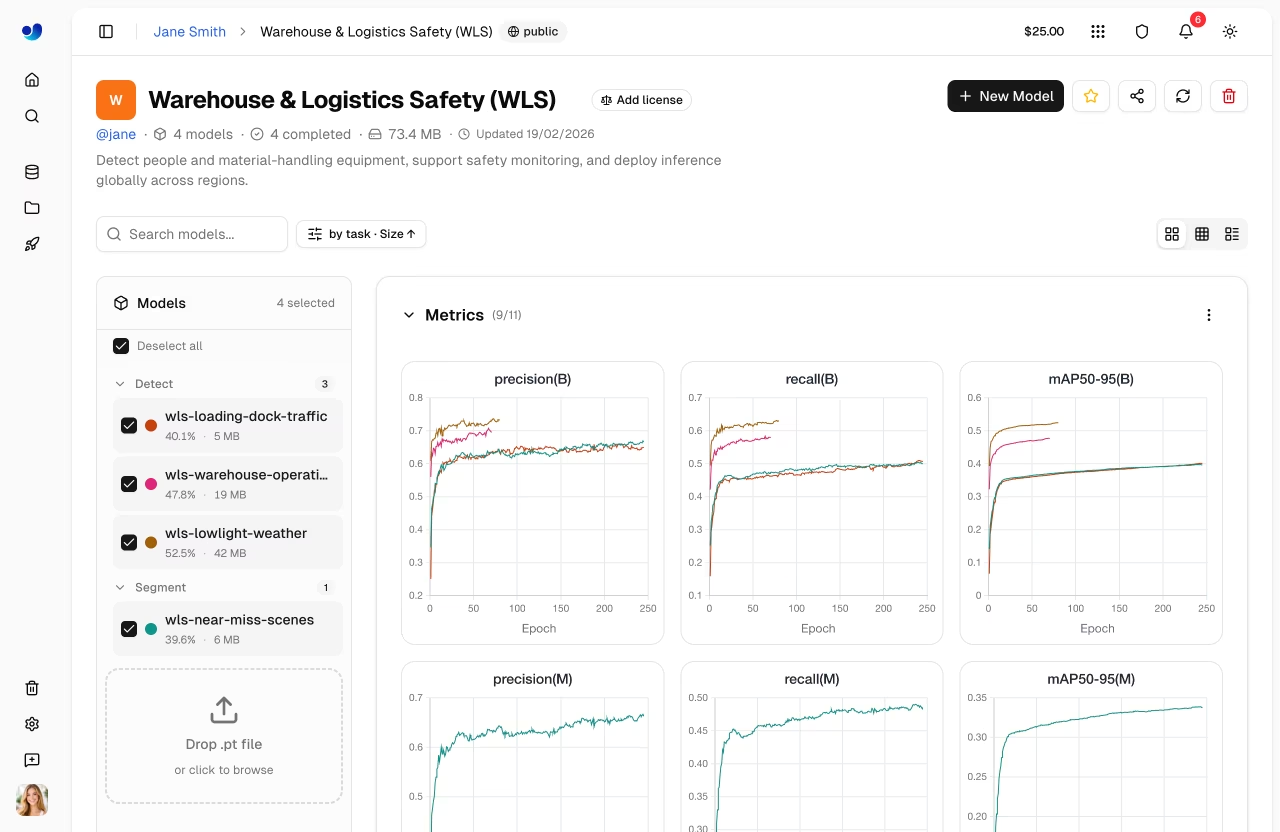
The project page has two main areas:
| Area | Description |
|---|---|
| Models Sidebar | Resizable list of all models in the project with search, status filters, sort options, and checkboxes for selection |
| Main Panel | Charts dashboard or comparison table (toggle between views) |
Project Header
The header displays:
- Project icon (customizable color, letter, or uploaded image)
- Editable name (click to rename; slug auto-updates)
- License badge
- Model count, completed/running/failed counts, total size
- Clone count and last updated timestamp
- Description (click to edit)
Action buttons in the header:
| Button | Description |
|---|---|
| New Model | Opens the training dialog |
| Clone | Clone project and all models (public projects) |
| Star | Star/unstar the project |
| Share | Social sharing for public projects |
| Refresh | Refresh project data |
| Delete | Move project to trash |
View Modes
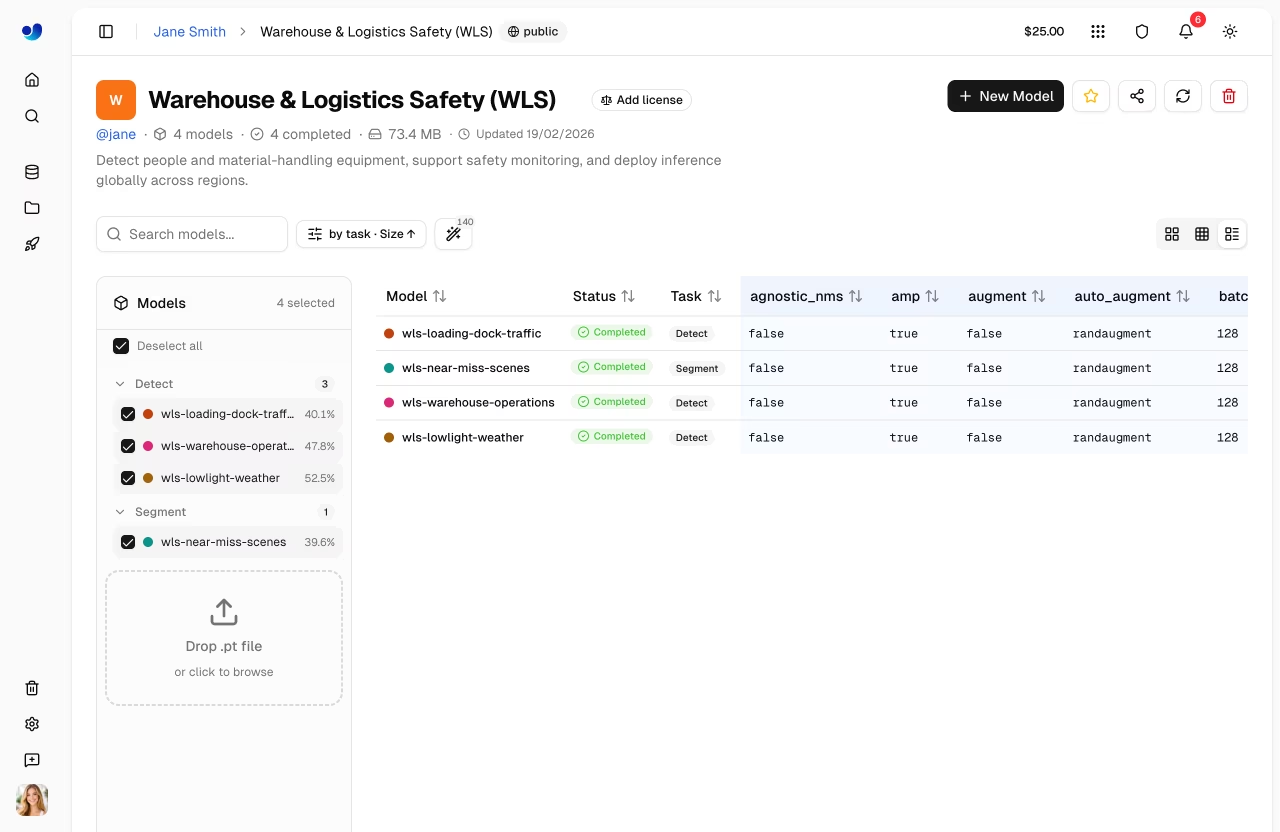
Toggle between two view modes using the view controls:
- Charts view: Interactive charts dashboard showing loss curves and metric comparisons for selected models
- Table view: Comparison table showing training arguments and final metrics side-by-side with a diff mode to highlight differing columns
Models Sidebar
The resizable sidebar lists all models in the project:
- Checkboxes to select which models appear in charts/table
- Search to filter models by name
- View options for status filter (All, Completed, Running, Starting, Pending, Failed, Cancelled), grouping by task, and sort order
- Drag and drop
.ptfiles directly onto the sidebar to upload models (model upload details) - Training progress shown for running models (epoch count and progress bar)
Click any model to open its model page.
Project Icon
Customize your project icon:
- Click the icon next to the project name
- Choose a color and letter, or upload a custom image
- Changes save automatically
Visibility Settings
Control who can see your project:
| Setting | Description |
|---|---|
| Public | Anyone can view on Explore page |
| Private | Only you and collaborators |
Share with Collaborators
Share private projects with specific users without creating a full team workspace:
- Click the Share button on the project page
- Enter the collaborator's username or email
- Set their role
- Click Invite
Collaborators with editor access can upload models and start training within your project.
!!! tip "Sharing vs Teams"
**Sharing** grants per-project access to individual users — ideal for one-off collaborations. **[Teams](../account/teams.md)** create a shared workspace where all resources (projects, datasets, models, deployments) are accessible to team members with role-based permissions. Use Teams for ongoing collaboration with multiple people.
Clone Project
Clone a public project to your own account:
- Visit the public project page
- Click Clone Project
- The project and all its models are copied to your account as a private project
!!! info "Clone Behavior"
Cloned projects are always created as **private** in your account. The clone count is displayed on the original project. If the original has a copyleft license (e.g., AGPL-3.0), the clone inherits and locks that license.
Compare Models
Charts Dashboard
Compare model performance using the charts dashboard:
- Select models in the sidebar using checkboxes
- View overlaid metric curves grouped by type (metrics, train loss, validation loss, learning rate)
- Drag charts to rearrange, resize by dragging edges
- Hover to see exact values, click legend items to hide/show models, click a model line to navigate to that model
Available chart groups:
| Group | Charts |
|---|---|
| Metrics | mAP50, mAP50-95, precision, recall |
| Train Loss | train/box_loss, train/cls_loss, train/dfl_loss |
| Val Loss | val/box_loss, val/cls_loss, val/dfl_loss |
| Learning Rate | lr/pg0, lr/pg1, lr/pg2 |
!!! tip "Interactive Charts"
- Hover to see exact values
- Click legend items to hide/show models
- Drag to zoom into specific regions
- Click a model line to navigate to that model's page
- Rearrange and resize charts; layout persists across sessions
Comparison Table
Switch to table view for side-by-side comparison of training arguments and final metrics:
- Click the Table view mode toggle
- See all selected models as rows with training args and metrics as columns
- Use the Diff button to highlight only columns where values differ across models
Upload Models
Upload existing .pt model files:
- Drag and drop files onto the project page or models sidebar
- Multiple files can be uploaded simultaneously (up to 3 concurrent uploads)
- Model metadata (task, architecture, class names, training results) is parsed automatically from the
.ptfile - Charts update instantly from locally parsed data while the upload completes in the background
!!! example "Supported Files"
Only PyTorch `.pt` files from Ultralytics YOLO training are supported. The Platform parses embedded metadata including training results, arguments, task type, and class names. See [Models](models.md) for format details.
Edit Project
Update project name, description, or settings:
- Click the project name to edit it inline
- Click the description to edit it inline
- Click the icon to customize it
- Click the license badge to change the license
Delete Project
Remove a project you no longer need:
- Click the Delete button (trash icon) in the header
- Confirm deletion
!!! warning "Cascading Delete"
Deleting a project also deletes all models inside it. This action moves items to [Trash](../account/trash.md) where they can be restored within 30 days.
FAQ
How many models can a project contain?
There's no hard limit on models per project. However, for better organization, we recommend:
- Group related experiments (same dataset/task)
- Archive old experiments
- Use meaningful project names
Can I restore a deleted project?
Yes, deleted projects go to Trash and can be restored within 30 days:
- Go to Settings > Trash
- Find the project
- Click Restore
Can I transfer models between projects?
Yes, you can clone a model to a different project using the clone model dialog from the model page.