mirror of
https://github.com/ultralytics/ultralytics
synced 2026-04-21 14:07:18 +00:00
 73fcaec788
Some checks are pending
CI / Benchmarks (yolo26n, macos-26, 3.12) (push) Waiting to run
CI / Benchmarks (yolo26n, ubuntu-24.04-arm, 3.12) (push) Waiting to run
CI / Benchmarks (yolo26n, ubuntu-latest, 3.12) (push) Waiting to run
CI / Tests (macos-26, 3.12, latest) (push) Waiting to run
CI / Tests (ubuntu-24.04-arm, 3.12, latest) (push) Waiting to run
CI / Tests (ubuntu-latest, 3.12, latest) (push) Waiting to run
CI / Tests (ubuntu-latest, 3.8, 1.8.0, 0.9.0) (push) Waiting to run
CI / Tests (windows-latest, 3.12, latest) (push) Waiting to run
CI / SlowTests (macos-26, 3.12, latest) (push) Waiting to run
CI / SlowTests (ubuntu-24.04-arm, 3.12, latest) (push) Waiting to run
CI / SlowTests (ubuntu-latest, 3.10, 1.11.0, 0.12.0) (push) Waiting to run
CI / SlowTests (ubuntu-latest, 3.10, 1.12.0, 0.13.0) (push) Waiting to run
CI / SlowTests (ubuntu-latest, 3.10, 1.13.0, 0.14.0) (push) Waiting to run
CI / SlowTests (ubuntu-latest, 3.11, 2.0.0, 0.15.0) (push) Waiting to run
CI / SlowTests (ubuntu-latest, 3.11, 2.1.0, 0.16.0) (push) Waiting to run
CI / SlowTests (ubuntu-latest, 3.12, 2.10.0, 0.25.0) (push) Waiting to run
CI / SlowTests (ubuntu-latest, 3.12, 2.11.0, 0.26.0) (push) Waiting to run
CI / SlowTests (ubuntu-latest, 3.12, 2.2.0, 0.17.0) (push) Waiting to run
CI / SlowTests (ubuntu-latest, 3.12, 2.3.0, 0.18.0) (push) Waiting to run
CI / SlowTests (ubuntu-latest, 3.12, 2.4.0, 0.19.0) (push) Waiting to run
CI / SlowTests (ubuntu-latest, 3.12, 2.5.0, 0.20.0) (push) Waiting to run
CI / SlowTests (ubuntu-latest, 3.12, 2.6.0, 0.21.0) (push) Waiting to run
CI / SlowTests (ubuntu-latest, 3.12, 2.7.0, 0.22.0) (push) Waiting to run
CI / SlowTests (ubuntu-latest, 3.12, 2.8.0, 0.23.0) (push) Waiting to run
CI / SlowTests (ubuntu-latest, 3.12, 2.9.0, 0.24.0) (push) Waiting to run
CI / SlowTests (ubuntu-latest, 3.12, latest) (push) Waiting to run
CI / SlowTests (ubuntu-latest, 3.8, 1.8.0, 0.9.0) (push) Waiting to run
CI / SlowTests (ubuntu-latest, 3.9, 1.10.0, 0.11.0) (push) Waiting to run
CI / SlowTests (ubuntu-latest, 3.9, 1.9.0, 0.10.0) (push) Waiting to run
CI / SlowTests (windows-latest, 3.12, latest) (push) Waiting to run
CI / GPU (push) Waiting to run
CI / RaspberryPi (push) Waiting to run
CI / NVIDIA_Jetson (JetPack5.1.2, 1.23.5, https://github.com/ultralytics/assets/releases/download/v0.0.0/onnxruntime_gpu-1.16.3-cp38-cp38-linux_aarch64.whl, 3.8, jetson-jp512, https://github.com/ultralytics/assets/releases/download/v0.0.0/torch-2.2.0-cp38-c… (push) Waiting to run
CI / NVIDIA_Jetson (JetPack6.2, 1.26.4, https://github.com/ultralytics/assets/releases/download/v0.0.0/onnxruntime_gpu-1.20.0-cp310-cp310-linux_aarch64.whl, 3.10, jetson-jp62, https://github.com/ultralytics/assets/releases/download/v0.0.0/torch-2.5.0a0+872d… (push) Waiting to run
CI / Conda (ubuntu-latest, 3.12) (push) Waiting to run
CI / Summary (push) Blocked by required conditions
Publish Docs / Docs (push) Waiting to run
Publish to PyPI / check (push) Waiting to run
Publish to PyPI / build (push) Blocked by required conditions
Publish to PyPI / publish (push) Blocked by required conditions
Publish to PyPI / sbom (push) Blocked by required conditions
Publish to PyPI / notify (push) Blocked by required conditions
Signed-off-by: Glenn Jocher <glenn.jocher@ultralytics.com>
Co-authored-by: UltralyticsAssistant <web@ultralytics.com>
Co-authored-by: fatih akyon <34196005+fcakyon@users.noreply.github.com>
Co-authored-by: Jing Qiu <61612323+Laughing-q@users.noreply.github.com>
Co-authored-by: Onuralp SEZER <onuralp@ultralytics.com>
Co-authored-by: Glenn Jocher <glenn.jocher@ultralytics.com>
394 lines
20 KiB
Markdown
394 lines
20 KiB
Markdown
---
|
|
comments: true
|
|
description: Get started with Ultralytics Platform in minutes. Learn to create an account, upload datasets, train YOLO models, and deploy to production.
|
|
keywords: Ultralytics Platform, Quickstart, YOLO models, dataset upload, model training, cloud deployment, machine learning
|
|
---
|
|
|
|
# Ultralytics Platform Quickstart
|
|
|
|
[Ultralytics Platform](https://platform.ultralytics.com) is designed to be user-friendly and intuitive, allowing users to quickly upload their datasets and train new YOLO models. It offers a range of pretrained models to choose from, making it easy for users to get started. Once a model is trained, it can be tested directly in the browser and deployed to production with a single click.
|
|
|
|
<p align="center">
|
|
<br>
|
|
<iframe loading="lazy" width="720" height="405" src="https://www.youtube.com/embed/VGa3HMUWQSM"
|
|
title="YouTube video player" frameborder="0"
|
|
allow="accelerometer; autoplay; clipboard-write; encrypted-media; gyroscope; picture-in-picture; web-share"
|
|
allowfullscreen>
|
|
</iframe>
|
|
<br>
|
|
<strong>Watch:</strong> Get Started with Ultralytics Platform - QuickStart
|
|
</p>
|
|
|
|
The following interactive diagram outlines the four primary stages of the Ultralytics Platform workflow. Click any stage or sub-step to access detailed instructions for that section.
|
|
|
|
```mermaid
|
|
graph LR
|
|
A(Sign Up) --> B(Prepare Data) --> C(Train) --> D(Deploy)
|
|
A -.- A1["<a href='#get-started'>Create account</a><br/><a href='#region-selection'>Select region</a>"]
|
|
B -.- B1["<a href='#upload-your-first-dataset'>Upload dataset</a><br/><a href='#create-your-first-project'>Create Project</a>"]
|
|
C -.- C1["<a href='#training-configuration'>Configure training</a><br/><a href='#monitor-training'>Monitor progress</a>"]
|
|
D -.- D1["<a href='#test-your-model'>Test model</a><br/><a href='#deploy-to-production'>Deploy endpoint</a>"]
|
|
|
|
click A "#get-started"
|
|
click B "#upload-your-first-dataset"
|
|
click C "#train-your-first-model"
|
|
click D "#deploy-to-production"
|
|
```
|
|
|
|
## Get Started
|
|
|
|
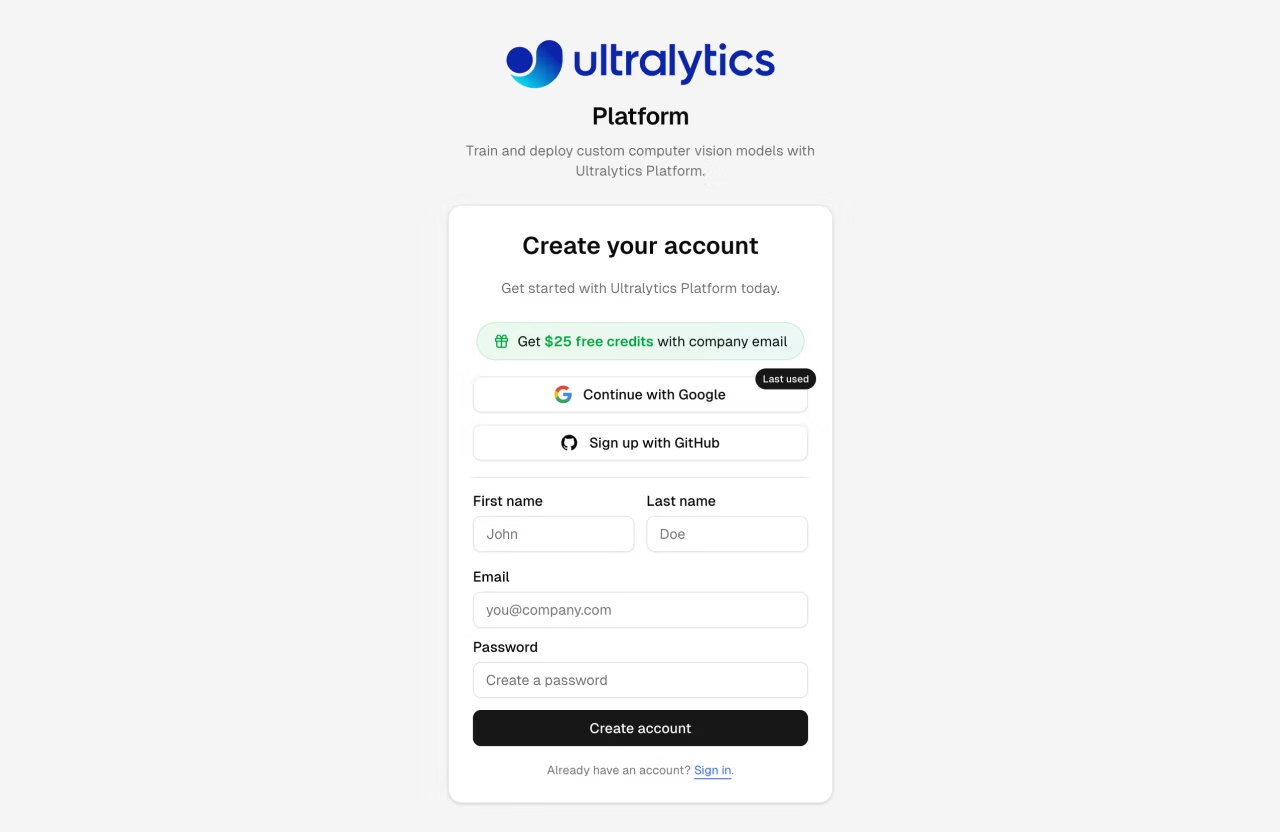
[Ultralytics Platform](https://platform.ultralytics.com) offers a variety of easy signup options. You can register and log in using your Google or GitHub accounts, or with your email address.
|
|
|
|
|
|
|
|
### Region Selection
|
|
|
|
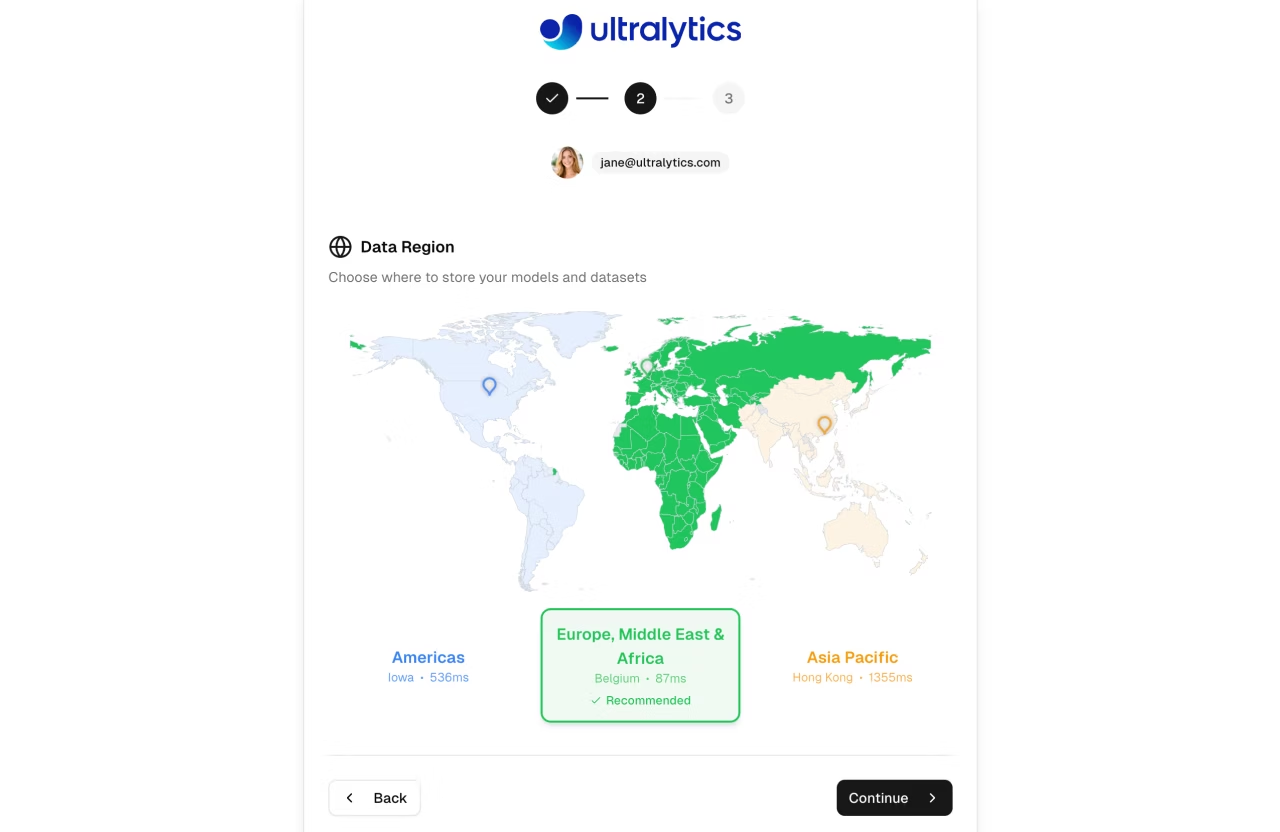
During onboarding, you'll be asked to select your data region. The Platform automatically measures latency to each region and recommends the closest one. This is an important choice as it determines where your data, models, and deployments will be stored.
|
|
|
|
|
|
|
|
| Region | Label | Location | Best For |
|
|
| ------ | ---------------------------- | -------------------- | --------------------------------------- |
|
|
| **US** | Americas | Iowa, USA | Americas users, fastest for Americas |
|
|
| **EU** | Europe, Middle East & Africa | Belgium, Europe | European users, GDPR compliance |
|
|
| **AP** | Asia Pacific | Taiwan, Asia-Pacific | Asia-Pacific users, lowest APAC latency |
|
|
|
|
!!! warning "Region is Permanent"
|
|
|
|
Your region selection cannot be changed after account creation. Choose the region closest to you or your users for best performance.
|
|
|
|
### Free Credits
|
|
|
|
Every new account receives free credits for cloud GPU training:
|
|
|
|
| Email Type | Sign-up Credits | How to Qualify |
|
|
| ---------------------- | --------------- | -------------------------------------- |
|
|
| **Work/Company Email** | **$25.00** | Use your company domain (@company.com) |
|
|
| **Personal Email** | **$5.00** | Gmail, Yahoo, Outlook, etc. |
|
|
|
|
!!! tip "Maximize Your Credits"
|
|
|
|
Sign up with a work email to receive $25 in credits. If you signed up with a personal email, you can verify a work email later to unlock the additional $20 in credits.
|
|
|
|
### Complete Your Profile
|
|
|
|
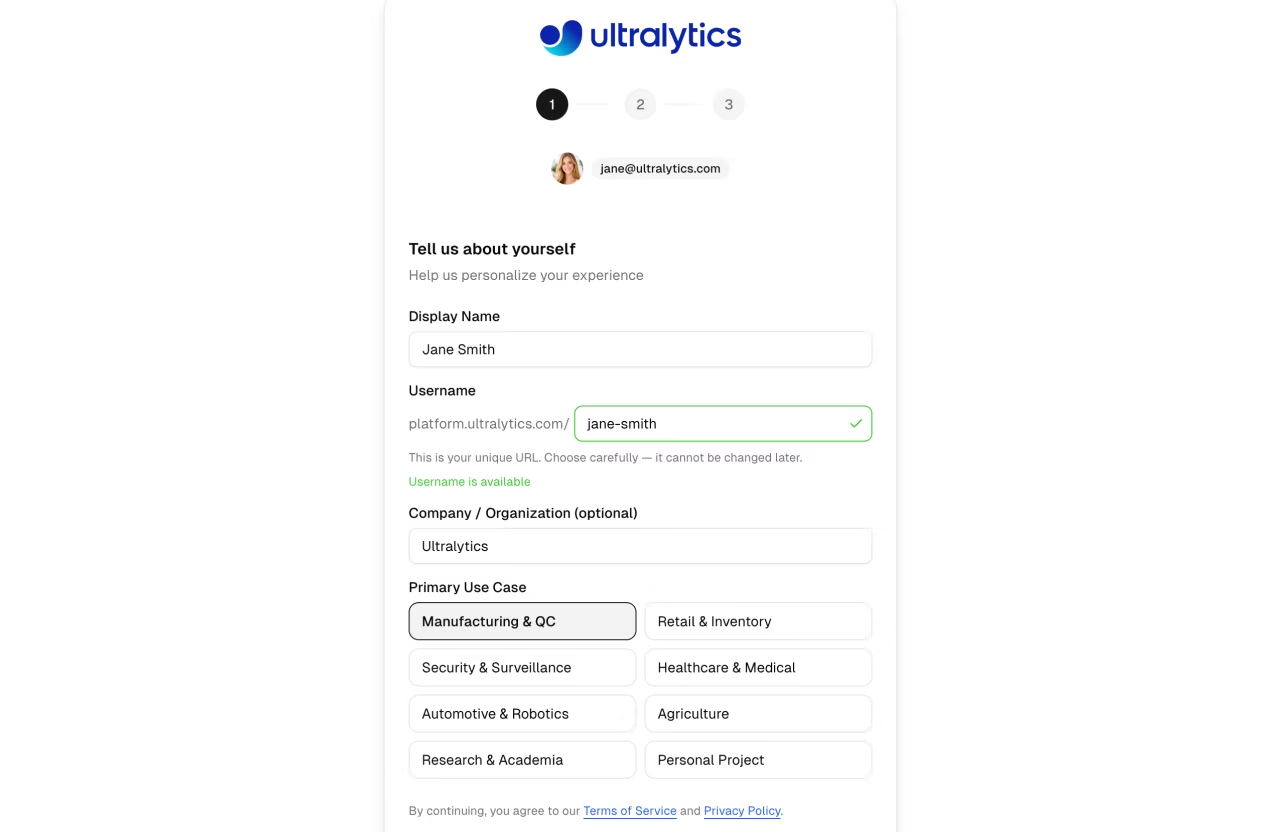
The onboarding flow guides you through three steps:
|
|
|
|
1. **Username** — Choose a unique username (permanent, cannot be changed later)
|
|
2. **Data Region** — Select US, EU, or AP with a visual world map showing latency
|
|
3. **Profile** — Set your display name, company, and primary use case
|
|
|
|
|
|
|
|
??? tip "Update Later"
|
|
|
|
You can update your profile anytime from [Settings](account/settings.md), including your display name, bio, and social links. Note that your username and data region cannot be changed after signup.
|
|
|
|
## Home Dashboard
|
|
|
|
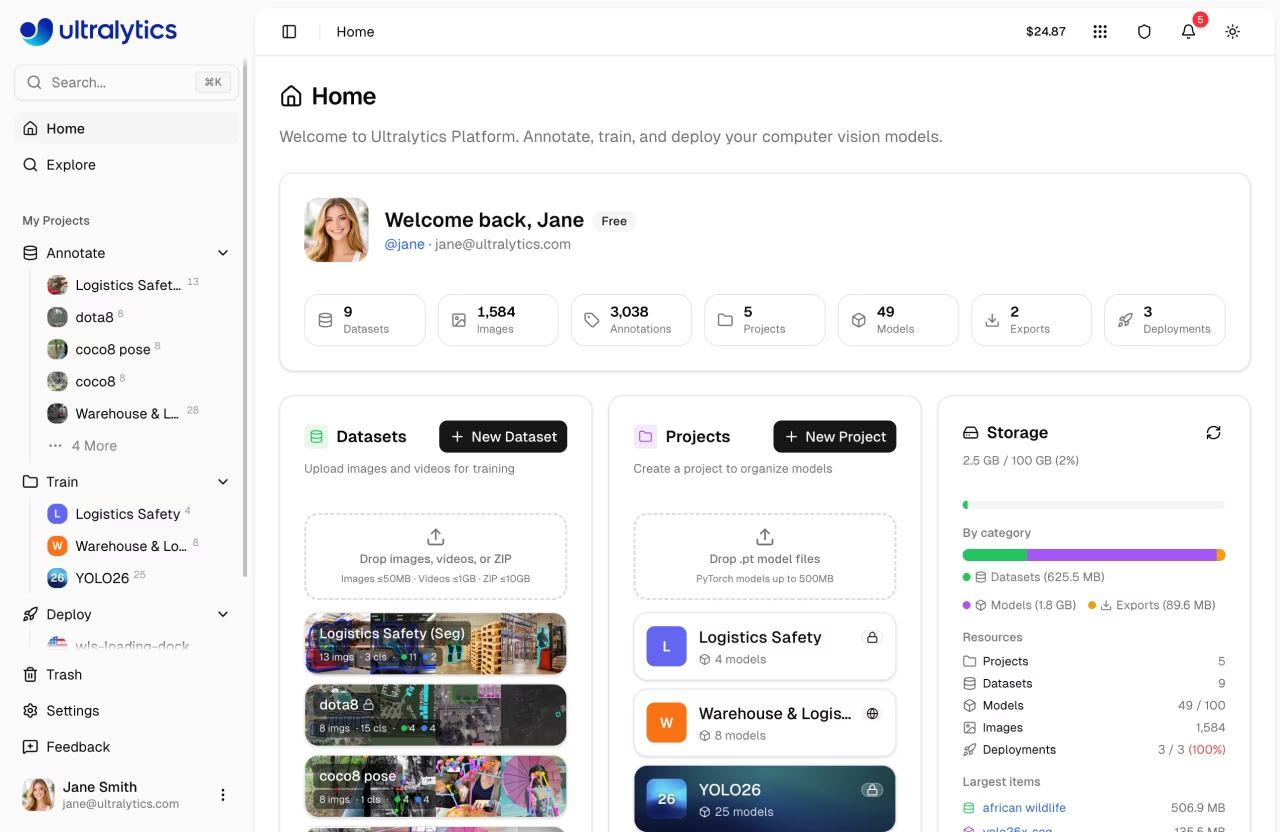
After signing in, you will be directed to the Home page of [Ultralytics Platform](https://platform.ultralytics.com), which provides a welcome card with workspace stats, quick access to datasets, projects, and storage, and a recent activity feed.
|
|
|
|
|
|
|
|
### Sidebar Navigation
|
|
|
|
The sidebar provides access to all Platform sections:
|
|
|
|
| Section | Item | Description |
|
|
| --------------- | -------- | ------------------------------------------------ |
|
|
| **Top** | Search | Quick search across all your resources (Cmd+K) |
|
|
| | Home | Dashboard with quick actions and recent activity |
|
|
| | Explore | Discover public projects and datasets |
|
|
| **My Projects** | Annotate | Your datasets organized for annotation |
|
|
| | Train | Your projects containing trained models |
|
|
| | Deploy | Your active deployments |
|
|
| **Bottom** | Trash | Deleted items (recoverable for 30 days) |
|
|
| | Settings | Account, billing, and preferences |
|
|
| | Help | Open help, docs, and feedback tools |
|
|
|
|
### Welcome Card
|
|
|
|
The welcome card shows your profile, plan badge, and workspace statistics at a glance:
|
|
|
|
| Stat | Description |
|
|
| --------------- | -------------------------------- |
|
|
| **Datasets** | Number of datasets |
|
|
| **Images** | Total images across all datasets |
|
|
| **Annotations** | Total annotation count |
|
|
| **Projects** | Number of projects |
|
|
| **Models** | Total trained models |
|
|
| **Exports** | Number of model exports |
|
|
| **Deployments** | Active deployment count |
|
|
|
|
### Quick Actions
|
|
|
|
Below the welcome card, the dashboard shows three cards:
|
|
|
|
- **Datasets**: Create a new dataset or drop images, videos, or dataset files to upload. Shows your recent datasets.
|
|
- **Projects**: Create a new project or drop `.pt` model files to upload. Shows your recent projects.
|
|
- **Storage**: Overview of your storage usage (datasets, models, exports) with plan limits.
|
|
|
|
A **Recent Activity** table at the bottom shows your latest datasets, models, and training runs.
|
|
|
|
### Global Search
|
|
|
|
Press `Cmd+K` (Mac) or `Ctrl+K` (Windows/Linux) to open the search bar. Search across pages, projects, datasets, and deployments instantly.
|
|
|
|
### AI Chat Assistant
|
|
|
|
A floating chat widget is available on every page. Click it to ask questions about YOLO training, annotation, deployment, or any Platform feature. The assistant provides context-aware help based on the current page.
|
|
|
|
### Onboarding Tours
|
|
|
|
The Platform includes guided tours that introduce key features as you explore different sections:
|
|
|
|
| Tour | Trigger | What It Covers |
|
|
| ---------------- | ------------------------------------ | -------------------------------------------------------------------- |
|
|
| **Nav Tour** | First visit to Home after onboarding | Home, Explore, Annotate, Train, Deploy, Settings, Account |
|
|
| **Project Tour** | First visit to a project page | Models sidebar, Training Charts, Train button |
|
|
| **Dataset Tour** | First visit to a dataset page | Images gallery, Split tabs, Classes, Charts, Train, Upload, Download |
|
|
|
|
!!! tip "Enterprise Users"
|
|
|
|
Enterprise plan users see an enhanced Nav Tour with enterprise-specific guidance on the Train step.
|
|
|
|
#### Restart Tours
|
|
|
|
To replay any tour:
|
|
|
|
- **Redo Tour button** — Click your profile avatar (bottom-left of the sidebar) to open the user menu, then select **Redo Tour**. This resets all tours so they replay on your next visit to each section.
|
|
- **URL parameter** — Navigate to `platform.ultralytics.com/home?tour=nav` to restart the Nav Tour directly.
|
|
|
|
## Upload Your First Dataset
|
|
|
|
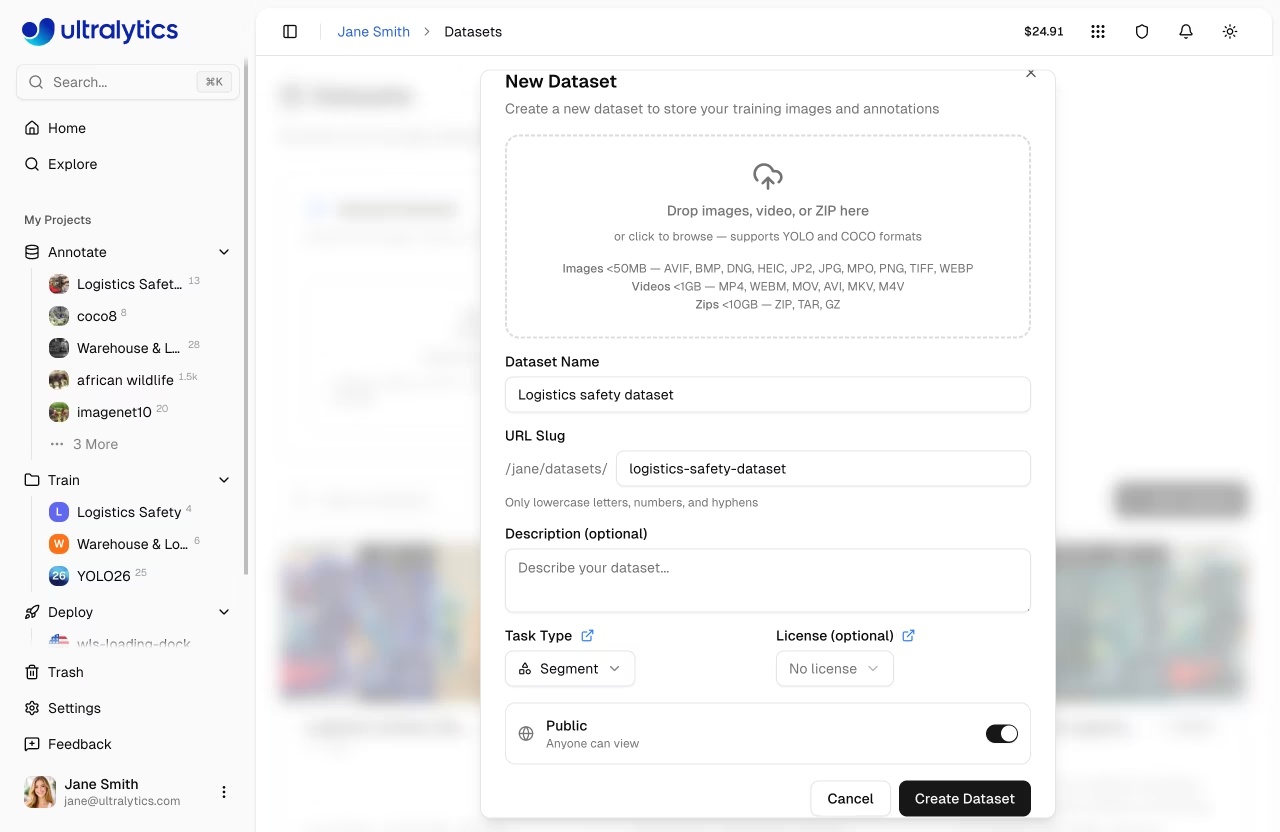
Navigate to `Annotate` in the sidebar and click `New Dataset` to add your training data. You can also drag and drop files directly onto the Datasets card on the Home dashboard.
|
|
|
|
|
|
|
|
Ultralytics Platform supports multiple upload formats (full details in [Datasets](data/datasets.md)):
|
|
|
|
| Format | Max Size (Free / Pro / Enterprise) | Description |
|
|
| ------------------- | ---------------------------------- | --------------------------------------------------------------------------- |
|
|
| **Images** | 50 MB | JPG, PNG, WebP, TIFF, and other common formats |
|
|
| **Dataset Archive** | 10 / 20 / 50 GB | ZIP or TAR archive (including `.tar.gz` and `.tgz`) with images and labels |
|
|
| **Video** | 1 GB | MP4, WebM, MOV, AVI, MKV, M4V - frames extracted at ~1 fps (max 100 frames) |
|
|
| **NDJSON** | 10 / 20 / 50 GB | Ultralytics dataset export format for portable metadata |
|
|
|
|
```mermaid
|
|
graph LR
|
|
A[Drop Files] --> B[Auto-Package ZIP]
|
|
B --> C[Upload to Storage]
|
|
C --> D[Backend Worker]
|
|
D --> E[Resize & Thumbnail]
|
|
E --> F[Parse Labels]
|
|
F --> G[Compute Statistics]
|
|
G --> H[Dataset Ready]
|
|
```
|
|
|
|
After upload, the platform automatically processes your data:
|
|
|
|
1. Images larger than 4096px are resized (preserving aspect ratio)
|
|
2. 256px thumbnails are generated for fast browsing
|
|
3. Labels are parsed and validated ([YOLO `.txt` format](../datasets/detect/index.md#ultralytics-yolo-format))
|
|
4. Statistics are computed (class distribution, heatmaps, dimensions)
|
|
|
|
!!! tip "YOLO Dataset Structure"
|
|
|
|
For best results, upload a ZIP or TAR archive (including `.tar.gz` and `.tgz`) with the standard YOLO structure:
|
|
|
|
```
|
|
my-dataset.zip
|
|
├── data.yaml # Class names and splits
|
|
├── train/
|
|
│ ├── images/
|
|
│ │ ├── img001.jpg
|
|
│ │ └── img002.jpg
|
|
│ └── labels/
|
|
│ ├── img001.txt
|
|
│ └── img002.txt
|
|
└── val/
|
|
├── images/
|
|
└── labels/
|
|
```
|
|
|
|
For full syntax across tasks, see [detect](../datasets/detect/index.md#ultralytics-yolo-format), [segment](../datasets/segment/index.md#ultralytics-yolo-format), [pose](../datasets/pose/index.md#ultralytics-yolo-format), [OBB](../datasets/obb/index.md#yolo-obb-format), and [classify](../datasets/classify/index.md#dataset-structure-for-yolo-classification-tasks) dataset guides.
|
|
|
|
Read more about [datasets](data/datasets.md) and supported formats for [detect](../datasets/detect/index.md), [segment](../datasets/segment/index.md), [pose](../datasets/pose/index.md), [OBB](../datasets/obb/index.md), and [classify](../datasets/classify/index.md).
|
|
|
|
## Create Your First Project
|
|
|
|
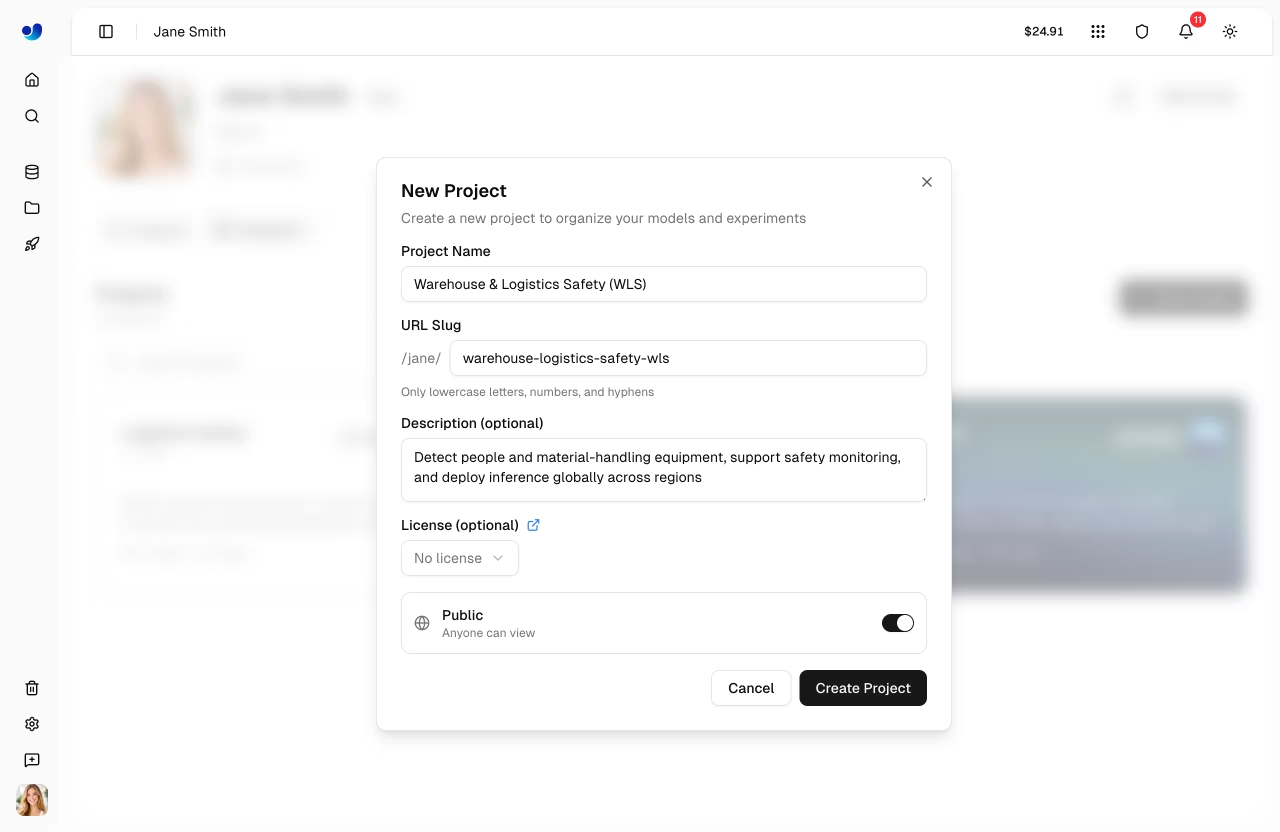
Projects help you organize related models and experiments. Navigate to Projects and click "Create Project".
|
|
|
|
|
|
|
|
Enter a name and optional description for your project. Projects contain:
|
|
|
|
- **Models**: Trained checkpoints
|
|
- **Activity Log**: History of changes
|
|
|
|
Read more about [projects](train/projects.md).
|
|
|
|
## Train Your First Model
|
|
|
|
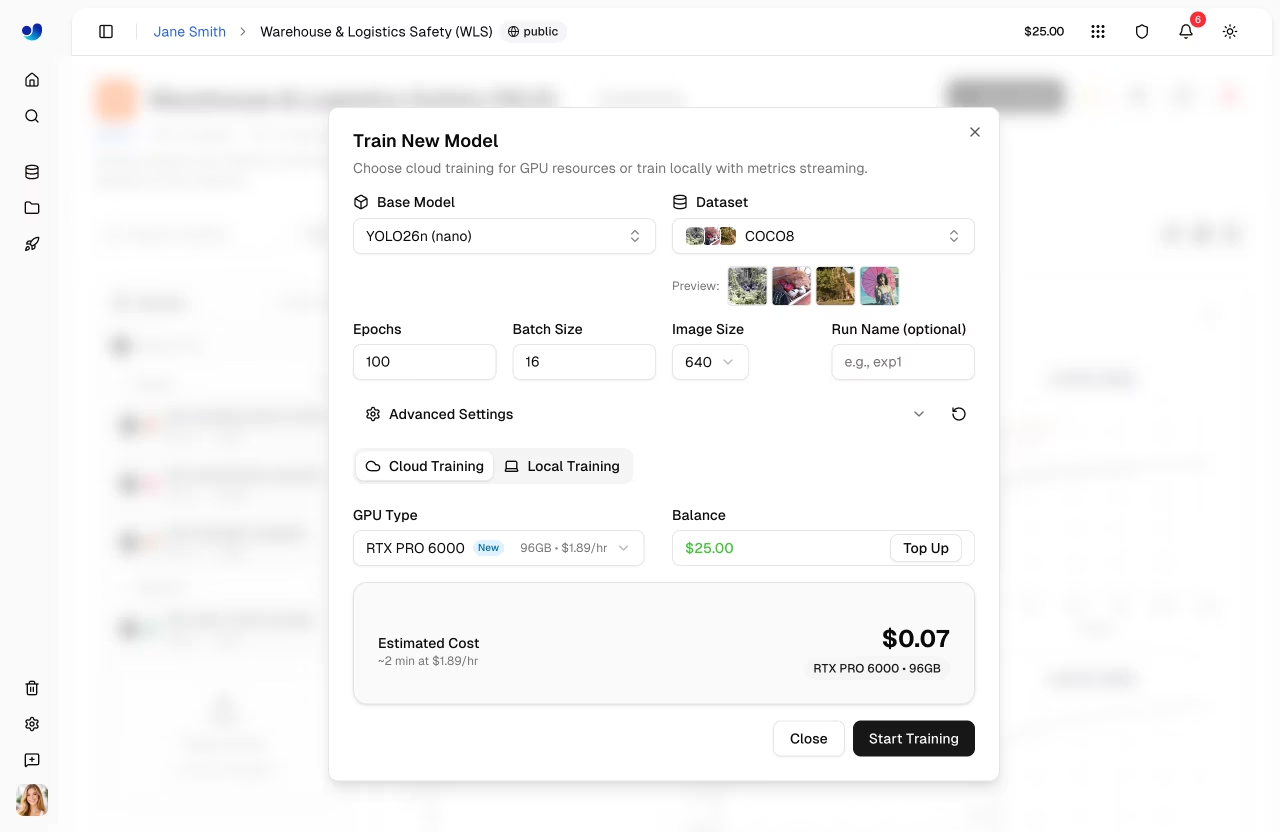
From your project, click `Train Model` to start cloud training.
|
|
|
|
|
|
|
|
### Training Configuration
|
|
|
|
1. **Select Dataset**: Choose from your uploaded datasets (only datasets with a [`train` split](data/datasets.md#filter-by-split) are shown)
|
|
2. **Choose Model**: Select a base model — official Ultralytics models or your own trained models
|
|
3. **Set Epochs**: Number of training iterations (default: 100)
|
|
4. **Select GPU**: Choose compute resources based on your budget and model size
|
|
|
|
| Model | Size | Speed | Accuracy | Recommended GPU |
|
|
| ------- | ----------- | -------- | -------- | ----------------------------------------------------------------------- |
|
|
| YOLO26n | Nano | Fastest | Good | RTX PRO 6000 (96 GB) or RTX 4090 (24 GB) |
|
|
| YOLO26s | Small | Fast | Better | RTX PRO 6000 (96 GB) |
|
|
| YOLO26m | Medium | Moderate | High | RTX PRO 6000 (96 GB) |
|
|
| YOLO26l | Large | Slower | Higher | RTX PRO 6000 (96 GB) or A100 SXM (80 GB) |
|
|
| YOLO26x | Extra Large | Slowest | Best | H100 SXM (80 GB); H200 (141 GB) or B200 (180 GB) with Pro or Enterprise |
|
|
|
|
!!! info "GPU Selection"
|
|
|
|
GPUs range from $0.24/hr (RTX 2000 Ada, 16 GB) to $4.99/hr (B200, 180 GB). The default GPU is **RTX PRO 6000** (96 GB Blackwell, $1.69/hr) — a great balance of memory and performance. 20 GPUs are available on all plans; H200 and B200 require [Pro or Enterprise](account/billing.md#plans). See the full [GPU pricing table](index.md#what-gpu-options-are-available-for-cloud-training).
|
|
|
|
!!! warning "Credit Balance Required"
|
|
|
|
Cloud training requires a positive credit balance sufficient to cover the estimated job cost. Check your balance in [`Settings > Billing`](account/billing.md). New accounts receive free credits ($5 for personal email, $25 for work email).
|
|
|
|
### Monitor Training
|
|
|
|
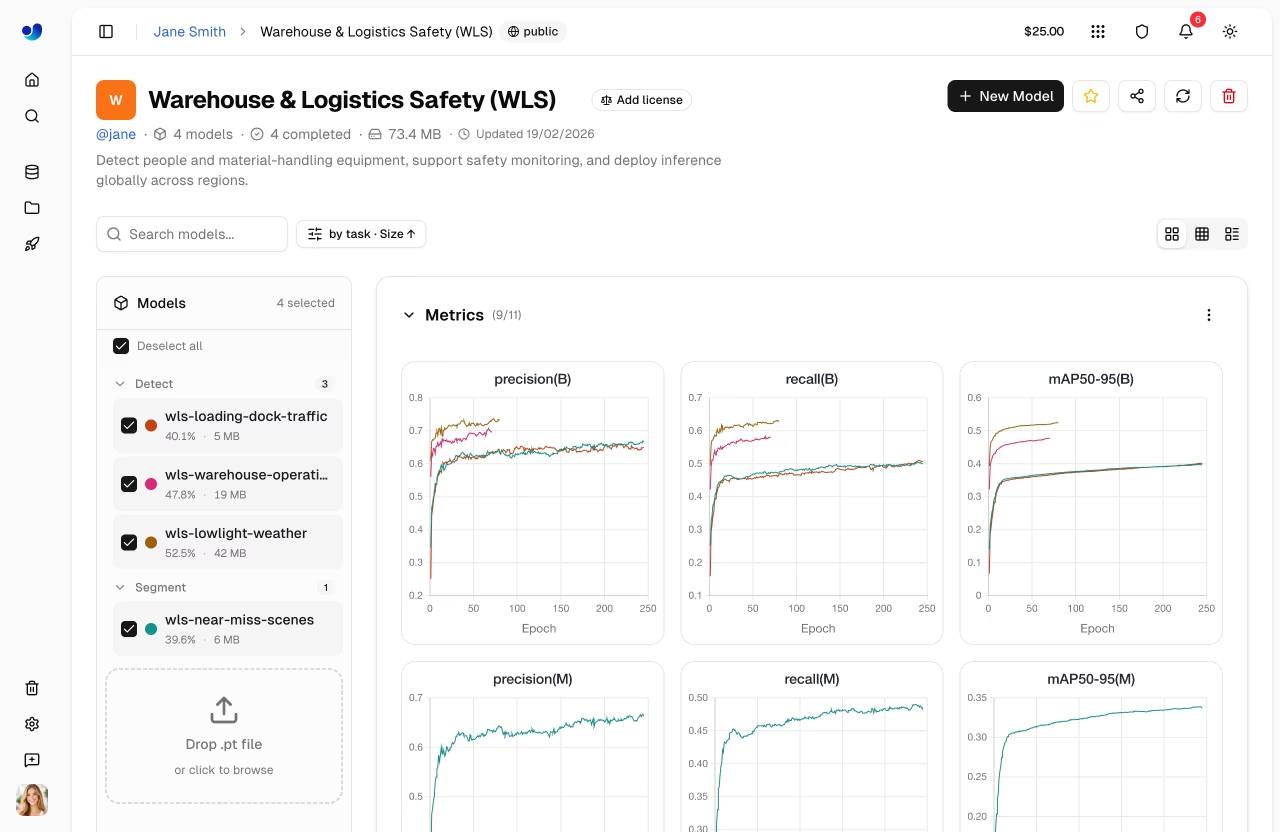
Once training starts, you can monitor progress in real-time through three subtabs:
|
|
|
|
| Subtab | Content |
|
|
| ----------- | ------------------------------------------------------- |
|
|
| **Charts** | Training/validation loss curves, mAP, precision, recall |
|
|
| **Console** | Live training log output |
|
|
| **System** | GPU utilization, memory usage, hardware metrics |
|
|
|
|
|
|
|
|
Metrics are streamed in real-time via SSE (Server-Sent Events). After training completes, validation plots are generated including confusion matrix, PR curves, and F1 curves.
|
|
|
|
!!! tip "Cancel Training"
|
|
|
|
You can cancel a running training job at any time. You're only charged for the compute time used up to that point.
|
|
|
|
Read more about [cloud training](train/cloud-training.md).
|
|
|
|
## Test Your Model
|
|
|
|
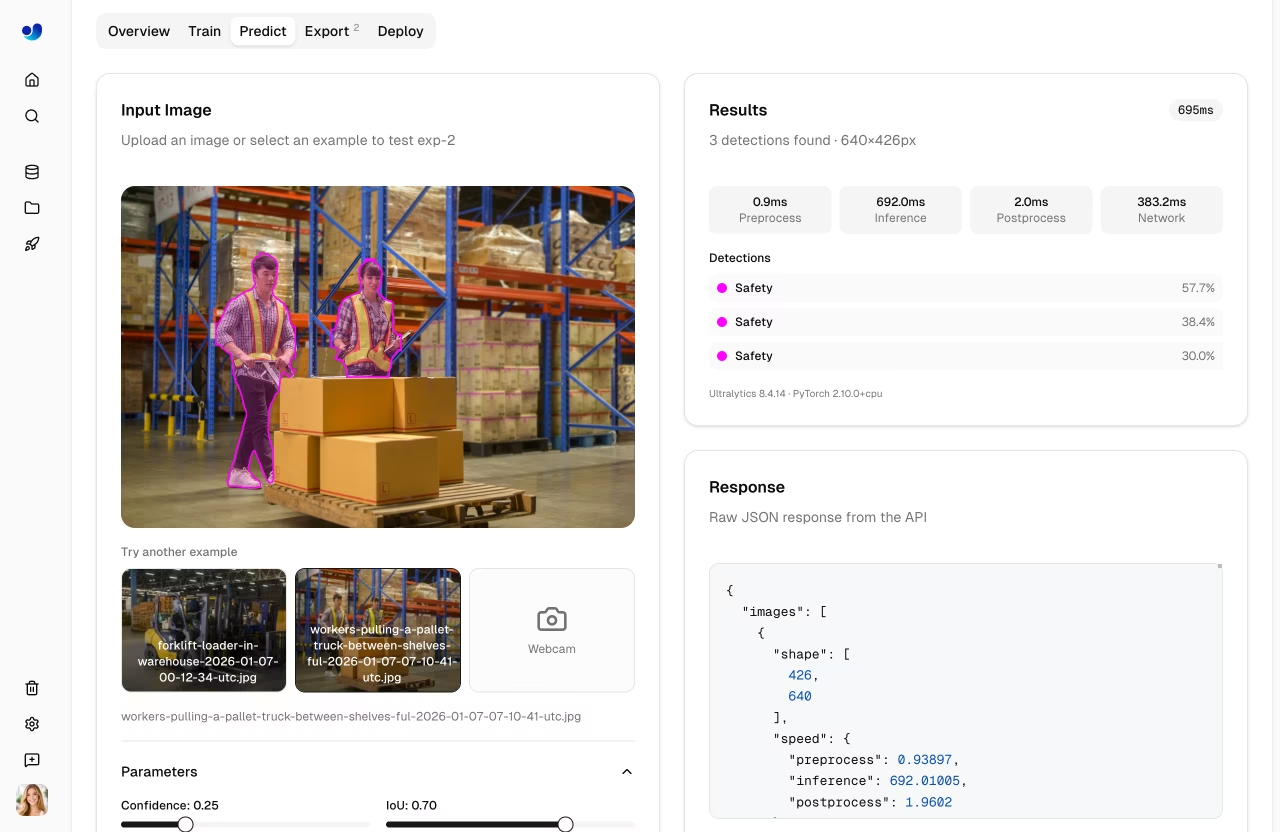
After training completes, test your model directly in the browser:
|
|
|
|
1. Navigate to your model's `Predict` tab
|
|
2. Upload an image, drag and drop, or use example images (auto-inference on drop)
|
|
3. View inference results with bounding boxes rendered on canvas
|
|
|
|
|
|
|
|
Adjust inference parameters:
|
|
|
|
| Parameter | Default | Description |
|
|
| -------------- | ------- | --------------------------------- |
|
|
| **Confidence** | 0.25 | Filter low-confidence predictions |
|
|
| **IoU** | 0.7 | Control overlap for NMS |
|
|
| **Image Size** | 640 | Resize input for inference |
|
|
|
|
The `Predict` tab provides ready-to-use code examples with your actual API key pre-filled:
|
|
|
|
=== "Python"
|
|
|
|
```python
|
|
import requests
|
|
|
|
url = "https://platform.ultralytics.com/api/models/{model_id}/predict"
|
|
headers = {"Authorization": "Bearer YOUR_API_KEY"}
|
|
|
|
with open("image.jpg", "rb") as f:
|
|
response = requests.post(url, headers=headers, files={"file": f})
|
|
|
|
print(response.json())
|
|
```
|
|
|
|
=== "cURL"
|
|
|
|
```bash
|
|
curl -X POST "https://platform.ultralytics.com/api/models/{model_id}/predict" \
|
|
-H "Authorization: Bearer YOUR_API_KEY" \
|
|
-F "file=@image.jpg"
|
|
```
|
|
|
|
!!! tip "Auto-Inference"
|
|
|
|
The Predict tab runs inference automatically when you drop an image — no need to click a button. Example images (bus.jpg, zidane.jpg) are preloaded for instant testing.
|
|
|
|
Read more about [inference](deploy/inference.md).
|
|
|
|
## Deploy to Production
|
|
|
|
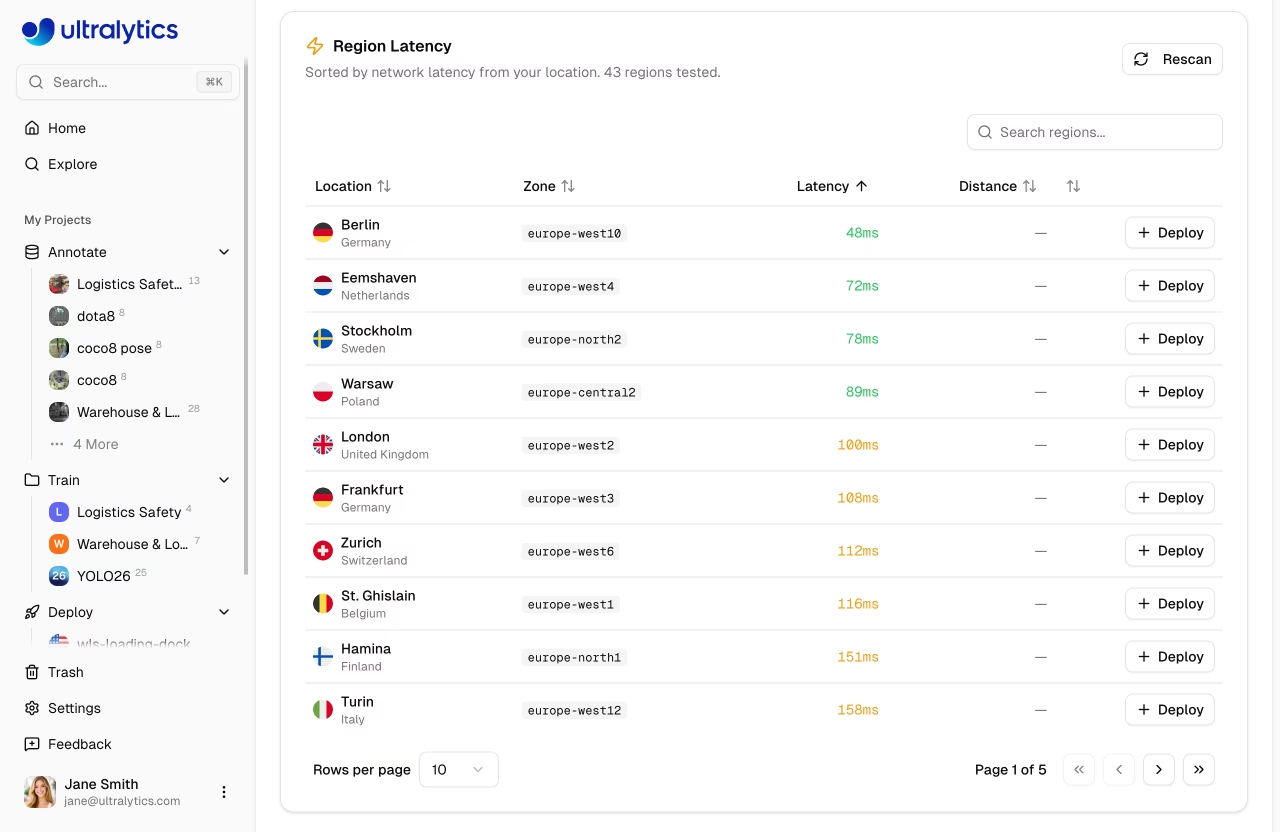
Deploy your model to a dedicated endpoint for production use:
|
|
|
|
1. Navigate to your model's `Deploy` tab
|
|
2. Select a region from the interactive world map (43 available regions)
|
|
3. The map shows real-time latency measurements with traffic light colors (green < 100ms, yellow < 200ms, red > 200ms)
|
|
4. Click `Deploy` to create your endpoint
|
|
|
|
|
|
|
|
```mermaid
|
|
graph LR
|
|
A[Select Region] --> B[Deploy]
|
|
B --> C[Provisioning ~1 min]
|
|
C --> D[Running]
|
|
D --> E{Lifecycle}
|
|
E --> F[Stop]
|
|
E --> G[Delete]
|
|
F --> H[Resume]
|
|
H --> D
|
|
```
|
|
|
|
Your endpoint will be ready in about a minute with:
|
|
|
|
- **Unique URL**: HTTPS endpoint for API calls
|
|
- **Scale-to-zero behavior**: No idle compute cost (deployments currently run a single active instance)
|
|
- **Monitoring**: Request metrics and logs
|
|
|
|
!!! info "Deployment Lifecycle"
|
|
|
|
Endpoints can be **started**, **stopped**, and **deleted**. Stopped endpoints don't incur compute costs but retain their configuration. Restart a stopped endpoint with one click.
|
|
|
|
After deployment, you can manage all your endpoints from the `Deploy` section in the sidebar, which shows a global map with active deployments, overview metrics, and a list of all endpoints.
|
|
|
|
Read more about [endpoints](deploy/endpoints.md).
|
|
|
|
## Remote Training (Optional)
|
|
|
|
If you prefer to train on your own hardware, you can stream metrics to the platform using your API key. This works like Weights & Biases — train anywhere, monitor on the platform.
|
|
|
|
1. Generate an API key in [`Settings > API Keys`](account/api-keys.md)
|
|
2. Set the environment variable and train with a `project/name` format:
|
|
|
|
```bash
|
|
export ULTRALYTICS_API_KEY="YOUR_API_KEY"
|
|
|
|
yolo train model=yolo26n.pt data=coco.yaml epochs=100 project=username/my-project name=exp1
|
|
```
|
|
|
|
!!! note "API Key Format"
|
|
|
|
API keys start with `ul_` followed by 40 hex characters (43 characters total). Keys are full-access tokens scoped to your workspace.
|
|
|
|
Read more about [API keys](account/api-keys.md), [dataset URIs](data/datasets.md#dataset-uri), and [remote training](train/cloud-training.md#remote-training).
|
|
|
|
## Feedback & Help
|
|
|
|
The **Help** page in the sidebar footer includes an in-app feedback form. You can rate your experience, choose a feedback type (bug, feature request, or general), and attach screenshots.
|
|
|
|
If you need more help:
|
|
|
|
- **AI Chat**: Click the floating chat widget on any page for instant help
|
|
- **Documentation**: Browse these docs for detailed guides on [datasets](data/datasets.md), [annotation](data/annotation.md), [training](train/cloud-training.md), [deployment](deploy/endpoints.md), and [billing](account/billing.md)
|
|
- **Discord**: Join our [Discord community](https://discord.com/invite/ultralytics) for discussions
|
|
- **GitHub**: Report issues on [GitHub](https://github.com/ultralytics/ultralytics/issues)
|
|
- **REST API**: See the [API reference](api/index.md) or try the [interactive API docs](https://platform.ultralytics.com/api/docs) for programmatic access to all Platform features
|