 73fcaec788
Signed-off-by: Glenn Jocher <glenn.jocher@ultralytics.com>
Co-authored-by: UltralyticsAssistant <web@ultralytics.com>
Co-authored-by: fatih akyon <34196005+fcakyon@users.noreply.github.com>
Co-authored-by: Jing Qiu <61612323+Laughing-q@users.noreply.github.com>
Co-authored-by: Onuralp SEZER <onuralp@ultralytics.com>
Co-authored-by: Glenn Jocher <glenn.jocher@ultralytics.com>
13 KiB
| comments | description | keywords |
|---|---|---|
| true | Manage credits, payments, and subscriptions on Ultralytics Platform with transparent pricing for cloud training and deployments. | Ultralytics Platform, billing, credits, pricing, subscription, payments, training costs |
Billing
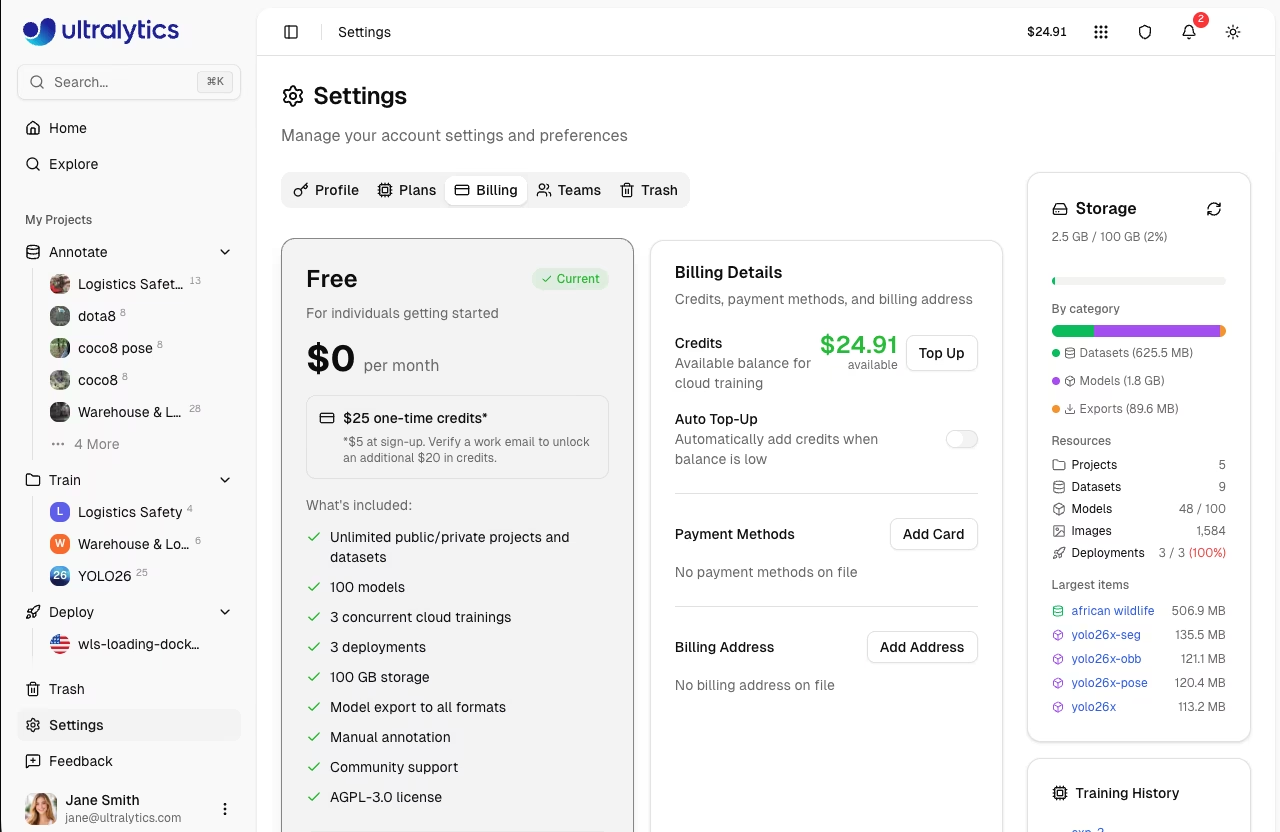
Ultralytics Platform uses a credit-based billing system for cloud training and dedicated endpoints. Add credits, track usage, and manage your subscription from Settings > Billing.
Plans
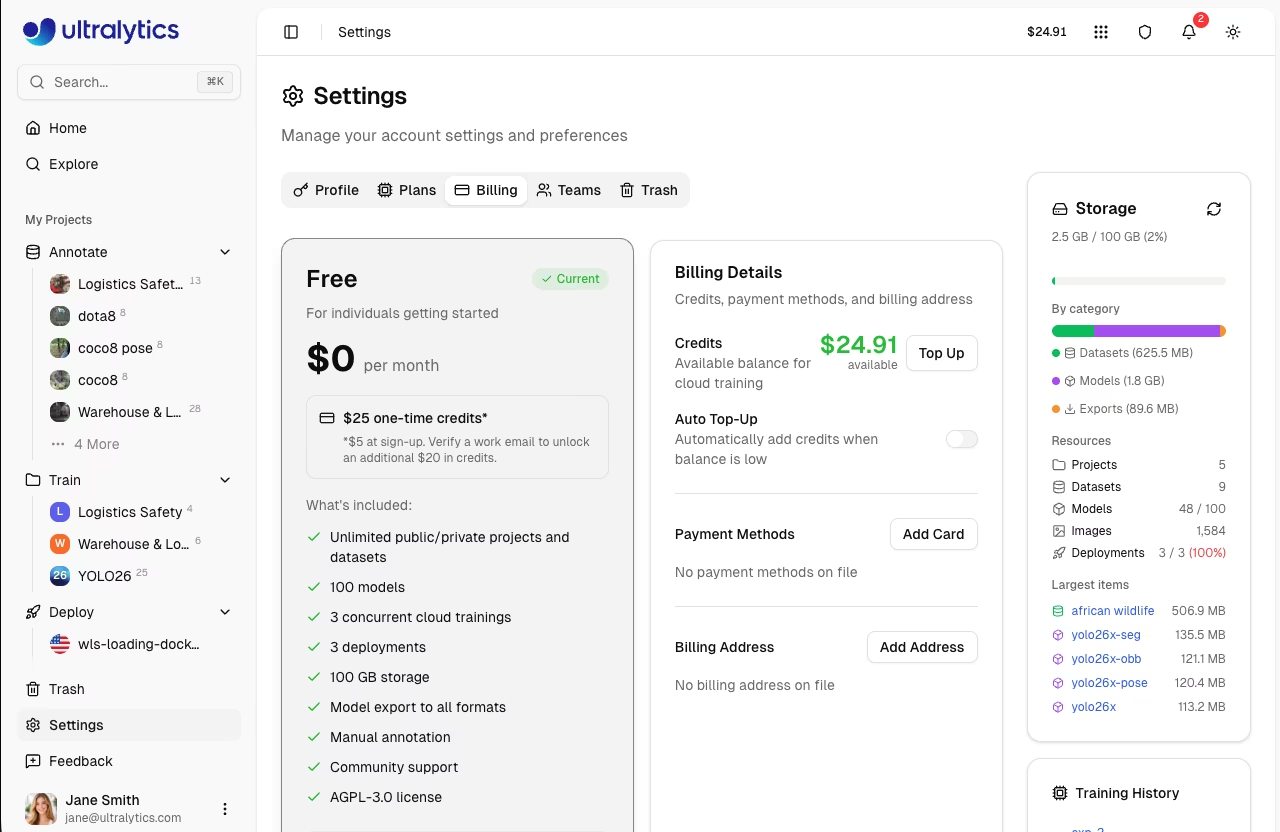
Choose the plan that fits your needs. Compare plans in Settings > Plans:
| Feature | Free | Pro ($29/mo) | Enterprise |
|---|---|---|---|
| Signup Credit | $5 / $25* | - | Custom |
| Monthly Credit | - | $30/seat/month | Custom |
| Models | 100 | 500 | Unlimited |
| Concurrent Trainings | 3 | 10 | Unlimited |
| Storage | 100 GB | 500 GB | Unlimited |
Dataset Upload (ZIP/TAR incl. .tar.gz/.tgz/NDJSON) |
10 GB | 20 GB | 50 GB |
| Deployments | 3 | 10 | Unlimited |
| Cloud GPU Types | 20 | 23 | 23 |
| Best GPUs (H200, B200) | - | Yes | Yes |
| Teams | - | Up to 5 members | Up to 50 |
| SSO / SAML | - | - | Yes |
| Enterprise License | - | - | Yes |
| License | AGPL-3.0 | AGPL-3.0 | Enterprise |
*Free plan: $5 at signup, or $25 if you verify a company/work email address.
Free Plan
Get started at no cost:
- $5 signup credit ($25 for verified company/work emails)
- Unlimited public and private projects and datasets
- 100 models
- 3 concurrent cloud trainings
- 3 deployments
- 100 GB storage · 10 GB dataset upload limit
- Model export to all 17+ formats
- Manual, SAM 3 & YOLO Smart annotation
- 20 cloud GPU types including 5090 & H100 ($0.24–$3.07/hr)
- Community support
!!! tip "Company Email Bonus"
Sign up with a company email address (not gmail.com, outlook.com, etc.) to receive $25 in signup credits instead of $5.
Pro Plan
For professionals and small teams ($29/month or $290/year):
- $30/seat/month in credits (recurring)
- 500 models
- 10 concurrent cloud trainings
- 500 GB storage · 20 GB dataset upload limit
- 10 cloud deployments
- Team collaboration with 4-role RBAC (up to 5 members)
- Access to the best GPUs (H200, B200)
- Priority support
!!! tip "Save with Yearly Billing"
Choose yearly billing ($290/year) to save 17% compared to monthly billing.
Enterprise
For organizations with advanced needs:
- Custom credit allocation
- Unlimited models, storage, trainings, and deployments · 50 GB dataset upload limit
- Enterprise License (commercial use, non-AGPL)
- SSO / SAML authentication
- On-premise deployment (coming soon)
- ISO/SOC compliance (coming soon)
- SLA guarantees (coming soon)
- Enterprise support
See Ultralytics Licensing for Enterprise plan details.
Credits
Credits are the currency for Platform compute services.
Credit Balance
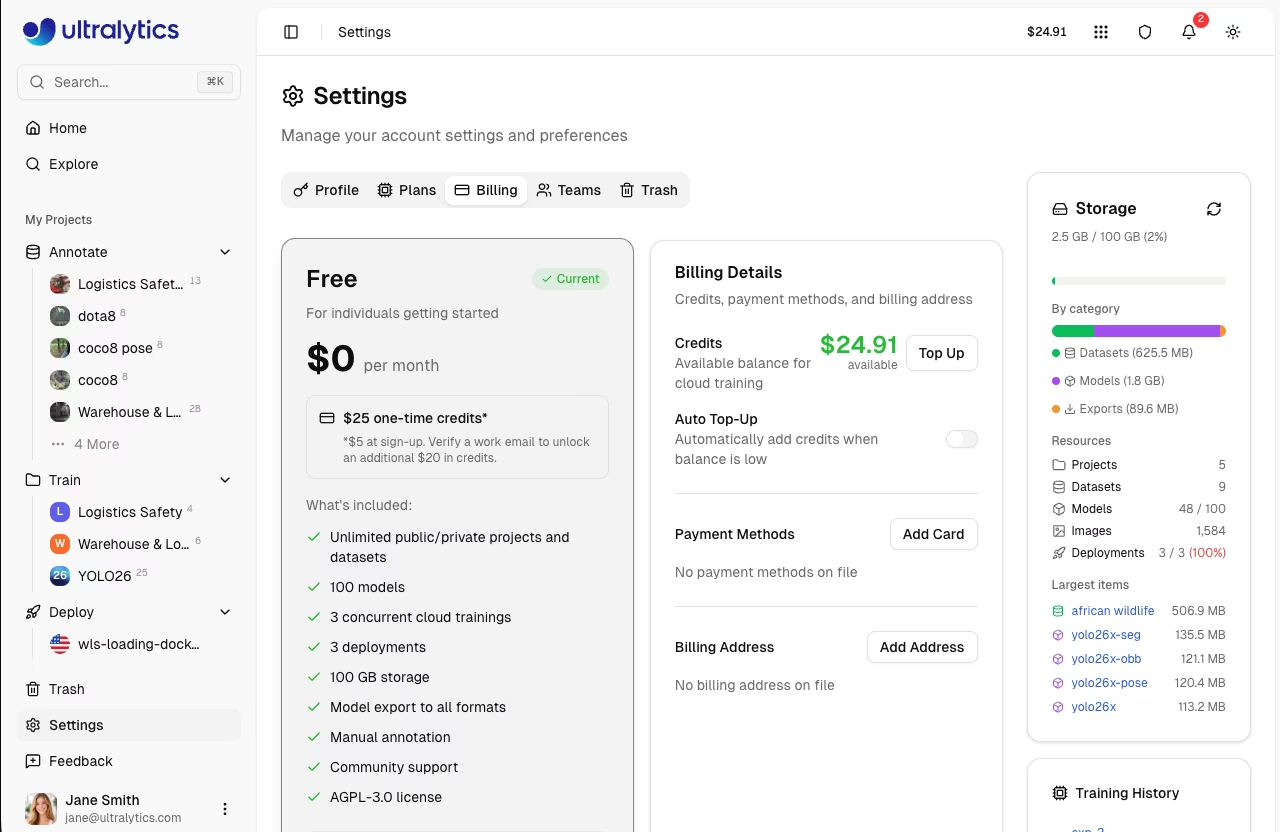
View your balance in Settings > Billing:
| Balance Type | Description |
|---|---|
| Total Balance | Available credits for cloud training |
| Promotional Credits | Credits from signup or monthly grants |
Credit Uses
Credits are consumed by:
| Service | Rate |
|---|---|
| Cloud Training | GPU rate x hours |
Add Credits
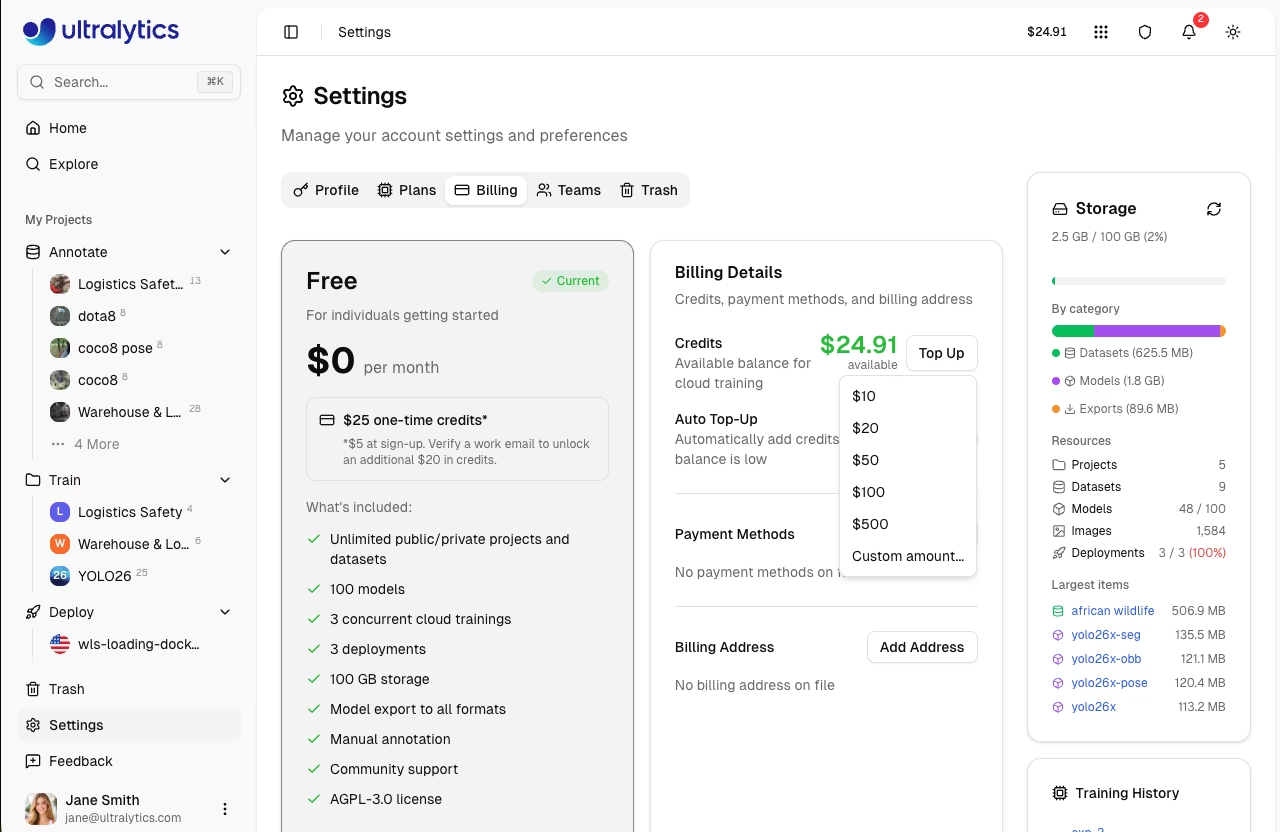
Top up your balance:
- Go to Settings > Billing
- Click Top Up
- Select or enter amount ($5 - $1,000)
- Complete payment
Top-Up Presets
| Amount |
|---|
| $10 |
| $20 |
| $50 |
| $100 |
| $500 |
Custom amounts between $5 and $1,000 are also supported.
Auto Top-Up
Enable automatic credit purchases when your balance drops below a threshold:
- Go to Settings > Billing
- Toggle Auto Top-Up on
- Set Threshold (balance level that triggers a top-up)
- Set Amount (credits to purchase when triggered)
- Click Save
Default settings: threshold $20, amount $100.
!!! tip "Uninterrupted Training"
Enable auto top-up to ensure training jobs are never interrupted by insufficient credits.
Payment Methods
Manage payment methods in Settings > Billing:
- Add Card: Click Add Card to add a credit or debit card
- Set Default: Set a default payment method for top-ups and subscriptions
- Remove: Remove payment methods you no longer need
Billing Address
Set a billing address for invoices:
- Go to Settings > Billing
- Click Add Address (or Edit if already set)
- Enter your billing details (name, address, country)
- Click Save
Training Cost Flow
Cloud training estimates cost before start and charges for actual GPU time used.
flowchart LR
    A[Start Training] --> B[Estimate Cost]
    B --> C[Run Training]
    C --> D[Charge Actual Usage]
How It Works
- Estimate: Platform calculates estimated cost based on model size, dataset size, epochs, and GPU
- Authorize Start: Your available balance is checked before training starts
- Train: Job runs on the selected GPU
- Charge: On completion (or cancellation), billing uses actual runtime
!!! success "Consumer Protection"
You pay for actual compute time used, including partial runs that are cancelled.
Training Costs
Cloud training costs depend on GPU selection:
{% include "macros/platform-gpu-table.md" %}
H200 and B200 GPUs require a Pro or Enterprise plan. All other GPUs are available on all plans.
See Cloud Training for complete GPU options and pricing.
Cost Calculation
Total Cost = GPU Rate x Training Time (hours)
Example: Training for 2.5 hours on RTX PRO 6000
$1.69 x 2.5 = $4.23
Upgrade to Pro
Upgrade for more features and monthly credits:
- Go to Settings > Plans
- Click Upgrade to Pro
- Choose billing cycle (Monthly or Yearly)
- Complete checkout
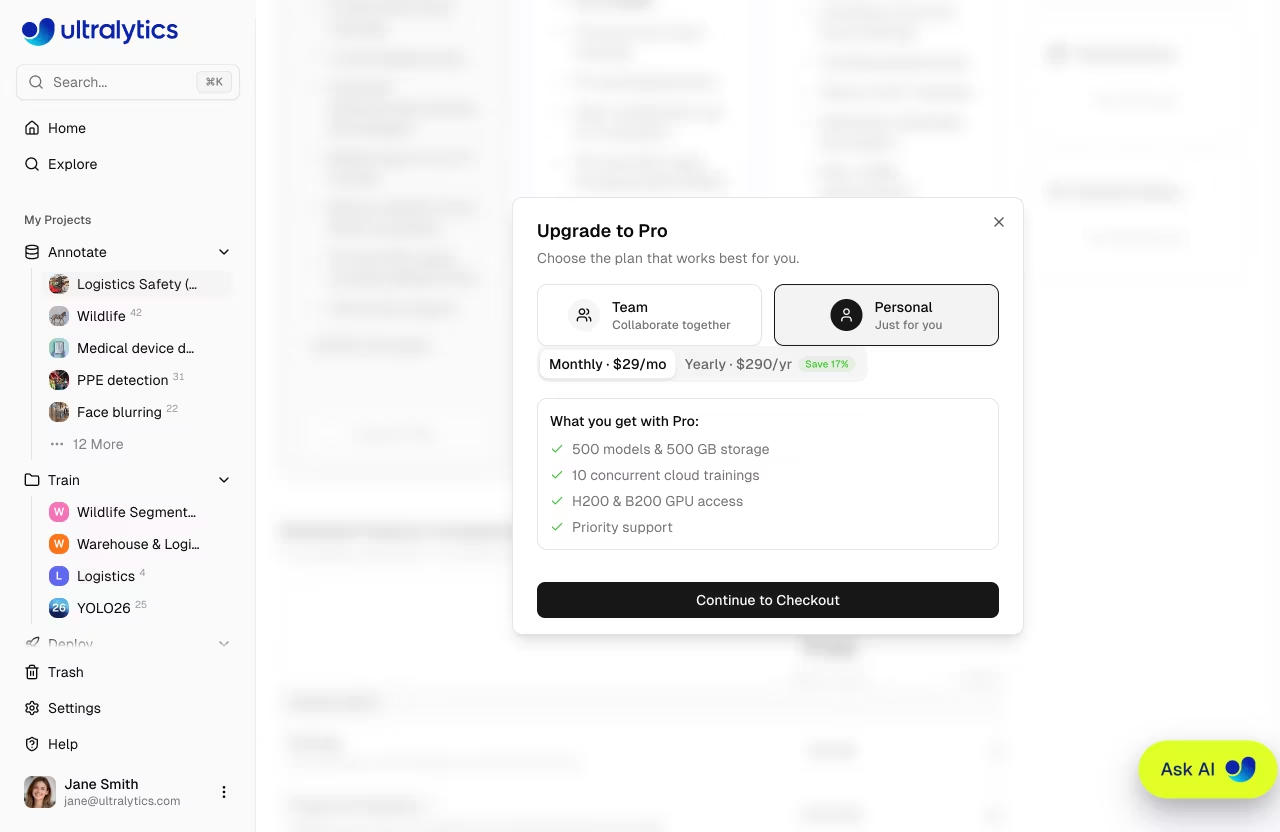
Pro Benefits
After upgrading:
- $30/seat/month credit added immediately and each month
- Storage increased to 500 GB · 20 GB dataset upload limit
- 500 models
- 10 concurrent cloud trainings
- 10 cloud deployments
- Team collaboration (up to 5 members)
- Access to best GPUs (H200, B200)
- Full monitoring dashboard
- Priority support
Cancel Pro
Cancel anytime from the Plans tab:
- Go to Settings > Plans
- Click Cancel Subscription on the Pro plan card
- Confirm in the dialog
If you cancel before the end of your billing period, a Resume Subscription button appears — click it to undo the cancellation before the period ends.
!!! note "Cancellation Timing"
Pro features remain active until the end of your current billing period. Monthly credits stop being granted at cancellation.
Downgrading to Free
When your Pro subscription ends (cancelled or expired), your account reverts to the Free plan. Here's what happens to your existing resources:
| Resource | What Happens |
|---|---|
| Models | All models preserved. Cannot create new models beyond 100-model limit |
| Deployments | All deployments preserved. Cannot create new beyond 3-deployment limit |
| Storage | All data preserved. Cannot upload new data beyond 100 GB limit |
Dataset Upload (ZIP/TAR incl. .tar.gz/.tgz/NDJSON) |
Upload limit reduced from 20 GB to 10 GB per file |
| Credit Balance | Existing credits preserved and usable |
| Monthly Credits | $30/seat/month grants stop immediately |
| Team Members | Members notified and lose access to team resources |
| GPU Access | Standard GPUs remain available. Best GPUs (H200, B200) require Pro or Enterprise |
| Concurrent Trainings | Limit reduced from 10 to 3 |
!!! tip "No Data Loss"
Downgrading never deletes your models, datasets, or deployments. Limits are only enforced when creating **new** resources — existing resources remain fully accessible.
Transaction History
View all transactions in Settings > Billing:
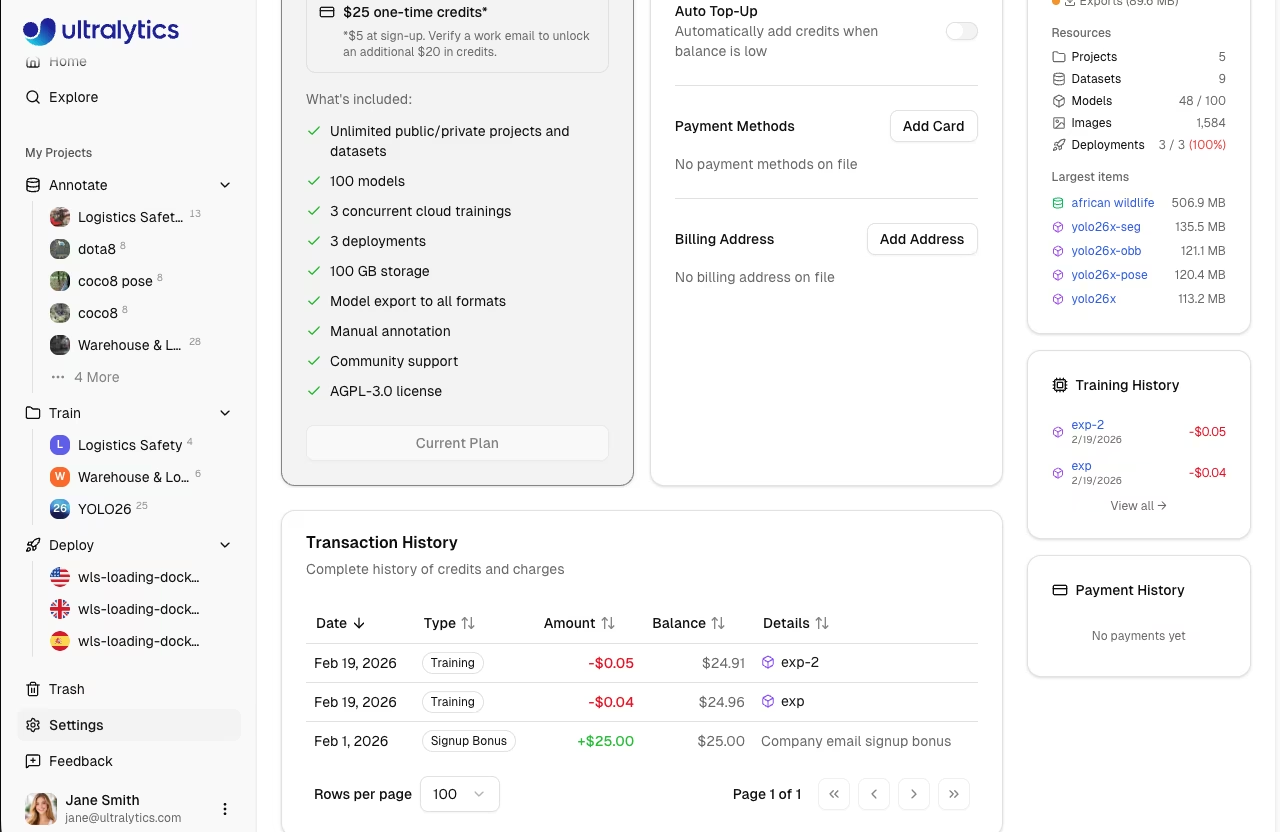
| Column | Description |
|---|---|
| Date | Transaction date |
| Type | Signup, Purchase, Subscription, Monthly Grant, Training, Refund, Adjustment, Promo, Auto Top-Up, Auto Top-Up Failed, Pro Credit Expiry |
| Amount | Transaction value (green for credits, red for charges) |
| Balance | Resulting balance after transaction |
| Details | Additional context (model link, receipt, period) |
FAQ
What happens when I run out of credits?
- Running training: Continues to completion — your balance may go negative
- New training: Cannot start new jobs until balance is positive
- Deployments: Continue running regardless of balance
If a training run completes and the actual cost exceeds your remaining balance, your balance goes negative. Add credits to restore a positive balance before starting new training jobs. Enable auto top-up to avoid interruptions.
Are unused credits refundable?
- Purchased credits: No refunds
- Signup/monthly credits: No refunds (use it or lose it)
Can I transfer credits?
Credits are not transferable between accounts.
How do I get an invoice?
Transaction receipts are available in the transaction history. Click the receipt icon next to any purchase transaction.
What if training fails?
Failed training runs are not charged. If a job fails due to a configuration error, out-of-memory issue, or any other reason, no credits are deducted. Completed, user-cancelled, and auto-terminated stuck jobs may incur charges based on actual GPU time used. See Cloud Training Billing for a full breakdown by job status.
Is there a free trial?
The Free plan includes $5 signup credit ($25 with a company email) -- essentially a free trial. No credit card required to start.