mirror of
https://github.com/lobehub/lobehub
synced 2026-04-21 17:47:27 +00:00
 c131fa68f0
* 📝 docs: add package.json

* 🔧 chore: update config

* 🔧 chore: update config

* 📝 docs: update docs

* 📝 docs: add en-US docs

* 📝 docs: update docs

* 📝 docs: fix docs url

* 🔧 chore: add docs rewrites

* 🔧 chore: add docs rewrites

* 🔧 chore: fix docs rewrites

* 💄 style: update docs link

* 🚚 chore: move to contributing docs

* 🔧 chore: update contributing ci workflow

* 💄 style: update docs link
40 lines
1.4 KiB
Text
40 lines
1.4 KiB
Text
# Plugin Usage
|
|
|
|
The plugin system is a key element in expanding the capabilities of assistants in LobeChat. You can enhance the assistant's abilities by enabling a variety of plugins.
|
|
|
|
Watch the following video to quickly get started with using LobeChat plugins:
|
|
|
|
<video
|
|
muted
|
|
controls
|
|
loop
|
|
autoPlay
|
|
src="https://github.com/lobehub/lobe-chat/assets/28616219/94d4c312-1699-4e24-8782-138883678c9e">
|
|
</video>
|
|
|
|
## Plugin Store
|
|
|
|
You can access the Plugin Store by navigating to "Extension Tools" -> "Plugin Store" in the session toolbar.
|
|
|
|
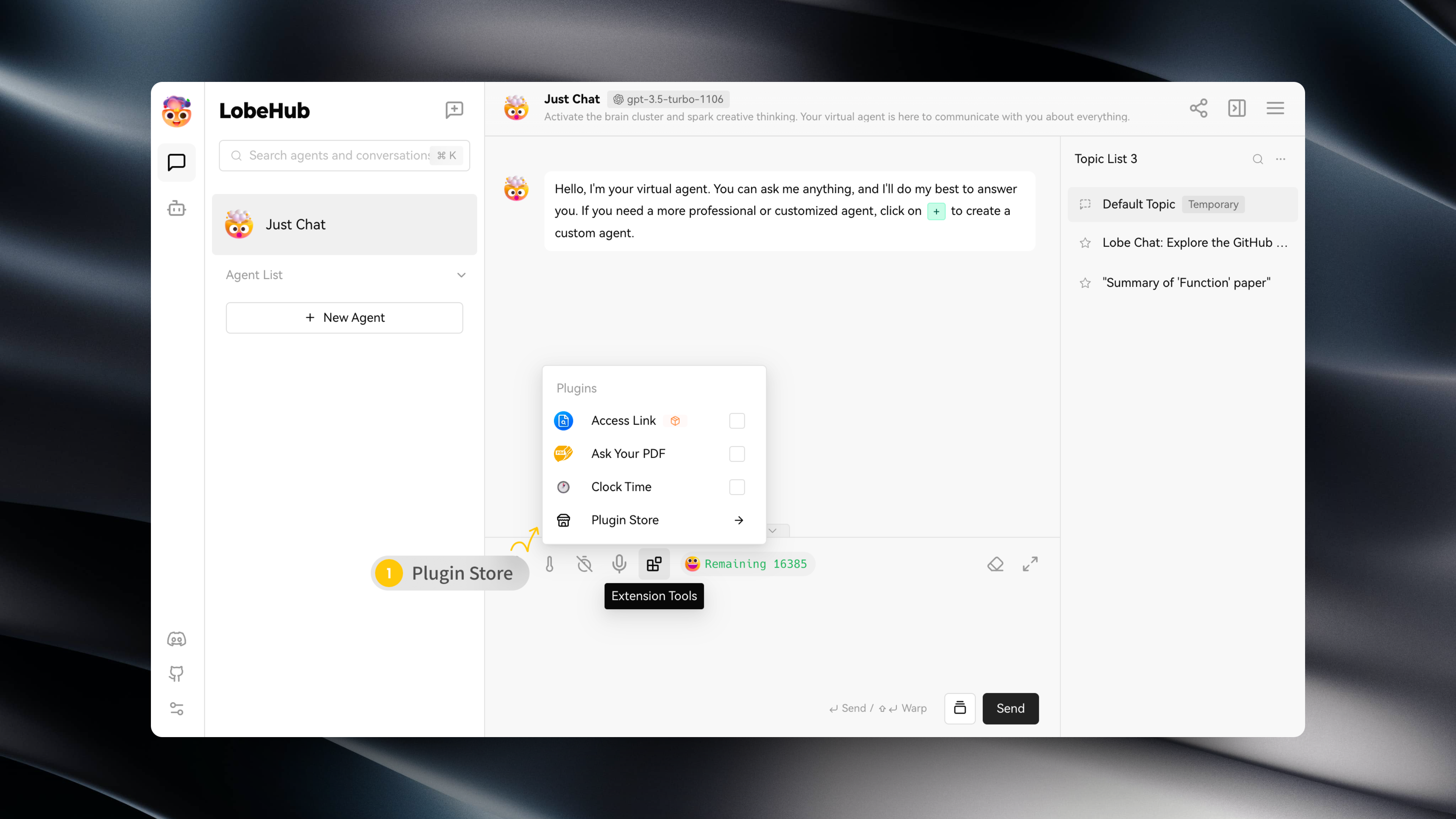
|
|
|
|
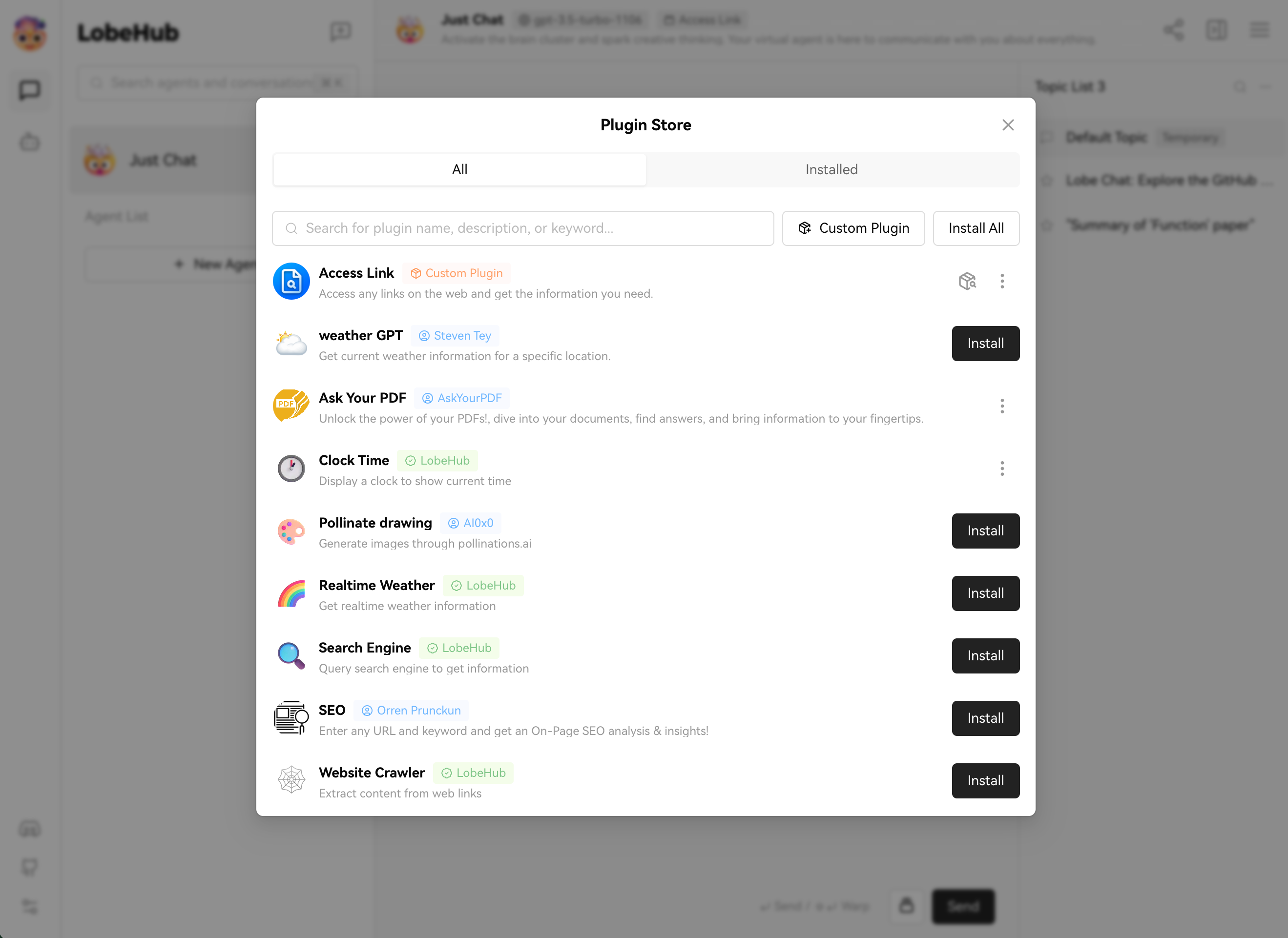
The Plugin Store allows you to directly install and use plugins within LobeChat.
|
|
|
|
|
|
|
|
## Using Plugins
|
|
|
|
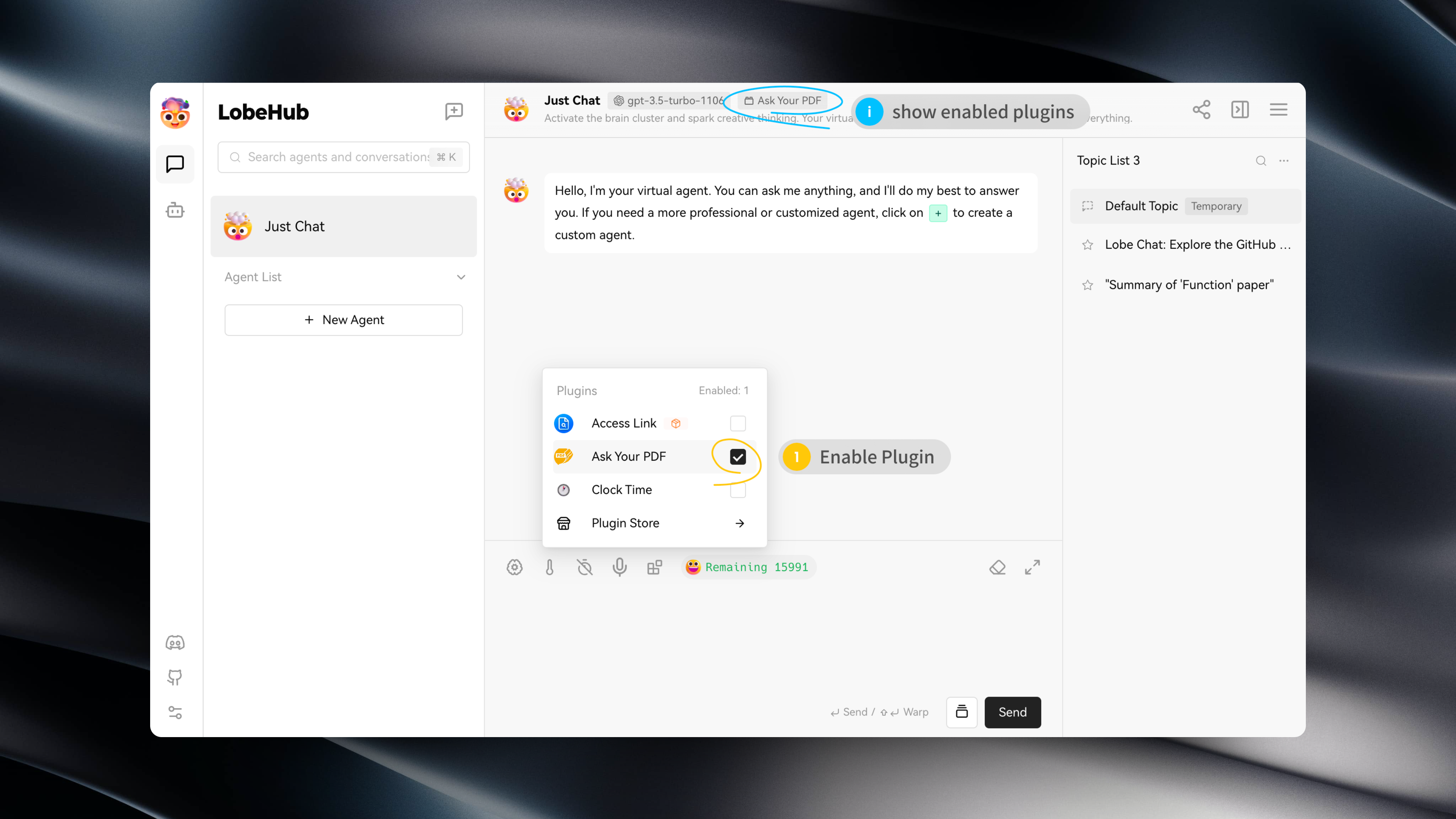
After installing a plugin, simply enable it under the current assistant to use it.
|
|
|
|
|
|
|
|
## Plugin Configuration
|
|
|
|
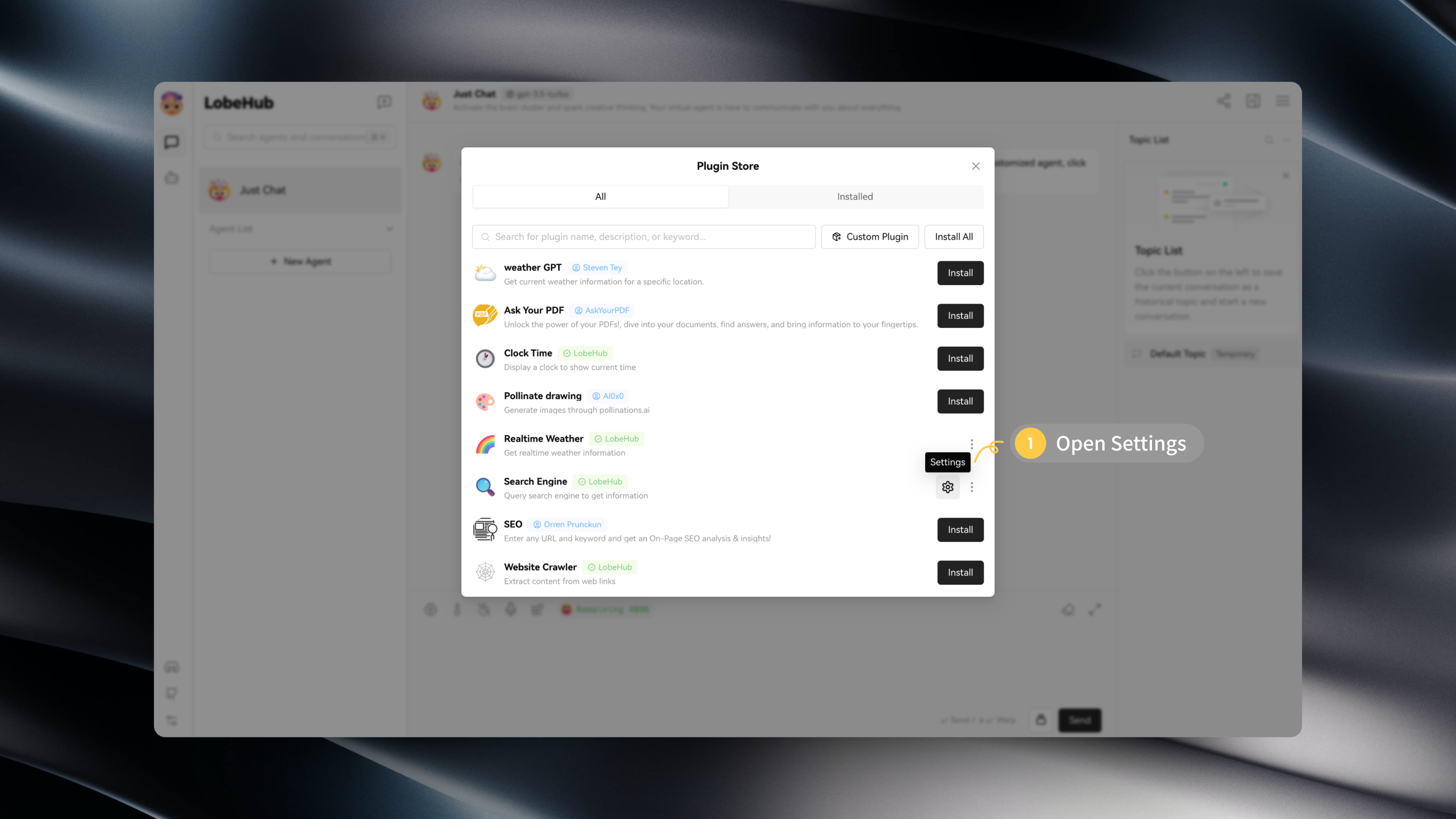
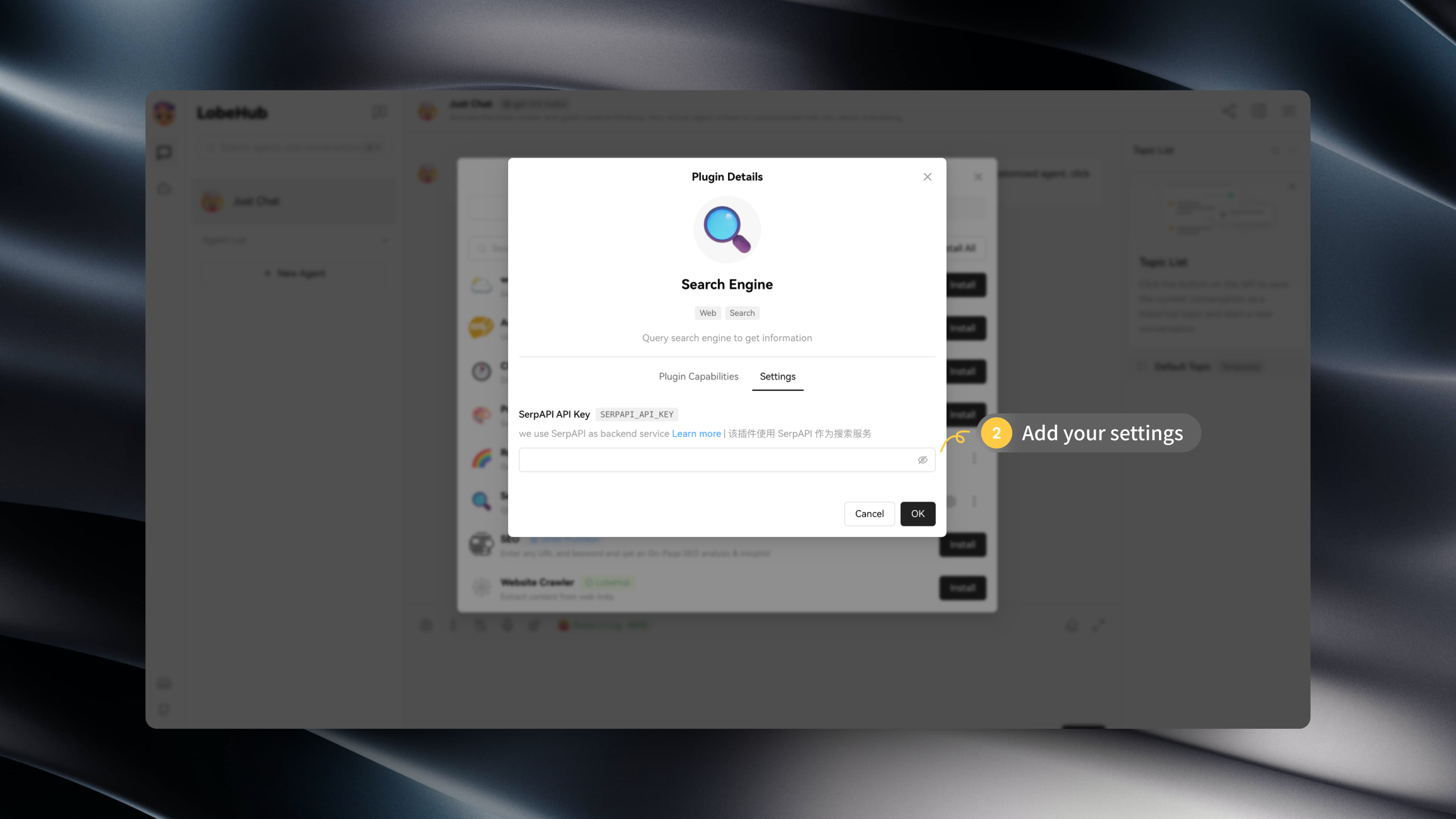
Some plugins may require specific configurations, such as API keys.
|
|
|
|
After installing a plugin, you can click on "Settings" to enter the plugin's settings and fill in the required configurations:
|
|
|
|
|
|
|
|
|
|
|