
15 KiB
Mobile device management (MDM)
MDM features are not ready for production and are currently in development. These features are disabled by default.
MDM features allow you to manage macOS updates and macOS settings on your hosts.
To use MDM features you have to connect Fleet to Apple Push Certificates Portal. See how here.
macOS updates
Fleet uses Nudge to encourage the installation of macOS updates.
When a minimum version and deadline is saved in Fleet, the end user sees the below window until their macOS version is at or above the minimum version.
To set the macOS updates settings in the UI, visit the Controls section and then select the macOS updates tab. To set the macOS updates settings programmatically, use the configurations listed here.
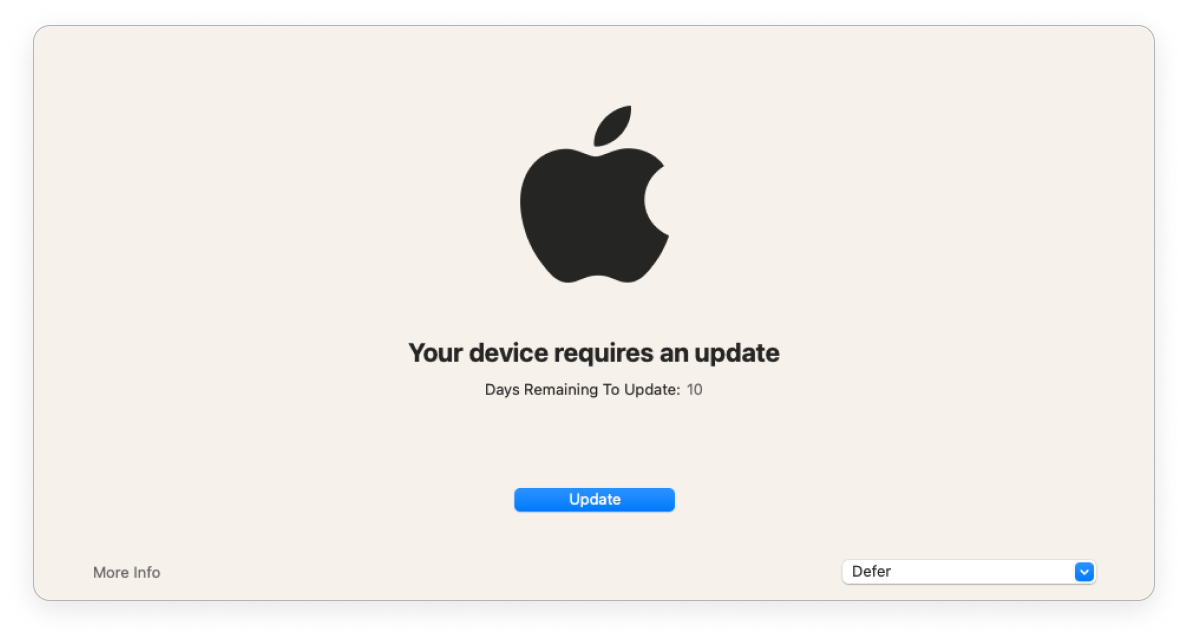
As the deadline gets closer, Fleet provides stronger encouragement.
If the end user has more than 1 day until the deadline, the Nudge window is shown everyday. The end user can defer the update and close the window.
If there is less than 1 day, the window is shown every 2 hours. The end user can defer and close the window.
If the end user is past the deadline, Fleet shows the window and end user can't close the window until they upgrade.
Disk encryption
In Fleet, you can enforce disk encryption on your macOS hosts. Apple calls this FileVault. If turned on, hosts’ disk encryption keys will be stored in Fleet.
To enforce disk encryption, choose the "Fleet UI" or "fleetctl" method and follow the steps below.
Fleet UI:
-
In the Fleet UI, head to the Controls > macOS settings > Disk encryption page. Users with the maintainer and admin roles can access the settings pages.
-
Check the box next to Turn on and select Save.
fleetctl CLI:
- Create a
configYAML document if you don't have one already. Learn how here. This document is used to change settings in Fleet.
If you want to enforce disk encryption on a team in Fleet, use the
teamYAML document. Learn how to create one here.
-
Set the
mdm.disk_encryptionconfiguration option totrue. -
Run the
fleetctl apply -f <your-YAML-file-here>command.
Viewing a disk encryption key
The disk encryption key allows you to unlock a Mac if you forgot login credentials. This key can be accessed by Fleet admin, maintainers, and observers. An event is tracked in the activity feed when a user views the key in Fleet.
How to view the disk encryption key:
-
Select a host on the Hosts page.
-
On the Host details page, select Actions > Show disk encryption key.
Unlock a macOS host using the disk encryption key
How to unlock a macOS host using the disk encryption key:
-
Restart the device while holding Command + R
-
Open Terminal
-
Unlock the disk encryption key by executing a command similar to:
security unlock-keychain <path to the secure copy of the
FileVaultMaster.keychain file>
- Locate the Logical Volume UUID of the encrypted disk by executing:
diskutil cs list
- Unlock the encrypted drive with the Logical Volume UUID and disk encryption key by executing a command similar to:
diskutil cs unlockVolume <UUID> -recoveryKeychain <path to the secure copy of the FileVaultMaster.keychain file>
- Turn off disk encryption by executing a command similar to:
diskutil cs revert <UUID> -recoveryKeychain <path to the secure copy of the FileVaultMaster.keychain file>
Once successful, you can reset the account password using the Reset Password utility and recover data by either logging in to the user’s account or using the command line.
-
Restart the device while pressing Command + R.
-
Open Terminal and launch the Reset Password utility by executing:
resetpassword
-
Use the Reset Password utility to reset the account’s password.
-
Restart the computer and log in using the new password.
Set up
To use MDM features, like enforcing settings and operating system version, you have to connect Fleet to Apple using Apple Push Notification service (APNs).
To use automatically enroll new Macs to Fleet, you have to connect Fleet to Apple Business Manager (ABM).
Apple Push Notification service (APNs)
To connect Fleet to Apple, get these four files using the Fleet UI or the fleetctl command-line interface: An APNs certificate, APNs private key, Simple Certificate Enrollment Protocol (SCEP) certificate, and SCEP private key.
To do this, choose the "Fleet UI" or "fleetctl" method and follow the steps below.
Fleet UI:
-
Head to the Settings > Integrations > Mobile device management (MDM) page. Users with the admin role can access the settings pages.
-
Follow the instructions under Apple Push Certificates Portal.
fleetctl CLI:
-
Run
fleetctl generate mdm-apple --email <email> --org <org>. -
Follow the on-screen instructions.
Take note of the Apple ID you use to sign into Apple Push Certificates Portal. You'll need to use the same Apple ID when renewing your APNs certificate. Apple requires that APNs certificates are renewed once every year. To renew, see the APNs Renewal section .
APNs Renewal
Apple requires that APNs certificates are renewed once every year. You can see the certificate's renewal date and other important APNs information using the Fleet UI or the fleetctl command-line interface:
Fleet UI:
-
Head to the Settings > Integrations > Mobile device management (MDM) page. Users with the admin role can access the settings pages.
-
Look at the Apple Push Certificates Portal section.
fleetctl CLI:
-
Run
fleetctl get mdm-apple. -
Look at the on-screen information.
How to renew the certificate if it's expired or about to expire:
-
Run the
fleetctl generate mdm-apple --email <email> --org <org>command. Make sure you use the same Apple ID email address that you used when generating the original certificate. -
Sign in to Apple Push Certificates Portal using the same Apple ID you used to get your original certificate. If you don't use the same Apple ID, you will have to turn MDM off and back on for all macOS hosts.
-
In the Settings > Integrations > Mobile device management (MDM) page, under Apple Push Certificates portal, find the serial number of your current certificate. In Apple Push Certificates Portal, click Renew next to the certificate that has the matching serial number. If you don't renew and get a new certificate, you will have to turn MDM off and back on for all macOS hosts.
Apple Business Manager (ABM)
Available in Fleet Premium
Connect Fleet to your ABM account to automatically enroll macOS hosts to Fleet when they’re first unboxed.
If a new macOS host that appears in ABM hasn't been unboxed, it will appear in Fleet with MDM status set to "Pending." These hosts will automatically enroll to the default team in Fleet. Learn how to update the default team here.
To connect Fleet to ABM, get these four files using the Fleet UI or the fleetctl command-line interface: An ABM certificate, private key and server token.
To do this, choose the "Fleet UI" or "fleetctl" method and follow the steps below.
Fleet UI:
-
In the Fleet UI, head to the Settings > Integrations > Mobile device management (MDM) page. Users with the admin role can access the settings pages.
-
Follow the instructions under Apple Business Manager.
fleetctl CLI:
-
Run
fleetctl generate mdm-apple-bm. -
Follow the on-screen instructions.
Default team
MacOS hosts purchases through Apple or authorized resellers will automatically enroll to the default team in Fleet when they're first unboxed. This means that Fleet will enforce the default team's settings on these hosts.
After a host enrolls it can be transferred to a different team. Learn how here. Transferring a host automatically enforces the new team's settings and removes the old team's settings.
To change the default team, choose the "Fleet UI" or "fleetctl" method and follow the steps below.
Fleet UI:
-
In the Fleet UI, head to the Settings > Integrations > Mobile device management (MDM) page. Users with the admin role can access the settings pages.
-
In the Apple Business Manager section, select the Edit team button next to Default team.
-
Choose a team and select Save.
fleetctl CLI:
-
Create a
configYAML document if you don't have one already. Learn how here. This document is used to change settings in Fleet. -
Set the
mdm.apple_bm_default_teamconfiguration option to the desired team's name. -
Run the
fleetctl apply -f <your-YAML-file-here>command.
ABM Renewal
The Apple Business Manager server token expires after a year or whenever the account that downloaded the token has their password changed. To renew the token, follow the instructions documented in this FAQ.
Migration
Only one MDM solution can be used for MDM features, like enforcing settings, on each of your macOS hosts. This section provides instructions for migrating away from your old MDM solution so that you can use Fleet for MDM features.
To migrate hosts from your old MDM solution to Fleet you’ll first have to deploy Fleet, add your hosts, and connect Fleet to Apple.
Manually enrolled hosts
If you have macOS hosts that were manually enrolled to your old MDM solution, you can migrate them to Fleet.
Make sure your end users have an admin account on their Mac. End users won't be able to migrate on their own if they have a standard account.
How to migrate manually enrolled hosts:
-
In your old MDM solution, unenroll these hosts. MacOS does not allow multiple MDMs to be installed at once. This step is required to present end users with instructions to turn on MDM in Fleet.
-
The My Device page in Fleet Desktop will present end users with instructions to turn on MDM. Share these guided instructions with your end users.
Automatically enrolled (DEP) hosts
If you have macOS hosts that were automatically enrolled to your old MDM solution, you can migrate them to Fleet.
Make sure your end users have an admin account on their Mac. End users won't be able to migrate on their own if they have a standard account.
To check if you have hosts that were automatically enrolled, login to Apple Business Manager and select Devices.
How to migrate these hosts:
-
Connect Fleet to Apple Business Manager (ABM). Learn how here.
-
In ABM, unassign these hosts' MDM server from the old MDM solution: In ABM, select Devices and then select All Devices. Then, select Edit next to Edit MDM Server, select Unassign from the current MDM, and select Continue.
-
In ABM, assign these hosts' MDM server to Fleet: In ABM, select Devices and then select All Devices. Then, select Edit next to Edit MDM Server, select Assign to the following MDM:, select your Fleet server in the dropdown, and select Continue.
-
In your old MDM solution, unenroll these hosts. MacOS does not allow multiple MDMs to be installed at once. This step is required to present end users with instructions to turn on MDM in Fleet.
-
The My Device page in Fleet Desktop will present end users with instructions to turn on MDM. Share these guided instructions with your end users.
FileVault recovery keys
In Fleet, you can enforce FileVault (disk encryption) to be on. If turned on, hosts’ disk encryption keys will be stored in Fleet. Learn how here.
During migration from your old MDM solution, disk encryption will be turned off for your macOS hosts until they are enrolled to Fleet and MDM is turned on for these hosts.
If your old MDM solution enforced disk encryption, your end users will need to reset their disk encryption key for Fleet to be able to store the key. The My device page in Fleet Desktop will present users with instructions to reset their key. Share these guided instructions with your end users.
Activation Lock Bypass codes
In Fleet, the Activation Lock feature is disabled by default for automatically enrolled (DEP) hosts.
If a Mac has Activation Lock enabled, we recommend asking the end user to follow these instructions to disable Activation Lock before migrating this host to Fleet: https://support.apple.com/en-us/HT208987.
This is because if the Activation Lock is enabled, you will need the Activation Lock bypass code to successfully wipe and reuse the Mac.
Activation Lock bypass codes can only be retrieved from the Mac up to 30 days after the device is enrolled. This means that when migrating from your old MDM solution, it’s likely that you’ll be unable to retrieve the Activation Lock bypass code.
Instructions for end users
Your organization uses Fleet to check if all devices meet its security policies.
Fleet includes device management features (called “MDM”) that allow your IT team to change settings remotely on your Mac. This lets your organization keep your Mac up to date so you don’t have to.
Want to know what your organization can see? Read about transparency.
How to turn on MDM:
- Select the Fleet icon in your menu bar and select My device.
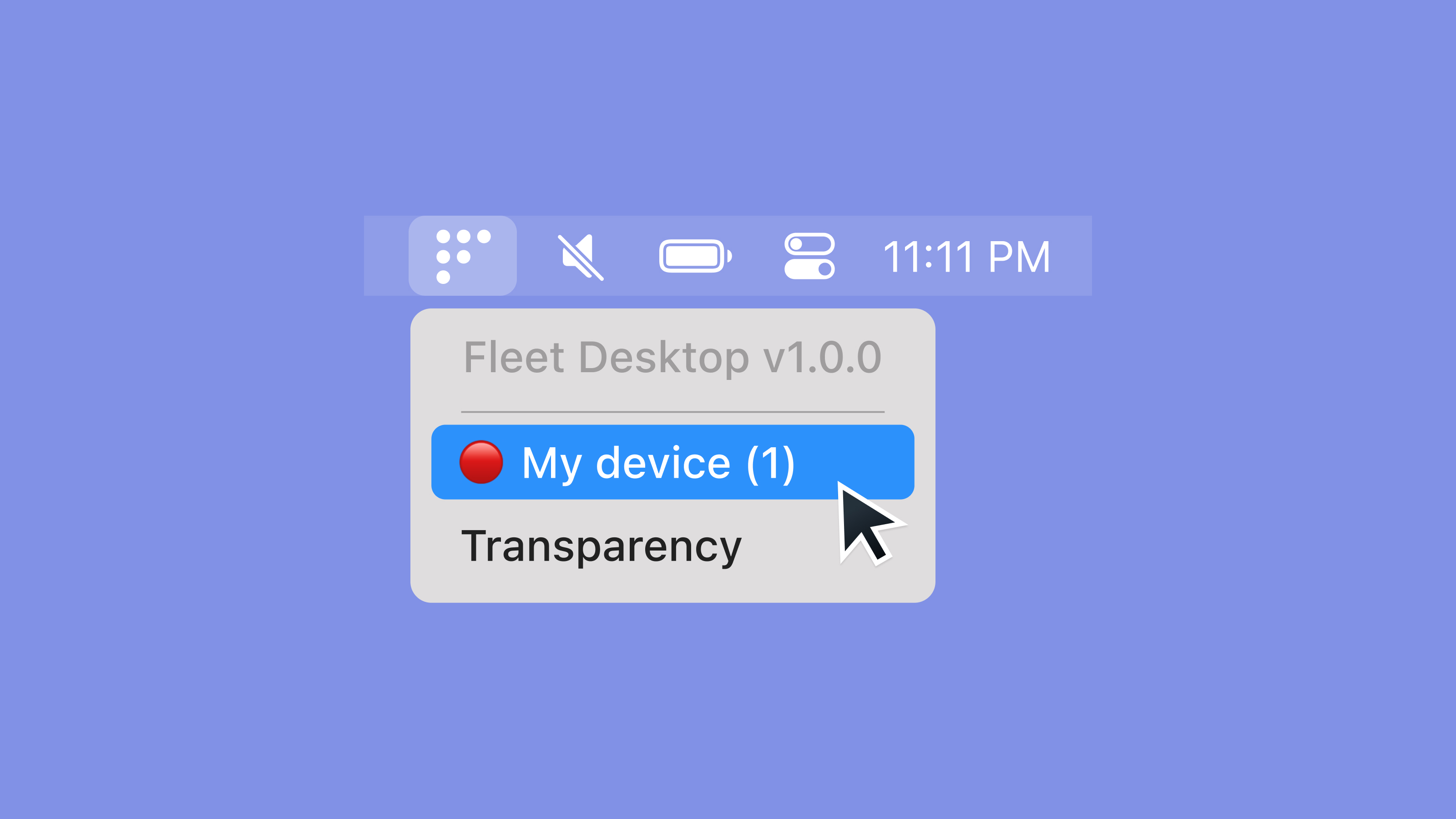
- On your My device page, select Turn on MDM the button and follow the instructions. If you don’t see the Turn on MDM button, select the purple Refetch button at the top of the page. If you still don't see the Turn on MDM button after a couple minutes, please contact your IT administrator. If the My device page presents you with an error, please contact your IT administrator.
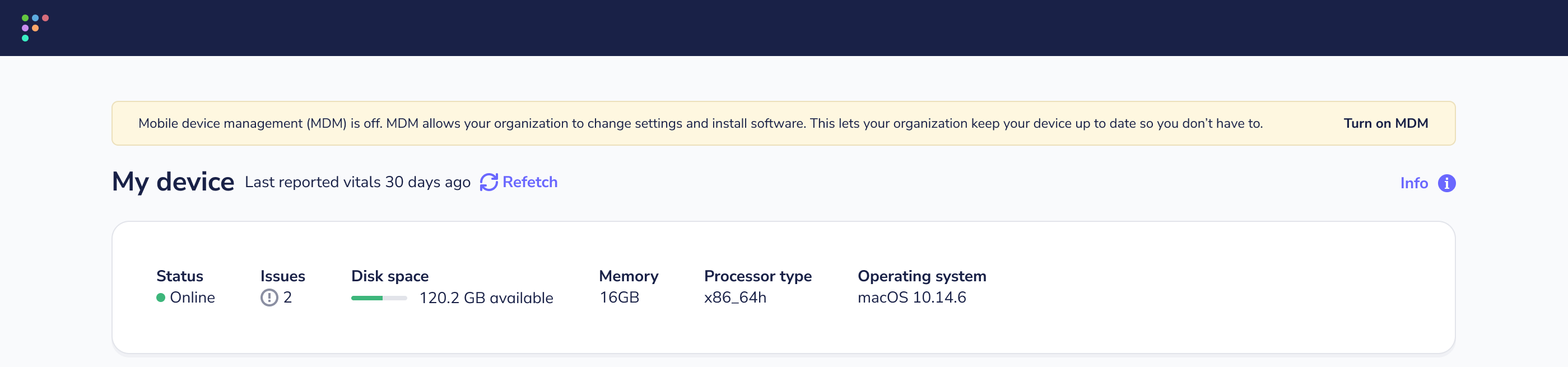
How to turn on disk encryption
- Select the Fleet icon in your menu bar and select My device.
- On your My device page, follow the disk encryption instructions in the yellow banner. If you don’t see the Turn on MDM button, select the purple Refetch button at the top of the page. If you still don't see the Turn on MDM button after a couple minutes, please contact your IT administrator. If the My device page presents you with an error, please contact your IT administrator.
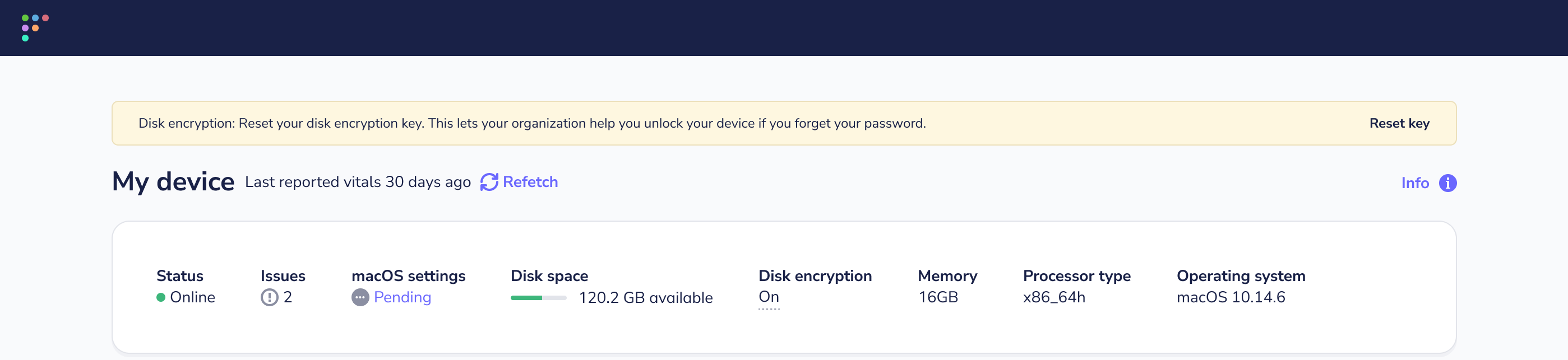
Support
In Fleet, MDM features are supported for Macs running macOS 12 (Monterey) and higher.