 be2cf92b37
- Add "Configuring agent options" section to `/1-Using-Fleet/1-Fleet-UI.md`
- Add 2 screenshots: 1. Global agent options form 2. Team agent options form
5 KiB
Fleet UI
Running queries
The Fleet application allows you to query hosts that you have installed osquery on. To run a new query, navigate to "Queries" from the top nav, and then hit the "Create new query" button from the Queries page. From here, you can compose your query, view SQL table documentation via the sidebar, select arbitrary hosts (or groups of hosts), and execute your query. As results are returned, they will populate the interface in real time. You can use the integrated filtering tool to perform useful initial analytics and easily export the entire dataset for offline analysis.
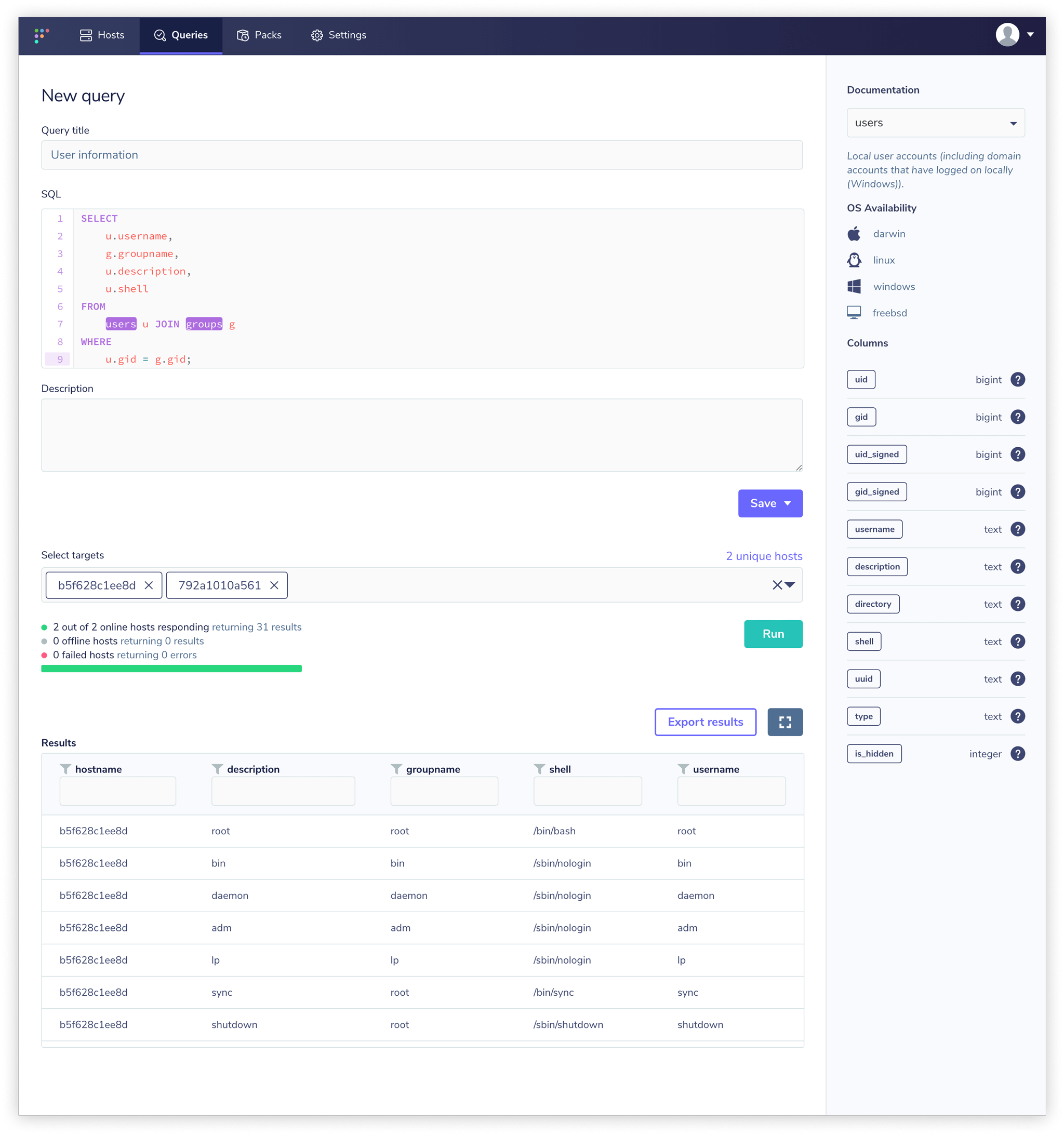
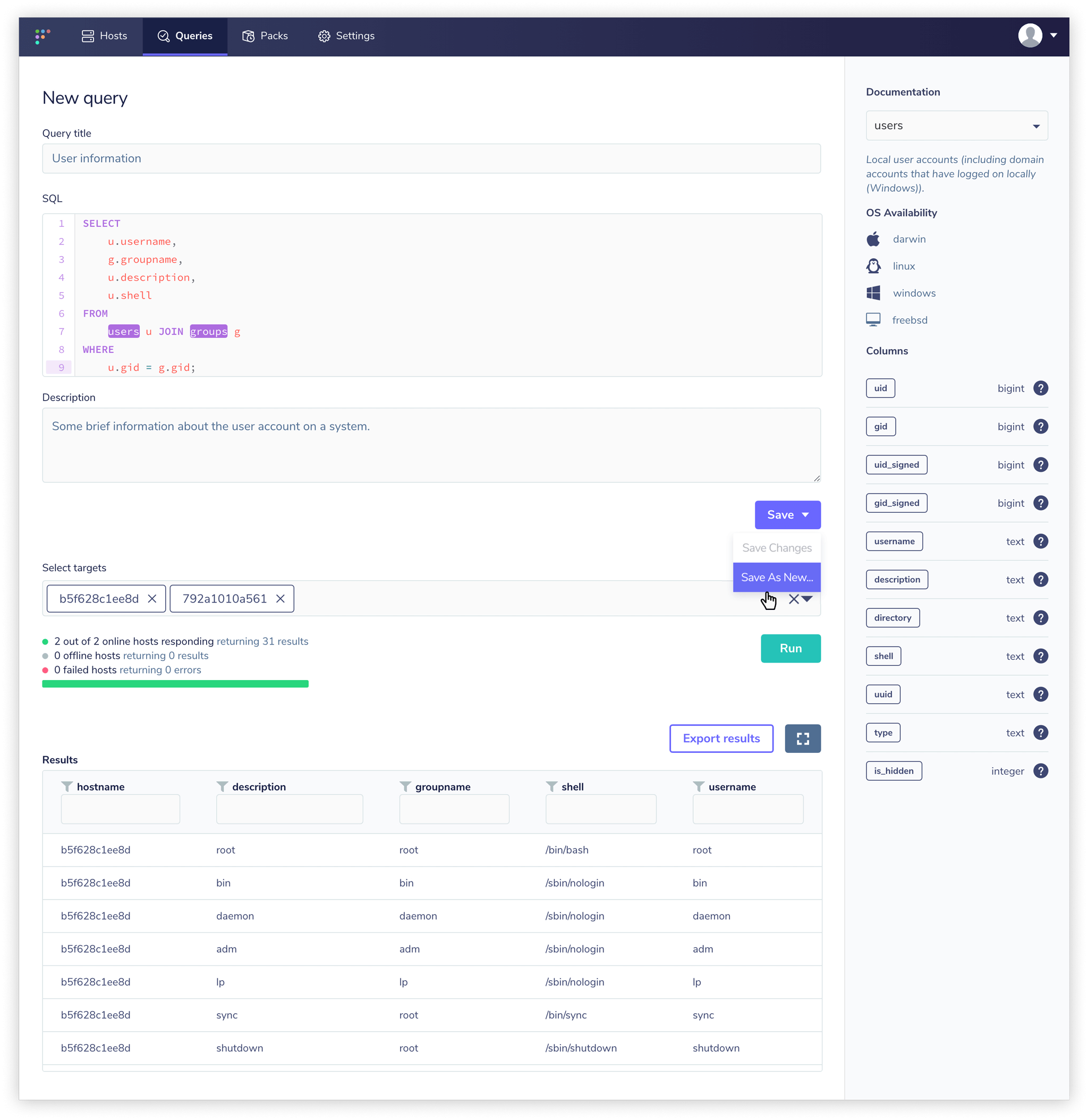
After you've composed a query that returns the information you were looking for, you may choose to save the query. You can still continue to execute the query on whatever set of hosts you would like after you have saved the query.
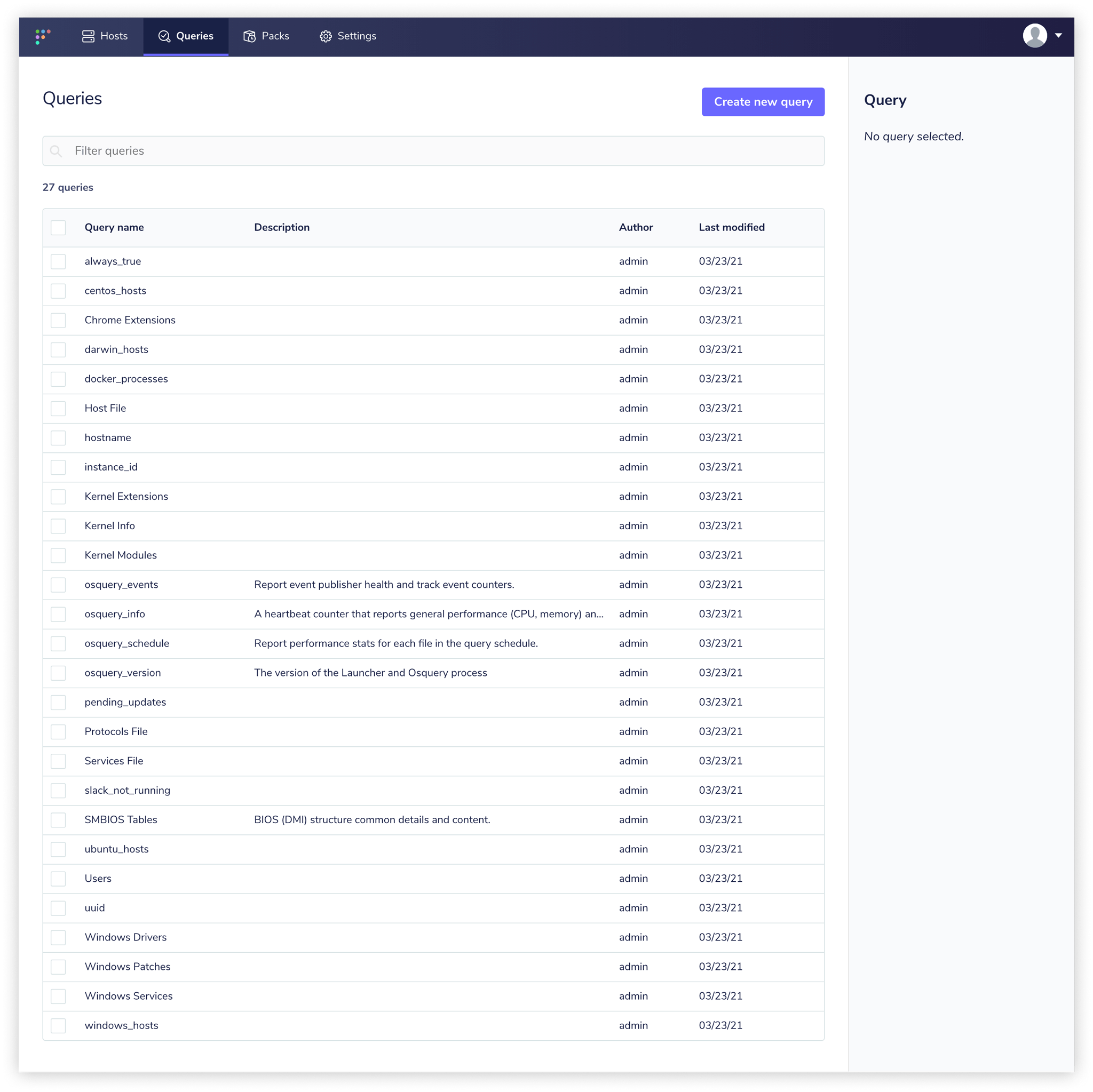
Saved queries can be accessed from the "Query" section of the top nav. Here, you will find all of the queries you've ever saved. You can filter the queries by query name, so name your queries something memorable!
To learn more about scheduling queries so that they run on an on-going basis, see the scheduling queries guide below.
Scheduling queries
As discussed in the running queries documentation, you can use the Fleet application to create, execute, and save osquery queries. You can organize these queries into "Query Packs". To view all saved packs and perhaps create a new pack, select "Packs" from the top nav. Packs are usually organized by the general class of instrumentation that you're trying to perform.

If you select a pack from the list, you can quickly enable and disable the entire pack, or you can configure it further.

When you edit a pack, you can decide which targets you would like to execute the pack. This is a similar selection experience to the target selection process that you use to execute a new query.

To add queries to a pack, use the right-hand sidebar. You can take an existing scheduled query and add it to the pack. You must also define a few key details such as:
- interval: how often should the query be executed?
- logging: which osquery logging format would you like to use?
- platform: which operating system platforms should execute this query?
- minimum osquery version: if the table was introduced in a newer version of osquery, you may want to ensure that only sufficiently recent version of osquery execute the query.
- shard: from 0 to 100, what percent of hosts should execute this query?

Once you've scheduled queries and curated your packs, you can read our guide to Working With Osquery Logs.
Configuring agent options
The Fleet application allows you to specify options returned to osqueryd when it checks for configuration. See the osquery documentation for the available options.
Global agent options
Global agent options are applied to all hosts enrolled in Fleet.
Only user's with the Admin role can edit global agent options.
To configure global agent options, head to Settings > Organization settings > Global agent options.

Team level agent options
Applies only to Fleet Basic
ℹ️ In Fleet 4.0, Teams were introduced.
Team agent options are applied to all hosts assigned to a specific team in Fleet.
Team agent options override global agent options.
Let's say you have two teams in Fleet. One team is named "Workstations" and the other named "Servers." If you edit the agent options for the "Workstations" team, the hosts assigned to this team will now receive these agent options instead of the global agent options. The hosts assigned to the "Servers" team will still receive the global agent options.
To configure team agent options, head to Settings > Teams > Team-name-here > Agent options.
