
6.2 KiB
Fleet MCP Server 🚀
A Model Context Protocol (MCP) server for the Fleet endpoint security platform.
Transform how you interact with your endpoint data. Query OSQuery, check compliance, and investigate CVEs natively from Claude, Cursor, and any MCP-compatible AI agent.
🔗 GitHub Repo: https://github.com/karmine05/fleet-mcp 🔗 Learn about MCP: https://modelcontextprotocol.io/ 🔗 Learn about Fleet: https://fleetdm.com/
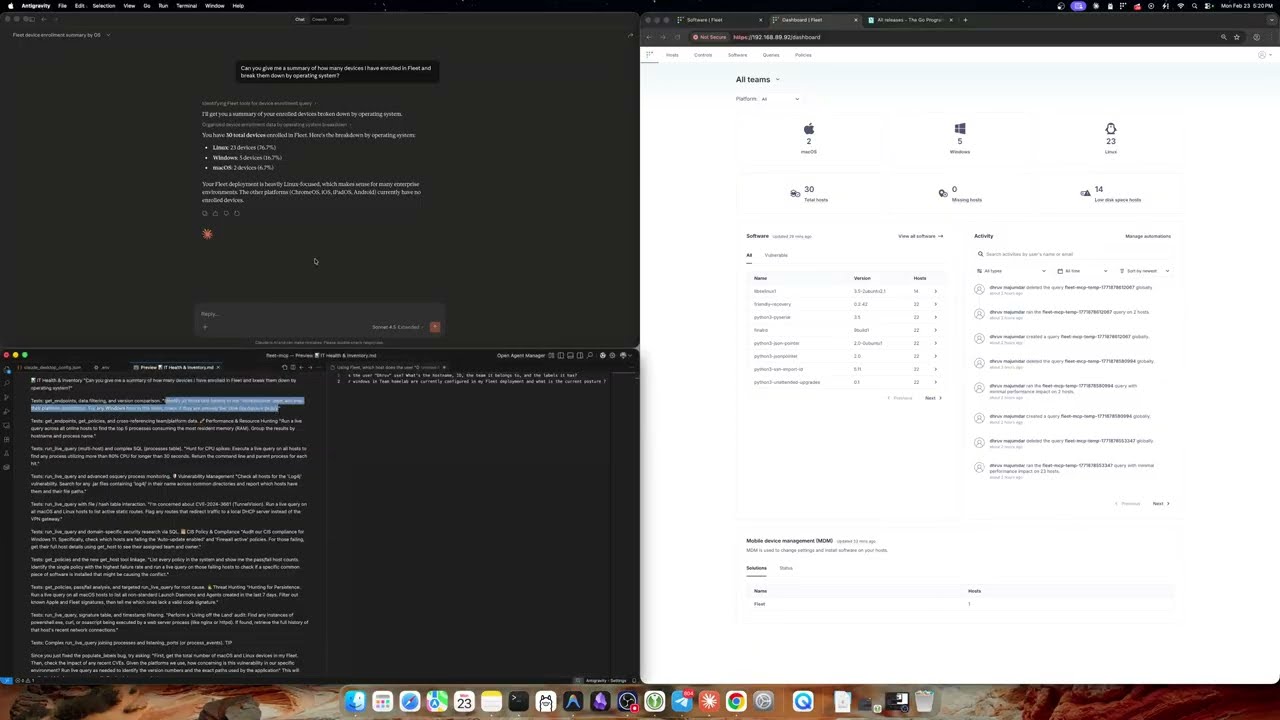
📺 See it in Action
Watch 1 hr long walkthrough demonstrating how to use Claude Desktop to instantly write and run live OSQueries across your fleet.
Overview
This server provides an MCP interface to Fleet, enabling AI systems (Claude Desktop, Claude Code, Cursor, and any MCP-compatible client) to natively interact with your Fleet deployment. Instead of raw API endpoints, it exposes typed Tools that AI agents can call directly — querying endpoints, running live OSQuery, checking compliance policies, and more.
Both SSE (Server-Sent Events) and stdio transports are supported.
Tools
| Tool | Description |
|---|---|
get_endpoints |
List all hosts/endpoints enrolled in Fleet |
get_host |
Get full details for a single host including labels, team, and platform info |
get_fleets |
Get all fleets (teams) with their IDs and names |
get_queries |
List all saved Fleet queries |
get_policies |
List all policies with pass/fail host counts |
get_labels |
List all endpoint labels |
get_aggregate_platforms |
Get system count broken down by OS platform (macOS/Windows/Linux) |
get_total_system_count |
Get total count of active enrolled systems |
get_policy_compliance |
Check compliance stats for a specific policy ID |
get_vulnerability_impact |
Check how many systems are impacted by a CVE |
prepare_live_query |
Step 1 of 2: Validate targets and get OSQuery schema before running a query |
run_live_query |
Step 2 of 2: Execute an OSQuery SQL statement against live Fleet devices |
create_saved_query |
Create a new saved query in Fleet |
get_osquery_schema |
Get the OSQuery table schema for a given platform |
get_vetted_queries |
Get a library of vetted CIS-8.1 compliance policy queries |
Configuration
Configure the server using environment variables or a .env file.
| Variable | Default | Description |
|---|---|---|
PORT |
8080 |
HTTP port for SSE transport |
FLEET_BASE_URL |
https://localhost:8080 |
Base URL of your Fleet instance |
FLEET_API_KEY |
(required) | Fleet API token — see Fleet docs |
LOG_LEVEL |
info |
Log verbosity: debug, info, warn, error |
FLEET_TLS_SKIP_VERIFY |
false |
Skip TLS certificate verification. Dev/test only — do not use in production. |
FLEET_CA_FILE |
(optional) | Path to a PEM CA certificate for self-signed Fleet instances |
MCP_AUTH_TOKEN |
(required) | Bearer token for authenticating MCP clients. Generate with openssl rand -hex 32. The server will refuse to start without it. In SSE mode, clients must include this token in the Authorization header on every request, and the server validates it each time. In stdio mode the token is not checked at runtime (the client launches the binary as a local subprocess) but must still be set. |
Copy the provided example to get started:
cp .env.example .env
# Edit .env with your Fleet URL and API key
Installation
Prerequisites
- Go 1.25.7+
- A running Fleet instance
- A Fleet API key with appropriate permissions
Build
git clone https://github.com/fleetdm/fleet
cd tools/fleet-mcp
go mod tidy
go build -o fleet-mcp .
Usage
SSE Transport (Claude Code, Cursor, web clients)
Start the server — it will listen for SSE connections:
./fleet-mcp
# Listening on :8080/sse
Configure your MCP client to connect to http://localhost:8080/sse.
For Claude Code, add to your project's .mcp.json or global MCP config:
{
  "mcpServers": {
    "fleet": {
      "type": "sse",
      "url": "http://localhost:8080/sse"
    }
  }
}
If MCP_AUTH_TOKEN is set, include it in the client config:
{
  "mcpServers": {
    "fleet": {
      "type": "sse",
      "url": "https://your-fleet-mcp.onrender.com/sse",
      "headers": {
        "Authorization": "Bearer <your-token>"
      }
    }
  }
}
Stdio Transport (Claude Desktop)
Stdio mode runs the binary directly as a subprocess with no network port needed.
- Build the binary:
go build -o fleet-mcp . - Edit
~/Library/Application Support/Claude/claude_desktop_config.json(macOS):
{
  "mcpServers": {
    "fleet": {
      "command": "/path/to/fleet-mcp",
      "args": ["-transport", "stdio"],
      "env": {
        "FLEET_BASE_URL": "https://your-fleet.example.com",
        "FLEET_API_KEY": "YOUR_FLEET_API_KEY",
        "MCP_AUTH_TOKEN": "YOUR_MCP_AUTH_TOKEN",
        "LOG_LEVEL": "info"
      }
    }
  }
}
- Relaunch Claude Desktop. The Fleet tools will appear in your context.
Deploying to Render
tools/fleet-mcp/render.yaml is a standalone Render Blueprint, separate from the root render.yaml used by the main Fleet service.
- Push
tools/fleet-mcp/render.yamlto your repo - In the Render dashboard go to New → Blueprint
- Connect your repo and set the Blueprint file path to
tools/fleet-mcp/render.yaml - During setup, fill in the following environment variables:
FLEET_BASE_URL— URL of your Fleet instanceFLEET_API_KEY— Fleet API tokenMCP_AUTH_TOKEN— generate withopenssl rand -hex 32
PORTis injected automatically by Render — no action needed
Development
Adding a New Tool
- Add a method to
FleetClientinfleet_integration.go - Register the tool via
mcp.NewToolinSetupMCPServerinmcp_server.go
License
MIT