8fb22579ea
Closes: #12611

Changes:
- Added three new documentation sections `/docs/get-started/`,
`/docs/configuration` and `/docs/rest api/`
- Updated folder names: `/docs/Using-Fleet/` » `/docs/Using Fleet` and
`/docs/deploying` » `/docs/deploy/`
- Moved `/docs/using-fleet/process-events.md` to `/articles` and updated
the meta tags to change it into a guide.
- Added support for a new meta tag: `navSection`. This meta tag is used
to organize pages in the sidebar navigation on fleetdm.com/docs
- Moved `docs/using-fleet/application-security.md` and
`docs/using-fleet/security-audits.md` to the security handbook.
- Moved `docs/deploying/load-testing.md` and
`docs/deploying/debugging.md` to the engineering handbook.
- Moved the following files/folders:
- `docs/using-fleet/configuration-files/` »
`docs/configuration/configuration-files/`
- `docs/deploying/configuration.md` »
`docs/configuration/fleet-server-configuration.md`
    -  `docs/using-fleet/rest-api.md` » `docs/rest-api/rest-api.md`
- `docs/using-fleet/monitoring-fleet.md` » `docs/deploy/rest-api.md`
- Updated filenames:
- `docs/using-fleet/permissions.md` »
`docs/using-fleet/manage-access.md`
- `docs/using-fleet/adding-hosts.md` »
`docs/using-fleet/enroll-hosts.md`
    -  `docs/using-fleet/teams.md` » `docs/using-fleet/segment-hosts.md`
- `docs/using-fleet/fleet-ctl-agent-updates.md` »
`docs/using-fleet/update-agents.md`
- `docs/using-fleet/chromeos.md` »
`docs/using-fleet/enroll-chromebooks.md`
- Updated the generated markdown in `server/fleet/gen_activity_doc.go`
and `server/service/osquery_utils/gen_queries_doc.go`
- Updated the navigation sidebar and mobile dropdown links on docs pages
to group pages by their `navSection` meta tag.
- Updated fleetdm.com/docs not to show pages in the `docs/contributing/`
folder in the sidebar navigation
- Added redirects for docs pages that have moved.

.

---------

Co-authored-by: Mike Thomas <mthomas@fleetdm.com>
Co-authored-by: Rachael Shaw <r@rachael.wtf>
8.5 KiB
Migration
This section provides instructions for migrating your hosts away from your old MDM solution to Fleet.
Requirements
Preparing to migrate manually enrolled hosts
- Enroll your hosts to Fleet with Fleetd and Fleet Desktop
- Ensure your end users have access to an admin account on their Mac. End users won't be able to migrate on their own if they have a standard account.
- In your old MDM solution, unenroll the hosts to be migrated. MacOS does not allow multiple MDMs to be installed at once.
- Send these guided instructions to your end users to complete the final few steps via Fleet Desktop.
- Note that there will be a gap in MDM coverage between when the host is unenrolled from the old MDM and when the host turns on MDM in Fleet.
Preparing to migrate automatically enrolled (DEP) hosts
Automatic enrollment is available in Fleet Premium or Ultimate
- Connect Fleet to Apple Business Manager (ABM). Learn how here.
- Enroll your hosts to Fleet with Fleetd and Fleet Desktop
- Ensure your end users have access to an admin account on their Mac. End users won't be able to migrate on their own if they have a standard account.
- Migrate your hosts to Fleet in ABM:
- In ABM, unassign the existing hosts' MDM server from the old MDM solution: In ABM, select Devices and then select All Devices. Then, select Edit next to Edit MDM Server, select Unassign from the current MDM, and select Continue.
- In ABM, assign these hosts' MDM server to Fleet: In ABM, select Devices and then select All Devices. Then, select Edit next to Edit MDM Server, select Assign to the following MDM:, select your Fleet server in the dropdown, and select Continue.
- In your old MDM solution, unenroll the hosts to be migrated. MacOS does not allow multiple MDMs to be installed at once.
- Send these guided instructions to your end users to complete the final few steps via Fleet Desktop.
- Note that there will be a gap in MDM coverage between when the host is unenrolled from the old MDM and when the host turns on MDM in Fleet.
FileVault recovery keys
Available in Fleet Premium
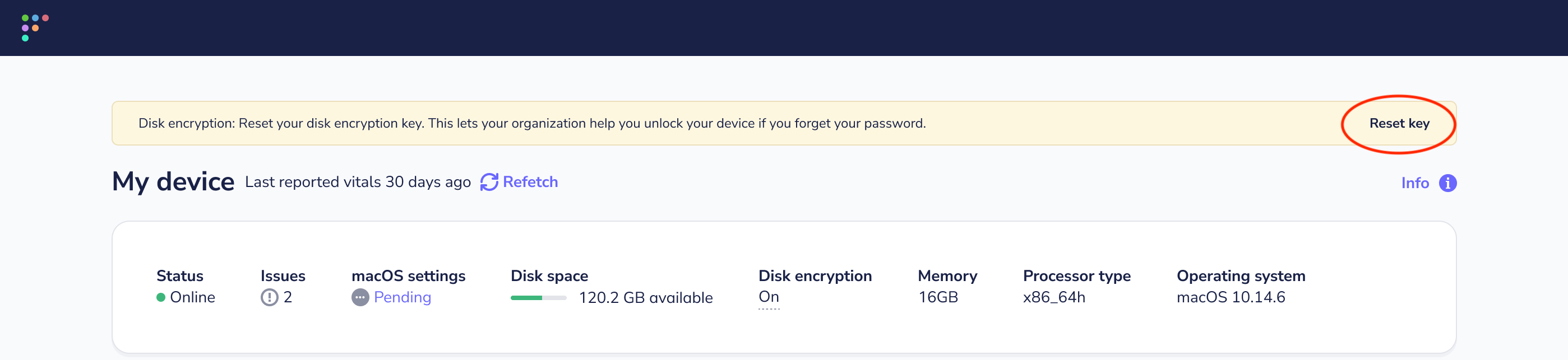
When migrating from a previous MDM, end users need to take action to escrow FileVault keys to Fleet. The My device page in Fleet Desktop will present users with instructions to reset their key.
To start, enforce FileVault (disk encryption) and escrow in Fleet. Learn how here.
After turning on disk encryption in Fleet, share these guided instructions with your end users.
If your old MDM solution did not enforce disk encryption, the end user will need to restart or log out of the host.
If your old MDM solution did enforce disk encryption, the end user will need to reset their disk encryption key by following the prompt on the My device page and inputting their password.
Activation Lock Bypass codes
In Fleet, the Activation Lock feature is disabled by default for automatically enrolled (DEP) hosts.
If a host under the old MDM solution has Activation Lock enabled, we recommend asking the end user to follow these instructions to disable Activation Lock before migrating this host to Fleet: https://support.apple.com/en-us/HT208987.
This is because if the Activation Lock is enabled, you will need the Activation Lock bypass code to successfully wipe and reuse the Mac.
However, Activation Lock bypass codes can only be retrieved from the Mac up to 30 days after the device is enrolled. This means that when migrating from your old MDM solution, it’s likely that you’ll be unable to retrieve the Activation Lock bypass code.
Migrating settings
To enforce the same settings on your macOS hosts in Fleet as you did using your old MDM solution, you can migrate these settings to Fleet to reduce manual work.
If your old MDM solution enforces FileVault, follow these instructions to enforce FileVault (disk encryption) using Fleet.
For all other settings:
- Check if your old MDM solution is able to export settings as .mobileconfig files. If it does, download these files.
- If it does not export settings, you will need to re-create the configuration profiles. Learn how to do that here
- Create teams according to the needs of your organization
- Follow the instructions to add configuration profiles to Fleet here.
Instructions for end users
Your organization uses Fleet to check if all devices meet its security policies.
Fleet includes device management features (called “MDM”) that allow your IT team to change settings remotely on your Mac. This lets your organization keep your Mac up to date so you don’t have to.
Want to know what your organization can see? Read about transparency.
How to turn on MDM:
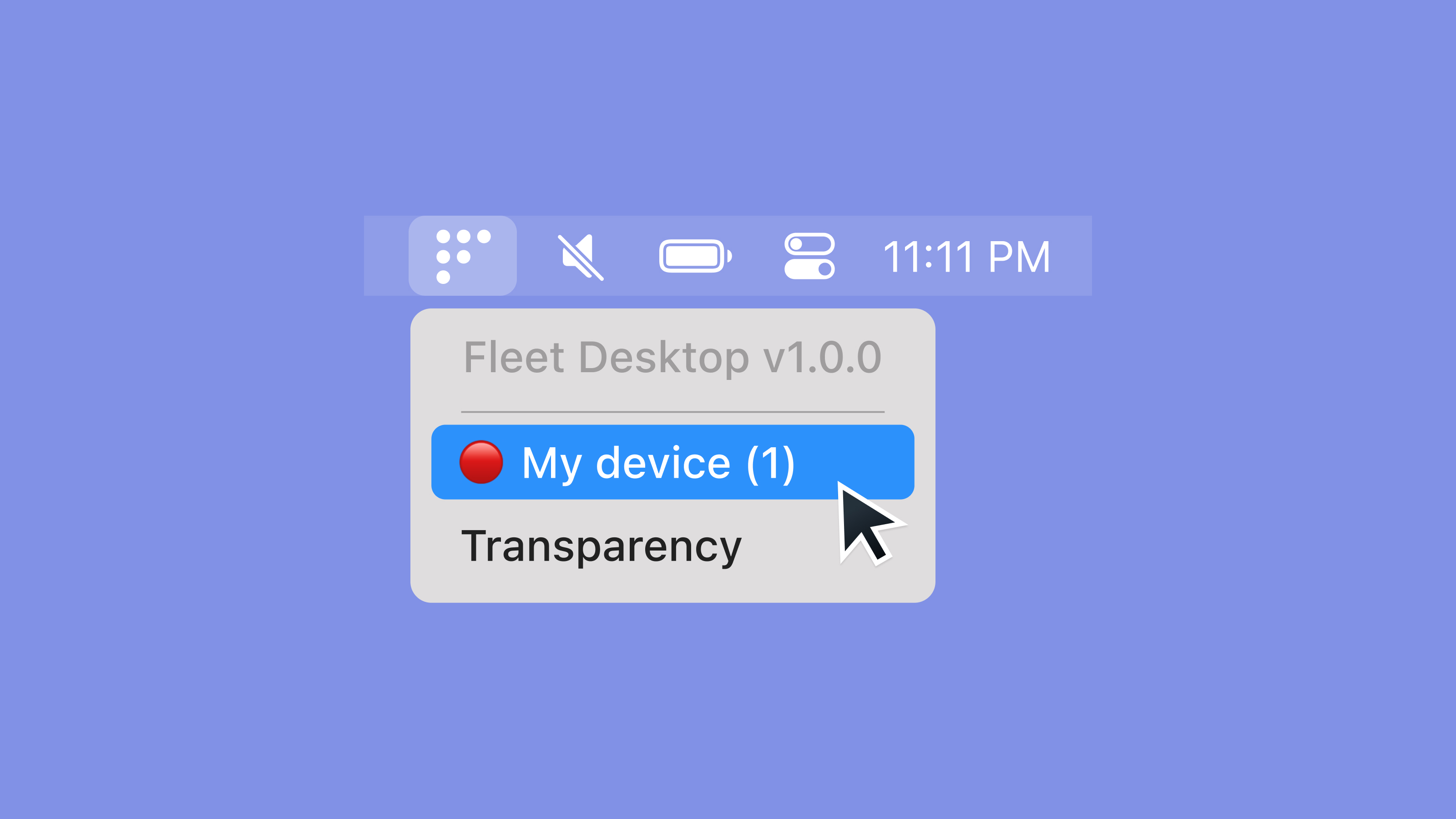
- Select the Fleet icon in your menu bar and select My device.
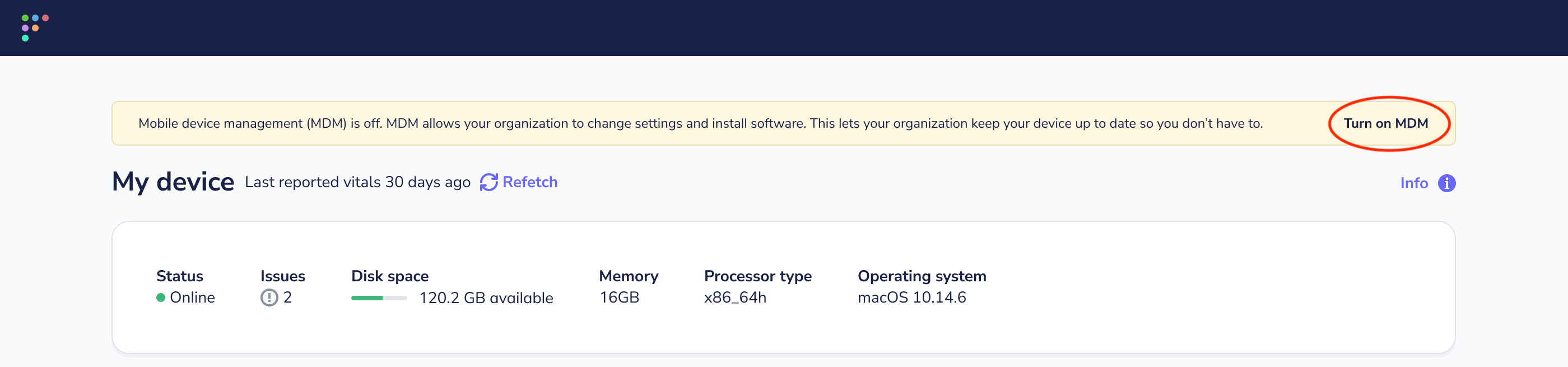
- On your My device page, select Turn on MDM the button in the yellow banner and follow the instructions.
- If you don’t see the yellow banner or the Turn on MDM button, select the purple Refetch button at the top of the page.
- If you still don't see the Turn on MDM button or the My device page presents you with an error, please contact your IT administrator.
Automatic Enrollment (ADE)
-
If your device is enrolled in Apple Business Manager (ABM) and assigned to the Fleet server, the end user will receive a "Device Enrollment: <organization> can automatically configure your Mac." system notification within the macOS Notifications Center.
-
After the end user clicks on the system notification, macOS will open the "Profiles" System Setting and ask the user to "Allow Device Enrollment: <organization> can automatically configure your Mac based on settings provided by your System Administrator."
-
If the end user does not Allow the setting, the system notification will continue to nag the end user until the setting has been allowed.
-
Once this setting has been approved, the MDM enrollment profile cannot be removed by the end user.
Manual Enrollment
-
If your device is not enrolled in Apple Business Manager (ABM), the end user will be given the option to manually download the MDM enrollment profile.
-
Once downloaded, the user will receive a system notification that the Device Enrollment profile has been needs to be installed in the System Settings > Profiles section.
-
After installation, the MDM enrollment profile can be removed by the end user at any time.
How to turn on disk encryption
- Select the Fleet icon in your menu bar and select My device.
- On your My device page, follow the disk encryption instructions in the yellow banner.
- If you don’t see the yellow banner, select the purple Refetch button at the top of the page.
- If you still don't see the yellow banner after a couple minutes or if the My device page presents you with an error, please contact your IT administrator.