 e632725a44
- Broke up the single MDM doc into multiple ones organized by category
- Changed any links to point to the new docs

---------

Co-authored-by: Noah Talerman <noahtal@umich.edu>
Co-authored-by: Noah Talerman <47070608+noahtalerman@users.noreply.github.com>
3.2 KiB
macOS updates
End user macOS update reminders via Nudge
Available in Fleet Premium
End users can be reminded and encouraged to update macOS (via Nudge).
When a minimum version and deadline is saved in Fleet, the end user sees the below Nudge window until their macOS version is at or above the minimum version.
To set the macOS updates settings in the UI, visit the Controls section and then select the macOS updates tab. To set the macOS updates settings programmatically, use the configurations listed here.
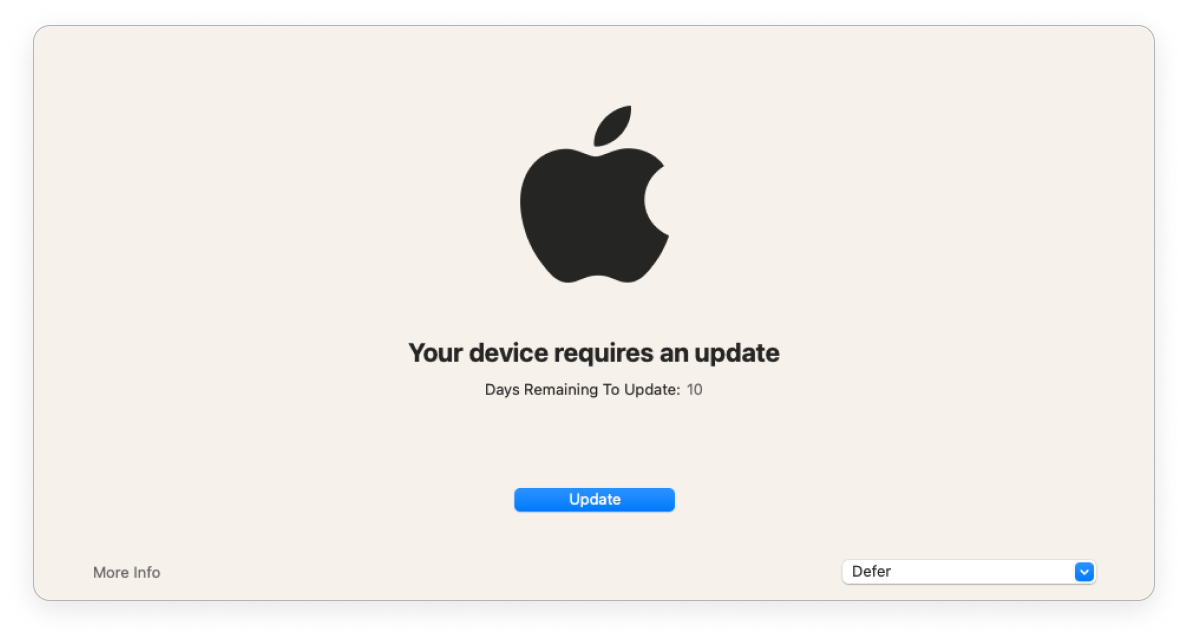
As the deadline gets closer, Fleet provides stronger encouragement.
If the end user has more than 1 day until the deadline, the Nudge window is shown everyday. The end user can defer the update and close the window.
If there is less than 1 day, the window is shown every 2 hours. The end user can defer and close the window.
If the end user is past the deadline, Fleet shows the window and end user can't close the window until they update.
End user experience
Apple has a two-step process for macOS updates. First, the host downloads the macOS update in the background without interrupting the end user. Then, the host installs the update, which prevents the end user from using the host.
Downloading the macOS update can be triggered programmatically, while installing the update always requires end user action.
Fleet downloads macOS updates programmatically on Intel Macs. This way, end users don't have to wait for the update to download before they can install it.
On Macs with Apple silicon (e.g. M1), downloading the macOS update may require end user action. Apple doesn't support downloading the update programmatically on Macs with Apple silicon.
Known issue
Sometimes the end user's Mac will say that macOS is up to date when it isn't. This known issue creates a frustrating experience for the end user. Ask the end user to follow the steps below to troubleshoot:
-
From the Apple menu in the top left corner of your screen, select System Settings or System Preferences.
-
In the search bar, type "Software Update." Select Software Update.
-
Type "Command (⌘)-R" to check for updates. If you see an available update, select Restart Now to update.
-
If you still don't see an available update, from the Apple menu in the top left corner of your screen, select Restart... to restart your Mac.
-
After your Mac restarts, from the Apple menu in the top left corner of your screen, select System Settings or System Preferences.
-
In the search bar, type "Software Update." Select Software Update and select Restart Now to update.
End user macOS update via built-in macOS notifications
Built-in macOS update reminders are available for all Fleet instances. To trigger these reminders, run the "Schedule an OS update" MDM command.