7.3 KiB
Migration
Only one MDM solution can be used for MDM features, like enforcing settings, on each of your macOS hosts. This section provides instructions for migrating away from your old MDM solution so that you can use Fleet for MDM features.
To migrate hosts from your old MDM solution to Fleet you’ll first have to deploy Fleet, add your hosts, and connect Fleet to Apple.
Manually enrolled hosts
If you have macOS hosts that were manually enrolled to your old MDM solution, you can migrate them to Fleet.
Make sure your end users have an admin account on their Mac. End users won't be able to migrate on their own if they have a standard account.
How to migrate manually enrolled hosts:
-
In your old MDM solution, unenroll these hosts. MacOS does not allow multiple MDMs to be installed at once. This step is required to present end users with instructions to turn on MDM in Fleet.
-
The My Device page in Fleet Desktop will present end users with instructions to turn on MDM. Share these guided instructions with your end users.
Automatically enrolled (DEP) hosts
Available in Fleet Premium
If you have macOS hosts that were automatically enrolled to your old MDM solution, you can migrate them to Fleet.
Make sure your end users have an admin account on their Mac. End users won't be able to migrate on their own if they have a standard account.
To check if you have hosts that were automatically enrolled, login to Apple Business Manager and select Devices.
How to migrate these hosts:
-
Connect Fleet to Apple Business Manager (ABM). Learn how here.
-
In ABM, unassign these hosts' MDM server from the old MDM solution: In ABM, select Devices and then select All Devices. Then, select Edit next to Edit MDM Server, select Unassign from the current MDM, and select Continue.
-
In ABM, assign these hosts' MDM server to Fleet: In ABM, select Devices and then select All Devices. Then, select Edit next to Edit MDM Server, select Assign to the following MDM:, select your Fleet server in the dropdown, and select Continue.
-
In your old MDM solution, unenroll these hosts. MacOS does not allow multiple MDMs to be installed at once. This step is required to present end users with instructions to turn on MDM in Fleet.
-
The My Device page in Fleet Desktop will present end users with instructions to turn on MDM. Share these guided instructions with your end users.
FileVault recovery keys
Available in Fleet Premium
In Fleet, you can enforce FileVault (disk encryption) to be on. If turned on, hosts’ disk encryption keys will be stored in Fleet. Learn how here.
During migration from your old MDM solution, disk encryption will be turned off for your macOS hosts until they are enrolled to Fleet and MDM is turned on for these hosts.
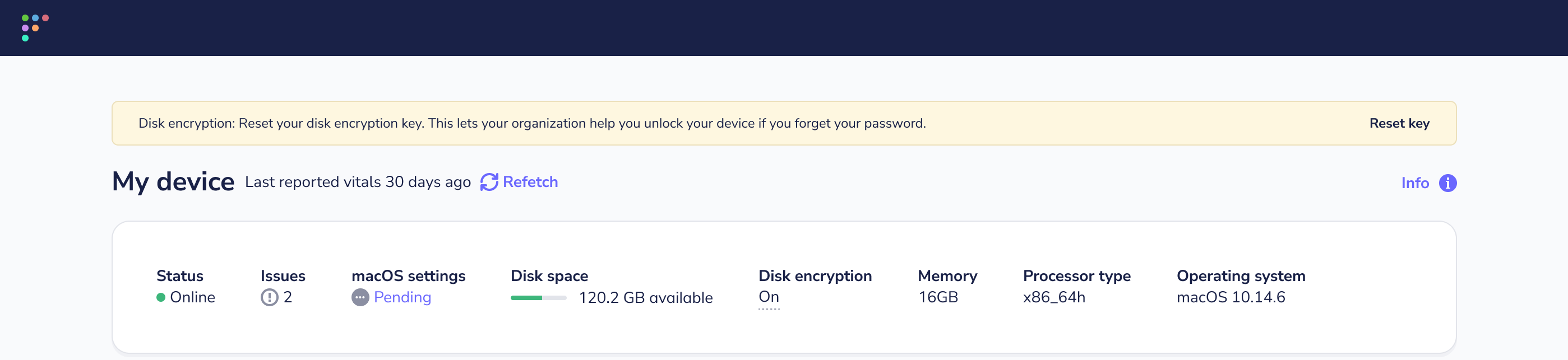
If your old MDM solution enforced disk encryption, your end users will need to reset their disk encryption key for Fleet to be able to store the key. The My device page in Fleet Desktop will present users with instructions to reset their key. Share these guided instructions with your end users.
Activation Lock Bypass codes
In Fleet, the Activation Lock feature is disabled by default for automatically enrolled (DEP) hosts.
If a Mac has Activation Lock enabled, we recommend asking the end user to follow these instructions to disable Activation Lock before migrating this host to Fleet: https://support.apple.com/en-us/HT208987.
This is because if the Activation Lock is enabled, you will need the Activation Lock bypass code to successfully wipe and reuse the Mac.
Activation Lock bypass codes can only be retrieved from the Mac up to 30 days after the device is enrolled. This means that when migrating from your old MDM solution, it’s likely that you’ll be unable to retrieve the Activation Lock bypass code.
Migrate settings
To enforce the same settings on your macOS hosts in Fleet as you did using your old MDM solution, you have to migrate these settings to Fleet.
If your old MDM solution enforced FileVault, follow these instructions to enforce FileVault (disk encryption) using Fleet.
For all other settings you enforced, you have to first export these settings as configuration profiles from your old MDM solution. Then, you have to add the configuration profiles to Fleet.
How to export settings as configuration profiles:
-
Check if your MDM solution has a feature that allows you to export settings as configuration profiles. If it does, make sure these configuration profiles are exported as .mobileconfig files. If it doesn't, follow the instructions to create configuration profiles using iMazing Profile Creator here. Use iMazing Profile Creator to replicate the settings you enforced.
-
Follow the instructions to add configuration profiles to Fleet here.
Instructions for end users
Your organization uses Fleet to check if all devices meet its security policies.
Fleet includes device management features (called “MDM”) that allow your IT team to change settings remotely on your Mac. This lets your organization keep your Mac up to date so you don’t have to.
Want to know what your organization can see? Read about transparency.
How to turn on MDM:
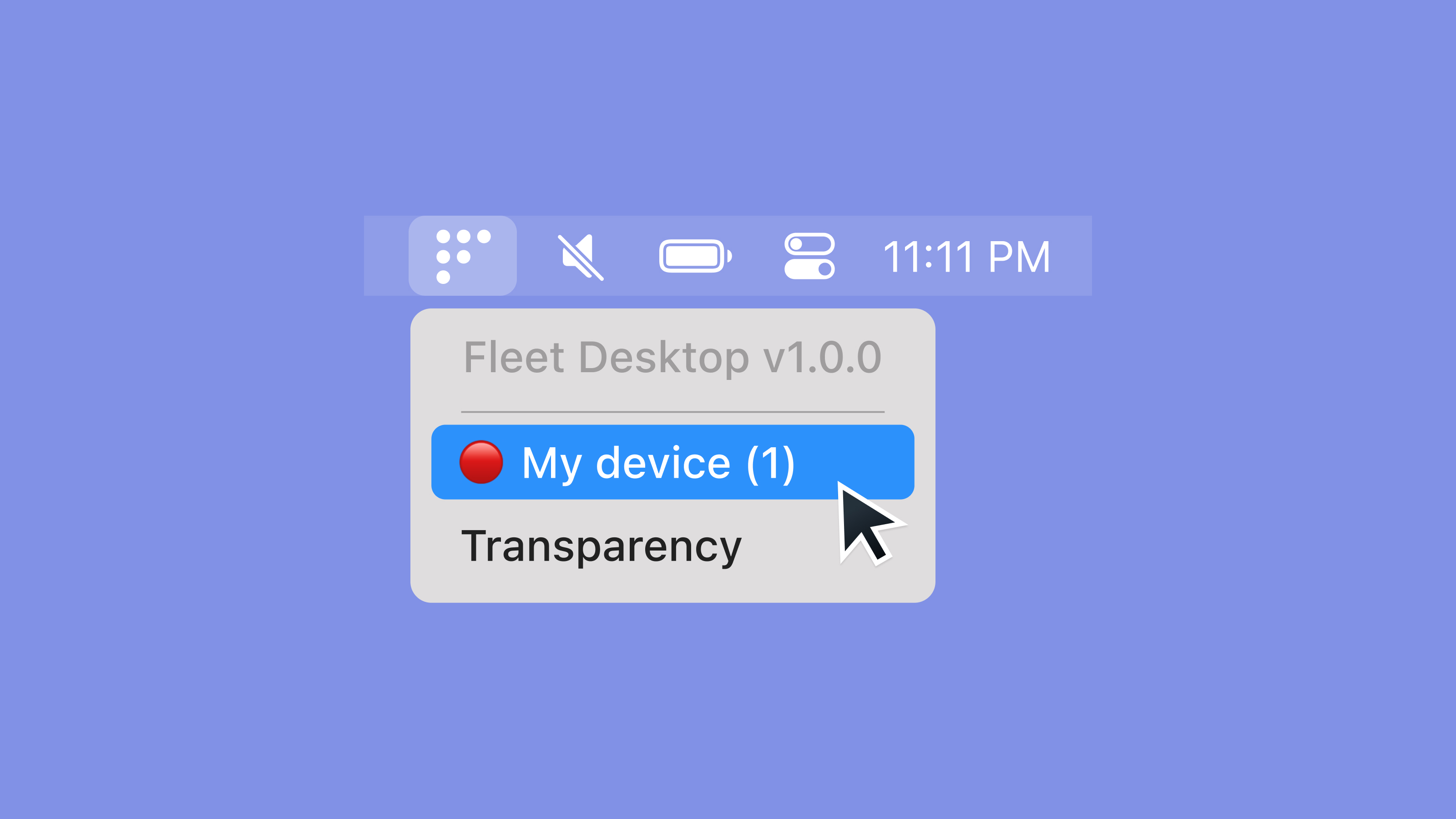
- Select the Fleet icon in your menu bar and select My device.
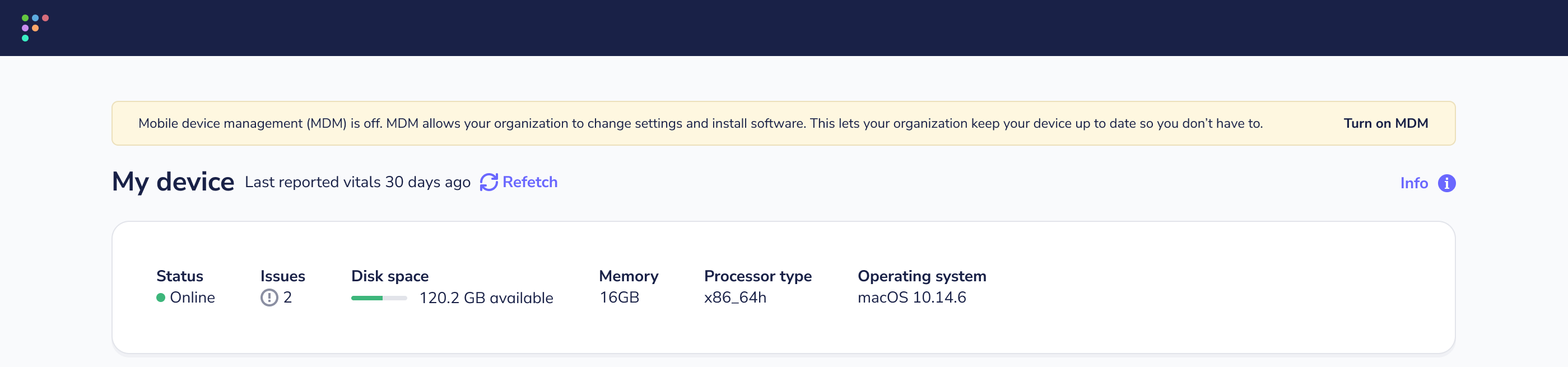
- On your My device page, select Turn on MDM the button and follow the instructions. If you don’t see the Turn on MDM button, select the purple Refetch button at the top of the page. If you still don't see the Turn on MDM button after a couple minutes, please contact your IT administrator. If the My device page presents you with an error, please contact your IT administrator.
How to turn on disk encryption
- Select the Fleet icon in your menu bar and select My device.
- On your My device page, follow the disk encryption instructions in the yellow banner. If you don’t see the Turn on MDM button, select the purple Refetch button at the top of the page. If you still don't see the Turn on MDM button after a couple minutes, please contact your IT administrator. If the My device page presents you with an error, please contact your IT administrator.