mirror of
https://github.com/lobehub/lobehub
synced 2026-04-21 17:47:27 +00:00

335 lines
12 KiB
Text
335 lines
12 KiB
Text
---
|
|
title: Migrating from Clerk to Better Auth
|
|
description: >-
|
|
Guide for migrating your LobeChat deployment from Clerk authentication to
|
|
Better Auth, including simple and full migration options.
|
|
tags:
|
|
- Authentication Service
|
|
- Better Auth
|
|
- Clerk
|
|
- Migration
|
|
---
|
|
|
|
# Migrating from Clerk to Better Auth
|
|
|
|
This guide helps you migrate your existing Clerk-based LobeChat deployment to Better Auth.
|
|
|
|
<Callout type={'info'}>
|
|
Better Auth is the recommended authentication solution for LobeChat. It offers simpler configuration, more SSO providers, and better self-hosting support.
|
|
</Callout>
|
|
|
|
<Callout type={'error'}>
|
|
**Important Notice**:
|
|
|
|
- **Always backup your database first!** For Neon users, create a backup via [Fork Branch](https://neon.tech/docs/manage/branches#create-a-branch)
|
|
- LobeChat is not responsible for any data loss or issues that may occur during the migration process
|
|
- This guide is intended for users with development experience; not recommended for users without technical background
|
|
- If you have any questions, feel free to ask in our [Discord](https://discord.com/invite/AYFPHvv2jT) community or [GitHub Issue](https://github.com/lobehub/lobe-chat/issues/11707)
|
|
</Callout>
|
|
|
|
## Choose Your Migration Path
|
|
|
|
| Method | Best For | User Impact | Data Preserved |
|
|
| ------------------------------------- | ------------------------------ | --------------------- | ------------------------------ |
|
|
| [Simple Migration](#simple-migration) | Small deployments (≤ 10 users) | Users reset passwords | Chat history, settings |
|
|
| [Full Migration](#full-migration) | Large deployments | Seamless for users | Everything including passwords |
|
|
|
|
## Simple Migration
|
|
|
|
For small self-hosted deployments, the simplest approach is to let users reset their passwords.
|
|
|
|
<Callout type={'warning'}>
|
|
**Limitation**: This method loses SSO connection data. Use [Full Migration](#full-migration) to preserve SSO connections.
|
|
|
|
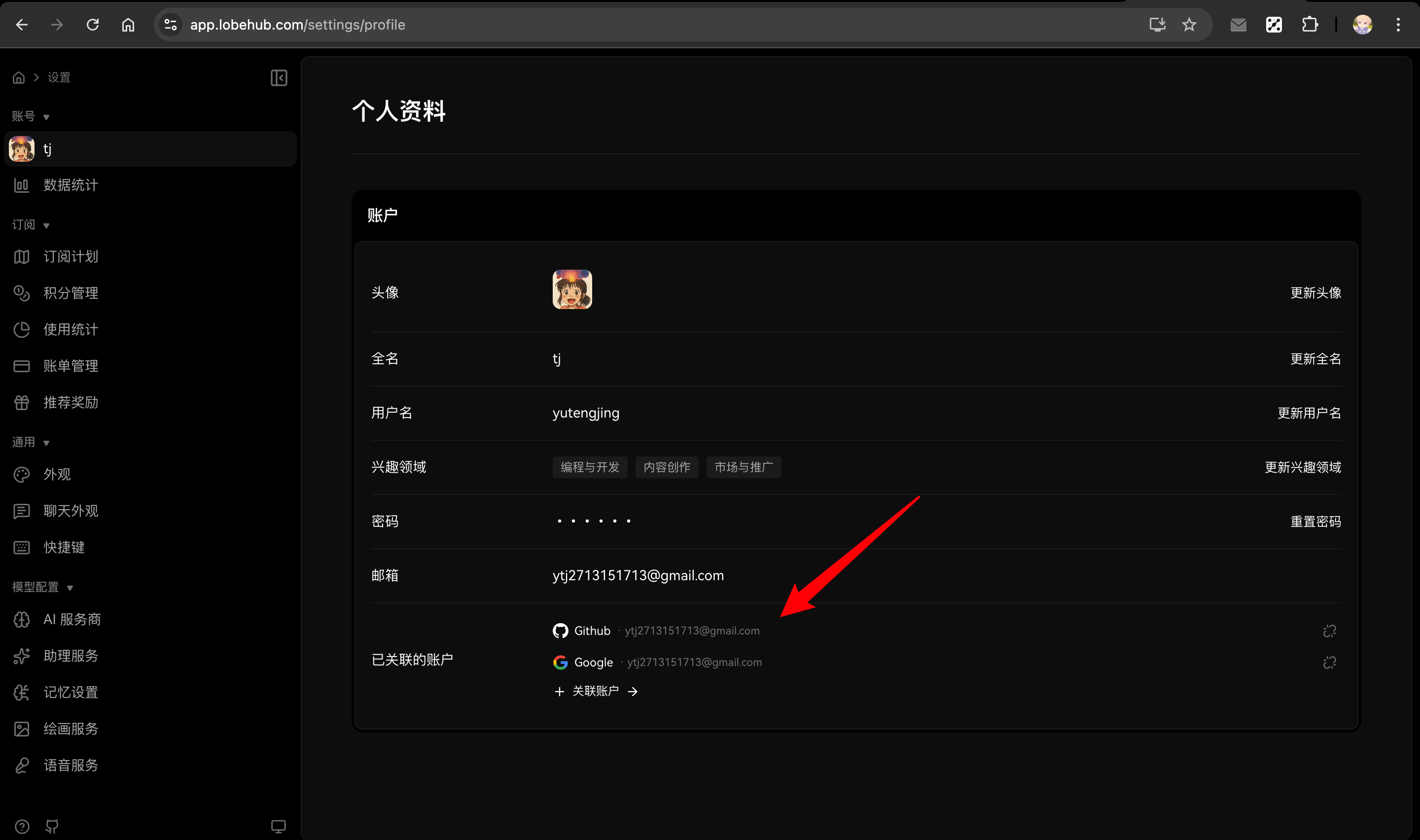
Although SSO connections are lost, users can manually re-link their social accounts from the Profile page after logging in with email and password.
|
|
|
|
**Example scenario**: If your previous account had two SSO accounts linked:
|
|
|
|
- Primary email (Google): `mail1@google.com`
|
|
- Secondary email (Microsoft): `mail2@outlook.com`
|
|
|
|
After migrating and resetting password with `mail1@google.com`, logging in with `mail2@outlook.com` will create a **new user** instead of linking to your existing account.
|
|
</Callout>
|
|
|
|
|
|
|
|
### Steps
|
|
|
|
1. **Configure Email Service**
|
|
|
|
Set up email service for password reset functionality. See [Email Service Configuration](/docs/self-hosting/advanced/auth#email-service-configuration).
|
|
|
|
2. **Update Environment Variables**
|
|
|
|
Remove Clerk variables and add Better Auth variables:
|
|
|
|
```bash
|
|
# Remove these
|
|
# NEXT_PUBLIC_CLERK_PUBLISHABLE_KEY=xxx
|
|
# CLERK_SECRET_KEY=xxx
|
|
|
|
# Add these
|
|
AUTH_SECRET=your-secret-key # openssl rand -base64 32
|
|
|
|
# Optional: Enable Google SSO (example)
|
|
AUTH_SSO_PROVIDERS=google
|
|
AUTH_GOOGLE_ID=your-google-client-id
|
|
AUTH_GOOGLE_SECRET=your-google-client-secret
|
|
```
|
|
|
|
<Callout type={'tip'}>
|
|
See [Authentication Service Configuration](/docs/self-hosting/advanced/auth) for complete environment variables and SSO provider setup.
|
|
</Callout>
|
|
|
|
3. **Redeploy LobeChat**
|
|
|
|
Deploy the new version with Better Auth enabled.
|
|
|
|
4. **Notify Users**
|
|
|
|
Inform users to follow these steps to log in (chat history and settings will be preserved):
|
|
|
|
1. Visit the login page (e.g., `https://your-domain.com/signin`)
|
|
2. Enter their previous email address and press Enter
|
|
|
|
If Magic Link is enabled: The system will automatically send a login link email.
|
|
Users can click the link to log in directly.
|
|
|
|
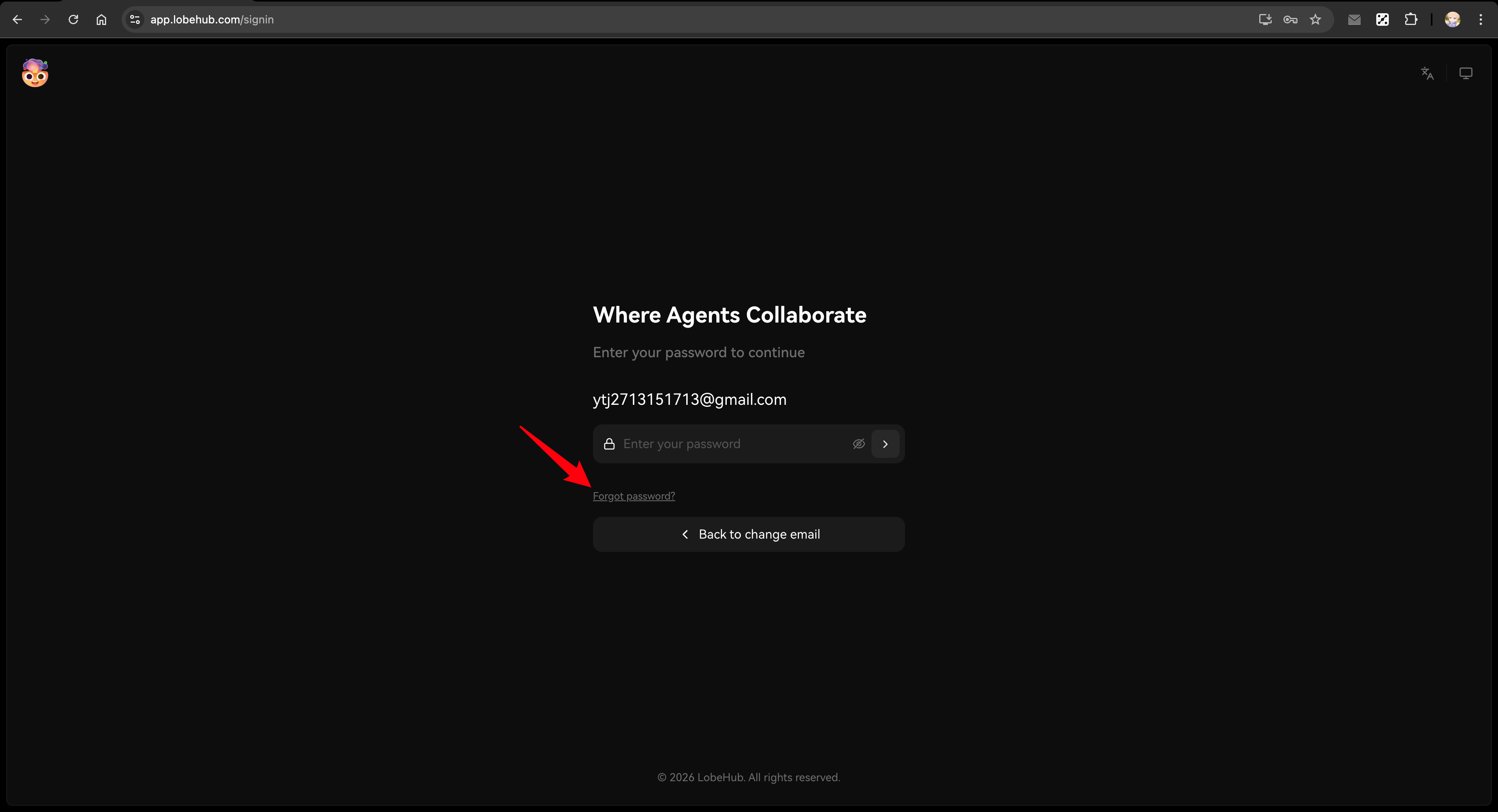
If Magic Link is not enabled: The page will display a hint message. Users can either:
|
|
|
|
- Log in using their previously linked social account (e.g., Google, GitHub)
|
|
- Click "Set Password" to receive an email and set a new password
|
|
|
|
|
|
|
|
3. (Optional) After logging in, users can manage their account in the Profile page:
|
|
- Linked Accounts: Link additional social accounts
|
|
- Password: Set or update password at any time
|
|
|
|
<Callout type={'tip'}>
|
|
This method is quick and requires minimal setup.
|
|
Users can log in via Magic Link, social accounts, or by setting a new password.
|
|
All data remains intact.
|
|
Users can manage their password and linked accounts anytime in the [Profile page](/settings/profile).
|
|
</Callout>
|
|
|
|
## Full Migration
|
|
|
|
For larger deployments or when you need to preserve user passwords and SSO connections, use the migration scripts.
|
|
|
|
<Callout type={'error'}>
|
|
**Important Notice**:
|
|
|
|
- **Always backup your database first!** For Neon users, create a backup via [Fork Branch](https://neon.tech/docs/manage/branches#create-a-branch)
|
|
- Migration scripts must be **run locally after cloning the repository**, not in the deployment environment
|
|
- Due to the high-risk nature of user data migration, **we do not provide automatic migration during deployment**
|
|
- Always use dry-run mode first to verify the script runs successfully before executing
|
|
- Always verify in a test environment before operating on production database
|
|
</Callout>
|
|
|
|
### Prerequisites
|
|
|
|
**Environment Requirements:**
|
|
|
|
- Node.js 18+
|
|
- Git (for cloning the repository)
|
|
- pnpm (for installing dependencies)
|
|
|
|
**Preparation:**
|
|
|
|
1. Clone the LobeChat repository and install dependencies:
|
|
|
|
```bash
|
|
git clone https://github.com/lobehub/lobe-chat.git
|
|
cd lobe-chat
|
|
pnpm install
|
|
```
|
|
|
|
2. Prepare the following information:
|
|
- Access to Clerk Dashboard (for CSV export)
|
|
- Clerk API Secret Key (for API export)
|
|
- Database connection string
|
|
|
|
3. Ensure database schema is up to date
|
|
|
|
<Callout type={'info'}>
|
|
If you've been on an older version (e.g., 1.x) for a while, your database schema may be outdated. Run this in the cloned repository:
|
|
|
|
```bash
|
|
DATABASE_URL=your-database-url pnpm db:migrate
|
|
```
|
|
</Callout>
|
|
|
|
### Step 1: Configure Migration Script Environment Variables
|
|
|
|
Create a `.env` file in the project root (the script will automatically load it) with all environment variables:
|
|
|
|
```bash
|
|
# ============================================
|
|
# Migration mode: test or prod
|
|
# Recommended: Start with test mode to verify on a test database,
|
|
# then switch to prod after confirming everything works
|
|
# ============================================
|
|
CLERK_TO_BETTERAUTH_MODE=test
|
|
|
|
# ============================================
|
|
# Database connection (uses corresponding variable based on mode)
|
|
# TEST_ prefix for test environment, PROD_ prefix for production
|
|
# ============================================
|
|
TEST_CLERK_TO_BETTERAUTH_DATABASE_URL=postgresql://user:pass@test-host:5432/testdb
|
|
PROD_CLERK_TO_BETTERAUTH_DATABASE_URL=postgresql://user:pass@prod-host:5432/proddb
|
|
|
|
# ============================================
|
|
# Clerk API keys (for exporting user data via API)
|
|
# Get from Clerk Dashboard: Configure → Developers → API Keys
|
|
# ============================================
|
|
TEST_CLERK_TO_BETTERAUTH_CLERK_SECRET_KEY=sk_test_xxx
|
|
PROD_CLERK_TO_BETTERAUTH_CLERK_SECRET_KEY=sk_live_xxx
|
|
|
|
# ============================================
|
|
# Database driver (optional)
|
|
# neon: Neon serverless driver (default)
|
|
# node: node-postgres driver
|
|
# ============================================
|
|
CLERK_TO_BETTERAUTH_DATABASE_DRIVER=neon
|
|
|
|
# ============================================
|
|
# Dry Run mode (optional)
|
|
# Set to 1 to only print logs without modifying the database
|
|
# Recommended: Enable for first run, disable after verification
|
|
# ============================================
|
|
CLERK_TO_BETTERAUTH_DRY_RUN=1
|
|
```
|
|
|
|
### Step 2: Export Clerk Data
|
|
|
|
#### Stop New User Registration
|
|
|
|
Before exporting data, disable new user registration to ensure data consistency during migration:
|
|
|
|
1. Go to [Clerk Dashboard](https://dashboard.clerk.com) → Configure → Restrictions
|
|
2. Enable "Restricted" mode
|
|
|
|
#### Export CSV from Clerk Dashboard
|
|
|
|
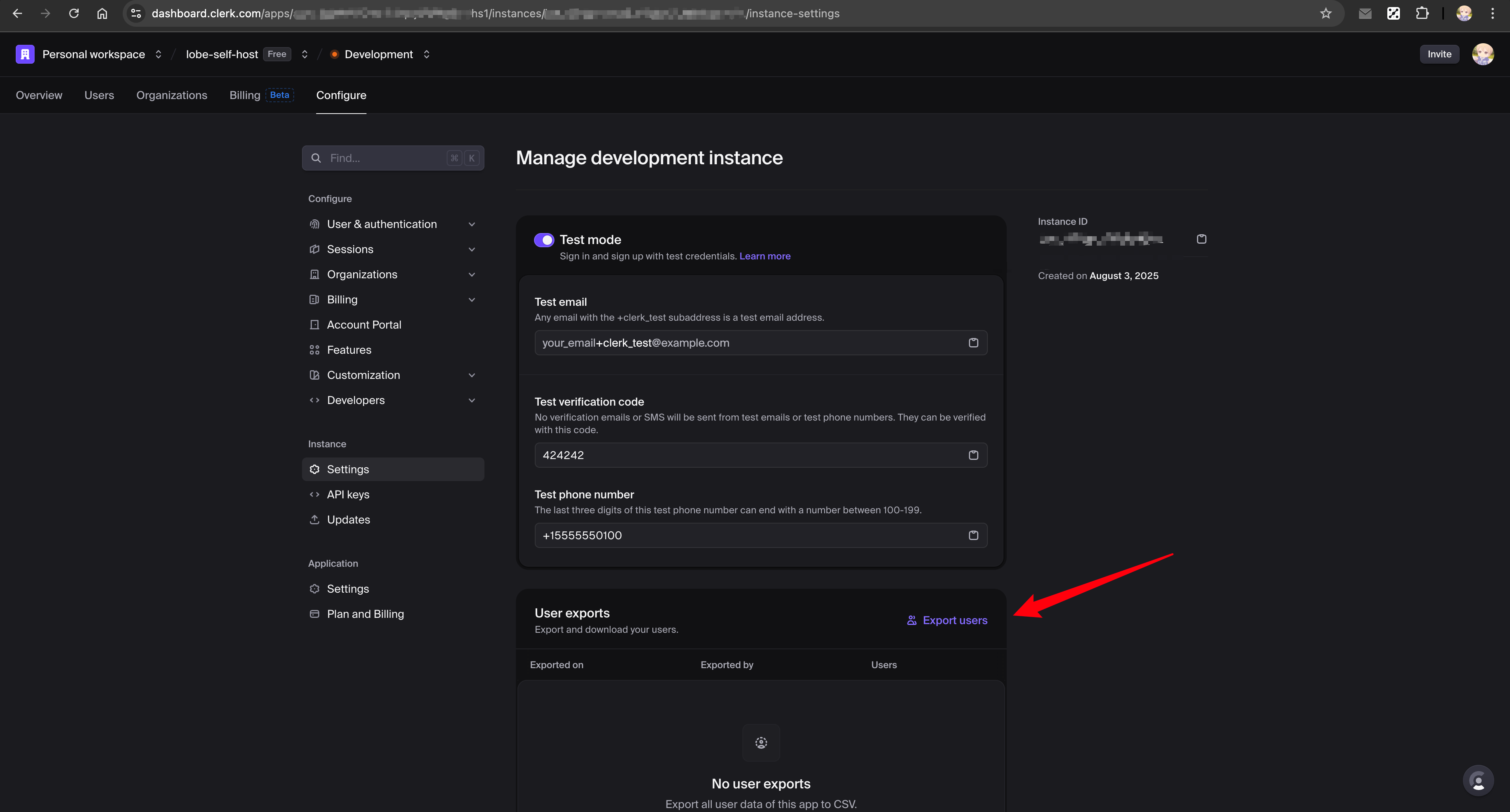
1. Go to [Clerk Dashboard](https://dashboard.clerk.com) → Configure → Settings → User exports
|
|
2. Click "Export users" to download the CSV file
|
|
3. Save it to `scripts/clerk-to-betterauth/test/clerk_exported_users.csv`
|
|
|
|
See [Clerk documentation](https://clerk.com/docs/guides/development/migrating/overview#export-your-users-data-from-the-clerk-dashboard) for details.
|
|
|
|
|
|
|
|
#### Export JSON via API
|
|
|
|
```bash
|
|
# Run export script (automatically selects key and output path based on CLERK_TO_BETTERAUTH_MODE)
|
|
npx tsx scripts/clerk-to-betterauth/export-clerk-users-with-api.ts
|
|
```
|
|
|
|
This automatically creates `scripts/clerk-to-betterauth/test/clerk_users.json` with additional user data.
|
|
|
|
### Step 3: Dry-Run Verification (Test Environment)
|
|
|
|
```bash
|
|
# Run migration (CLERK_TO_BETTERAUTH_DRY_RUN=1, only logs without modifying database)
|
|
npx tsx scripts/clerk-to-betterauth/index.ts
|
|
```
|
|
|
|
Review the output logs, confirm no issues, then proceed to the next step.
|
|
|
|
### Step 4: Execute Migration and Verify (Test Environment)
|
|
|
|
Update `.env` to set `CLERK_TO_BETTERAUTH_DRY_RUN` to `0`, then execute:
|
|
|
|
```bash
|
|
# Execute migration
|
|
npx tsx scripts/clerk-to-betterauth/index.ts
|
|
|
|
# Verify the migration
|
|
npx tsx scripts/clerk-to-betterauth/verify.ts
|
|
```
|
|
|
|
After verifying the test environment migration is successful, proceed to the next step.
|
|
|
|
### Step 5: Dry-Run Verification (Production Environment)
|
|
|
|
1. Copy the CSV file to prod directory: `scripts/clerk-to-betterauth/prod/clerk_exported_users.csv`
|
|
2. Update `.env` file:
|
|
- Change `CLERK_TO_BETTERAUTH_MODE` to `prod`
|
|
- Change `CLERK_TO_BETTERAUTH_DRY_RUN` back to `1`
|
|
3. Run the scripts:
|
|
|
|
```bash
|
|
# Export production user data
|
|
npx tsx scripts/clerk-to-betterauth/export-clerk-users-with-api.ts
|
|
|
|
# Run migration (dry-run mode to verify)
|
|
npx tsx scripts/clerk-to-betterauth/index.ts
|
|
```
|
|
|
|
Review the output logs, confirm no issues, then proceed to the next step.
|
|
|
|
### Step 6: Execute Migration and Verify (Production Environment)
|
|
|
|
Update `.env` to set `CLERK_TO_BETTERAUTH_DRY_RUN` to `0`, then execute:
|
|
|
|
```bash
|
|
# Execute migration
|
|
npx tsx scripts/clerk-to-betterauth/index.ts
|
|
|
|
# Verify the migration
|
|
npx tsx scripts/clerk-to-betterauth/verify.ts
|
|
```
|
|
|
|
### Step 7: Configure Better Auth and Redeploy
|
|
|
|
After migration is complete, follow [Simple Migration - Step 2](#steps) to configure Better Auth environment variables and redeploy.
|
|
|
|
<Callout type={'tip'}>
|
|
For complete Better Auth configuration, see [Authentication Service Configuration](/docs/self-hosting/advanced/auth).
|
|
</Callout>
|
|
|
|
## What Gets Migrated
|
|
|
|
| Data | Simple Migration | Full Migration |
|
|
| -------------------------------------- | ---------------------- | -------------- |
|
|
| User accounts | ✅ (via password reset) | ✅ |
|
|
| Password hashes | ❌ | ✅ |
|
|
| SSO connections (Google, GitHub, etc.) | ❌ | ✅ |
|
|
| Two-factor authentication | ❌ | ✅ |
|
|
| Chat history | ✅ | ✅ |
|
|
| User settings | ✅ | ✅ |
|
|
|
|
## Troubleshooting
|
|
|
|
### Users can't log in after migration
|
|
|
|
- Ensure email service is configured for password reset
|
|
- Check that `AUTH_SECRET` is set correctly
|
|
- Verify database connection is working
|
|
|
|
### SSO users can't connect
|
|
|
|
- For simple migration: Users need to link their SSO accounts again after resetting password
|
|
- For full migration: Verify the SSO provider is configured in `AUTH_SSO_PROVIDERS`
|
|
|
|
### Migration script fails
|
|
|
|
- Check database connection string
|
|
- Ensure CSV and JSON files are in the correct location
|
|
- Review script logs for specific errors
|
|
|
|
### column "xxx" of relation "users" does not exist
|
|
|
|
This error occurs because the database schema is outdated. Run `pnpm db:migrate` to update the database structure before running the migration script.
|
|
|
|
## Related Reading
|
|
|
|
<Cards>
|
|
<Card href={'/docs/self-hosting/advanced/auth'} title={'Authentication Service Configuration'} />
|
|
|
|
<Card href={'/docs/self-hosting/environment-variables/auth'} title={'Auth Environment Variables'} />
|
|
|
|
<Card href={'/docs/self-hosting/advanced/auth/legacy'} title={'Legacy Authentication (NextAuth & Clerk)'} />
|
|
</Cards>
|