# macOS MDM migration
This guide provides instructions for migrating devices from your current MDM solution to Fleet. There are two different workflows to migrate your devices.
> For seamless MDM migration, [view this guide](https://fleetdm.com/guides/seamless-mdm-migration).
## Requirements
- A [deployed Fleet instance](https://fleetdm.com/docs/deploy/deploy-fleet)
- Fleet is connected to Apple Push Notification service (APNs) and Apple Business Manager (ABM). [See macOS MDM setup](https://fleetdm.com/guides/macos-mdm-setup)
- For the end-user workflow: A service is required that can receive a webhook to send an unenroll request to the existing MDM server. See [this example](https://victoronsoftware.com/posts/webhook-flow-with-tines/) using Fleet webhooks with Tines.
## Migrate hosts
To migrate hosts, we will do the following steps:
1. Enroll hosts to Fleet
2. Assign hosts in Apple Business Manager (ABM) to Fleet
3. Choose migration workflow and migrate hosts
### Step 1: Enroll hosts to Fleet
1. First, [enroll your hosts](https://fleetdm.com/guides/enroll-hosts) to Fleet by installing Fleet's agent (fleetd).
2. Ensure your end users have access to an admin account on their Mac. End users won't be able to migrate on their own if they have a standard account.
### Step 2: Assign hosts in Apple Business Manager (ABM) to Fleet
1. In ABM, unassign your hosts from your current MDM solution by selecting **Devices** and then selecting **All Devices**. Then, select **Edit** next to **Edit MDM Server**, select **Unassign from the current MDM**, and select **Continue**.
2. Assign these hosts to Fleet: select **Devices** and then select **All Devices**. Then, select **Edit** next to **Edit MDM Server**, select **Assign to the following MDM:**, select your Fleet server in the dropdown, and select **Continue**.
### Step 3: Choose migration workflow and migrate hosts
There are two migration workflows in Fleet: default and end user.
The default migration workflow requires that the IT admin unenrolls hosts from the old MDM solution before the end user can complete migration. This will result in a gap in MDM coverage until the end user completes migration.
The end user migration workflow allows the user to kick off migration by unenrolling from the old MDM solution on their own. Once the user is unenrolled, they're prompted to turn on MDM features in Fleet, reducing the gap in MDM coverage.
#### Default workflow
End user experience:
- After a host is unenrolled from your current MDM solution, eventually (within two hours) the end user will be prompted with Apple's **Remote Management** full-screen popup if the host is assigned to Fleet in ABM.
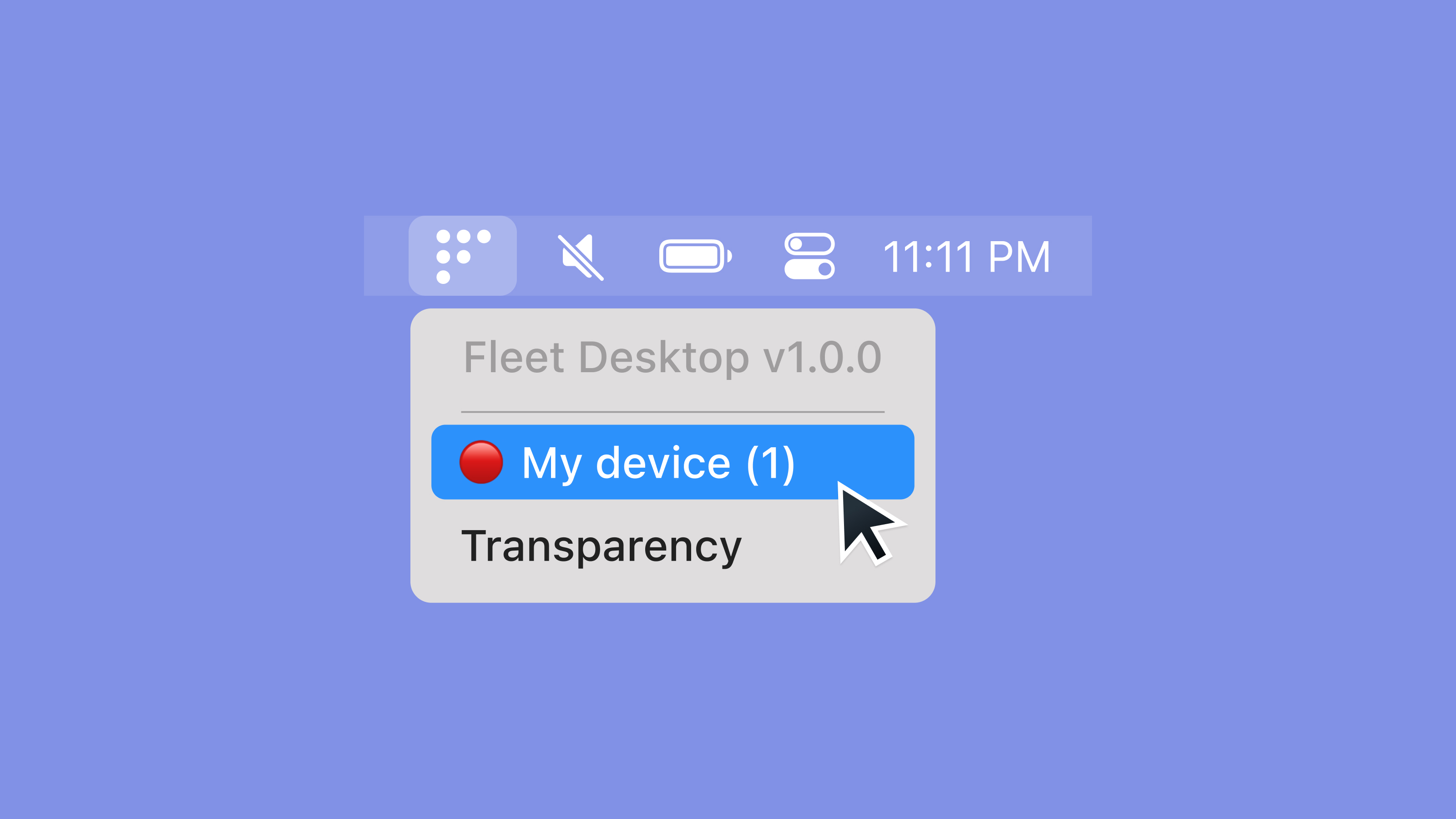
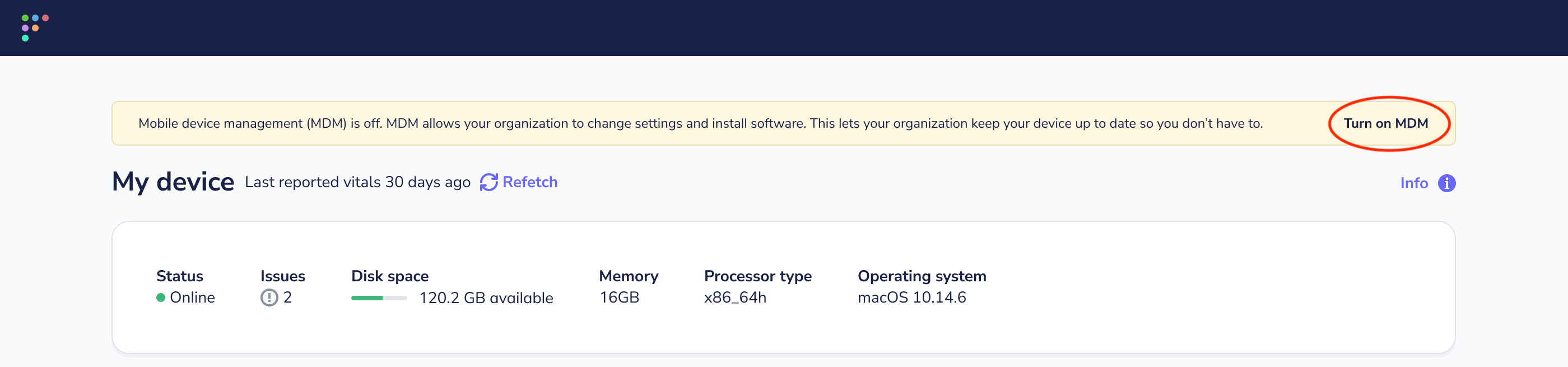
 - If the host is not assigned to Fleet in ABM (manual enrollment), the end user will be given the option to download the MDM enrollment profile on their **My device page**.
 Configuration:
- To kick off the default workflow, unenroll the hosts to be migrated in your current MDM solution. MacOS does not allow a host to be connected to multiple MDM solutions at once.
#### End user workflow
> Available in Fleet Premium

End user experience:
- To watch an animation of the end user experience during the migration workflow, head to **Settings > Integrations > Mobile device management (MDM)** in the Fleet UI, and scroll down to the **End user migration workflow** section.
Configuration:
- In Fleet, you can configure the end user workflow using the Fleet UI, Fleet API, or Fleet's GitOps workflow.
- After configuring the end user workflow, instruct your end users to select the Fleet icon in their menu bar, select **Migrate to Fleet** and follow the on-screen instructions to migrate to Fleet.
Fleet UI:
1. Select the avatar on the right side of the top navigation and select **Settings > Integrations > Mobile device management (MDM)**.
2. Scroll down to the **End user migration workflow** section and select the toggle to enable the workflow.
3. Under **Mode**, choose a mode, enter the webhook URL for your automation tool (e.g., Tines) under **Webhook URL**, and select **Save**.
4. During the end user migration workflow, an end user's device will have its selected system theme (light or dark) applied. If your logo is not easy to see on both light and dark backgrounds, you can optionally set a logo for each theme:
Head to **Settings** > **Organization settings** > **Organization info**, add URLs to your logos in the **Organization avatar URL (for dark backgrounds)** and **Organization avatar URL (for light backgrounds)** fields, and select **Save**. See [configuration docs](https://fleetdm.com/docs/configuration/yaml-files#org-info) for recommended sizes for logos.
5. During migration, end users will see a button that says "Unsure? Contact IT". Head to **Settings** > **Organization settings** > **Organization info** > **Organization support URL** to direct users to your help desk if they have any questions.
Fleet API: MDM migration settings are configured via the [`mdm.macos_migration`](https://fleetdm.com/docs/rest-api/rest-api#mdm-macos-migration) field on the [Modify configuration API endpoint](https://fleetdm.com/docs/rest-api/rest-api#modify-configuration).
GitOps:
- To manage macOS MDM migration configuration using Fleet's best practice GitOps, check out the `macos_migration` key in the [GitOps reference documentation](https://fleetdm.com/docs/configuration/yaml-files#macos-migration).
- To manage your organization's logo for dark and light backgrounds using Fleet's best practice GitOps, check out the `org_info` key in the [GitOps reference documentation](https://fleetdm.com/docs/configuration/yaml-files#org-info).
## Check migration progress
To see a report of which hosts have successfully migrated to Fleet, have MDM features off, or are still enrolled to your old MDM solution head to the **Dashboard** page by clicking the icon on the left side of the top navigation bar.
Then, scroll down to the **Mobile device management (MDM)** section of the Dashboard. You'll see a breakdown of which hosts have successfully migrated to Fleet, which have MDM features disabled, and which are still enrolled in the previous MDM solution.
## FileVault recovery keys
_Available in Fleet Premium_
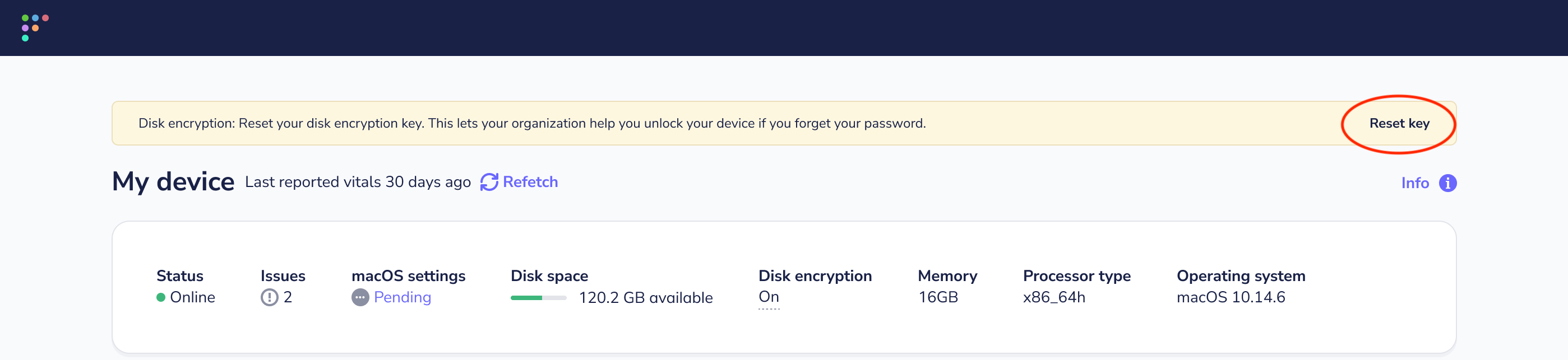
When migrating from a previous MDM, end users must restart or log out of their device to escrow FileVault keys to Fleet. The **My device** page in Fleet Desktop will present users with instructions on how to reset their key.
To start, [enforce FileVault disk encryption](https://fleetdm.com/guides/enforce-disk-encryption) in Fleet.
After turning on disk encryption in Fleet, share [these guided instructions](#how-to-turn-on-disk-encryption) with your end users.
### How to turn on disk encryption
1. Select the Fleet icon in your menu bar and select **My device**.

2. On your **My device** page, follow the disk encryption instructions in the yellow banner.
- If you don’t see the yellow banner, select the purple **Refetch** button at the top of the page.
- If you still don't see the yellow banner after a couple minutes or if the **My device** page presents you with an error, please contact your IT administrator.
Configuration:
- To kick off the default workflow, unenroll the hosts to be migrated in your current MDM solution. MacOS does not allow a host to be connected to multiple MDM solutions at once.
#### End user workflow
> Available in Fleet Premium

End user experience:
- To watch an animation of the end user experience during the migration workflow, head to **Settings > Integrations > Mobile device management (MDM)** in the Fleet UI, and scroll down to the **End user migration workflow** section.
Configuration:
- In Fleet, you can configure the end user workflow using the Fleet UI, Fleet API, or Fleet's GitOps workflow.
- After configuring the end user workflow, instruct your end users to select the Fleet icon in their menu bar, select **Migrate to Fleet** and follow the on-screen instructions to migrate to Fleet.
Fleet UI:
1. Select the avatar on the right side of the top navigation and select **Settings > Integrations > Mobile device management (MDM)**.
2. Scroll down to the **End user migration workflow** section and select the toggle to enable the workflow.
3. Under **Mode**, choose a mode, enter the webhook URL for your automation tool (e.g., Tines) under **Webhook URL**, and select **Save**.
4. During the end user migration workflow, an end user's device will have its selected system theme (light or dark) applied. If your logo is not easy to see on both light and dark backgrounds, you can optionally set a logo for each theme:
Head to **Settings** > **Organization settings** > **Organization info**, add URLs to your logos in the **Organization avatar URL (for dark backgrounds)** and **Organization avatar URL (for light backgrounds)** fields, and select **Save**. See [configuration docs](https://fleetdm.com/docs/configuration/yaml-files#org-info) for recommended sizes for logos.
5. During migration, end users will see a button that says "Unsure? Contact IT". Head to **Settings** > **Organization settings** > **Organization info** > **Organization support URL** to direct users to your help desk if they have any questions.
Fleet API: MDM migration settings are configured via the [`mdm.macos_migration`](https://fleetdm.com/docs/rest-api/rest-api#mdm-macos-migration) field on the [Modify configuration API endpoint](https://fleetdm.com/docs/rest-api/rest-api#modify-configuration).
GitOps:
- To manage macOS MDM migration configuration using Fleet's best practice GitOps, check out the `macos_migration` key in the [GitOps reference documentation](https://fleetdm.com/docs/configuration/yaml-files#macos-migration).
- To manage your organization's logo for dark and light backgrounds using Fleet's best practice GitOps, check out the `org_info` key in the [GitOps reference documentation](https://fleetdm.com/docs/configuration/yaml-files#org-info).
## Check migration progress
To see a report of which hosts have successfully migrated to Fleet, have MDM features off, or are still enrolled to your old MDM solution head to the **Dashboard** page by clicking the icon on the left side of the top navigation bar.
Then, scroll down to the **Mobile device management (MDM)** section of the Dashboard. You'll see a breakdown of which hosts have successfully migrated to Fleet, which have MDM features disabled, and which are still enrolled in the previous MDM solution.
## FileVault recovery keys
_Available in Fleet Premium_
When migrating from a previous MDM, end users must restart or log out of their device to escrow FileVault keys to Fleet. The **My device** page in Fleet Desktop will present users with instructions on how to reset their key.
To start, [enforce FileVault disk encryption](https://fleetdm.com/guides/enforce-disk-encryption) in Fleet.
After turning on disk encryption in Fleet, share [these guided instructions](#how-to-turn-on-disk-encryption) with your end users.
### How to turn on disk encryption
1. Select the Fleet icon in your menu bar and select **My device**.

2. On your **My device** page, follow the disk encryption instructions in the yellow banner.
- If you don’t see the yellow banner, select the purple **Refetch** button at the top of the page.
- If you still don't see the yellow banner after a couple minutes or if the **My device** page presents you with an error, please contact your IT administrator.
 ## Activation Lock
In Fleet, the [Activation Lock](https://support.apple.com/en-us/HT208987) feature is disabled by default for automatically enrolled (ADE) hosts.
In 2024, Apple added the ability to manage activation lock in Apple Business Manager (ABM). For devices that are owned by the business and available in ABM, you can [turn off activation lock remotely](https://support.apple.com/en-ca/guide/apple-business-manager/axm812df1dd8/web).
If a device is not available in ABM and has Activation Lock enabled, we recommend asking the end user to follow these instructions to disable Activation Lock before migrating the device to Fleet: https://support.apple.com/en-us/HT208987.
If the Activation Lock is enabled, you will need the Activation Lock bypass code to wipe and reuse the Mac successfully.
However, Activation Lock bypass codes can only be retrieved from the Mac up to 30 days after the device is enrolled. This means that when migrating from your old MDM solution, it’s likely that you’ll be unable to retrieve the Activation Lock bypass code.
## Activation Lock
In Fleet, the [Activation Lock](https://support.apple.com/en-us/HT208987) feature is disabled by default for automatically enrolled (ADE) hosts.
In 2024, Apple added the ability to manage activation lock in Apple Business Manager (ABM). For devices that are owned by the business and available in ABM, you can [turn off activation lock remotely](https://support.apple.com/en-ca/guide/apple-business-manager/axm812df1dd8/web).
If a device is not available in ABM and has Activation Lock enabled, we recommend asking the end user to follow these instructions to disable Activation Lock before migrating the device to Fleet: https://support.apple.com/en-us/HT208987.
If the Activation Lock is enabled, you will need the Activation Lock bypass code to wipe and reuse the Mac successfully.
However, Activation Lock bypass codes can only be retrieved from the Mac up to 30 days after the device is enrolled. This means that when migrating from your old MDM solution, it’s likely that you’ll be unable to retrieve the Activation Lock bypass code.